
How to Run Jupyter Notebook on Docker
No more Python env and package update

Table of ContentsIntroduction 1. Installing Docker Desktop
2. Docker help
3. Running Jupyter Docker Stacks
4. Formatting Docker ps
5. Entering the Docker container and using bash
6. Stopping and removing containers and images
7. Connecting the local directory to a Docker container
8. Inspecting a container
9. Getting started with Docker file
10. Publishing an image to Docker HubConclusionIntroduction
Docker simplifies and accelerates your workflow, while giving developers the freedom to innovate with their choice of tools, application stacks, and deployment environments for each project. — from Developing with Docker
Docker provides a contained environment for your development. By using Docker, you may not need to install pyenv/pipenv/virtualenv or any programming languages on your computer. You just use a Docker container! In this article, you will learn how to run Jupyter on Docker.
TL;DR
$ docker run -p 8888:8888 -v $(pwd):/home/jovyan/work jupyter/minimal-notebook
$ docker run -p 8888:8888 -v $(pwd):/home/jovyan/work jupyter/scipy-notebook
The first command above will run the Jupyter minimal-notebook connecting the local directory to a Docker container. The second command is the same as the first one. Only the difference is running the Jupyter Scipy-notebook.
Installing Docker Desktop
Install Docker Desktop and when you start Docker you will see an icon in the menu bar.
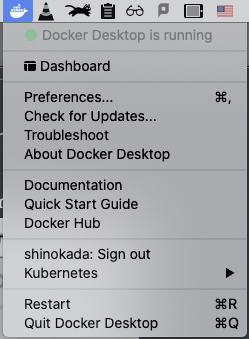
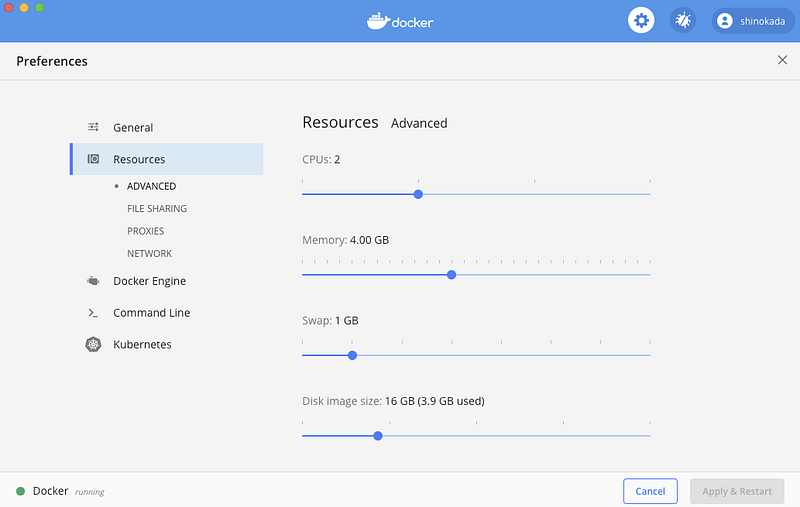
The Docker Preferences menu allows you to configure your Docker settings such as installation, updates, version channels, Docker Hub login, and more. Open Preferences and go to Resources to change CPUs, Memory, and other setups. By default, Docker Desktop is set to use half the number of processors available on the host machine.
You can read more details on this page for Mac, and Windows.
Docker help
In your terminal run docker and you will see all commands:
$ docker
Usage: docker [OPTIONS] COMMAND
A self-sufficient runtime for containers
Options:
      --config string      Location of client config files (default "/Users/shinokada/.docker")
  -c, --context string     Name of the context to use to connect to the daemon (overrides
                           DOCKER_HOST env var and default context set with "docker context use")
  -D, --debug              Enable debug mode
... MORE LINES
Docker groups the commands logically into management commands. Here are the top-level commands.
Management Commands:
  builder     Manage builds
  config      Manage Docker configs
  container   Manage containers
  context     Manage contexts
  image       Manage images
  network     Manage networks
  node        Manage Swarm nodes
  plugin      Manage plugins
  secret      Manage Docker secrets
  service     Manage services
  stack       Manage Docker stacks
  swarm       Manage Swarm
  system      Manage Docker
  trust       Manage trust on Docker images
  volume      Manage volumes
Commands:
attach Attach local standard input, output, and error streams to a running container
... MORE LINESYou can get more information about Management Commands using --help.
$ docker container --help
$ docker image --help
Let’s start creating Docker containers.
Running Jupyter Docker Stacks
Jupyter Docker Stacks are a set of ready-to-run Docker images containing Jupyter applications and interactive computing tools.
Official Jupyter created different Docker images and we are going to use jupiter/minimal to learn how to use Docker. The image is based on jupyter/base-notebook and it has command line tools, TeX Live, git, emacs, vi, jed, and more.
$ docker run -p 8888:8888 jupyter/minimal-notebook Around the end of the outputs, you can find the URL with a token. You use cmd+click to open the URL on a browser.

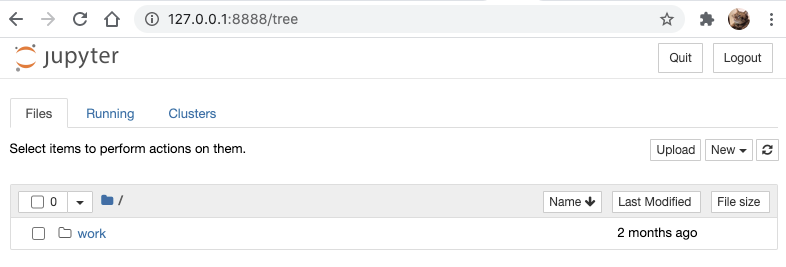
Open another terminal tab and check the container-id number.
$ docker container ls
# or
$ docker ps
Formatting Docker ps
It is a bit hard to read the above output. Let’s create a format.
Add the following to your ~/.zshrc or ~/.bash_profile.
FORMAT="\nID\t{{.ID}}\nIMAGE\t{{.Image}}\nCOMMAND\t{{.Command}}\nCREATED\t{{.RunningFor}}\nSTATUS\t{{.Status}}\nPORTS\t{{.Ports}}\nNAMES\t{{.Names}}\n"And you can use it by adding it to the--format option for docker:
$ docker ps --format=$FORMAT
# or
$ docker container ls --format=$FORMAT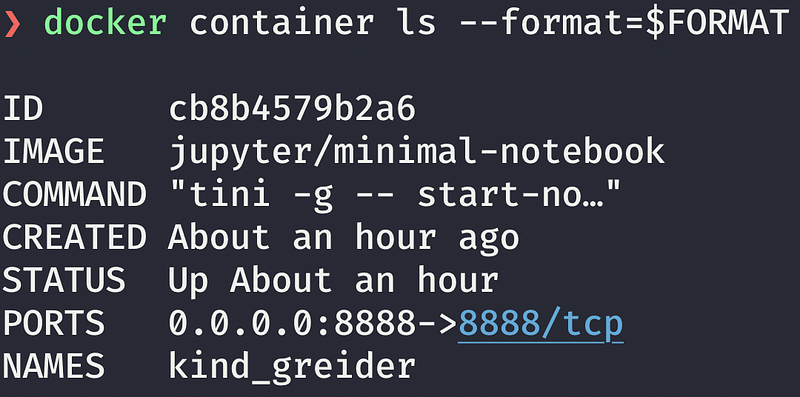
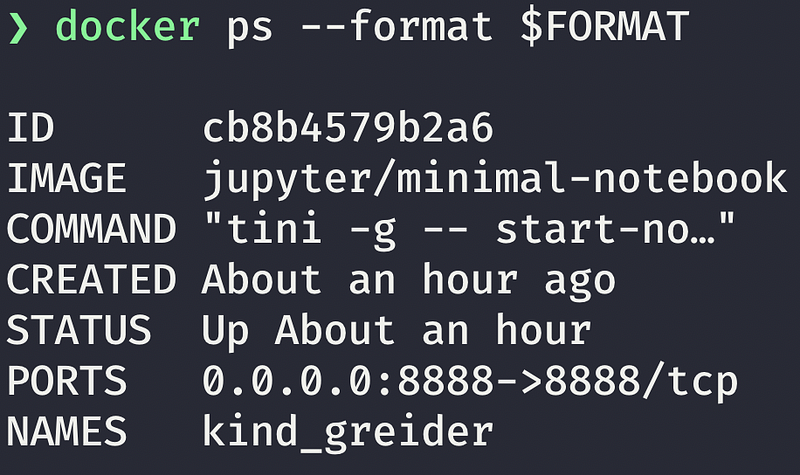
You can use it with or without = sign as you see above.
Entering the Docker container and using bash
docker exec runs a command in a running container. The -i option allows us to use it interactively and the -t allocates a pseudo-TTY. We use /bin/bash to run a bash shell.
$ docker exec -it cb8b /bin/bashThe cb8b is the first 4 letters of my container. You have a different container id.
You can find more information by using docker exec --help.
$ docker exec --help
Usage: docker exec [OPTIONS] CONTAINER COMMAND [ARG...]
Run a command in a running container
Options:
  -d, --detach               Detached mode: run command in the background
      --detach-keys string   Override the key sequence for detaching a container
  -e, --env list             Set environment variables
... MORE LINES
Once you are in the container, you can run normal bash commands.
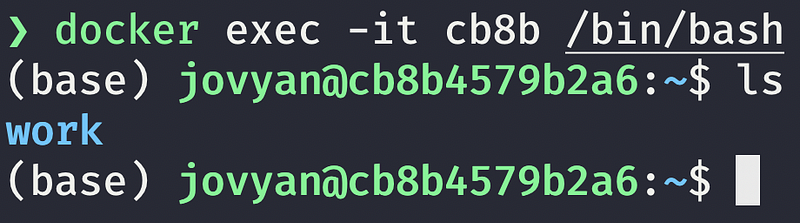
Let’s check the container Python and pip versions:
(base) jovyan@cb8b4579b2a6:~/work$ python -V
Python 3.8.5
(base) jovyan@cb8b4579b2a6:~/work$ pip -V
pip 20.2.3 from /opt/conda/lib/python3.8/site-packages/pip (python 3.8)
This image has ipython and conda as well. Let’s check them:
(base) jovyan@cb8b4579b2a6:~$ ipython --version
7.18.1
(base) jovyan@cb8b4579b2a6:~$ conda info -a
active environment : base
active env location : /opt/conda
shell level : 1
user config file : /home/jovyan/.condarc
populated config files : /opt/conda/.condarc
conda version : 4.8.5
conda-build version : not installed
--- MORE LINESYou can find what Python packages are installed:
(base) jovyan@cb8b4579b2a6:~$ pip list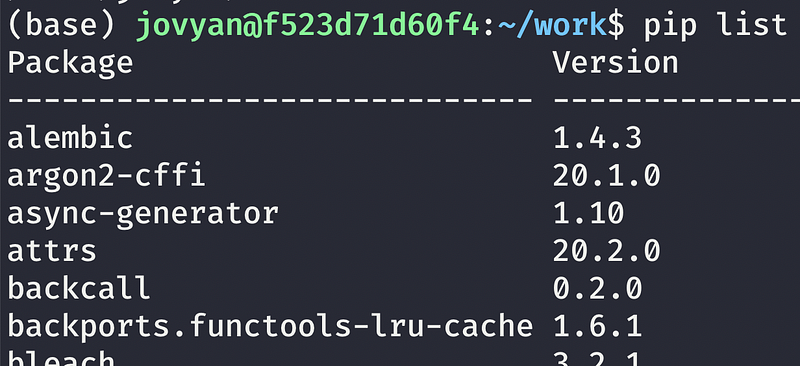
Pandas, numpy, etc are not installed. You can install them using pip install pandas numpy:
(base) jovyan@cb8b4579b2a6:~/work$ pip install pandas numpyYou can exit the bash using exit.
CTRL-C exits a running container.
Stopping and removing containers and images
Let’s stop a running container:
$ docker container ls
CONTAINER ID        IMAGE                      COMMAND                  CREATED             STATUS              PORTS                    NAMES
cb8b4579b2a6        jupyter/minimal-notebook   "tini -g -- start-no…"   4 hours ago         Up 4 hours          0.0.0.0:8888->8888/tcp   suspicious_allen
You can stop a container using docker container stop <container-id>:
$ docker container stop cb8b
You can find all the containers including inactive containers:
$ docker container ls -a
# or
$ docker ps -a
You can list docker images:
$ docker imagesYou can remove an image using docker rmi <image-id>.
$ docker rmi -f <image-id>-f force to remove a running container without stopping a container.
If you want to remove all images at once:
$ docker rmi $(docker images -a -q)-a allows us to remove all images and -q shows numeric IDs after the removal.
You can use remove all containers in the same way:
$ docker rm $(docker ps -a -q)Using --rm
You can run a container with --rm to automatically clean up the container when exit the container.
$ docker run --rm jupyter/minimal-notebookYou don’t need to run docker ps -a and docker rm <image-id> after exiting your container.
You can combine the option with -it.
$ docker run -it --rm jupyter/minimal-notebook bash
(base) jovyan@c803e897b718:~$
When you run this command, you can use the bash in the container and when you exit, it will clean up the container.
Connecting the local directory to a Docker container
Docker volumes are directories (or files) that are outside of the default Docker file system and exist as normal directories and files on the host filesystem. A volume does not increase the size of the containers using it, and the volume’s contents exist outside the lifecycle of a given container.
We can create a volume using -v option.
$ docker run -p 8888:8888 -v /Users/yourname/yourdirectory:/home/jovyan/work jupyter/minimal-notebookIf you want to use the current working directory, use $(pwd).
$ docker run -p 8888:8888 -v $(pwd):/home/jovyan/work jupyter/minimal-notebook
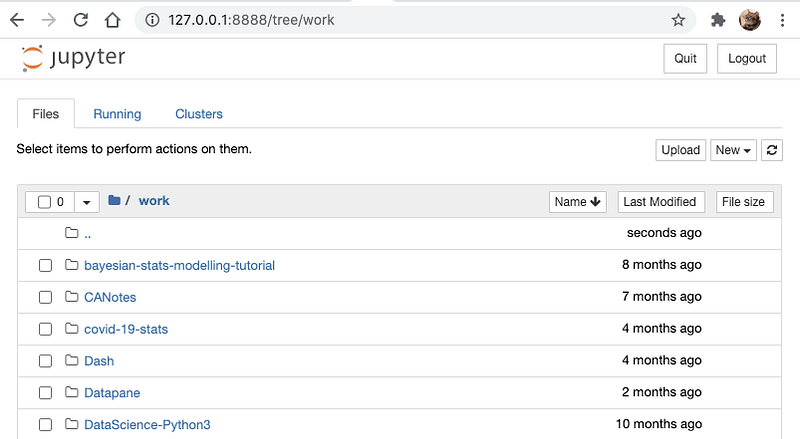
Whatever you make changes in the Jupyter notebook, it changes your local file as well.
Inspecting a container
You can inspect a docker container:
$ docker inspect <container-id or container-name>It returns the docker object information.
Getting started with Docker file
Let’s install all Python packages when you are creating a container.
Create a new directory and a file called Dockerfile with the following content:
ARG BASE_CONTAINER=jupyter/minimal-notebook
FROM $BASE_CONTAINER
LABEL author="Shinichi Okada"USER rootRUN pip install pandas numpy matplotlib plotly# Switch back to jovyan to avoid accidental container runs as root
USER $NB_UIDThen run docker build:
$ docker build -t shinokada/jupyter-notebook .
$ docker run -p 8888:8888 -v /Users/shinokada/DataScience:/home/jovyan/work shinokada/jupyter-notebook
Open another terminal tab:
$ docker ps
$ docker exec -it <container-id> /bin/bash
(base) jovyan@a56262d7eabc:~$ pip list
...
matplotlib
...
numpy
...
pandas
We entered in a running container using docker exec and list the Python packages to see if our packages are installed.
Publishing an image to Docker Hub
Sign up at hub.docker, then in your terminal:
$ docker login
Username: your username
Password: your password
...
$ docker push shinokada/jupyter-notebook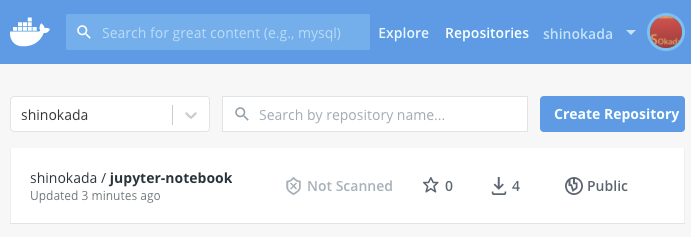
More docker commands
# Show the history of image
docker history <image-id>
# Display system-wide information
docker info | more
Conclusion
The jupyter/scipy-notebook is a Jupyter Notebook scientific Python stack and it includes popular packages from the scientific Python ecosystem. If you want to try Deep Learning then jupyter/tensorfolow-notebook is for you. It includes popular Python deep learning libraries. You can find more images at these links.
You can use docker not only for the Jupyter Notebook but also for your general development. There are many repositories at the Docker Hub. Try to find official ones you can trust or create your own and push to the Docker Hub. You won’t need to update Python packages on your system anymore.
Get full access to every story on Medium by becoming a member.


