
How to Refine Your Google Search and Get Better Results
12 Tricks for Smarter Google Searching

Millions of people use Google to search and access information but still only few take advantage of its full potential. Most people will type a bunch of keywords and let Google figure it out.
If you don’t know, Google it.
There are actually a few operators you can use in your search queries in order to narrow down the search results. In this article we’ll explore the most popular Google Search operators that can help you use Google more efficiently and get better results.
1. Search for an exact match
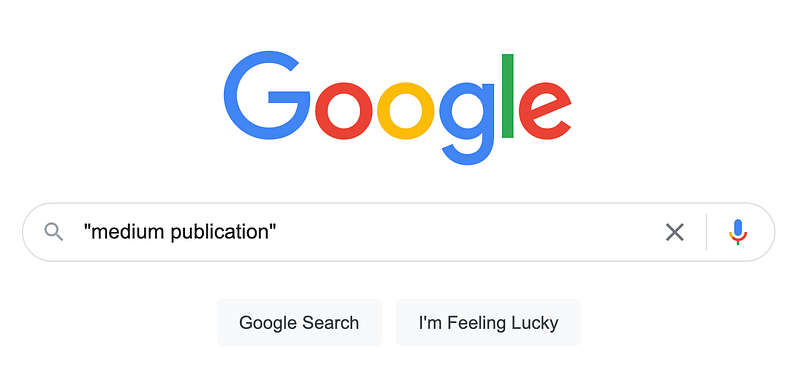
When you perform a Google Search with more than one keyword, the engine won’t necessarily return results that contain the keywords you used in the exact order. Additionally, all the engine will also perform some processing on the keywords such as stop word removal (e.g. remove common words such as ‘and’) or stemming (e.g. ‘running’ will be converted to ‘run’) in an attempt to improve the results returned by the algorithm.
If you want to search for an exact match then make sure to enclose the keywords in quotation marks.
2. Search for a specific site
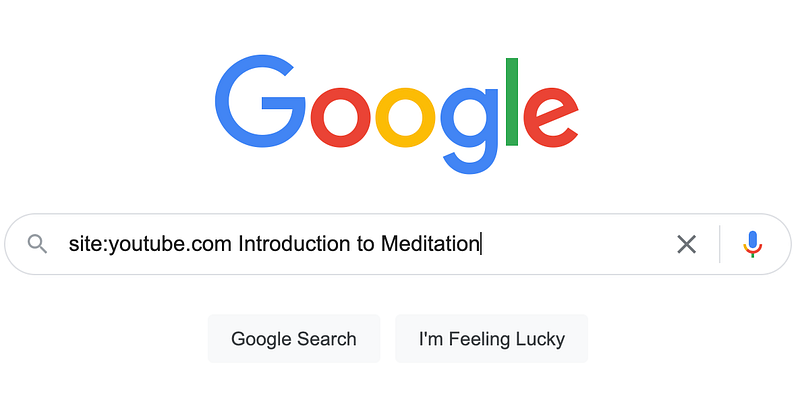
If you want to search in a specific site or domain then you can use the site: prefix in the beginning of your Google Search.
For instance if you are looking for videos it would make sense to restrict search results to just those listed on YouTube by referencing site:youtube.com. You can even search specific domains such as government domains (site:.gov).
3. Exclude words from your search
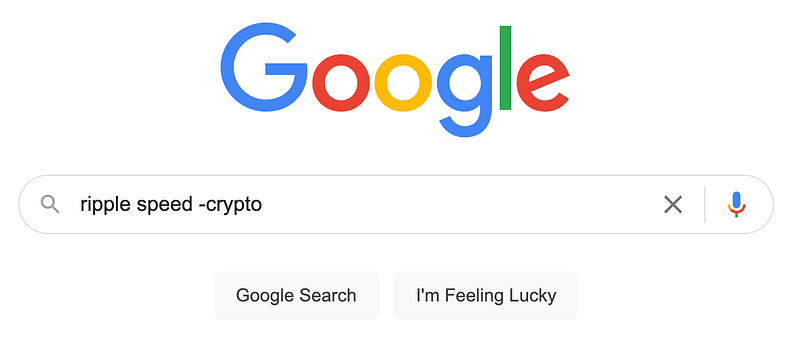
You can define keywords you wish to exclude from search results using a hyphen (-). This operator is usually useful when keywords have multiple meanings. For example, if you are searching to find the speed of ripple (wave) then you would probably have to exclude crypto keyword; ripple speed -crypto.
4. The asterisk wildcard
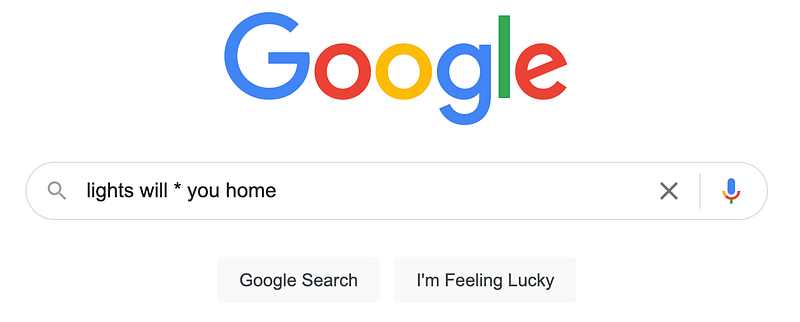
The engine treats asterisk (*)as placeholders for unknown search terms. For instance if you are looking for the lyrics of one song but you barely remember it you can search Lights will * you home. This tells Google that lights will is followed by at least one more search term which in turn is followed by you home.
5. Search within a range of numbers

Now suppose that you are looking for a product on Google and want to set a specific price range. Operator .. can be used between two numeric values and denotes the corresponding numeric range.
6. Combine multiple queries
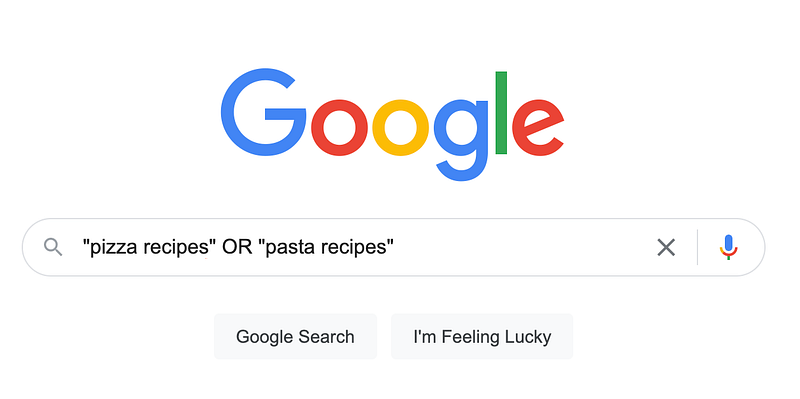
You can use OR operator to combine multiple search queries. In this case the search engine will return documents that may contain only keywords of just one of the search queries defined.
In the same way, you can use AND to request the union of all sub-queries separated by the operator.
7. Stock Information
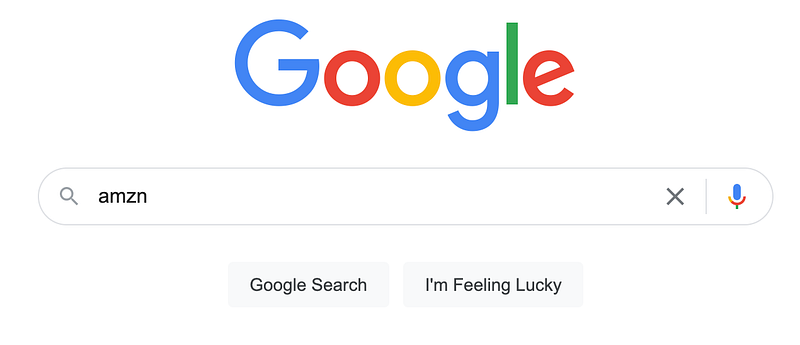
You can even access Google Market Summary and search for stock prices by simply using its ticker symbol. A native chart -similar to the one below- should appear at the top.

8. Search specific filetypes

If you want to narrow down your search so that only pdf documents are included then filetype operator will do the trick. The right syntax is <search query> filetype:<filetype>.
9. Google Definitions
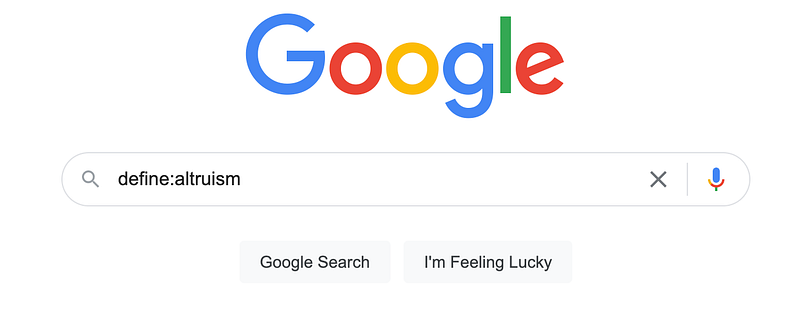
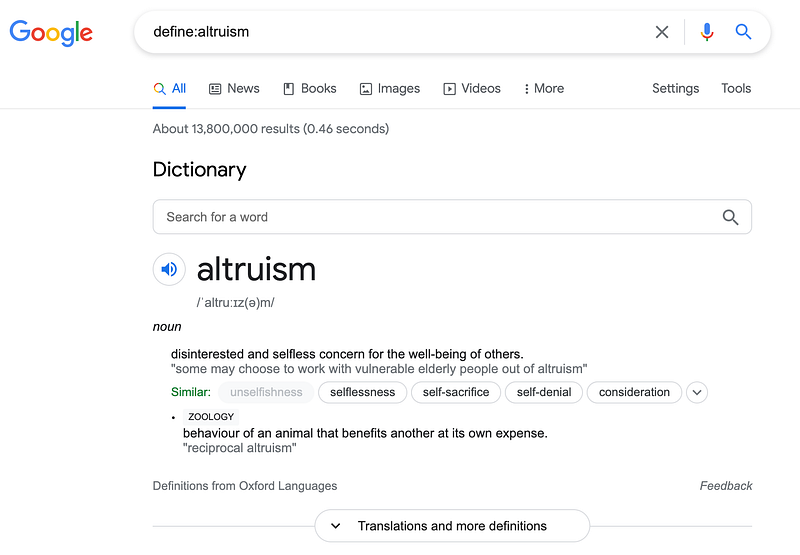
define: operator gives you access to Google Search Definitions. On top of the results a native section will include the term definition and the phonetic pronunciation.
10. Finding related websites
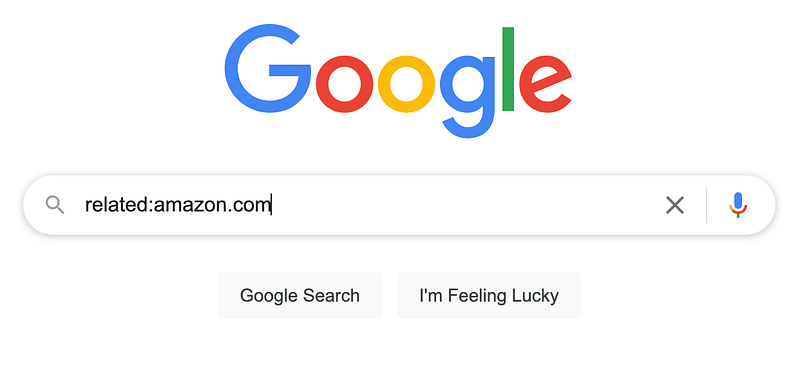
related:example.com operator followed by a website address will get you results from sources whose content is related. Make sure not to include a whitespace between the operator and the web address otherwise it will have no effect at all.
11. Search titles
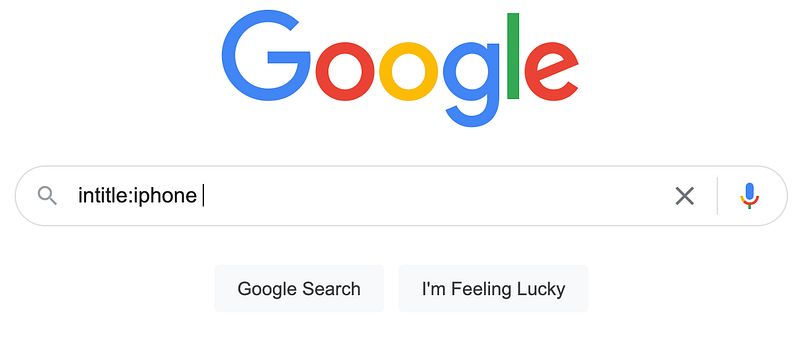
If you want the results to contain only documents that have at least one of your search keywords in their title then use the notation intitle:<search terms>.
12. Search for specific location
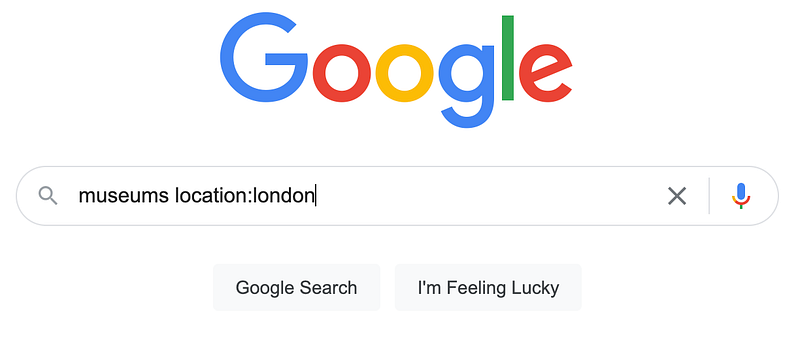
To find news or information within a specific location make sure that the keywords are followed by location:<country/city>.
A final word
It’s that simple. With the use of a few operators you can narrow down search results. Even though Google uses personalisation algorithms to improve search results accuracy you can still help a little bit from your end. The operators we discussed in this article will help you do exactly this; help Google figure out what you are looking for.