
How to reduce Figma memory usage

It’s a warm summer evening. It’s getting late and you’re also late with your designs! Your Figma file constantly freezing makes your blood run cold. The deadline is set and the clock is ticking. You look up at the night sky and wonder why this is always happening to you…?
Sounds familiar? Worry no more! Here are some tips on how you can reduce memory usage and speed up your Figma files. Just avoid these four common mistakes to enjoy stressless designer life.
1. Large files with multiple pages
It’s tempting to keep everything in one file. It may seem convenient to have all the components, wireframes, designs, illustrations, prototypes, screenshots, archives, and workspaces for each designer involved neatly spread across multiple pages of one humongous franken-file.
It may work just fine for small projects. However, when your design system starts to grow things can quickly get nasty. Not only will it be difficult to browse through all the pages, but also your memory usage will grow fast.
Organizing files
At this point, you might consider splitting your main file into smaller ones. The basic setup would be to have separate files for the external component library and final designs. For complex projects, the component library might be further divided into smaller chunks. If you collaborate with other designers you can also use branches as a design sandbox.
2. Hidden layers
Variants
Although you can’t see them, hidden layers contribute greatly to your file memory usage. Sometimes they are used to switch between different states of a component. If that’s your case, you might want to try using variants instead.
Base components
Hidden layers can also creep into your file when you overuse base components. A quite common example here is cramming all the possible button elements (like leading and trailing icons, a label and an underline) into one single component. Instances of this template are then nested inside all button variants for ease of edition later on.
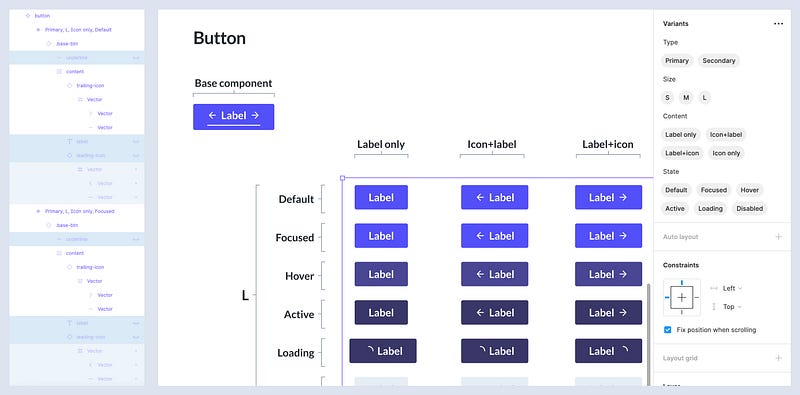
This way you end up with plenty of useless invisible elements because you can’t change the structure of your instances. Buttons are usually nested in many other components and hidden layers are carried over.
Bulk edit components
Quite frankly, hardly ever do you need to edit your buttons after defining them for the first time. And if you do need to change them at some point, you can easily select the main component and just press enter to access all its variants for bulk edit.
So all this fuss with extra nesting might eventually be just art for art’s sake ;)
3. Large components with multiple variants
Omni-components
The infamous buttons also tend to be fairly complex components. They come in a variety of states, types, and sizes. They can be focused, active or disabled. They can be primary, secondary, filled or outlined. They can also be small, medium or large. They can have a leading icon, a label, or a trailing icon. The sky is the limit.
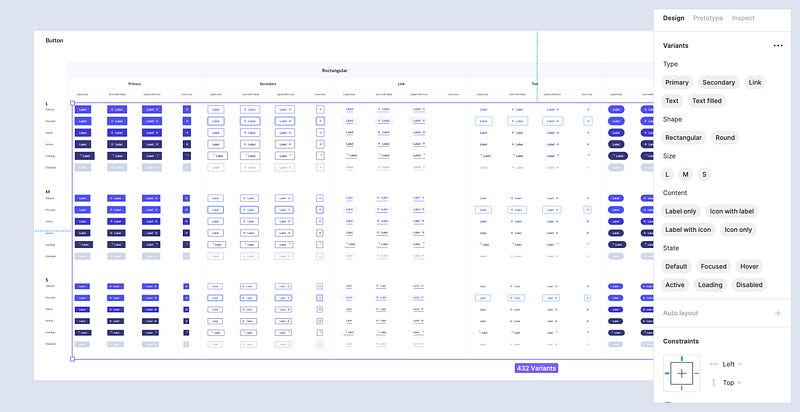
It is possible to combine all these characteristics into one super-fancy omni-button. However, if you want your files to work smoothly, you might consider splitting this component into smaller ones and using overrides instead of variants. For you, it might be an additional click to change the button, but for Figma, it might make a huge difference in performance.
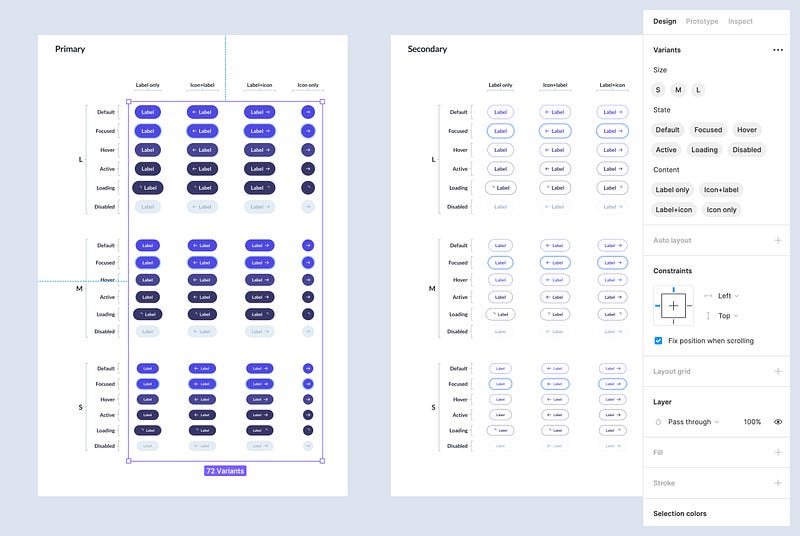
Placeholder components
To reduce your file complexity you can also use placeholder components. These are empty components which allow you to use overrides freely. This way you can change the structure of your instances without changing the corresponding components.
Let’s say you have a modal component. You might want to use it in different contexts with different content. You might want to add a simple text there or perhaps an illustration. And you don’t have to make a separate variant for every modal you might need. Just create a modal template with an empty component and use overrides to swap it with whatever you like.
Are you interested in how to create and use placeholders? You can find out more about slot components, layout blocks, fixed ratio images, and templates here:
Atomic design
The idea of combining basic building blocks to create compound structures can also help reduce your variant count and component size.
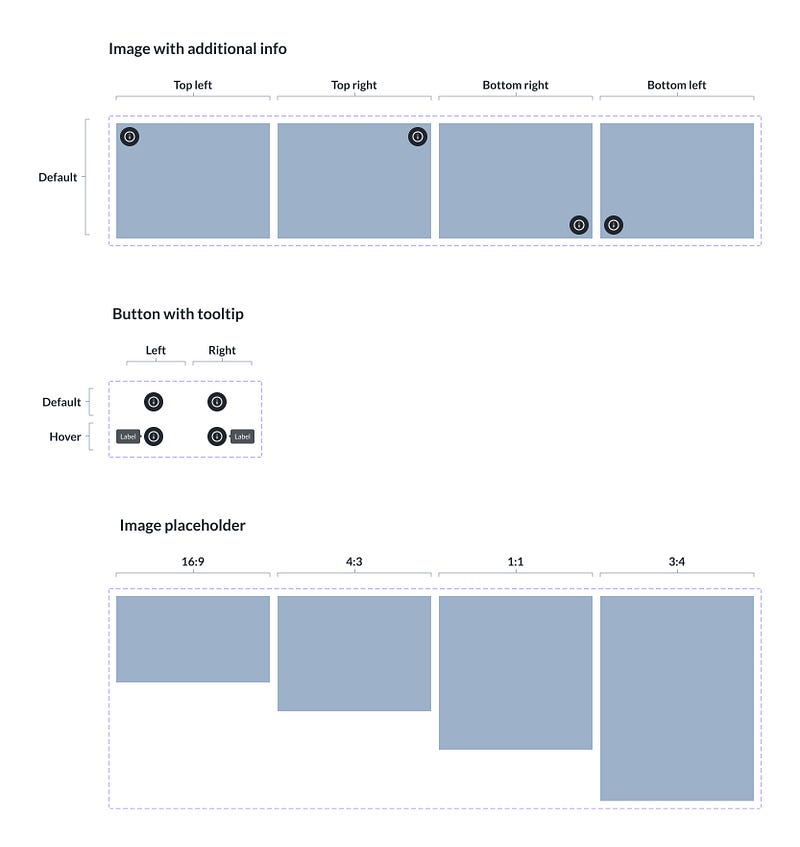
Here you have a simple example of an image with a tooltip showing while you hover over the info icon. If you wanted to display all the combinations with/without the tooltip visible inside the image component you would end up with 8 variants for the image and 4 for the button.
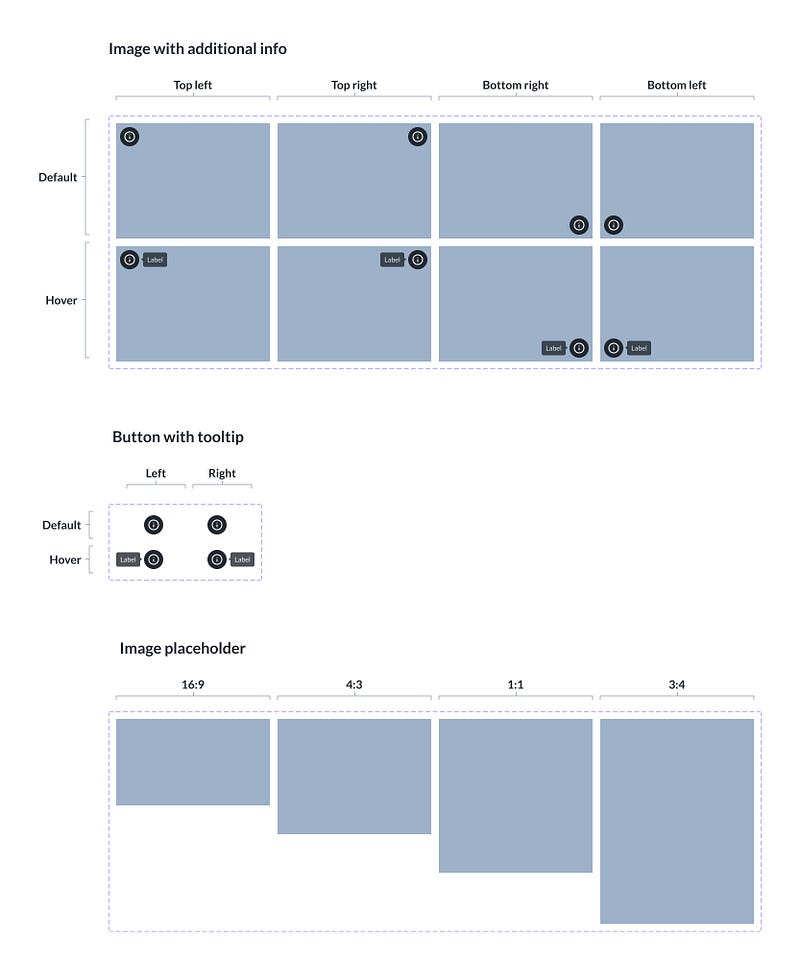
However, you have already defined the button states on the button itself. There is no need to duplicate this information on the more complex component level. So you can easily halve the number of image variants and still keep all the important information. This is why defining states only on the least complex components can help a lot with keeping your library in check.
4. Large assets
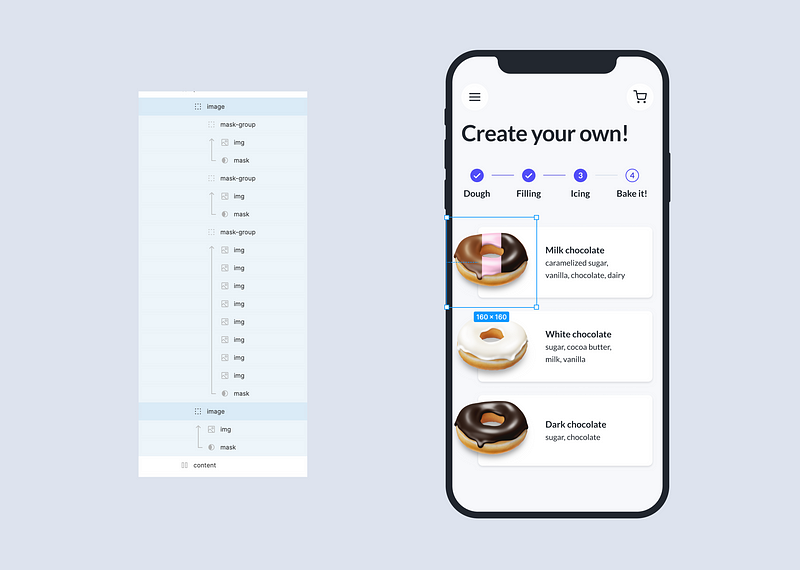
Using a lot of high-resolution photos can add to your memory usage as well. You may also experience pictures loading slowly or even vanishing from your canvas completely. When this happens, you probably should do some cleaning up and start deleting redundant elements. They are often buried deep inside mask groups or lurk from the edges of your canvas. If this doesn’t help, you can try compressing your assets.
Conclusion
It is worth keeping an eye on hidden layers, compound components and large assets in your Figma files. This can help you build and maintain both simple and complex design systems.
Let’s stay in touch! Connect with me on LinkedIn or follow me on Dribbble for more design-related content :)


