
How to properly close Google Cloud Platform (GCP) account to not incur additional charge
Few days ago, I got a surprising notice from Google Cloud Platform (GCP) that I got charged for $28.61 for GCP usage.
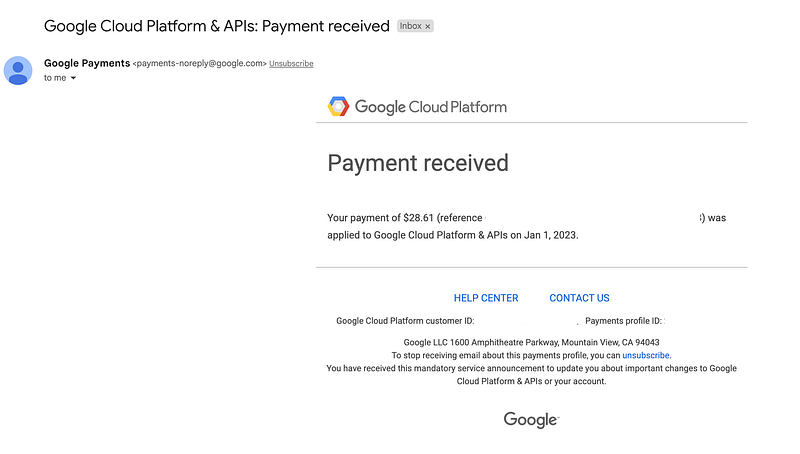
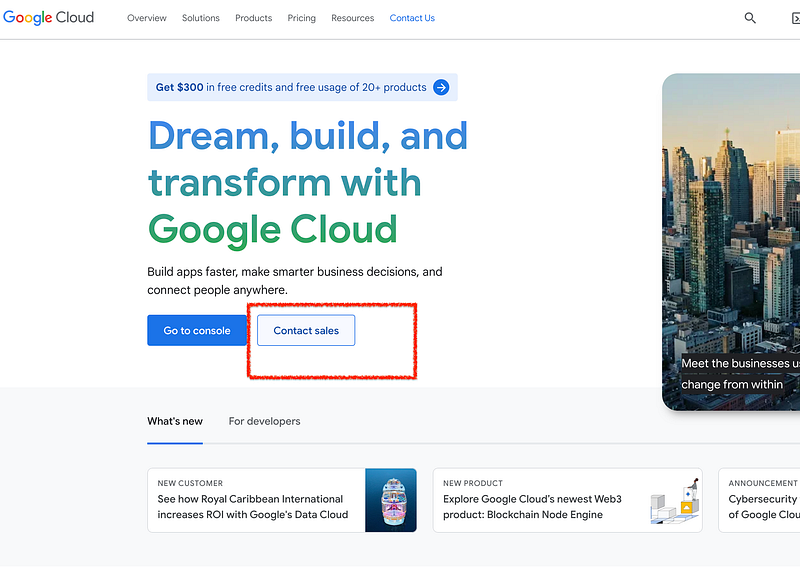
When I got first notice through my mobile phone notification, I have few website domains purchased through Google Domains, so I first assumed that was it. However, when I actually read the content of the email, it was clear that this was coming from GCP. I knew that my $300 trial credit got expired few months back, but I assumed that there was no service that I was consuming. What I found out was that the disk storage attached to the Virtual Machine (VM) was still incurring charges though the VM was not running anymore. I quickly checked and deleted both VM and the storage, but I had to take an action to contact GCP account team. If you use basic version of GCP, you technically only have a support to contact billing/account team. You can do so by either clicking CONTACT US link from the email like one above or go to Google Cloud basic and click Contact sales.
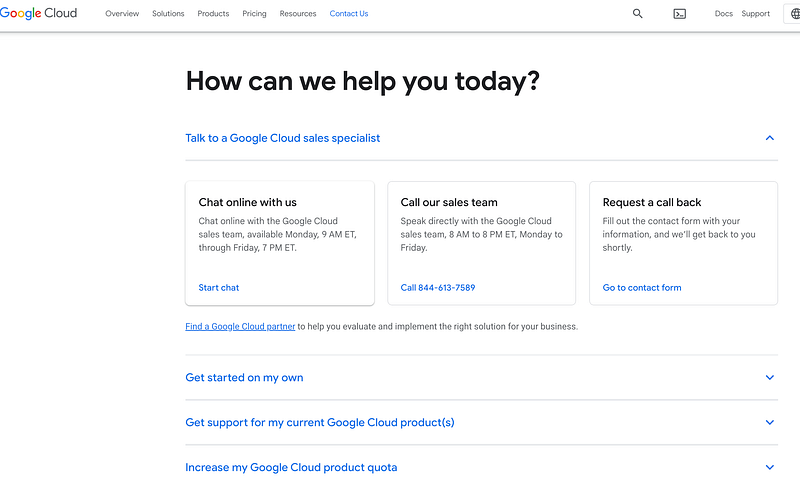
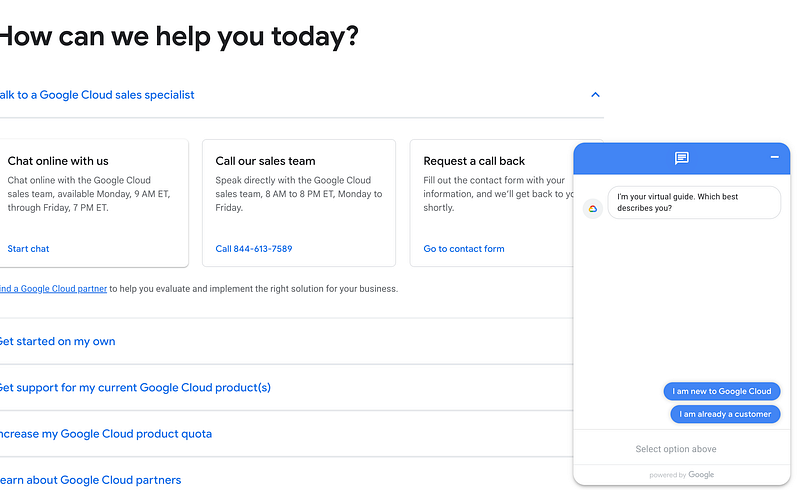
You have several options to contact, but I ended up using virtual chat, which I get to by clicking Chat online with us.
That will bring a popup chat window like this, which is a programmed AI to handle answer. After some conversations, I eventually get to a page where I can contact Google by filing a form request.
The answer from Google’s account team was pretty clear and kind.
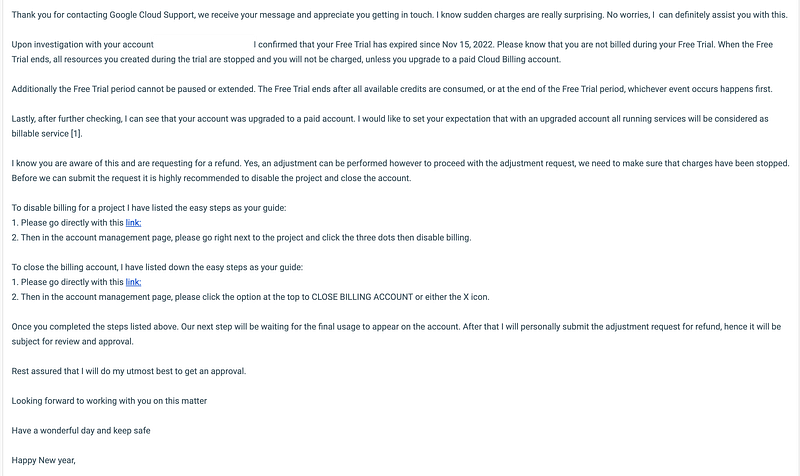
Thus, to properly close the GCP account, I have to go to
- GCP’s Management page → click three dots next to the project to Disable billing
- GCP’s account management page, click the option at the top to CLOSE BILLING ACCOUNT.
And I got an email confirmation that my GCP account is closed. Now, I am waiting for GCP’s account team to reimburse my incurred charge.


