
Midjourney How to : Produce Same Style Image with Just One Word
No need to copy and paste or type long prompts anymore
Getting tired of typing the same parameters over and over when your prompts become more and more complex? It’s frustrated when having to input the same details while editing various images — but there’s now a solution to that!
Today, I am going to introduce you to a command that saves you time typing.
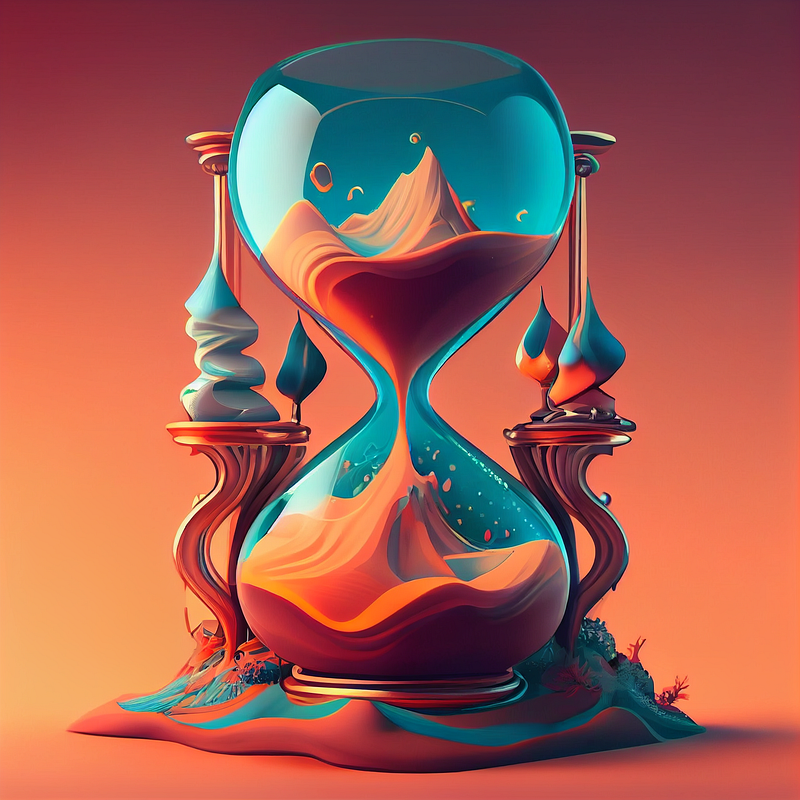
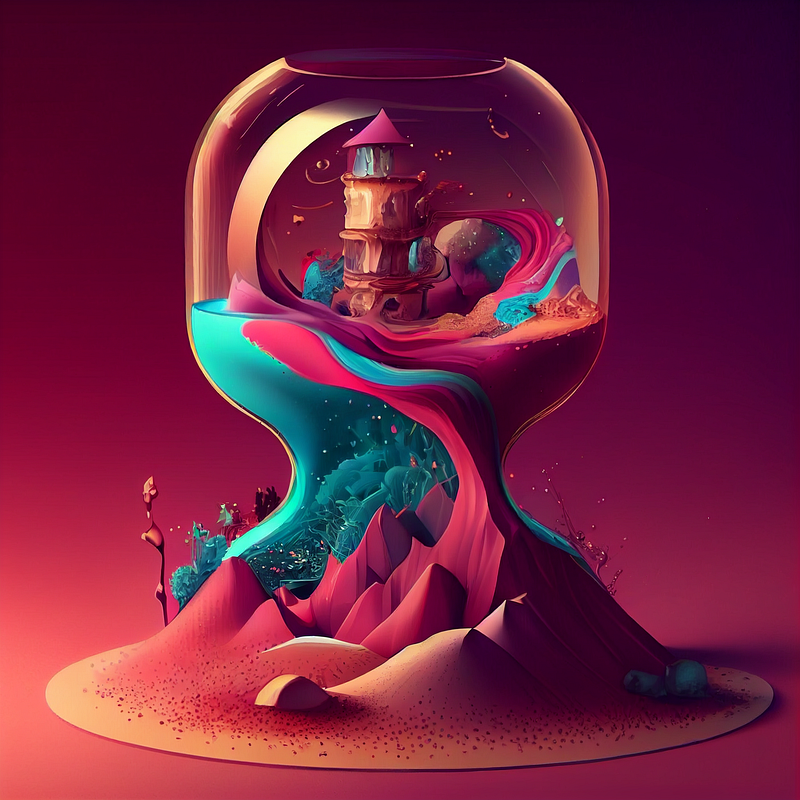
As we are talking about a time-saving command, allow me to welcome you all with an hourglass today.
If you are new to Midjourney, follow this beginner’s guide to start:
Let’s dive right in!
Prefer option
With /prefer option, you can set up parameters that you can add to the end of prompts quickly and easily, making your workflow much smoother and more efficient.
How to create a custom option
- Type / prefer option set
- Select the option, and set a name
- Set the value for the option

By setting this option you just created a command called “IG” that translates to — upbeta — ar 9:16 which is perfect for IG story
Apply the Set Option to Your Job
After setting the option, it’s time to use it.
Add “— [ your option ]” to the end of your prompt.
/imagine prompt [ your prompt ] — [ your option ]

By typing /imagine prompt surrealistic bunny — IG, it will be interpreted into /imagine prompt surrealistic bunny — upbeta — ar 9:16
Note: You can add additional parameters to the prompt just don’t just the same parameters twice so they don’t clash with each other.
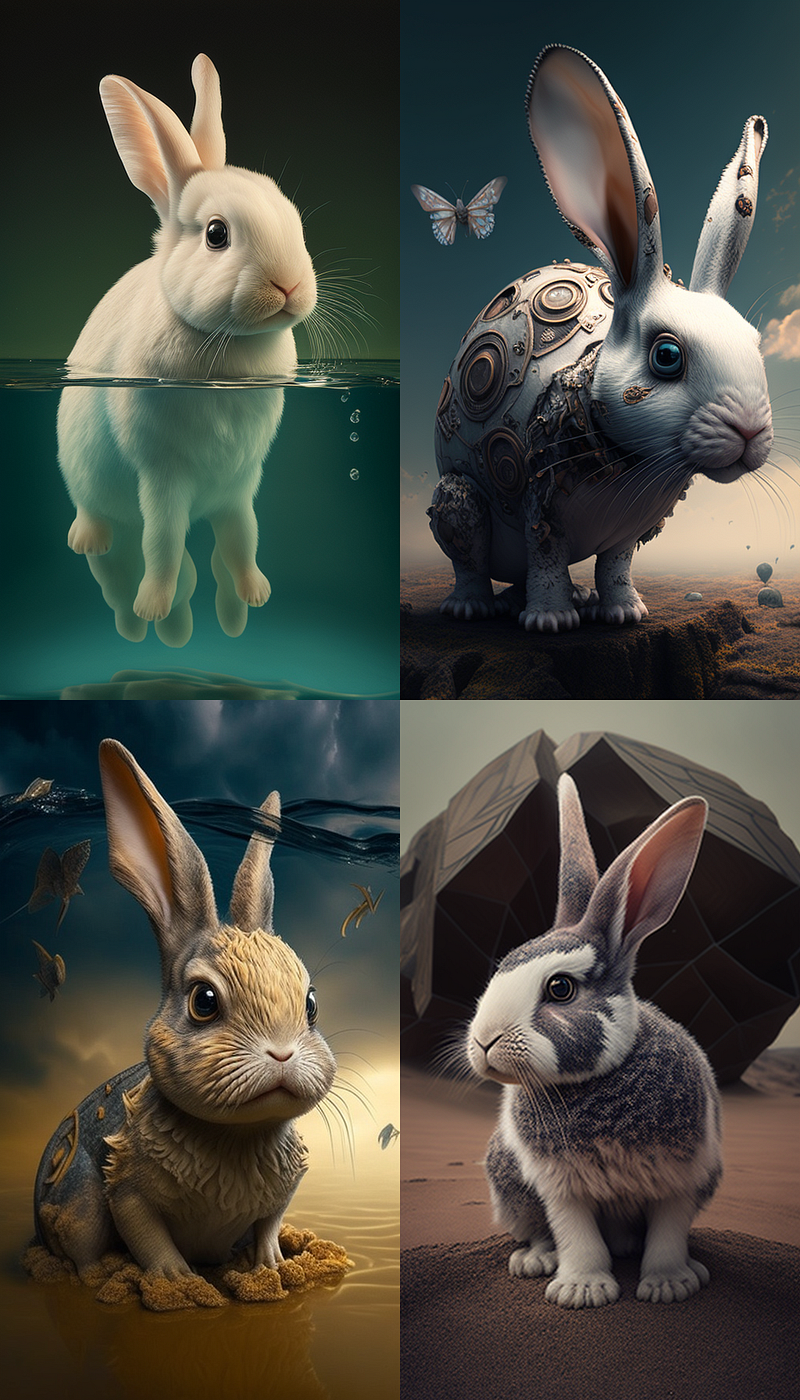
You can also save longer prompts like this so you can create similar style each time without having to type or doing “copy and paste”.
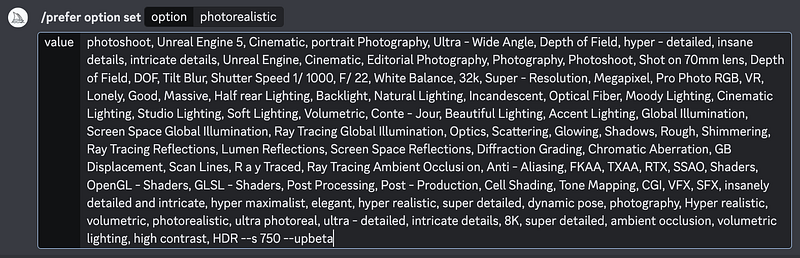
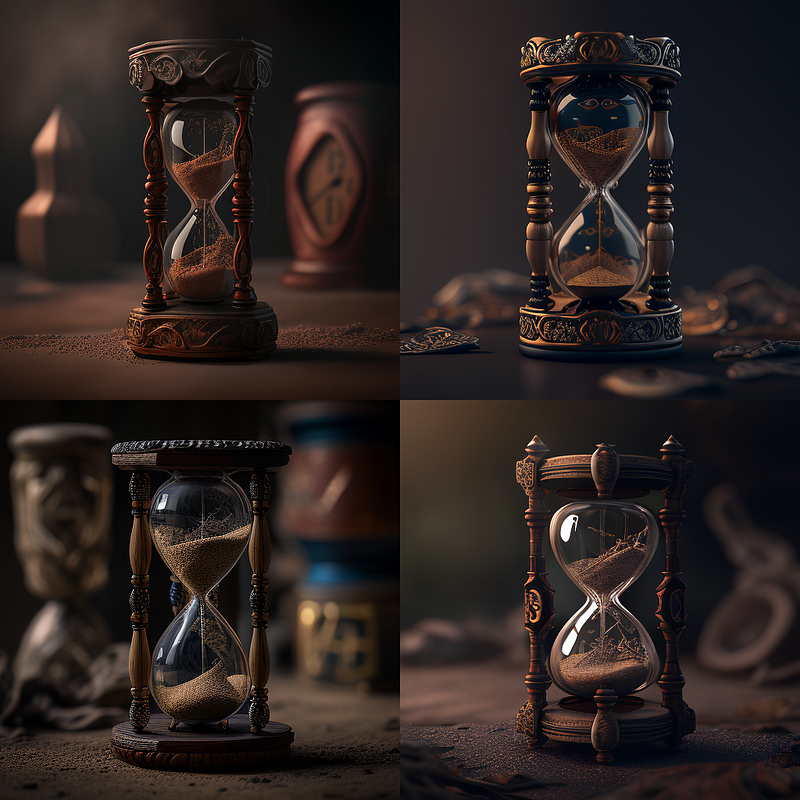
After setting the option, you just need to add the option command at then end of the prompt and there you go! No more copy and paste every time.
/imagine prompt hourglass — photorealistic
Prefer Suffix
/prefer suffix
With /prefer suffix, you can easily and quickly add a suffix after all prompts — effortless! And if you don’t have a value to use, no problem; just use the command without it to reset.
Example: /prefer suffix — uplight — hd
Note that only parameters can be used /prefer suffix
prefer suffix — no cat is accepted prefer suffix cat::1 is not accepted
Delete an Option
To delete an option, just leave the “value” field empty.
Command: /prefer option set < name to delete > and leave the value field blank
View Your Options
/prefer option list
To see all of them, just use the /prefer option list command — it’s that easy!
You can create up to 20 distinct options!
You can also use /prefer auto_dm to send completed jobs to Direct Message
As you keep exploring and discovering the features of Midjourney, you’ll want to create even more unique visuals. The capabilities of this AI Art platform are truly remarkable and allow you to unleash your creative potential.
Discover more stories and get unlimited access to all articles on Medium with this link!
I write about tips, tricks and tools of AI tools especially Midjourney that will elevate your work! If you find this article helpful and would like to support me, make sure to:
- 👏🏻 Clap for the story to help this article be featured
- ✨ Follow me on this journey
Check out also other cool ways in creating amazing images in MidJourney


