avatarFrost

Free AI web copilot to create summaries, insights and extended knowledge, download it at here

1174

Abstract

xp">/etc/</span>nginx/<span class="hljs-keyword">private</span> Jack</pre></div><p id="d248">Replace Jack with your username and private with the folder or section that you’re protecting.</p><figure id="7c14"><img src="https://cdn-images-1.readmedium.com/v2/resize:fit:800/1*qb1MRYMda-DgS-RVVc03Wg.jpeg"><figcaption></figcaption></figure><p id="1768">Once you type the above command, you will be prompted to set a password for the username you selected, type the password twice.</p><p id="191a">To verify the file, you can check it with the cat command.</p><figure id="2b29"><img src="https://cdn-images-1.readmedium.com/v2/resize:fit:800/1*VgCMHFI_cTbNQh4veO2G9Q.jpeg"><figcaption></figcaption></figure><p id="5e9f">You can see in the screenshot above, the file contains the username and the encrypted password.</p><h2 id="573b">Setup Basic HTTP Auth</h2><p id="e03b">Open nginx config file with nano text editor.</p><div id="a2ff"><pre>nano /etc/nginx/sites-available/default</pre></div><p id="649a">And add the following line under location.</p><figure id="9a58"><img src="https://cdn-images-1.readmedium.com/v2/resize:fit:800/1*BzHti9gvLIYeLR9SMN7w9w.jpeg"><figcaption><

Options

/figcaption></figure><p id="a097">location /wp-admin — will password protect the section /wp-admin, so when you browse to mysite.com/wp-admin you will be prompted to enter username and password.</p><p id="1601">auth_basic_user_file — Is the path where the htpasswd file is located.</p><p id="ff00">Once you have added your own configuration press CTRL + X to save the file and reload nginx using the command.</p><div id="7a75"><pre><span class="hljs-attribute">sudo systemctl reload nginx</span></pre></div><p id="aa9f">Now I will switch to the web browser and type ‘webtest.com/wp-admin’.</p><figure id="0ed0"><img src="https://cdn-images-1.readmedium.com/v2/resize:fit:800/1*1RB2cxq2nG00CnpctjzLKw.jpeg"><figcaption></figcaption></figure><p id="4648">I have been prompted to a login form where I need to enter the correct credentials if I want to access the content.</p><h2 id="7897">Conclusion</h2><p id="17e4">Sometimes a website is good to be under a password protection, or to have an extra layer of security by blocking access to a specified folder. Most web servers have a password directive built in, including Nginx.</p><p id="a1ce">Thank you!</p></article></body>

How to Password Protect Web Directories on Nginx
In this guide, you’ll learn how to password protect a directory on your website by implementing a username/password authentication using nginx HTTP basic auth.

HTTP basic authentication allows you to stop other people who don’t have the login credentials from accessing the section/folder you are protecting.

Install Apache Utils

To start out, you need apache2-utils, this package contains the htpasswd package which allows you to create the username and the password. To install the package use the following command.

sudo apt install apache2-utils

Creating the Password File

In this step, you need to create a file that will hold your username and password combinations. You can do this by using the following command.

sudo htpasswd -c /etc/nginx/private Jack

Replace Jack with your username and private with the folder or section that you’re protecting.

Once you type the above command, you will be prompted to set a password for the username you selected, type the password twice.

To verify the file, you can check it with the cat command.

You can see in the screenshot above, the file contains the username and the encrypted password.

Setup Basic HTTP Auth

Open nginx config file with nano text editor.

nano /etc/nginx/sites-available/default

And add the following line under location.
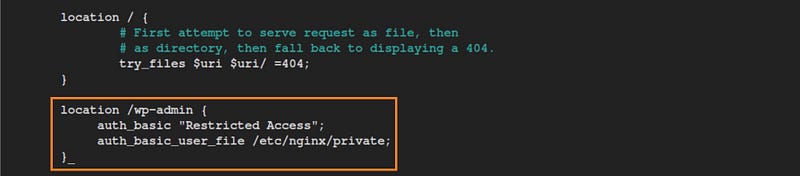
location /wp-admin — will password protect the section /wp-admin, so when you browse to mysite.com/wp-admin you will be prompted to enter username and password.

auth_basic_user_file — Is the path where the htpasswd file is located.

Once you have added your own configuration press CTRL + X to save the file and reload nginx using the command.

sudo systemctl reload nginx

Now I will switch to the web browser and type ‘webtest.com/wp-admin’.
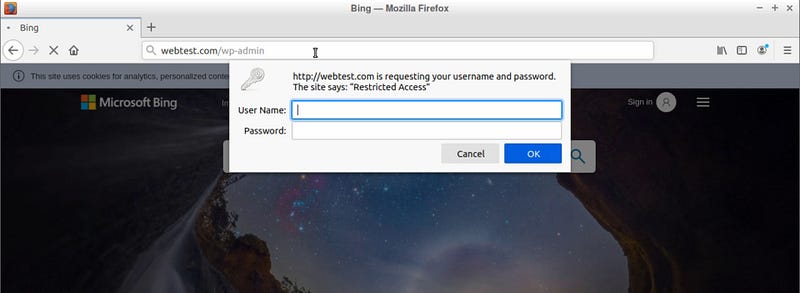
I have been prompted to a login form where I need to enter the correct credentials if I want to access the content.

Conclusion

Sometimes a website is good to be under a password protection, or to have an extra layer of security by blocking access to a specified folder. Most web servers have a password directive built in, including Nginx.

Thank you!

Nginx
Web Development
Web Security
Web Server
Cybersecurity
Recommended from ReadMedium