avatarDavid Lindgren

Free AI web copilot to create summaries, insights and extended knowledge, download it at here

1157

Abstract

click and drag any of them down into the center of the timeline window and a purple square will appear.</p><p id="7038">If you drop it here, nothing will happen, but if you instead drop it on any of the sides, it will place the sequence in a new window, on that side.</p><p id="fb5b">And if you want to put it back into the same window, just drag it to the very top of the other window and rearrange your sequences as you want by moving them sideways and if you place your sequences on top of each other, you have created a so called <i>“pancake timeline”</i>.</p><p id="b3bd">Now you can quickly move or copy footage between your different sequences.</p><p id="0e78">I have <b>hundreds of time-saving tutorials</b> just like this on my YouTube channel, so feel free to <a href="https://YouTube.com/davidlindgren89?sub_confirmation=1"><b>subscribe</b></a> and if you want 5 productivity tips sent your inbox every week for free, sign up for the content creation productivity newsletter in the bio below.</p><p id="ebc0"><b>Follow</b> if you liked this and have a great day! ☀️️</p><p id="fe29"><a href="https://www.youtube.com/watch?v=6GBkQUYKQIg&amp;list=

Options

PLgJlbAYg0mEkXrbeSUcXFU8ax-y-21Ndb&index=129"><b><i>🎞 Watch the tutorial (and all my other tutorials) here!</i></b></a></p><p id="a5fb">***</p><p id="c06f"><b>3 of my other stories that might interest you:</b> ⭐️ <a href="https://davidlindgren89.medium.com/i-think-i-just-figured-out-life-fbdf7a784201">I think I just figured out life 🤯</a> ⭐️ <a href="https://davidlindgren89.medium.com/5-tips-for-making-money-on-youtube-how-to-get-started-today-a0e6cc4e2cb">5 tips for making money on YouTube (How to get started today!)</a> ⭐️ <a href="https://davidlindgren89.medium.com/25-things-i-learned-during-my-first-year-as-a-video-editor-296659e5f484">25 things I learned during my first year as a Video Editor</a></p><p id="819f">— — — — — — —</p><p id="c8dd"><b>Did you know?</b> You can get full access to every story on Medium for just <a href="https://davidlindgren89.medium.com/membership"><b>$5/month here</b></a>!</p><p id="03dc"><i>(…Or the cost of one coffee ☕️)</i></p><p id="ce96">Becoming a Medium member directly supports me ♥ <i>️(and other writers on Medium)</i> so that we can keep creating helpful content for you! 🙏</p></article></body>

How to open multiple panels in the timeline

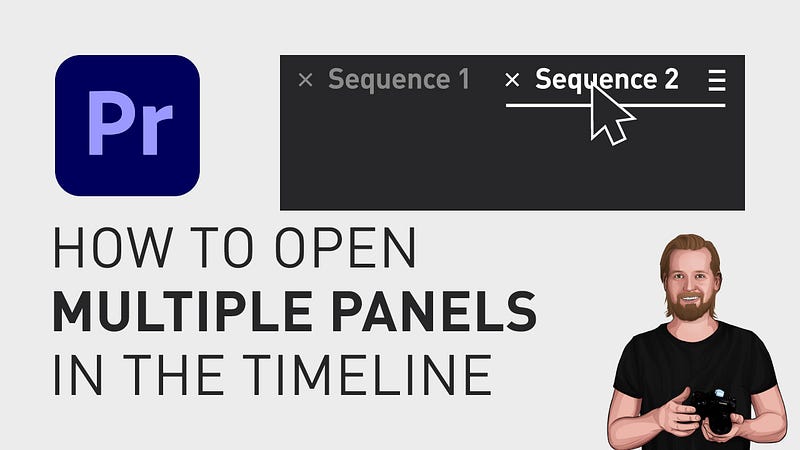
You can open multiple panels or sequences in Adobe Premiere Pro, place them as you want, make something called a pancake timeline 🥞, and I will show you all of that in this short tutorial.
How to open multiple panels in the timeline

First of all, if you for some reason don’t have the timeline window open, go up to the menu, click “Window” and make sure “Timeline” is selected by clicking on it.

Now you can drag any media down to the timeline to automatically create a new sequence based on that piece of media. Or you can double-click on any sequence to open it.

Now if you drag down another sequence into your timeline window, it will add it as content to the timeline, but if you instead double-click on the sequence, it will open it as another tab in the timeline window.

Once you have more than one seqeunce open, you can click and drag any of them down into the center of the timeline window and a purple square will appear.

If you drop it here, nothing will happen, but if you instead drop it on any of the sides, it will place the sequence in a new window, on that side.

And if you want to put it back into the same window, just drag it to the very top of the other window and rearrange your sequences as you want by moving them sideways and if you place your sequences on top of each other, you have created a so called “pancake timeline”.

Now you can quickly move or copy footage between your different sequences.

I have hundreds of time-saving tutorials just like this on my YouTube channel, so feel free to subscribe and if you want 5 productivity tips sent your inbox every week for free, sign up for the content creation productivity newsletter in the bio below.

Follow if you liked this and have a great day! ☀️️

🎞 Watch the tutorial (and all my other tutorials) here!

***

3 of my other stories that might interest you: ⭐️ I think I just figured out life 🤯 ⭐️ 5 tips for making money on YouTube (How to get started today!) ⭐️ 25 things I learned during my first year as a Video Editor

— — — — — — —

Did you know? You can get full access to every story on Medium for just $5/month here!

(…Or the cost of one coffee ☕️)

Becoming a Medium member directly supports me ♥ ️(and other writers on Medium) so that we can keep creating helpful content for you! 🙏

Premiere Pro
Adobe Premiere Pro
Adobe Premiere
Video Editing
Premiere Pro Tutorials
Recommended from ReadMedium