
How to move an AWS EC2 Instance to another VPC?
Over the last 5 or 6 years, I’m been working with very large AWS environments, first, for a couple of banks in Singapore and Paris, then as Solutions Architect for AWS Singapore, later as Principal Cloud Architect for a (defunct) startup and finally worked as Cloud Architect architecting, deploying and managing AWS infrastructure for the largest AWS customer in the Middle East.
One of the most common challenges, when you are using AWS to run IaaS, is moving EC2 instances between Subnets, VPCs, AWS Regions and AWS accounts.
So, there are 4 different scenarios to migrate AWS EC2 Instances (the move is, in fact, a new copy of the source EC2 instance):
- Move EC2 Instances to another Subnet (part 1)
- Move EC2 Instances to another VPC (part 2) - this document
- Move EC2 Instances to another AWS Region (part 3)
- Move EC2 Instances to another AWS Account (part 4)
The process of moving an EC2 instance to another VPC using AWS CLI can take up to 12 steps:
- Save the list of Security Groups attached to the source using the CLI command describe-security-groups.
- Save the list of Tags attached to the source EC2 instance using the CLI command describe-tags.
- Optional: save the Elastic IP attached to the EC2 instance, so we can re-attach to the target EC2 instance, with this CLI command: describe-addresses.
- Stop the EC2 Instance using the stop-instances CLI command.
- Create a new AMI (Amazon Machine Image) from the source EC2 instance using the CLI command create-image.
- Optional: clone source Security Groups, using the create-security-group CLI command.
- Launch a new EC2 instance from the AMI image just created, using the run-instances CLI command.
- Attach Security Groups to the target EC2 Instance using the following CLI command: ec2-modify-instance-attribute.
- Tag the target EC2 instance using the create-tags CLI command.
- Optional: Use the CLI command associate-address to attach the source Elastic IP to the target EC2 instance. Check if the status of the new EC2 is not pending, if pending the associate process will fail!
- Tag the source EC2 instance with “Instance was moved to EC2 Moved To i-0134567890abc | subnet-xxx | vpc-yyy | AWS Region| AWS Account Name” using the create-tags CLI command.
- Clean up the temporary AMI images and snapshots. Use the deregister-image to delete the AMI image and the delete-snapshot CLI command to delete snapshots (the process to identify which snapshot is associated with the AMI is a little complicated).
These 12 steps are required to move EC2 instances the hard way, now let me show you how you can move an EC2 instance to another VPC (or Subnet, AZ, AWS Region or even another AWS Account) with ONE click.
Introducing KopiCloud Move EC2, a tool with almost 2 years of development, testing and use on large production environments.
IMPORTANT NOTE: the process of migration of the KopiCloud Move EC2 tool will keep your original EC2 untouched. In fact, you will be available to start and use the original EC2 instance (useful for DR scenarios). However, the name tag of the original EC2 instance will be updated to reflect the migration. Also, the original IP address will be reassigned, if you choose to do it.
Click on List of EC2 menu, to list all EC2 instances on your AWS accounts and regions.

Select the instance you want to move and click on the Move Instance menu (we are working on a version to allow you to move multiple EC2 instances and a command-line version).
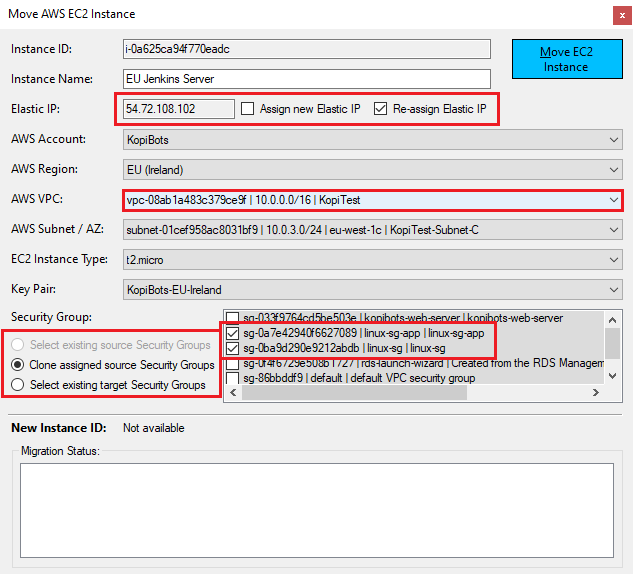
If the machine will be moved to another Subnet, we have the option to re-assign an existing Elastic IP or if we prefer to assign a new Elastic IP.
Then the tool offers 2 options to assign Security Groups:
- Clone assigned source Security Groups: the tool will clone exactly the Security Groups assigned to the source instance. If the Security Group exists, the tool will add the date at the end of the Security Group Name.
- Select existing target Security Groups: select existing Security Groups on the target subnet to attach to EC2 instance.
Now you are ready to move your EC2 instance…just click the Move EC2 Instance button…in a few minutes, your new instance is ready!
Move EC2 is available to download for FREE at https://www.kopicloud.com/App/Move-EC2
Move EC2 Behind Scenes:
After the migration process is completed, let take a look at what is happening behind scenes. This is an extract of a real migration log file:
2019/10/13 12:57 AM - AWS-EC2-SG | [2] Security Group(s) assigned to EC2 Instance [i-0bf7f7542d9c98fe3]
2019/10/13 12:57 AM - AWS-EC2-TAG | [5] EC2 Tags exported
2019/10/13 12:57 AM - AWS-EC2 | Checking source EC2 Instance state....
2019/10/13 12:57 AM - AWS-EC2 | Instance [i-0bf7f7542d9c98fe3] state [running]
2019/10/13 12:57 AM - AWS-EC2 | EC2 Instance state: running
2019/10/13 12:57 AM - AWS-EC2 | Stopping EC2 Instance...
2019/10/13 12:57 AM - AWS-EC2 | Instance [i-0bf7f7542d9c98fe3] state [stopping]
2019/10/13 12:57 AM - AWS-EC2 | Waiting for the EC2 instance to stop. Please wait...
2019/10/13 12:58 AM - AWS-EC2 | Instance [i-0bf7f7542d9c98fe3] state [stopping]
2019/10/13 12:58 AM - AWS-EC2 | Waiting for the EC2 instance to stop. Please wait...
2019/10/13 12:58 AM - AWS-EC2 | Instance [i-0bf7f7542d9c98fe3] state [stopped]
2019/10/13 12:58 AM - AWS-EC2 | Creating AMI image...
2019/10/13 12:58 AM - AWS-Images | AMI for Instance [i-0bf7f7542d9c98fe3] is [ami-02ed50eaca12c7155]
2019/10/13 12:58 AM - AWS-EC2 | Waiting for the image to be available. Please wait...
2019/10/13 12:58 AM - AWS-EC2 | Waiting for the image to be available. Please wait...
2019/10/13 12:58 AM - AWS-EC2 | Waiting for the image to be available. Please wait...
2019/10/13 12:58 AM - AWS-EC2 | Waiting for the image to be available. Please wait...
2019/10/13 12:58 AM - AWS-EC2 | Processing Security Groups...
2019/10/13 12:58 AM - AWS-EC2-SG | Security Group [linux-sg] Created in VPC [vpc-08ab1a483c379ce9f] - Securit Group ID is [sg-008f81899b1759e15]
2019/10/13 12:58 AM - AWS-EC2-SG | Security Group [linux-sg-app] Created in VPC [vpc-08ab1a483c379ce9f] - Securit Group ID is [sg-00b9342f2d8f670fe]
2019/10/13 12:58 AM - AWS-EC2 | Creating the new EC2 Instance...
2019/10/13 12:58 AM - AWS-EC2 | Creating Instance from AMI. Please wait....
2019/10/13 12:58 AM - AWS-EC2 | Instance [i-0fa88d6983681f150] created successfully
2019/10/13 12:58 AM - AWS-EC2 | Done! New EC2 Instance [i-0fa88d6983681f150] created
2019/10/13 12:58 AM - AWS-EC2 | Applying old EC2 Instance Tags...
2019/10/13 12:58 AM - AWS-EC2-TAG | Update of EC2 Tags completed
2019/10/13 12:58 AM - AWS-EC2 | Updating old EC2 Instance Tag...
2019/10/13 12:58 AM - AWS-EC2-TAG | Update of Name Tag completed
2019/10/13 12:58 AM - AWS-EC2 | Updating new EC2 Instance Tag...
2019/10/13 12:58 AM - AWS-EC2 | Waiting for the EC2 Instance...
2019/10/13 12:58 AM - AWS-EC2 | Instance [i-0fa88d6983681f150] state [pending]
2019/10/13 12:58 AM - AWS-EC2 | Waiting for the EC2 instance to be available. Please wait...
2019/10/13 12:59 AM - AWS-EC2 | Instance [i-0fa88d6983681f150] state [pending]
2019/10/13 12:59 AM - AWS-EC2 | Waiting for the EC2 instance to be available. Please wait...
2019/10/13 12:59 AM - AWS-EC2 | Instance [i-0fa88d6983681f150] state [running]
2019/10/13 12:59 AM - AWS-EC2 | Elastic IP [eipalloc-04258d7f6139faacc] attached to AWS Instance [i-0bf7f7542d9c98fe3]
2019/10/13 12:59 AM - AWS-EC2 | Elastic IP migrated to the new EC2 Instance
2019/10/13 12:59 AM - AWS-EC2 | Cleaning up temporary AMI and Snapshots...
2019/10/13 12:59 AM - AWS-Images | AMI  [ami-02ed50eaca12c7155] deleted
2019/10/13 12:59 AM - AWS-Snapshot | EC2 Volumen Snapshot [snap-03cb7120d1d4dd527] deleted
2019/10/13 12:59 AM - AWS-Images | Snapshot [snap-03cb7120d1d4dd527] of AMI [ami-02ed50eaca12c7155] deleted
2019/10/13 12:59 AM - AWS-EC2 | Cleaning up completed
2019/10/13 12:59 AM - AWS-EC2 | Done! Your EC2 Instance was MOVED to the new location :)


