How to Mint 100,000 NFTs For Free
Programmatically upload NFTs to OpenSea.io using JavaScript
In the following post, I’ll cover how I used a simple script to programmatically mint a set of unique NFTs on OpenSea.io. Please note that this is merely a proof of concept on how to use dAppeteer/Puppeteer and JavaScript (more specifically TypeScript) to automate websites. I do not encourage using any of the code below to interact with OpenSea.io or any other 3rd party websites. Please make sure to explicitly check the respective terms of services of the website you interact with, to avoid being permanently banned and getting your content removed. Please don’t use this script to mint 100,000 tokens on OpenSea.io — that was just a flashy headline trying to grab your attention ¯\_(ツ)_/¯. Having that said, using scripting to automate manual tasks is a great way to learn JavaScript, HTML, and how to interact with 3rd party websites programmatically.
Why OpenSea.io?
After meticulously crafting your NFT images, you probably want to publish and offer them on a marketplace now. Usually, at this point, you’ll find out that minting a large number of NFTs can actually be the hardest part. If you don’t want to create a Solidity contract, set up accounts with Pinata and Alchemy, and rack up hundreds of dollars in gas fees, then OpenSea.io offers a convenient, free alternative that doesn’t even require a smart contract. Yes, minting on OpenSea.io is completely free and very easy to do!
Unfortunately, OpenSea.io doesn’t offer an API for uploading/minting your tokens. Creating a new token using their website is quick, but still a manual and tedious process. Creating 100s of NFTs manually would certainly take a while… So, I tried to figure out how I could automate these steps instead.
Prerequisites
You will need the mnemonic phrase for your MetaMask wallet (aka “Secret Recovery Phrase”) that should receive the newly minted NFTs. The code below will use the phrase to automatically set up and connect your wallet. However, the phrase is a secret, so make sure to not share it with anyone and don’t ever commit it to git.
You will also need an OpenSea.io account by connecting the same MetaMask wallet and creating a new empty collection. Note the name and URL of the collection. You will need it below.
Finally, and this should go without saying, you’ll also need a set of images (or video/audio files) that you want to turn into a collection of NFTs.
Install the Packages
Let’s first create a new directory that will hold the code and images we want to turn into NFTs. Switch to the new folder and install the first set of NPM packages:
npm install esbuild esbuild-register dotenvThis installs ESBuild, an extremely fast JS bundler with built-in support for TypeScript, as well as DotEnv to initialize environment variables to avoid hardcoding any secrets.
To run the automation we use Puppeteer which “remote controls” Chome or Chromium and can automate pretty much anything on a website you can imagine. dAppeteer is a web3 specific testing and automation library built on top of that:
npm install @chainsafe/dappeteer@2.3.0 puppeteerNote that we explicitly specify version 2.3.0 of dAppeteer, as the latest one has some compatibility issues with MetaMask at the time of this writing. You want to be very specific when it comes to dAppeteer and MetaMask versions to ensure compatibility and avoid installing potentially unsupported or untrusted versions.
Setup Your Configuration
Create a new file .env and add the content below. Replace the values with whatever your OpenSea collection is named, add a description and URL, as well as your MetaMask secret recovery phrase:
METAMASK_MNEMONIC_PHRASE="add your twelve word secret metamask recovery phrase here"
COLLECTION_NAME="my-first-collection"
DESCRIPTION="My first NFT created in OpenSea"
URL=https://example.com
Save the file but never commit this to git! To be safe, add it to your .gitignore. We will use the recovery phrase to automate the setup of MetaMask in our script below. This is perfectly safe and it will never leave your local machine. Nonetheless, I recommend using a secondary wallet to avoid accidentally compromising your main one during experimenting and testing.
Create the Script
I’ll split the script into several parts to explain the logic more easily. First, create a new file in the project folder and name itindex.ts. Then let’s create the header of our script:
import puppeteer, { Page } from "puppeteer";
import * as dappeteer from "@chainsafe/dappeteer";
import * as DotEnv from "dotenv";
import fs from "fs";
import path from "path";
DotEnv.config();
const seed = process.env.METAMASK_MNEMONIC_PHRASE;
const collectionName = process.env.COLLECTION_NAME;
const createAssetURL = `https://opensea.io/collection/${collectionName}/assets/create`;
const description = process.env.DESCRIPTION;
const link = process.env.URL;
const imageDir = path.join(__dirname, "images");Here we’re importing Puppeteer, dAppeteer, DotEnv, and some file system helpers. Calling DotEnv.config() will automatically load the contents of the .env file and initialize our environment variables.
After initializing the dependencies we set a couple of static variables: The secret phrase, the name of the collection, the description, and a link that will be added to each minted NFT. It’s all based on the .env environment file created before. The imageDir is the folder that will contain all our images to upload.
Next, we define a few helper functions we’ll make use of later:
async function connectWallet(page: Page, metamask: dappeteer.Dappeteer) {
  // OpenSea gives us a list of different wallet options. MetaMask is the first one.
  console.log("Connecting to Metamask...");
// Force list of wallets to refresh as otherwise OpenSea sometimes doesn't detect MetaMask properly
const moreButton = await page.$x('//button[contains(.,"Show more options")]');
await moreButton[0].click();
await page.waitForTimeout(1000); // Find the MetaMask button and click it
const metaMaskButton = await page.$x(
'//button[.//span[contains(text(),"MetaMask")]]'
);
await metaMaskButton[0].click();
await page.waitForTimeout(2000); await metamask.approve();
console.log("Wallet connected");
}connectWallet is looking for the “MetaMask” button on the current page, clicks it, and connects your MetaMask wallet. There’s one caveat I found during testing: Sometimes OpenSea doesn’t recognize the MetaMask plugin properly. So we initiate another click onto the list of wallets first, to make sure it refreshes all options properly.
async function uploadImage(page: Page, filepath: string) {
  const elementHandle = await page.$("#media");
  await elementHandle.uploadFile(filepath);
}
uploadImage performs the actual file upload. It takes the current page as well as an image filepath as input parameters.
async function fillFields(
  page: Page,
  name: string,
  description: string,
  link: string
) {
  // Get and fill in the input name
  await page.focus("#name");
  await page.keyboard.type(name, { delay: 25 });
// Get and fill in the description
await page.focus("#description");
await page.keyboard.type(description, { delay: 25 });await page.focus("#external_link");
await page.keyboard.type(link, { delay: 25 });
}And finally fillFields is completing the OpenSea input form by filling out the name, description, and external link fields.
With this ready, now for the main function:
async function main() {
  // Launch the browser with MetaMask
  const browser = await dappeteer.launch(puppeteer, {
    metamaskVersion: "v10.1.1",
  });
  const metamask = await dappeteer.setupMetamask(browser, { seed });
// Open OpenSea.io website in a new tab
console.log("Launching OpenSea...");
const page = await browser.newPage();
await page.goto(createAssetURL, { waitUntil: "networkidle0" });
await page.bringToFront(); // Close first empty tab
const tabs = await browser.pages();
await tabs[0].close(); // Connect OpenSea with MetaMask
await connectWallet(page, metamask);
await page.waitForTimeout(2000); // The first request will need to be signed explicitly
console.log("Sign initial request...");
await metamask.sign();
await page.bringToFront();
await page.waitForTimeout(2000); // Read the contents of the images folder
const files = fs.readdirSync(imageDir);// Start the loop on each image of images folder
for (const file of files) {
if (file === ".DS_Store") {
continue; // Skip macOS hidden file
} // On every iteration (re-)open the asset creation page
console.log("Creating new asset...");
const filepath = path.join(imageDir, file);
await page.bringToFront();
await page.goto(createAssetURL);
await page.waitForSelector("#media"); // wait for the upload button to be available // Upload the current image file
await uploadImage(page, filepath); // Fill the fields using the asset name with the count
const name = file.split(".")[0];
await fillFields(page, name, description, link); console.log(`Minting NFT: ${name}...`);
const createButton = await page.$x('//button[contains(., "Create")]');
await createButton[0].click(); // Now wait for the success popup to appear
console.log("Waiting for success popup...");
await page.waitForSelector(
"div.AssetSuccessModalContentreact__DivContainer-sc-1vt1rp8-1"
);
await page.waitForTimeout(1000); // Delete the local files to remember which ones we already uploaded
fs.rmSync(filepath);
} console.log("Successfully minted all NFTs");
}main();Let’s look at this in more detail:
- First, we launch the browser and set up Metamask. Here we’re using the
process.env.METAMASK_MNEMONIC_PHRASEenvironment variable to avoid hardcoding it in our code. - Then we’re opening up OpenSea.io in a new browser window, and connecting it to our MetaMask wallet.
- Once the wallet is connected, OpenSea will automatically ask us to sign the initial request. So, we’ll do that too.
- Now we can read the contents of our
imageDirand then loop over every file to create a respective new NFT asset. - For every asset, we first reload the asset creation website, upload the local image file and then fill out the remainder of the form. The name of the asset is based upon the filename. We simply break off the file extension (i.e.
.pngor.jpg) and use the remainder as our name. You can adapt this logic to whatever makes sense to you. - Finally, we’re using XPath selectors to find the “Create” button at the bottom of the page and click it. This will initiate the minting which can take a couple of seconds to complete.
- After creating the asset we’ll have to wait for OpenSea to confirm the successful minting of our token. We do this by waiting for a specific popup window to appear. Then we can move on with the next token.
- Once a new asset has been created in OpenSea we delete the local image file to keep track of which one we’ve uploaded before and avoid accidentally creating duplicates.
Between the different steps are several sleep cycles (page.waitForTimeout) in which we simply wait for the browser and MetaMask to complete loading.
The code above should be relatively easy to follow and update. If you want to make changes and add more information for an asset, you can simply extend the fillFields function with your own logic.
Profit!
With our script in place, it is time to finally run it!
Create a new subdirectory images on the same level as the index.ts file. Then place a copy of all your images you want to turn into NFTs into that folder. The name of each file (without file extension) will be used as the NFT asset name in OpenSea. Please make a copy of your original images, as the script is going to delete the contents of the images folder to keep track of which ones it already processed.
Then the moment of truth... Run the script:
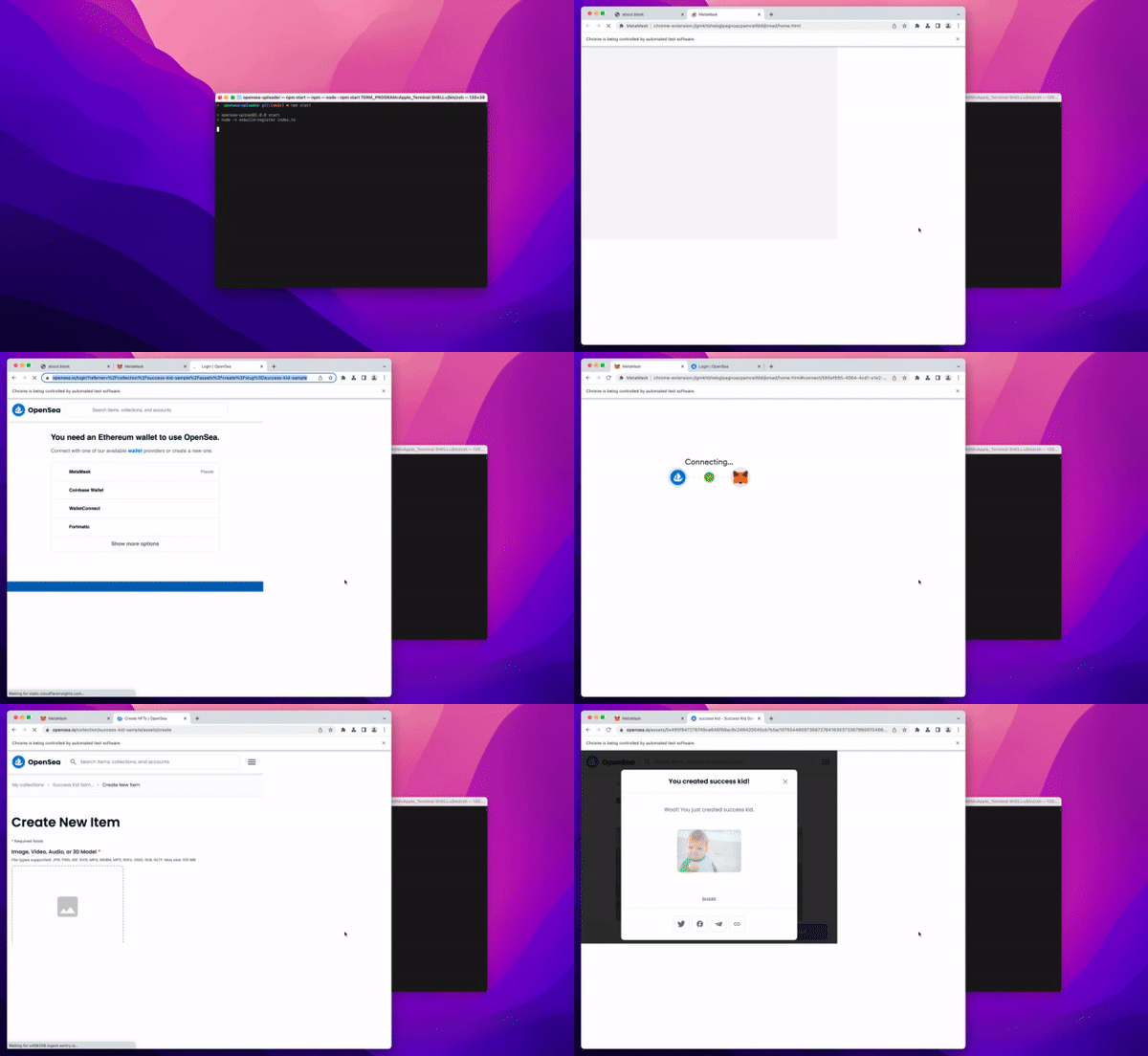
node -r esbuild-register index.tsThis will use ESBuild to compile our script and run it with Node.js. You’ll see a new browser window opening up and the script performing its magic. Don’t manually interact with any of the windows but let it run undisturbed. Otherwise, you might interrupt the flow or abort the process. Give it some time, as we create one asset after another, and give OpenSea.io enough time to load and process without overloading it.
What’s Next?
The code above is available in GitHub: https://github.com/arabold/opensea-uploader:
This should get you going and automate the most tedious job of creating a new NFT collection in OpenSea. However, the whole script is still quite simple and can only populate basic attributes. You might want to extend it to set custom properties and other metadata as well in the future.


