
How To Merge Other Git Branches Into Your Own
Quickly merge branches using the command line or GitHub Desktop

In most development teams, every time a new feature or bug fix needs to be implemented, developers create a feature branch from the development branch. While an individual engineer is working on the feature implementation, other tickets are also progressing on different feature branches that can also be merged to the development one.
In most cases, branches being merged shouldn’t really affect the implementation of your own ticket. However, there are certain scenarios in which you might want to merge another feature branch into your own branch. Say another developer has fixed a bug that is also affecting your existing work and you have to merge the bug fix in order to further progress your branch.
In the steps below, I am going to discuss how you can achieve this either programmatically or by using Github’s UI.
Using the Command Line
To do so, you need to follow the four steps listed below. For the sake of this example, let’s assume that the branch of the other developer is called feature/feature_b and the branch you are currently working on is named feature/feature_a.
1. Check out to the branch you want to merge into yours
The first thing you should do is to check out to the branch you wish to merge into yours. Say this is branch feature/feature_b:
git checkout feature/feature_b2. Pull updates from the remote repository
Now we need to pull all the updates made to the remote branch:
git pull3. Check out back to your own branch
Now that you have pulled the latest version of the branch you wish to merge, you need to check out back to your own branch:
git checkout feature/feature_a4. Merge the other branch into yours
Finally, you have to merge the desired branch into yours:
git merge feature/feature_bIf the branch that you have attempted to merge into yours does not interact with any changes that you have already made, the merge should complete successfully. In a different situation, merge conflicts will be reported and you should resolve them before pushing the changes.
Using GitHub Desktop
If for any reason, you want to use the UI in order to merge another branch into your branch, then simply follow the steps shown below.
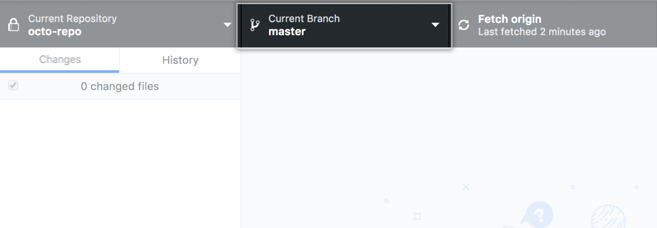
- Click on “Current Branch”:
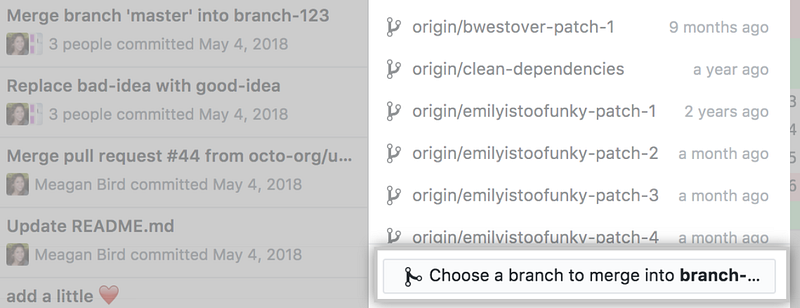
2. Click on “Choose a branch to merge into branch-name”:
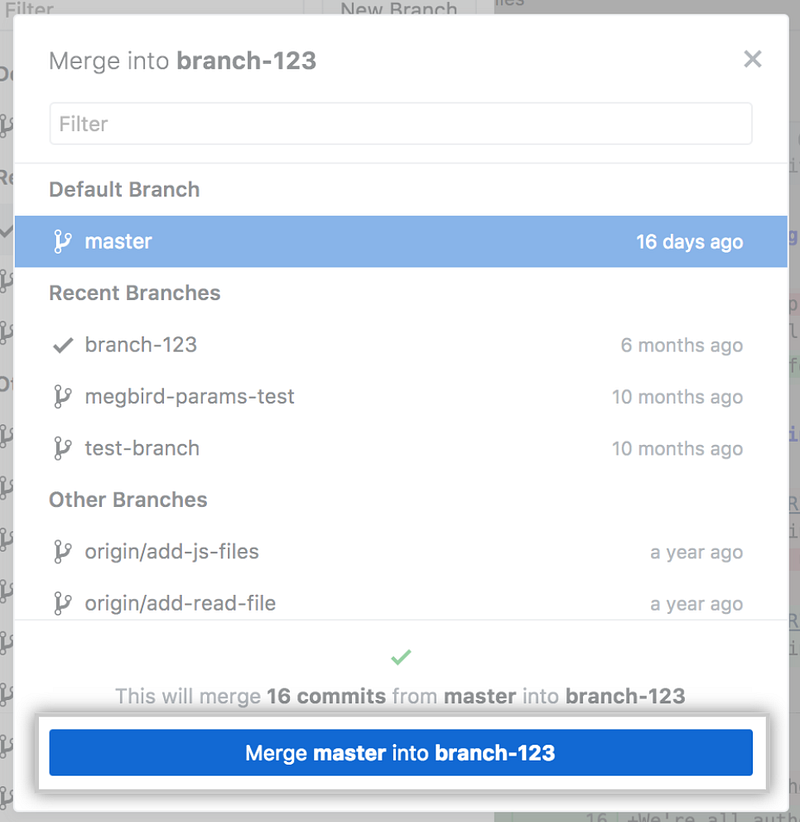
3. Click on the branch you want to merge:
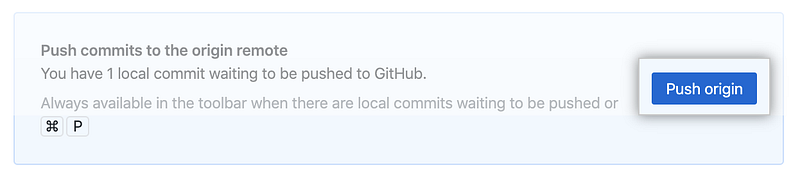
4. Click “Push Origin”:
Conclusion
In this article, we explored a way to merge another developer’s branch into yours. To do so, you simply need to follow the four steps. Recall that feature/feature_b reflects the branch you wish to merge into your branch named feature/feature_a:
git checkout feature/feature_b
git pull
git checkout feature/feature_a
git merge feature/feature_b
Additionally, we looked at how the same operation can be executed through GitHub’s Desktop interface.