

How to Manage Secrets in AWS with Secrets Manager and Terraform
AWS Secrets Manager helps us to create, manage, rotate and retrieve database credentials, API keys, and other secrets through their lifecycle
In this story, we will learn how to create and consume secrets using AWS Secrets Manager and Terraform.
Creating a Secret for a Variable
In this first example, we will create a secret using a variable for an API username.
The first step is to define the variable, and we are using sensitive = true to protect the values of the variable from being printed in the logs and console output.
# Secret Variables
variable "api_username" {
  description = "API service username"
  type        = string
  sensitive   = true
}
then we will create the secret:
# Creating a AWS Secret for API Service User
resource "aws_secretsmanager_secret" "service_user" {
  name        = "service_user"
  description = "Service Account Username for the API"
recovery_window_in_days = 0 tags = {
Name = "service_user"
Environment = var.app_environment
}
}resource "aws_secretsmanager_secret_version" "service_user" {
secret_id = aws_secretsmanager_secret.service_user.id
secret_string = var.api_username
}Define the username in the “terraform.tfvars” file:
api_username = "srv_apiprod"Note: the “recovery_window_in_days” is an optional setting for the number of days that AWS Secrets Manager waits before it can delete the secret. The default value is 30. This value can be 0 to force deletion without recovery (recommended for development) or range from 7 to 30 days.
Creating a Secret for a Password
In this second example, we will create a secret for an API password.
The first step is using the “randon_password” resource to create a random password. This function is identical to “random_string” except that the result is treated as sensitive and not displayed in console output.
resource "random_password" "service_password" {
  length  = 16
  special = true
  numeric = true
  upper   = true
  lower   = true
}
Then we create the create secret, using the randon_password function:
resource "aws_secretsmanager_secret" "service_password" {
  name        = "service_pass"
  description = "Service Account Password for the API"
recovery_window_in_days = 0 tags = {
Name = "service_pass"
Environment = var.app_environment
}
}resource "aws_secretsmanager_secret_version" "service_password" {
secret_id = aws_secretsmanager_secret.service_password.id
secret_string = random_password.service_password.result
}and we can consume the secret like this:
output "service_user" {
  value = local.service_user
  sensitive = true
}
Storing Multiples Variables in a Single Secret with Key/Value Pairs in JSON
Store secrets cost money! For example, AWS Secrets Manager charges $0.40 per month for each secret we store, plus $0.05 for every 10,000 API calls we make to store or retrieve data.
In this example, we are going to store multiple values for the DNS Configuration in a single secret with key/value pairs in JSON format.
# Creating a AWS Secret for DNS Configuration
resource "aws_secretsmanager_secret" "dns_config" {
  name        = "dns_config"
  description = "DNS Configuration"
recovery_window_in_days = 0 tags = {
Name = "dns_config"
Environment = var.app_environment
}
}resource "aws_secretsmanager_secret_version" "dns_config" {
secret_id = aws_secretsmanager_secret.dns_config.id
secret_string = <<EOF
{
"DNSZone": "kopicloud.local",
"DNSServer1": "10.127.1.6",
"DNSServer2": "10.127.1.7"
}
EOF
}Reading a Secret for a Variable
We are going to use the data “aws_secretsmanager_secret” to read values. We will use the Secret name on the AWS Secrets Manager console as a reference for retrieving our secret.
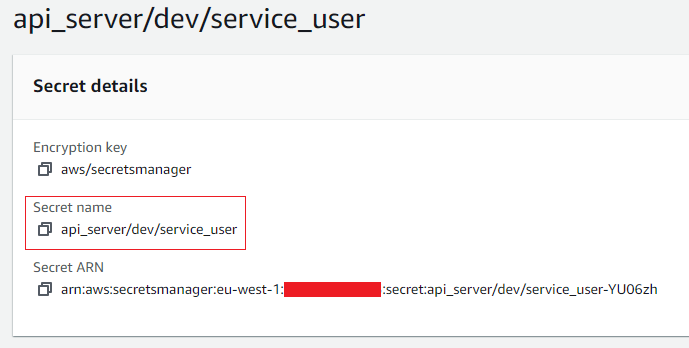
This is our code:
# read service user secret
data "aws_secretsmanager_secret" "service_user" {
  name = "api_server/dev/service_user"
}
data "aws_secretsmanager_secret_version" "service_user" {
secret_id = data.aws_secretsmanager_secret.service_user.id
}Then, we will use locals variables to read the secret:
locals {
  service_user = data.aws_secretsmanager_secret_version.service_user.secret_string
}
Reading Key/Value Pairs in JSON Secrets
Now we are going to read the JSON with multiple Key/Value pairs.
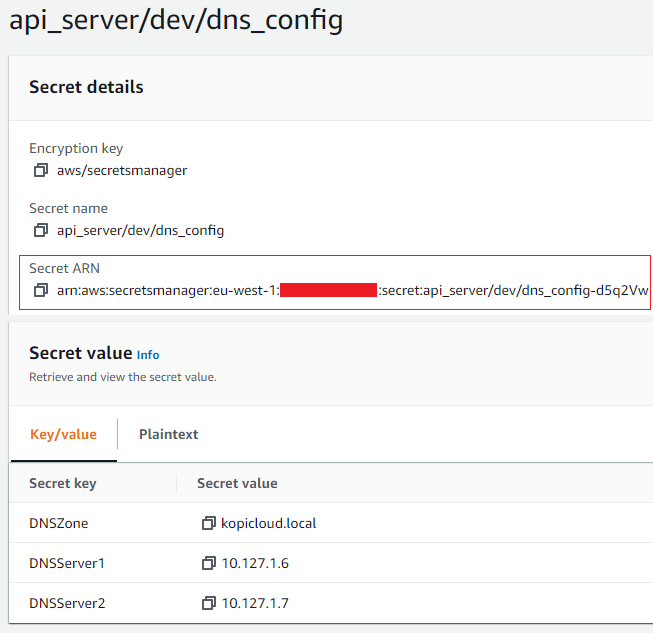
We are going to use the data “aws_secretsmanager_secret” to read values and, in this example, the Secret ARN on the AWS Secrets Manager console as a reference for our secret to retrieve.
data "aws_secretsmanager_secret" "dns_config" {
  arn = "arn:aws:secretsmanager:eu-west-1:88888888888:secret:api_server/dev/dns_config-d5q2Vw"
}
data "aws_secretsmanager_secret_version" "dns_config" {
secret_id = data.aws_secretsmanager_secret.dns_config.id
}Then, we will use locals variables to read the secret:
locals {
  dns_config = jsondecode(data.aws_secretsmanager_secret_version.dns_config.secret_string)
}
and we can consume the DNSZone secret like this:
output "dns_config_DNS_Zone" {
  value = local.dns_config.DNSZone
  sensitive = true
}
Debugging Our Secrets Code
Terraform is very good at protecting our secrets. If we are trying to output the secrets with this Terraform output code:
output "dns_config_DNS_Zone" {
  value = local.dns_config.DNSZone
}
we are getting this message from Terraform when we execute the code:
D:\tf-code> terraform apply -auto-approve
│
│ Error: Output refers to sensitive values
│
│   on secret-manager-main.tf line 17:
│   17: output "service_user" {
│
│ To reduce the risk of accidentally exporting sensitive data that
│ was intended to be only internal, Terraform requires that any root │ module output containing sensitive data be explicitly marked as
│ sensitive, to confirm your intent.
│
│ If you do intend to export this data, annotate the output value as
│ sensitive by adding the following argument: sensitive = true
If we add the recommended sensitive = true, the code is executed. However, we cannot see the value, we just consume from Terraform code.
D:\tf-code> terraform apply -auto-approveOutputs:service_user = <sensitive>So, how can we debug the Terraform code to be sure that we are reading the code properly? We are going to use a “null_resource” with a “local-exec” to redirect the output to a text file:
resource "null_resource" "dns_config" {
  provisioner "local-exec" {
    when    = create
    command = "echo ${local.dns_config.DNSZone} >> dns_zone.txt"
  }
}
and then look inside the text file…
D:\tf-code>type dns_zone.txt
kopicloud.local
The full code is available at https://github.com/guillermo-musumeci/terraform-aws-secrets-manager
And that’s all, folks. If you liked this story, please show your support by 👏 this story. Thank you for reading!


