
Give everyone the opportunity to read your content
How to Make Your Medium Articles More Accessible to Your audience
Increase reach and readability
I didn’t know any of these features existed during my first few weeks on Medium. Through exploration and kind pointers from the Medium Writers and Bloggers Facebook Group, this list was born.
I chose to include Medium features that make articles more accessible for all types of readers, by means of changing the article content’s organization or measuring reach.
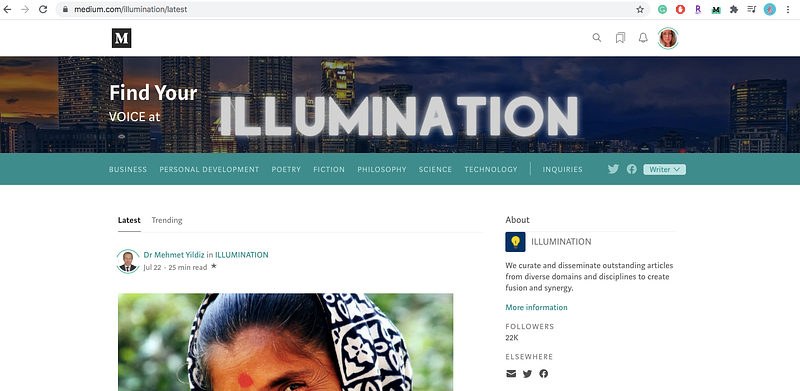
Use /latest to determine a publication’s audience size
I enjoy writing for the thrill of it. But, another part of me hopes my articles will reach other people and improve their lives by helping them in some shape or form. I like to check the size of the publications’ audiences before submitting my work to them.
- Go to a publication’s homepage
- Add /latest to the end of their URL
- Voila! You can now see how many people follow the publication. The figure is available on the right when you scroll down.
- Submit to the publication with the biggest relevant audience for your article
Use the focus feature to center your photos for mobile viewing
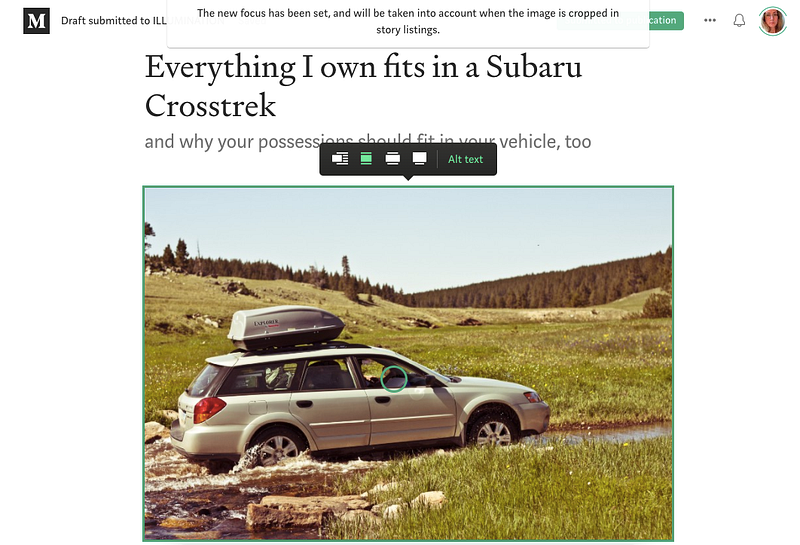
I’m very picky about how my articles show up for mobile viewers. I spend most of my Medium-browsing time on my phone, and I know mobile viewership is valuable. I want mobile viewers to have the best experience possible. Because of this, I take a few seconds to set a focus point on images in my articles.
- Hold the alt/option key and click on the most important part of the image. If the image is cropped for mobile viewing, the areas immediately surrounding the focus point will be shown.
- If you have done it correctly, you will see a green circle appear and a banner stating the new focus has been set.
Add alt text to images for your visually-impaired readers
As demonstrated in the above image, clicking on an image gives the author an “Alt text” option. After clicking, Medium prompts you to “write a brief description of this image for readers with visual impairments”.
- Describe the scenery of your image in a concise manner. Unfortunately, Medium gives you only 125 characters to do this.
- Your audience deserves equal treatment. Make your articles as accessible as possible. Every image in all my articles contains alt text.
Subtitles and formatting for mobile view
Don’t forget your subtitles!
- Add a subtitle by typing directly under your title and then highlighting the text and selecting the small “T” option.
- I like my subtitles to be short so mobile readers get the full picture when scrolling.
- The subtitle, in my opinion, is the place for perfect one-liners to attract readers.
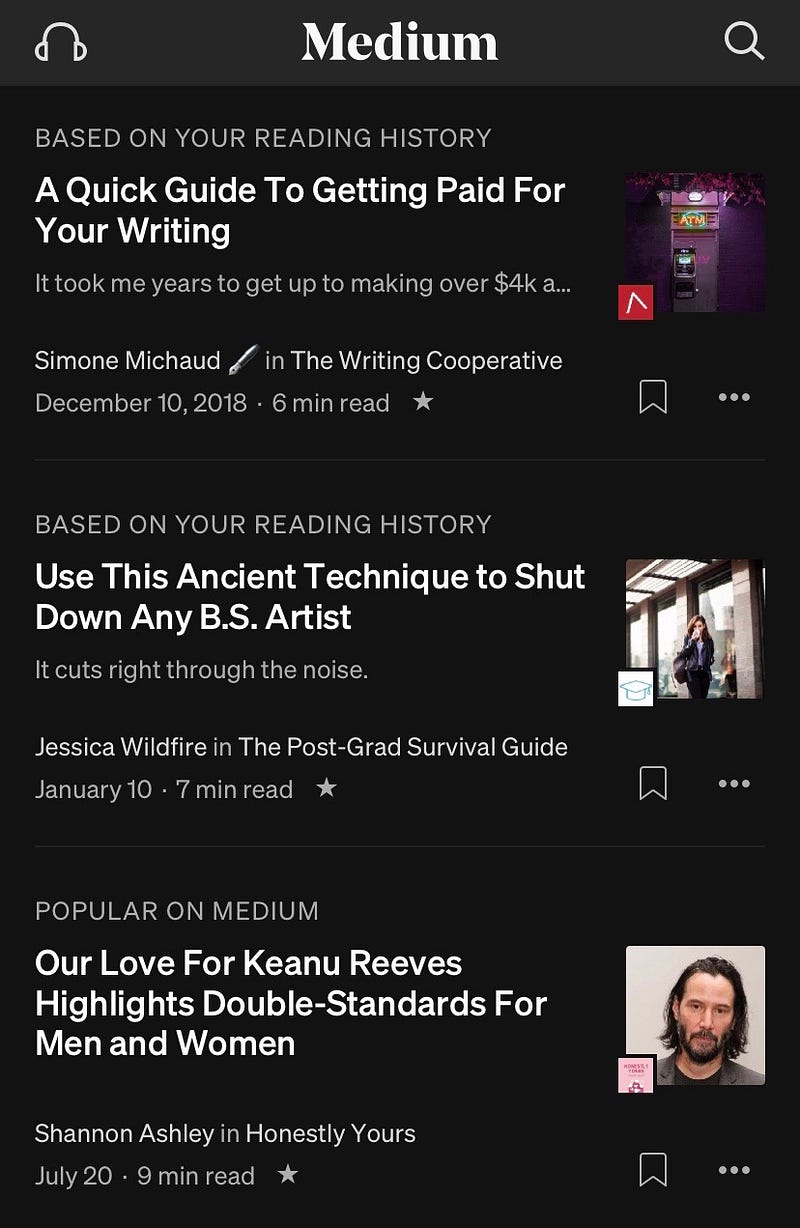
Here’s a mobile view of subtitles. The first article has a long subtitle, which mobile readers can’t see fully unless they click on the article. The second article has a perfect subtitle, easily read in its entirety, and the final article has no subtitle.
[Mini-tip: Enable night mode easily on your mobile device by clicking on the profile icon in the bottom menu, and flip the night mode switch.]
Fix your stats
The default Medium statistics are terrible. It’s difficult to discern what views and reads are from your articles, and which are from your responses on other writers’ pieces. A wonderful person named Tomas Trajan created a Google extension to fix that issue.
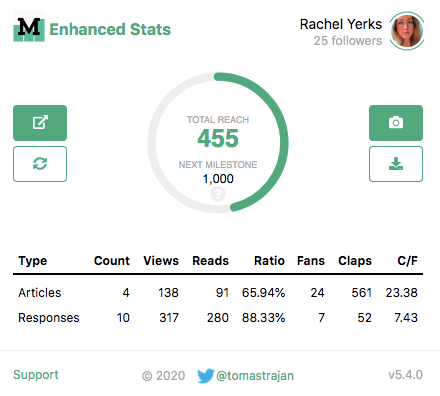
You’ll see the extension tells me how many followers I have and my total reach. It then further breaks down article and response count, views, reads, ratio, fans, claps, and claps to fans ratio for both articles and responses.
It doesn’t tell you about earnings or reading time, but I consider the functions it does include as welcome additions to my statistics arsenal.
I hope you found my explanations of these features insightful. Sometimes we miss out on helpful things we don’t realize we have access to. Happy writing!
Sign up for Rachel’s Newsletter, a free newsletter about freelance writing and finding the perfect side hustle, and/or support me directly through a paid Medium membership. Thank you!


