
How To Make Your Longer Articles More Accessible
With a little trick, you can help readers get to where they want to be — quick and easy
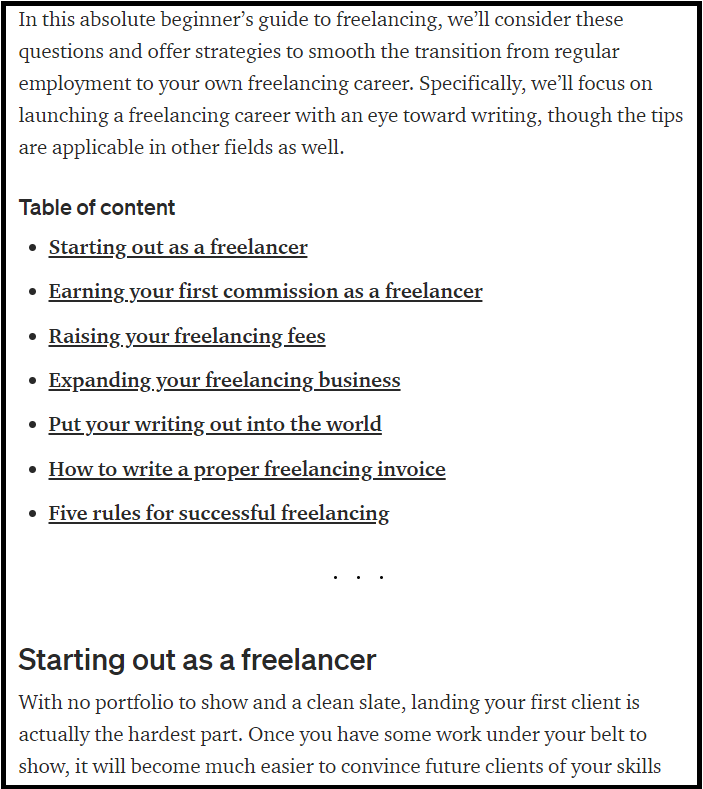
As a copywriter, I need to ensure that long websites are easy to read and navigate. One way to achieve this is by using anchor links.
An anchor link is a link that lets you directly jump to a specific part of the same page. This makes it easier for readers to jump to the content they want to read. The most common anchor links you will see on top of a single-page website are “our services”, “gallery”, and “contact us”.
I use them daily when creating client websites for businesses.
If you display a novel, anchor links allow people to directly jump to the chapter they left off at. For articles, this will help them find the information they need immediately.
TL: DR — Too long: Didn’t read
Anchor links are important
It’s a crucial feature for almost all websites. Especially if your visitors are reading with their smartphones, scrolling through loads of text can be slow and tedious. Unfortunately, Medium does not support anchor links natively.
Because readers have to slog through long articles, many people just skip them. Others give up after looking at the first wall of text that has zero relevance for what they are looking for.
I experimented a little and used my limited knowledge of web design to find a good workaround.
Here’s how you can use anchor links to help your readers navigate your articles.
How to create anchor links in your Medium articles
In most common web designers, like WordPress or Mono, an anchor link is easily created by selecting an element and activating the anchor link function. Then you just need to give them a name and link buttons and other elements to them by typing #name into the destination field.
In Medium, we don’t have that. But the website design itself still uses the same principle to identify parts of your page. By using these identifiers, we can create direct links that will jump to the area you want.
So I could not use #AnchorlinkCreation to get you right to this chapter. But all I have to do is to inspect the page code for the headline and see what the identifier is:
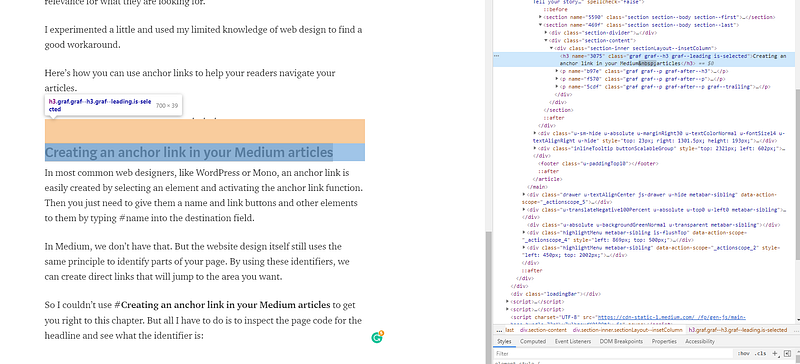
To get that, simply mark the headline you want to identify, right-click, and select “inspect”. Your browser will open up a window with the code you see on the right. It will automatically highlight the inspected area and the corresponding code on the right.
The interesting part here is the <h3 name=”3075" we see in the screenshot:

The name is the identifier for that specific part you just inspected. This is essentially your anchor link.
Now all you need to do is use the usual # to link to this name. You do this by highlighting the text you want to link and typing #3075 as the address of your link. Done. When you now click on the link, the browser or app will automatically scroll to that specific line.
Try it out: Get back up to the headline of this chapter by clicking on this link.
This not only works with headlines but also with paragraphs, images, and other identified elements on your page. These links work both on desktop browsers and in the mobile app.
Just inspect the element you want to link to, look for the name tag, and put it after an # in your link.
It’s an easy way to make your articles more accessible
Now you can let your readers directly jump to the content they want to read. Or you could get creative and create an interactive scavenger hunt or a roleplaying game. Create multiple choices throughout a story, let readers click their choice, and see how the story unfolds.
I personally use it to put content tables on top of my longer articles. That way, readers can get a quick overview of the contents of my article and jump to the area they want to read.
Instead of leaving the article because they didn’t find the answer they were looking for within the first seconds, they now can directly jump to it.
And if someone doesn’t have the time to read a longer article in one go, they now have easy access points to split their reading time and come back later.
All thanks to the mighty power of anchor links.
But I hope that Medium will one day allow the native implementation of anchor links.
TL: DR — Too long: Didn’t read
Step 1: Highlight the headline or paragraph of your article you want to link to.
Step 2: Right-click and click “inspect”.
Step 3: In the highlighted code on the right, look for “name=”.
Step 4: Copy the code behind name= (just double click to highlight it, then hit CTRL+C or right-click and select “copy”
Step 5: highlight the text you want to link to that headline or paragraph and select the chain symbol to create a link. In the address bar for the link, type # followed by the code you just copied (for example #3075)
Done. Once your article is published, clicking on the link will automatically scroll to the headline or paragraph you linked. Works with Medium in the browser and the mobile app.