
How to Make the Most of Your Mobile Devices
Non-techie ways to boost the effectiveness of your phone and tablet
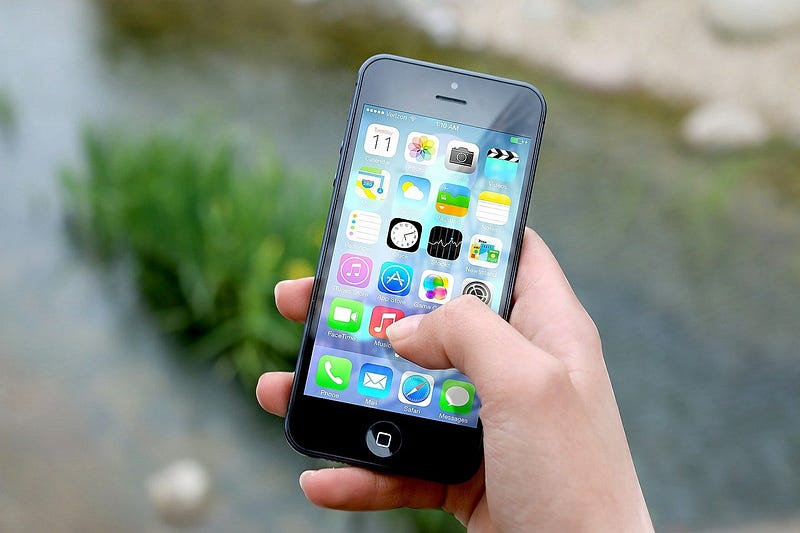
For most of us, phones and tablets have become our primary tools for handling work-related matters, especially when we’re away from our offices as many of us are now. According to GeoMarketing, the average person spends more than 3 hours a day using mobile apps — and that number is pre-Covid. More than ever, we need to maximize these devices for both efficiency and productivity if we want to get the results we need for business growth and profits.
Some people are naturally highly organized; everything is labeled and has a permanent home. If this is you, or if you’re a techie, your mobile devices are probably well organized and effective. Those of you like me who aren’t techies or who are “out-of-sight-out-of-mind” people need simple ways of getting organized that respect our need to have everything in front of us. If your phone or tablet has a built-in app library function, it can organize your apps for you, no tech knowledge needed. However, since I don’t always agree with the decisions my devices make, I use my own system. Regardless of what system you use, it’s important that you replicate it across all devices to create consistency and eliminate the need to think about where to find something. Everything will be in the same place whether you are using your phone, tablet, or laptop.
Your devices are filing cabinets.
A physical filing cabinet contains labeled folders that hold a wide variety of paper documents, including sub-folders. Your mobile devices are no different, except they contain apps and digital downloads. This means that you can organize them just as you would a filing cabinet in the corner of your office. You do this by moving individual apps into labeled folders and then organizing the folders into a logical system. Keep in mind, the apps you use several times a day and those that make you most productive should be on your home screen where you can access them immediately. Everything else can be filed into a folder, so the first step is to create your folders. You have several options.
Theme folders
I label my folders by themes since I suffer from two obstacles for getting and staying organized. First, I am an out-of-sight-out-of-mind person — if I can’t see it, I forget it. Second, I can think of a hundred different ways to label something, so broad labeling categories are best. Some of my themed folders are Health, Media, Navigation, Lifestyle, and Financial. If I need an appointment with my doctor, the app is in the Health folder, and if I want an appointment for a haircut, I go to the Lifestyle folder.
Noun or verb folders
These folders are based on activities or subjects associated with the app. Nouns would be Appointments, Music, Videos, Games, Software, Time off, etc. Verbs are associated with activities associated with those apps, such as Work, Sing, Play, Connect, Commute, Travel, and so on.
Color-coded folders
Color-coding is a proven method for organizing documents that works well for mobile devices. You can recognize items instantly, which reduces the time you spend looking for the things. You can organize by the color of the app icon, so all icons with blue are in one folder as are red icons, and so on. Alternatively, you can set up colored folders, for example, you could assign Red to the folder for all work-related apps, Green for finance apps, Blue for health, and so on. The instructions for assigning colors to folders vary depending on your device. If you use color coding for your desktop or paper filing system, continue the same system on your devices.
Organize the remaining apps and folders.
After you have moved your apps into their respective folders, arrange the folders either by alphabet or by usefulness, which is what I do. The folders for the apps I use most frequently are the first ones I see on my home page along my dock, which contains my camera, calendar, phone, and email apps. Folders with infrequently used apps are spread out on several pages. Media, Games, and Shopping folders are on the last page since these are my biggest temptations to avoid working.
Get rid of app clutter.
Like files you keep because you might need them one day, unused apps can pile up and drain the batteries in your devices. Running apps in the background also drains battery power even if you aren’t using the app. Check which apps are sapping power or taking up space on your devices and delete everything you no longer use or turn off background updates. In addition to apps, other things may be affecting battery power, so check how to monitor and manage this based on your device.
Now that we’ve taken care of our apps and maximized their performance, we can look at other ways of using our devices for greater efficiency and productivity.
Turn on Do-Not-Disturb to get into flow.
It takes uninterrupted focus to get into flow states where you can hit maximum output, so you need an environment that is conducive to concentration. Turn on Do-Not-Disturb and turn off Notifications to eliminate distractions for 60 to 90 minutes. This time frame syncs with our brain’s internal clock that works in 90-minute intervals, called the Basic Rest Activity Cycle. When Do-Not-Disturb ends, take a 20-minute break, check email, texts, social media, and then start over. According to Tony Schwartz, president and CEO of the Energy Project:
“The human body is hard-wired to pulse,” Schwartz says, “To operate at our best we need to renew our energy at 90-minute intervals — not just physically, but also mentally and emotionally.”
I use an app called Forest that lets me control the amount of time I want to work without interruptions — usually 60 minutes — and I can see my daily, weekly, monthly, and annual progress. It sits on my home page for easy access where I won’t forget to set it.
It’s called Forest because it allows you to accumulate points to buy tree and flower icons that reach full growth after 30 uninterrupted minutes of work. In one hour of concentrated focus, I can grow an oak tree or rose bush. But there’s more. You can save your points and when you reach 2,500, you can use them to plant a real tree. It partners with Trees for the Future to improve the lifelihoods of impoverished farmers by revitalizing depleted lands around the world. According to my app, more than 900,000 trees have been planted because of users donating their points.
Use the camera for ready reference.
Your camera is valuable for more than selfies or to capture the mezze platter your server just delivered to your table. It can make you more efficient.
- Snap a photo of that recipe you want to make before you head out to the grocery store to shop.
- Avoid losing your car in a parking lot or structure by taking a photo of what’s nearby, the floor and location number of the parking slot, or the car in relation to a landmark.
- Take photos of your prescription bottles in case you need a refill in an emergency.
- Store screenshots that show walking paths from public transportation and parking lots to your destination when you’re visiting a place for the first time.
- Stop printing out tickets for events and tapping in phone numbers at stores. Instead, use the QR codes.
Write and edit on your mobile devices.
Don’t rely soley on your desktop or laptop to write and edit documents. You have to be productive and efficient even when you are out of your office. To do this effectively, you need to house your documents and apps where you can access them remotely to create and edit them. Because I work with clients that use different systems, I have MS Office, Google Drive, and Dropbox apps in a folder on my home page, so I can work with any client wherever and whenever.
Phones and tablets get a bad rap they don’t deserve.
We often blame our devices as obstacles to our productivity because they “distract us from working, interfere with our focus, and blah, blah, blah.” None of this is true; they’re just tools. Their effectiveness relies on our ability to maximize the efficiencies they offer and use them to become more productive. If you’re someone who constantly reaches for their phone or tablet, use an app that lets you track your usage to identify where you are losing productivity and need to improve.