
How to: Make iOS14 Icons “Transparent” on iPhone 12
An alternative way to match icons background with current wallpaper
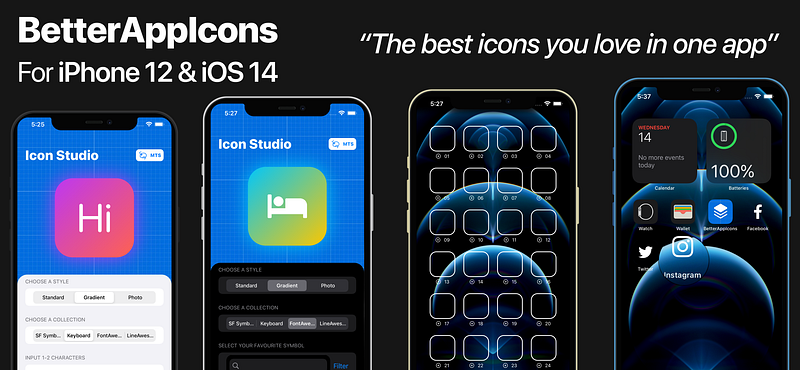
Previously, I shared the idea of matching the wallpaper and the widgets background with SwiftUI. This time, I would like to give you a quick peek of an amazing feature on BetterAppIcons.
Matching Theme System
Matching Theme System is known as MTS, used to process, auto crop, resize, and export the image in minimal size. It works perfectly with widgets and icons background.
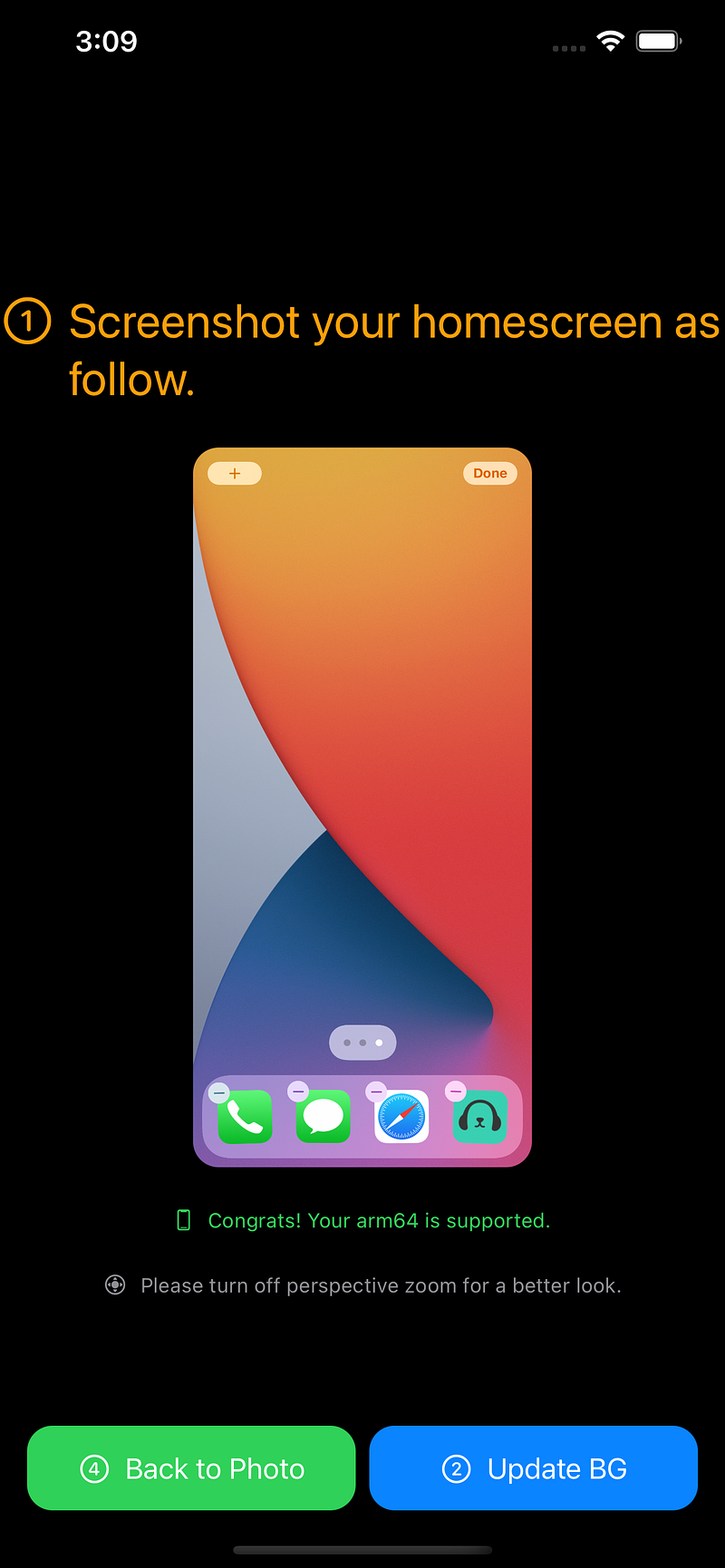
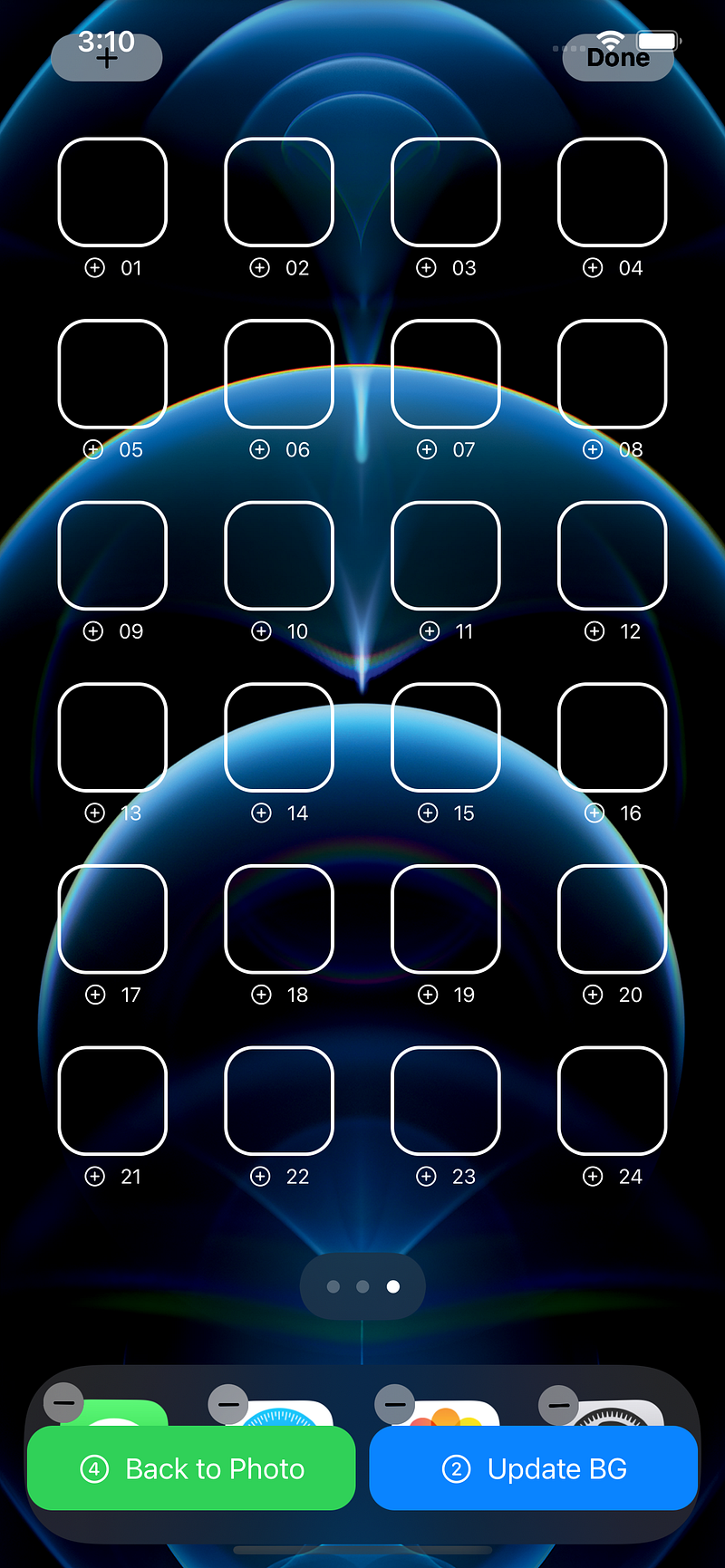
Steps
- Open a new view on Home screen
- Screenshot and save to Photo App
- Open MTS on BetterAppIcons
- Update Background
- Tap + to crop and save icon background to Photo App
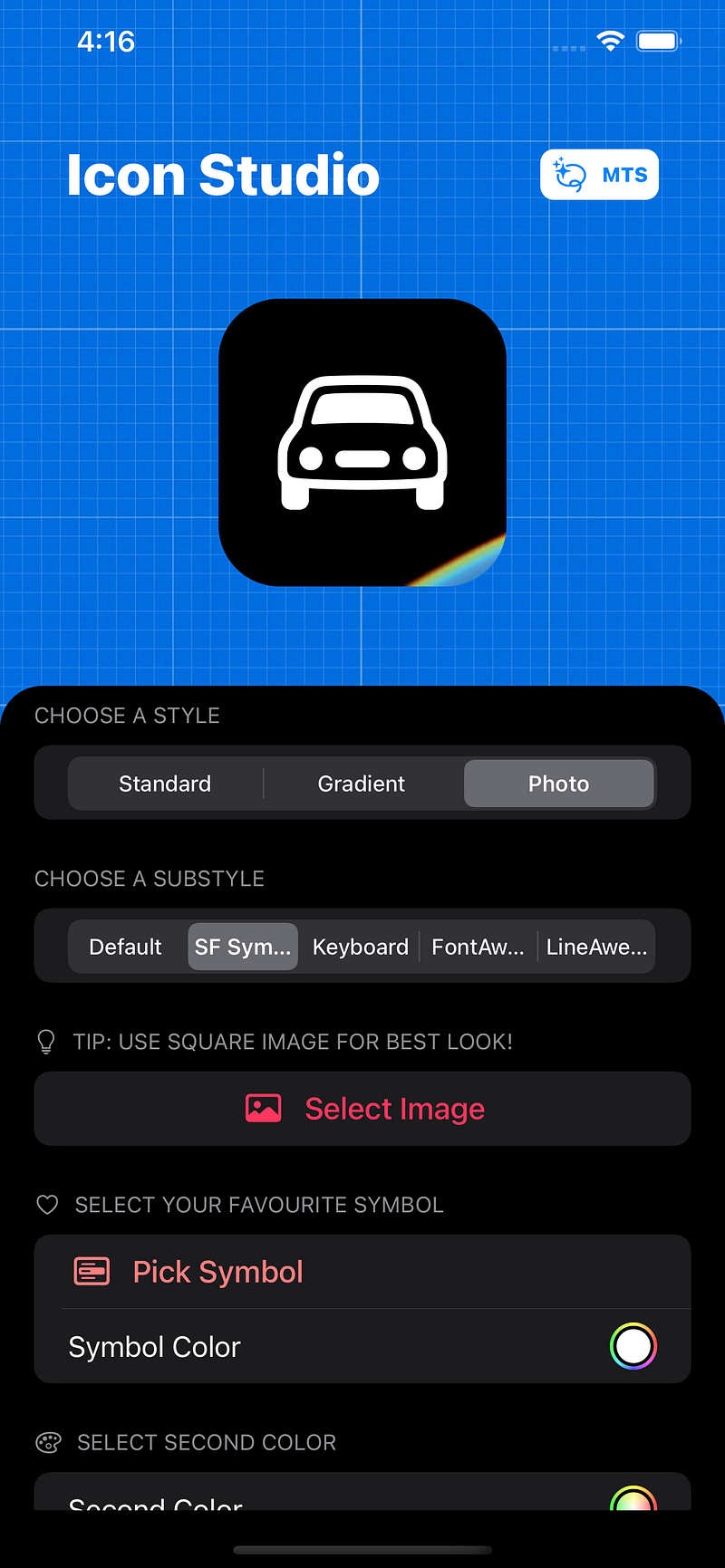
- (Optional) Back to BetterAppIcons, tap Photo > Select Image > Choose the saved icon background image You can add emoji/Text with Keyboard; or SF Symbols / FontAwesome / LineAwesome.
User Experience
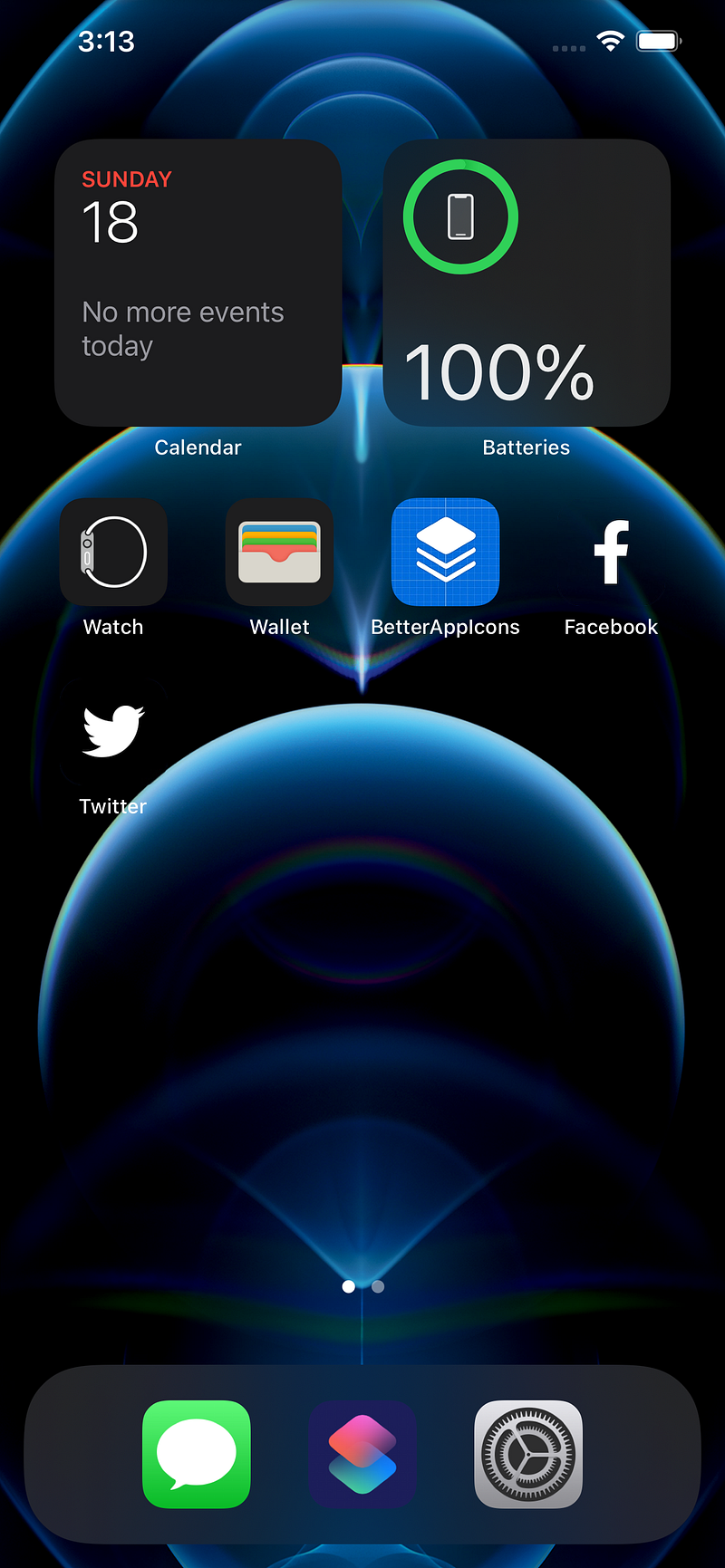
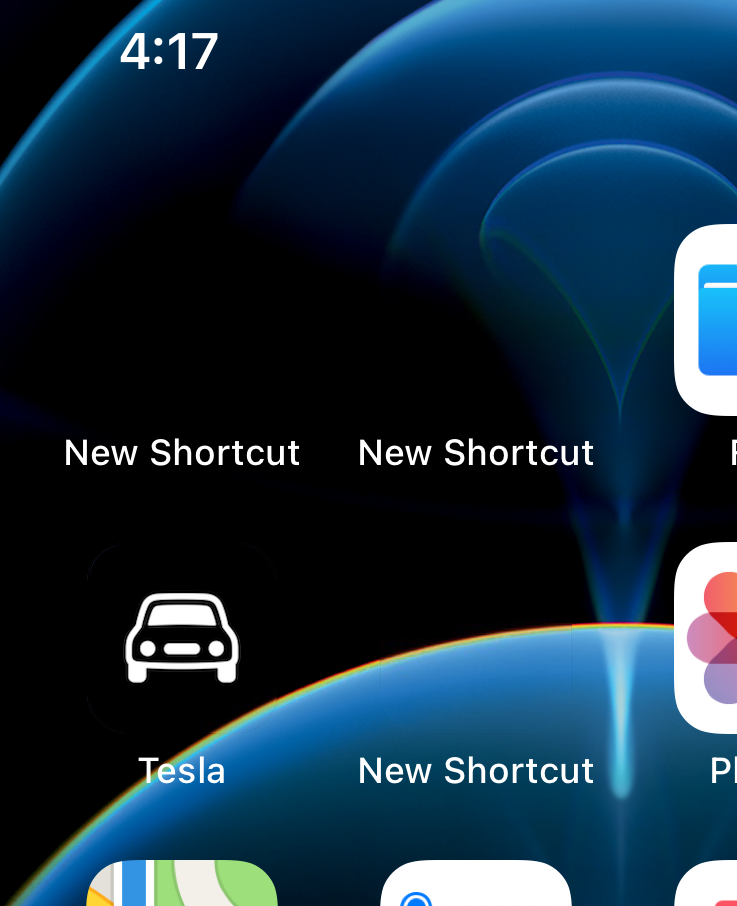
It is really hard to observe the gap between the icons and wallpaper, especially for the new wallpaper on iPhone 12. Even you scroll from one screen to another screen, the icons still look good.
Testing Environment
Device: iPhone 12 Pro Max OS Version: iOS 14.2 beta 3 App Version: 3.3.1 (36)
Get on Apple App Store Today
https://apps.apple.com/app/betterappicons/id1532627187
Learn more about BetterAppIcons
Remark: You need to disable perspective zoom to prevent offset. Since the icon is a static image, you need to disable the dark appearance option as well (Settings > Wallpaper).


