
How to Make an Amazing PowerPoint
A guide to creating a stunning and effective PowerPoint presentation
Whether you are a student making a presentation to your class, an entrepreneur making a pitch to a VC firm, or an employee at a large corporation presenting a project update to your manager, you will likely use PowerPoint to make your presentation.
Microsoft PowerPoint has been around since 1987 and is by far the most popular presentation tool on the market but many people still struggle to give effective presentations.
Below are several tips for crafting a more effective PowerPoint presentation. If you need further help, please feel free to check out the amazing PowerPoint slide and infographic templates offered by Simple Slides.
Simple Slides offer over 10,000 custom PowerPoint slides and infographics, for one low price! This is by far the largest collection of high quality slide templates I have ever seen.
The sample slides in this presentation are similar to or come directly from the editable presentations in the Simple Slides download:

1. Utilize Effective Fonts and Slide Formatting
- Select a single sans-serif fonts such as Arial or Helvetica. Avoid serif fonts such as Times New Roman or Palatino because these fonts are sometimes more difficult to read.
- Use no font size smaller than 24 point.
- Use the same font for all your headlines.
- Select a font for body copy and another for headlines.
- Use bold and different sizes of those fonts for captions and subheadings.
- Add a fourth font for page numbers or as a secondary body font for sidebars.
- Don’t use more than four fonts in any one publication.
- Clearly label each screen. Use a larger font (35–45 points) or different color for the title.
- Use larger fonts to indicate importance.
- Use different colors, sizes and styles (e.g., bold) for impact.
- Avoid italicized fonts as these are difficult to read quickly.
- Avoid long sentences.
- Avoid abbreviations and acronyms.
- Limit punctuation marks.
- No more than 6–8 words per line
- For bullet points, use the 6 x 6 Rule. One thought per line with no more than 6 words per line and no more than 6 lines per slide

2. Eliminate Paragraphs
Where most presentations fail is that their authors put everything they want to say onto their slides, in great big chunky blocks of text. This is a great way to bore your audience.
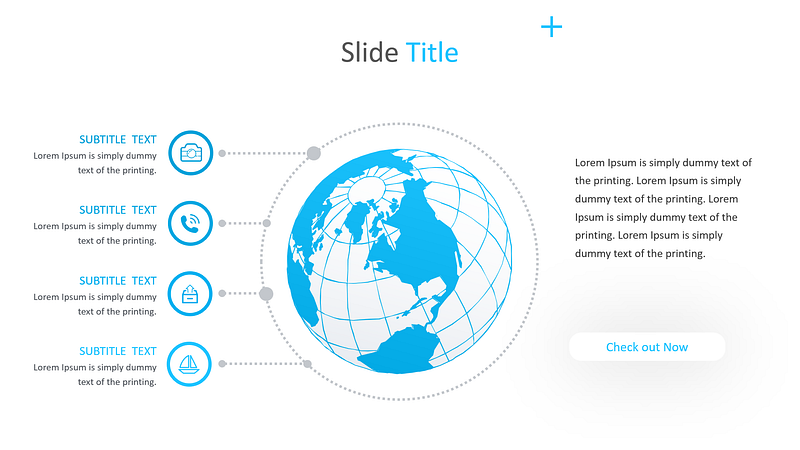
Your slides are the illustrations for your presentation, not the presentation itself. They should underline and reinforce what you’re saying as you give your presentation — save the paragraphs of text for your script. PowerPoint and other presentation software have functions to display notes onto the presenter’s screen that do not get sent to the projector, or you can use notecards, a separate word processor document, or your memory.
3. Make Use of PowerPoint’s Shapes
Many users don’t realize how flexible PowerPoint’s shape tools have become. In combination with the expanded format options released by Microsoft in 2010, the potential for good design with shapes is readily available. PowerPoint provides the user with a bunch of great shape options beyond the traditional rectangle, oval, and rounded rectangle patterns.

Today’s shapes include a highly functional Smart Shapes function, which enables you to create diagrams and flow charts in no time. These tools are especially valuable when you consider that PowerPoint is a visual medium. Paragraphing and bullet lists are boring — you can use shapes to help express your message more clearly.
4. Keep it Simple
PowerPoint is an excellent tool to support your presentation with visual information, graphics, and supplemental points. This means that your powerpoint should not be your entire presentation. Your slides — no matter how creative and beautiful — shouldn’t be the star of the show. Keep your text and images clear and concise, using them only to supplement your message and authority.
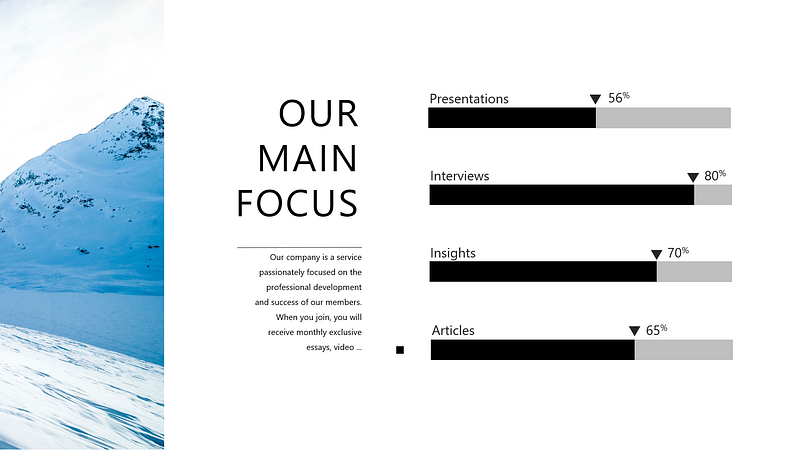
If your slides have dense and cluttered information, it will both distract your audience and make it much more likely that you will lose their attention. Nothing in your slides should be superfluous! Keep your presentation persuasive by keeping it clean. There are a few ways to do this:
- Limit bullet points and text.
- Avoid paragraphs and long quotes.
- Maintain “white space” or “negative space”.
- Keep percentages, graphs, and data super basic.
5. Ask Questions
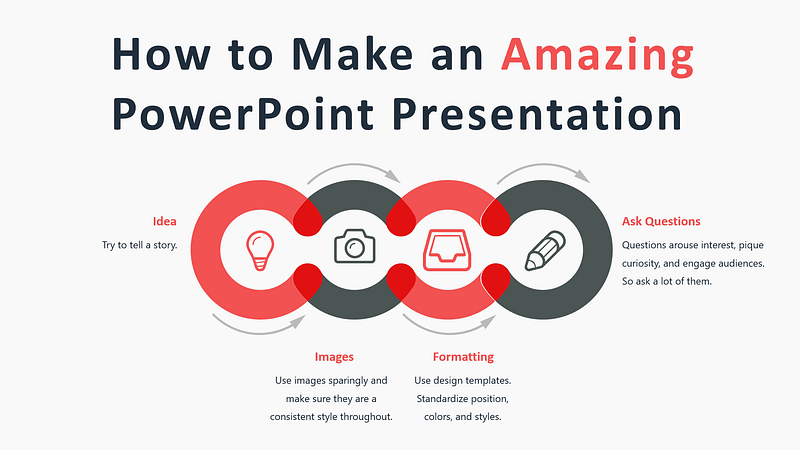
Questions arouse interest, pique curiosity, and engage audiences. So ask a lot of them. Build tension by posing a question and letting your audience stew a moment before moving to the next slide with the answer. Quiz their knowledge and then show them how little they know. If appropriate, engage in a little question-and-answer with your audience, with you asking the questions.

6. Pay Attention to Design and Graphical Images
- Use design templates.
- Standardize position, colors, and styles.
- Include only necessary information.
- Content should be self-evident
- Use colors that contrast and compliment.
- Use the same graphical rule at the top of all pages in a multi-page document.
- Use one or two large images rather than several small images.
- Arrange images vertically or horizontally.
- Use only enough text when using charts or graphical images to explain the chart or graph and clearly label the image.
- Keep the design clean and uncluttered. Leave empty space around the text and graphical images.
- Use quality clipart and use it sparingly. A graphical image should relate to and enhance the topic of the slide.
- Try to use the same style graphical image throughout the presentation (e.g., cartoon, photographs)



7. Create Original Branding
Your brand should be distinctive. This should carry over into your PowerPoint presentation.
Stick with your brand’s fonts, colors, and unique style. Design your slides to reflect your brand’s personality. If your brand is sleek and bold, take more risks in your design by creating abstract elements. If your brand is understated, go simple and minimize distractions. The key is to stay true to your own branded look and feel.
It can also be useful to incorporate company logos, symbols, or icons in your PowerPoint presentation.

8. Tell A Story
Humans have used stories to impart information since the dawn of time and it’s still a great way to communicate. Even if you have to deliver a long series of facts, remember that it’s the underlying meaning or outcome of those facts that will strike home.
This doesn’t mean you should start your presentation with “A long time ago…” — rather that you should build it in such a way that the time-line of the topic is clear. You might find writing an initial script separate from PowerPoint helpful before you go creating actual slides.
9. Use Preformatted Slides
If you are struggling designing your PowerPoint, know that there are a number of options to make the process easier.
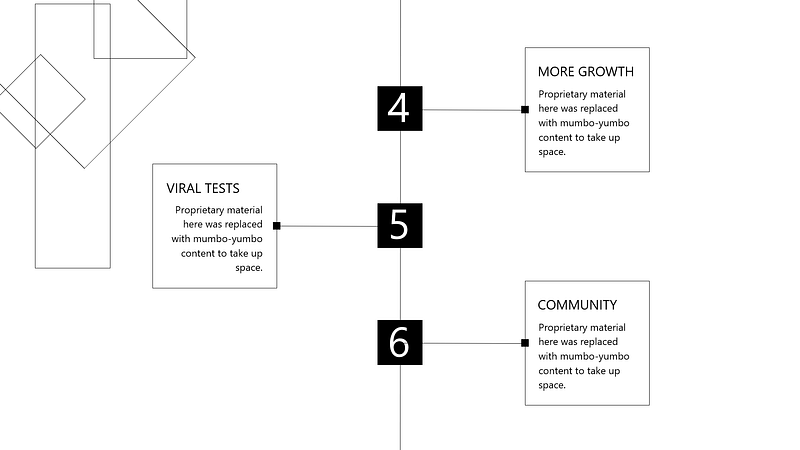
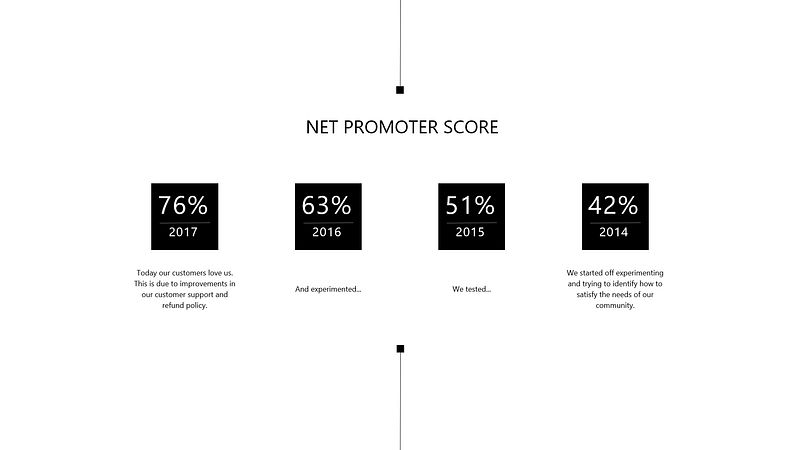
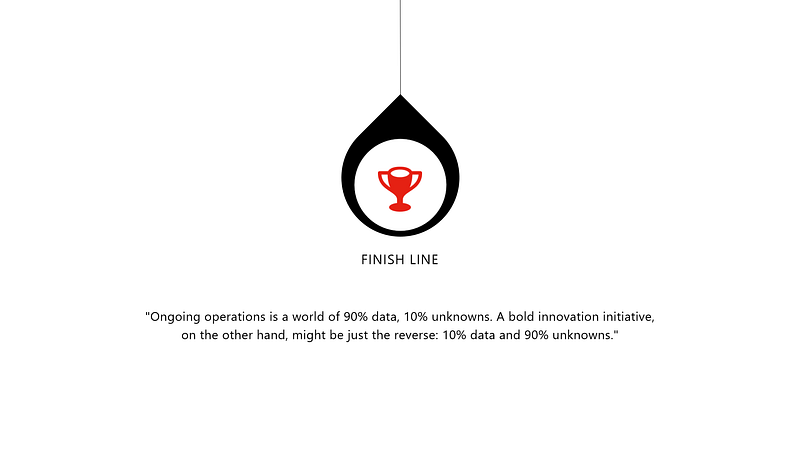
One of my favorite examples of this is SimpleSlides. SimpleSlides create some of the most visually effective slides and infographics I’ve seen.
Their templates make creating visually stunning slides easy and fast to create. By making just a few quick edits to these preformatted templates, your presentation will feature sleek and professional slides. It would take hours to create slides of this caliber, even for a trained PowerPoint pro!
SimpleSlides includes:
- 10,000+ PowerPoint Slides & Infographics
- Free Slide Pack Demo
- 1,700+ Icons
- Free Monthly Updates
- Lifetime Downloads
- Free & Fast Support
Best of all, there are no monthly fees! You purchase the affordable package of slides once, and you will receive all 10,000+ slides and free monthly downloads (when new content is added) for life!
Thanks for reading this article! Leave a comment below if you have any questions, and if you want to learn more about blogging, content marketing, or subscription newsletter strategy, be sure to sign up for the Blogging Guide Newsletter!
If you liked this article, here are some other articles you may enjoy:

Casey Botticello is an internet entrepreneur and the founder of Blogging Guide, an online community of writers with an award-winning newsletter. He is also the creator of the popular Medium Writing Course and the Substack Newsletter Course.
Casey previously worked at several tech startups, a lobbying & strategic communications firm, and has created several businesses of his own. He is a graduate of The University of Pennsylvania, where he received his B.A. in Urban Studies.
You can connect with him on LinkedIn, Twitter, Facebook, follow his Medium publications, Digital Marketing Lab and Medium Blogging Guide, or reach out to him directly on his personal website.


