
How to Make AI Images of Your Fave Characters and More — It’s Totally Free and Super Easy!
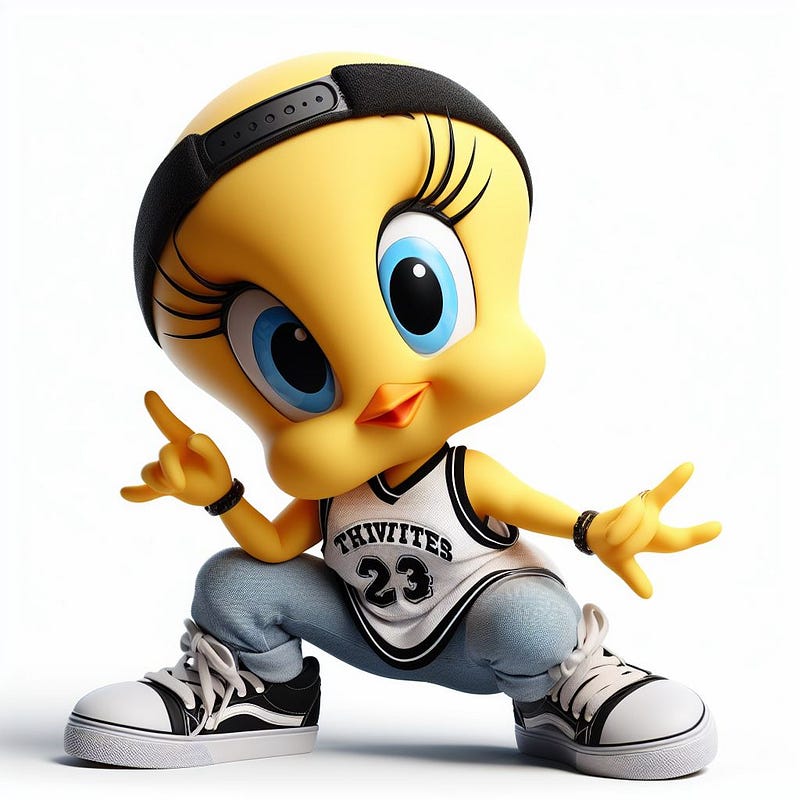
A Step-by-Step Guide to Crafting Vivid Characters, Like Tweety Bird, Betty Boop, and more with Bing’s Innovative AI!
In today’s digital age, with all the visual stuff taking over, Bing Image Creator is a really cool tool for artists, creators, and newbies who want to get in on the fun!
Bing Image Creator empowers users to effortlessly create stunning AI images by simply typing in text prompts, all thanks to the incredible Anthropic’s DALL-E 3 technology.
As soon as you sign up, they’ll shower you with a generous amount of FREE Boosts credits, so you can dive right into the world of image creation. And don’t worry, if you ever run out, you can easily replenish your Boosts by purchasing additional credit packs, conveniently accessible through the Bing Image Creator interface.
FEATURES
- Generate AI images from text — Input your creation and let advanced AI bring it to life.
- Take control — Modify prompts, explore variations, and generate new images for ideal outcome.
- Experience realism — AI crafts lifelike images with lighting, depth, and intricate details.
PLEASE NOTE: BING IMAGE CREATOR platform is for PERSONAL USE ONLY! You don’t have permission to use for commercial use. This means that you can’t sell any images created on Bing Image Creator.
Let’s check out Bing’s AI art skills in this guide, and we’ll give you the tools to unleash a bunch of creative ideas for free. So get your ideas ready, and let’s go on a mission to make some really cool characters that grab people’s attention and spark inspiration.
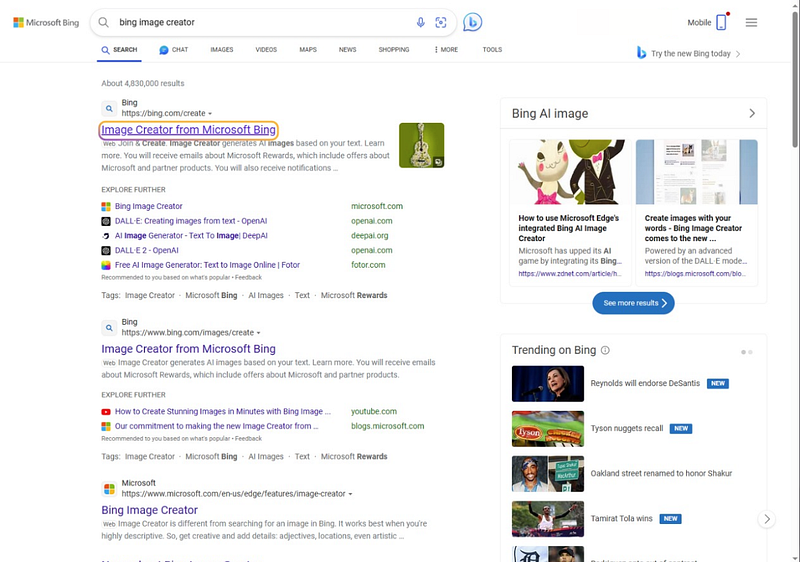
1. Go To Microsoft Bing’s Browser or search for Bing Image Creator.
Click on “Image Creator from Microsoft Bing” to visit the website.
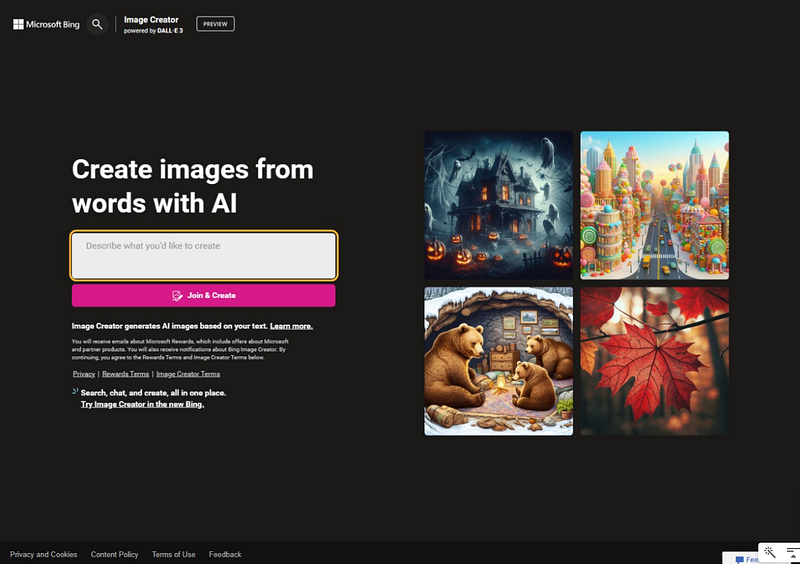
2. Describe what you’d like to create
Inside the box, you’d type a description of the image you’d like to create. We will use this example:
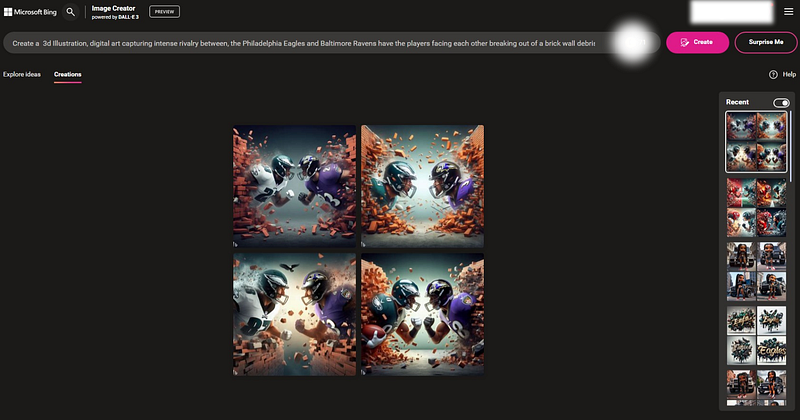
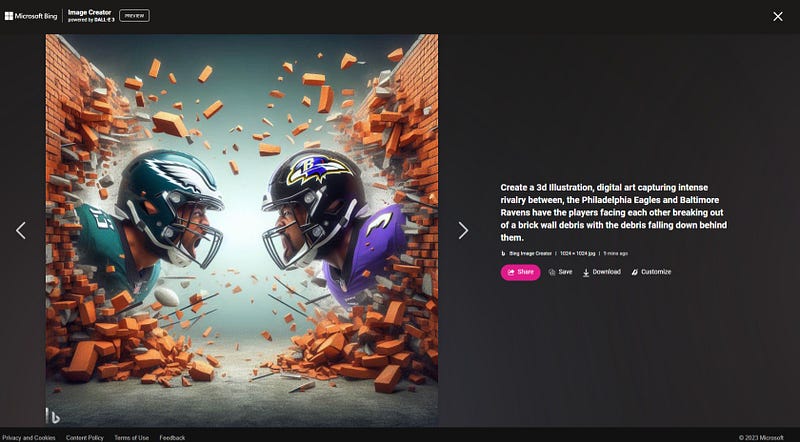
Create a 3d Illustration, digital art capturing intense rivalry between, the Philadelphia Eagles and Baltimore Ravens have the players facing each other breaking out of a brick wall debris with the debris falling down behind them.
Now click on “Join & Create” button. If you have a Microsoft Account, log in. If not, you can create a new account before viewing your images.
3. Look Over Your New Images!
Choosing your favorite pieces from the options created takes skill and practice. Here are some tips for evaluating and selecting the strongest AI-generated artwork:
- Look for technical quality — Sharpness, good lighting, clean lines, and vivid colors often indicate a high-quality output. Avoid pieces with visual artifacts or blurriness.
- Consider composition — Does the artwork follow principles like the rule of thirds with good weight distribution? Or is the focus too centered or cluttered?
- Assess if the prompt was followed accurately — Does the art match what you describe? Or are elements missing or incorrect?
- Review emotional impact — Does the piece evoke the desired mood and feelings? The best AI art connects with viewers on an emotional level.
- Check originality — While AI art uses existing images, the output should feel fresh and unique. Be wary of pieces that seem too derivative.
Follow these criteria to train your eye and curate the most compelling AI art for your creative projects. The more you practice evaluation, the better your selection skills will become.
4. Share, Save, Download, Customize the Image of Your Choice
Once you choose the image(s) you like, you can share, save, download or customize it using Microsoft Image Editor.
Microsoft Image Editor
Microsoft offers an image editor that allows users to edit their AI images.With a wide range of tools and features, users can easily enhance, manipulate, and customize their AI-generated images to fit their specific needs and preferences. The image editor provides a user-friendly interface, making it accessible for both beginners and experienced designers. Whether it’s adjusting colors, adding text, or applying filters, Microsoft’s image editor offers a seamless editing experience for AI images.
Here are more examples you can play around with.
Create a 3d Hip Hop Tweety bird wearing jeans and a jersey — human like
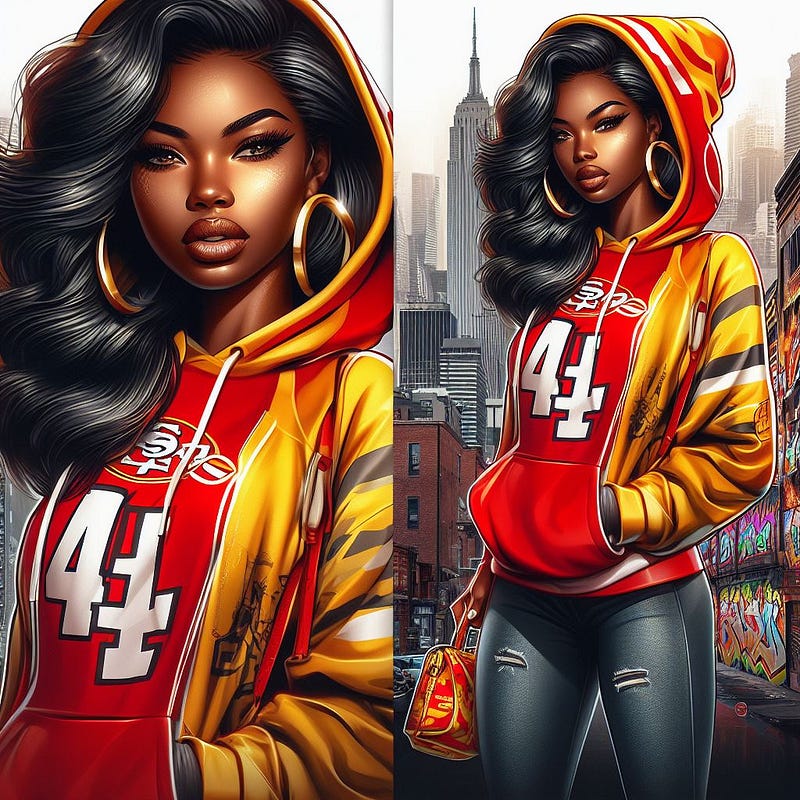
full body dark skinned woman, with beautiful hair, with hair highlights, digital art, detailed, wearing a red & yellow hoodie, with bold letters in graffiti on chest of hoodie, wearing jeans, wearing red & yellow 49'ers standing in the city, holding a small matching purse, large BOLD graffiti city buildings IN THE BACKGROUND
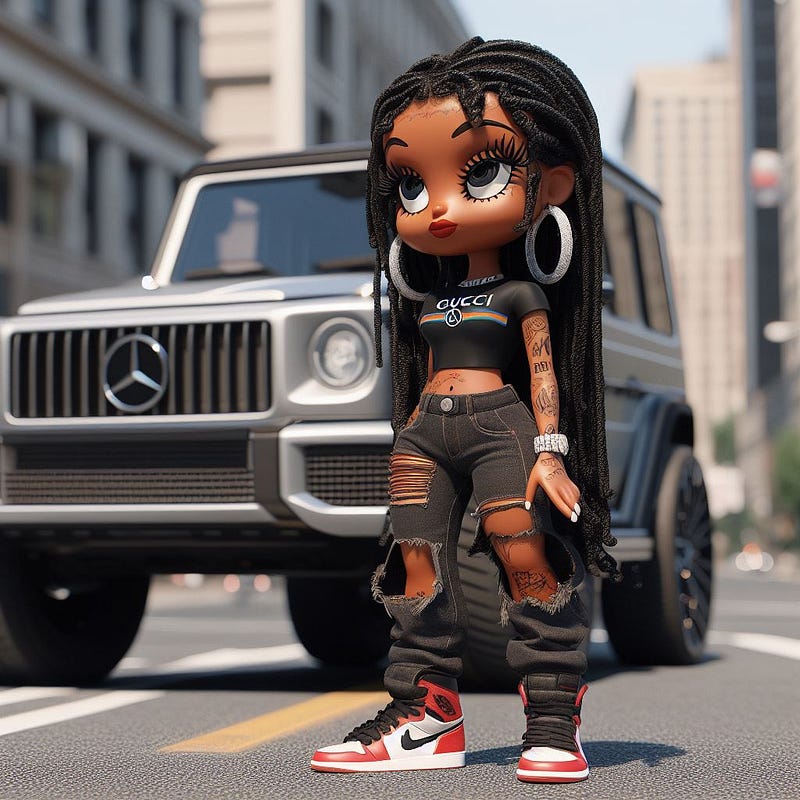
Create a 3d realistic photo of a character, Betty Boop, in the style of rap aesthetics, caramel-skin, wearing ripped black jeans and the name brand, “Gucci” top, long black dreads, silver big hoop earrings, red Air Jordan 1 High, in front of a 2023 Mercedes-Benz G-Class SUV on a city street in the middle of the day
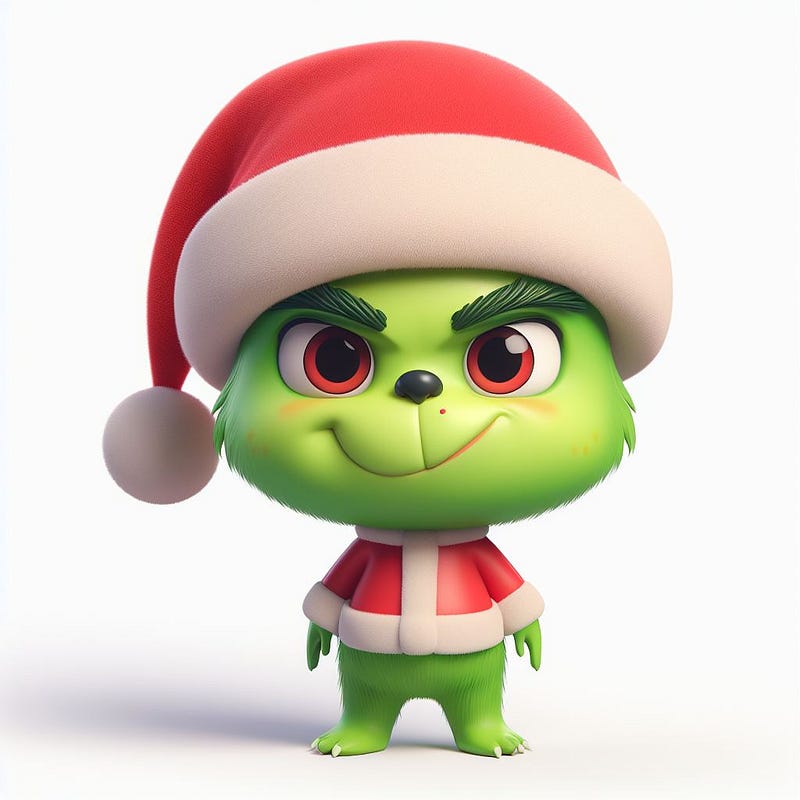
Create a 3d character of a baby grinch wearing a Christmas hat
If you have any questions, please leave a comment below.
Enjoy!


