
The Founder’s Guide
How to Install the NVIDIA CUDA Driver, Toolkit, cuDNN, and TensorRT in WSL2
The condensed tutorial with copy and paste code and screenshots

“The expanded version of this article uses concise explanations to help you learn what’s happening 💡”
Join the NVIDIA Developer Program:
- Visit the official website.
- Click “Join Now”
- Enter email address
- Click “Next”
- Click “Create Account”
- Enter user information
- Click “Create Account”
- Verify email address
- Click “Submit”
- Enter user information
- Click “Submit”

Download the NVIDIA CUDA Driver:
- Visit the official website
- Click “Get CUDA Driver”
- Click “Download Now”

Install the NVIDIA CUDA Driver:
- Open “460.15_gameready_win10-dch_64bit_international.exe”
- Click “OK”
- Select “NVIDIA Graphics Driver”
- Click “Agree and Continue”
- Click “Next”
- Click “Close”

Open PowerShell:
- Press “⊞ Windows”
- Enter “PowerShell” into the search bar
- Click “Run as Administrator”

Update WSL2:
- Copy the command from below these instructions
- Paste the command into PowerShell
- Press “Enter”
The WSL2 version number must be 4.19.121 or higher.
wsl --update
Shut Down WSL2:
- Copy the command from below these instructions
- Paste the command into PowerShell
- Press “Enter”
wsl --shutdown
Open WSL2:
- Copy the command from below these instructions
- Paste the command into PowerShell
- Press “Enter”
wsl
Get the NVIDIA Public Key:
- Copy the command from below these instructions
- Paste the command into PowerShell
- Press “Enter”
sudo apt-key adv --fetch-keys http://developer.download.nvidia.com/compute/cuda/repos/ubuntu1804/x86_64/7fa2af80.pub
Add NVIDIA to the Source List Directory:
- Copy the command from below these instructions
- Paste the command into PowerShell
- Press “Enter”
sudo sh -c 'echo "deb http://developer.download.nvidia.com/compute/cuda/repos/ubuntu1804/x86_64 /" > /etc/apt/sources.list.d/cuda.list'
Update the Source List and Source List Directory:
- Copy the command from below these instructions
- Paste the command into PowerShell
- Press “Enter”
sudo apt-get update
Install NVIDIA CUDA Toolkit 11:
- Copy the command from below these instructions
- Paste the command into PowerShell
- Press “Enter”
sudo apt-get --yes install cuda-toolkit-11-0 cuda-toolkit-10-2
Add NVIDIA to the Source List Directory:
- Copy the command from below these instructions
- Paste the command into PowerShell
- Press “Enter”
sudo sh -c 'echo "deb http://developer.download.nvidia.com/compute/machine-learning/repos/ubuntu1804/x86_64 /" > /etc/apt/sources.list.d/nvidia-machine-learning.list'
Update the Source List and Source List Directory:
- Copy the command from below these instructions
- Paste the command into PowerShell
- Press “Enter”
sudo apt-get update
Install the CUDA and cuDDN Libraries:
- Copy the command from below these instructions
- Paste the command into PowerShell
- Press “Enter”
sudo apt-get install --yes --no-install-recommends cuda-11-0 libcudnn8=8.0.5.39-1+cuda11.0 libcudnn8-dev=8.0.5.39-1+cuda11.0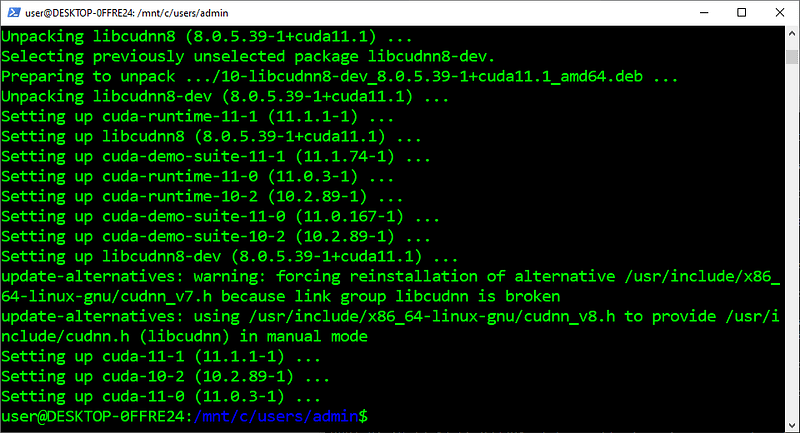
Install the TensorRT Library:
- Copy the command from below these instructions
- Paste the command into PowerShell
- Press “Enter”
sudo apt-get install --yes --no-install-recommends libnvinfer7=7.1.3-1+cuda11.0 libnvinfer-dev=7.1.3-1+cuda11.0 libnvinfer-plugin7=7.1.3-1+cuda11.0
Open the BlackScholes Directory:
- Find the Python version from below these instructions
- Copy the provided command
- Paste the command into PowerShell
- Press “Enter”
cd /usr/local/cuda-11.0/samples/4_Finance/BlackScholes
Run the MakeFile:
- Copy the command from below these instructions
- Paste the command into PowerShell
- Press “Enter”
sudo make
Run the Sample:
- Copy the command from below these instructions
- Paste the command into PowerShell
- Press “Enter”
./BlackScholes
“Hopefully, this article helped you get the 👯♀️🏆👯♀️, remember to subscribe to get more content 🏅”
Next Steps:
This article is part of a mini-series that helps readers set up everything they need to start learning about artificial intelligence, machine learning, deep learning, and or data science. It includes articles that contain instructions with copy and paste code and screenshots to help readers get the outcome as soon as possible. It also includes articles that contain instructions with explanations and screenshots to help readers learn about what’s happening.
Linux:
01. Install and Manage Multiple Python Versions
02. Install the NVIDIA CUDA Driver, Toolkit, cuDNN, and TensorRT
03. Install the Jupyter Notebook Server
04. Install Virtual Environments in Jupyter Notebook
05. Install the Python Environment for AI and Machine Learning
WSL2:
01. Install Windows Subsystem for Linux 2
02. Install and Manage Multiple Python Versions
03. Install the NVIDIA CUDA Driver, Toolkit, cuDNN, and TensorRT
04. Install the Jupyter Notebook Server
05. Install Virtual Environments in Jupyter Notebook
06. Install the Python Environment for AI and Machine Learning
07. Install Ubuntu Desktop With a Graphical User Interface (Bonus)Windows 10:
01. Install and Manage Multiple Python Versions
02. Install the NVIDIA CUDA Driver, Toolkit, cuDNN, and TensorRT
03. Install the Jupyter Notebook Server
04. Install Virtual Environments in Jupyter Notebook
05. Install the Python Environment for AI and Machine LearningMac:
01. Install and Manage Multiple Python Versions
02. Install the Jupyter Notebook Server
03. Install Virtual Environments in Jupyter Notebook
04. Install the Python Environment for AI and Machine Learning


