avatarPy-Way

Free AI web copilot to create summaries, insights and extended knowledge, download it at here

3398

Abstract

kg <span class="hljs-keyword">install</span> proot-distro</pre></div><p id="30f3">After the command is successful, install the Ubuntu distro using the following command:</p><div id="bcc5"><pre>proot-<span class="hljs-keyword">distro </span><span class="hljs-keyword">install </span>ubuntu</pre></div><blockquote id="e457"><p><b>Note</b>: the terminal is case-sensitive!</p></blockquote><p id="8891">After successful installation, you can start Ubuntu with:</p><div id="eb2c"><pre><span class="hljs-attribute">proot-distro login ubuntu</span></pre></div><figure id="caff"><img src="https://cdn-images-1.readmedium.com/v2/resize:fit:800/0*n_Zo78XDhgI9k635"><figcaption></figcaption></figure><h2 id="6ed0">4. Update Ubuntu and install SA prerequisites</h2><p id="bddb">Once successfully inside Ubuntu, you will see the console change to root@localhost. Now you will need to bring Ubuntu up to date.</p><p id="e17b">For this purpose, run the following commands:</p><div id="d94d"><pre><span class="hljs-attribute">apt update</span></pre></div><div id="e2c7"><pre><span class="hljs-attribute">apt upgrade</span></pre></div><p id="2e86">Once this has been successfully done, we will install some core prerequisites for the Superalgos installation.</p><div id="a31c"><pre>apt <span class="hljs-keyword">install </span><span class="hljs-keyword">build-essential </span>apt <span class="hljs-keyword">install </span>python3 apt <span class="hljs-keyword">install </span>git apt <span class="hljs-keyword">install </span>npm</pre></div><p id="1aab">Next, we need to install a recent version of Node JS.</p><p id="86a4">Run the following command to install the Node Version Manager:</p><div id="a53c"><pre>curl -o- https:<span class="hljs-regexp">//</span>raw.githubusercontent.com<span class="hljs-regexp">/nvm-sh/</span>nvm<span class="hljs-regexp">/v0.39.2/i</span>nstall.sh | bash</pre></div><p id="d8c4">Once done, do the following:</p><div id="f2c8"><pre><span class="hljs-built_in">source</span> ~/.bashrc</pre></div><p id="c652">After both commands execute successfully, install Node 18.0.0 (higher versions came up with errors, so try this one first).</p><div id="e185"><pre><span class="hljs-attribute">nvm</span> install v18.<span class="hljs-number">0</span>.<span class="hljs-number">0</span></pre></div><p id="3d25">Last steps (more prerequisites):</p><div id="408e"><pre><span class="hljs-built_in">npm</span> install @octokit/rest</pre></div><div id="55af"><pre>npm <span class="hljs-keyword">install</span> simple-git</pre></div><div id="e0a4"><pre>npm <span class="hljs-keyword">install</span> bootstrap</pre></div><div id="2851"><pre>npm <span class="hljs-keyword">install</span></pre></div><p id="e739">You have successfully installed everything needed to setup SA!</p><h2 id="098e">5. Install Superalgos</h2><p id="42f2">Once you have successfully updated Ubuntu and installed all prerequisites, you can continue with the standard installation steps from <a href="https://github.com/Superalgos/Superalgos">https://github.com/Superalgos/Superalgos</a>:</p><ul><li>Fork the Superalgos repository (make sure you include the develop branch).</li><li>Clone YOUR fork of the repository (not Superalgos’).</li></ul><div id="21f5"><pre>git <span class="hljs-keyword">clone</span> <span class="hljs-title">https</span>://github.com/USERNAME/Superalgos</pre></div><p id="15d6">After successfully cl

Options

oned, change the active directory to the newly created one:</p><figure id="20cb"><img src="https://cdn-images-1.readmedium.com/v2/resize:fit:800/0*LFUg6q5-hyavI0SJ"><figcaption></figcaption></figure><div id="1295"><pre><span class="hljs-built_in">cd</span> Superalgos</pre></div><ul><li>Setting up the environment</li></ul><p id="ce52">If you did everything correctly up to this point, this next command should execute without any errors</p><div id="0331"><pre><span class="hljs-keyword">node</span> <span class="hljs-title">setup</span></pre></div><figure id="aa04"><img src="https://cdn-images-1.readmedium.com/v2/resize:fit:800/0*9AKJQQM4UfMkigG_"><figcaption></figcaption></figure><p id="8359">If you see any audit warnings, you can ignore them.</p><p id="3d8c" type="7">If the command was successful, you just installed SA on your phone!</p><ul><li>Installing Plugins and updating GitHub Repositories</li></ul><p id="2b6a">After the environment is installed, you need to get the community plugins with the following command:</p><div id="175a"><pre><span class="hljs-keyword">node</span> <span class="hljs-title">setupPlugins</span> <span class="hljs-tag"><Your-Github-Username></span> <span class="hljs-tag"><Your-Github-Personal-Access-Token></span></pre></div><div id="c9fd"><pre>example: <span class="hljs-keyword">node</span> <span class="hljs-title">setupPlugins</span> John ghp_asdsg34fger34c3</pre></div><p id="34dc">Link to create access token: <a href="https://github.com/settings/tokens/new">https://github.com/settings/tokens/new</a> (repo and workflow are required).</p><p id="cb07">To finish off before starting it up, you will have to update the GitHub Repositories with the following command:</p><div id="9319"><pre><span class="hljs-keyword">node</span> <span class="hljs-title">updateGithubRepos</span></pre></div><p id="6c5d" type="7">And that’s it! Superalgos is ready to run on your Android device!</p><h2 id="b2ee">6. Operation</h2><p id="f97a">Start SA with:</p><div id="319d"><pre><span class="hljs-keyword">node</span> <span class="hljs-title">platform</span> minMemo noBrowser</pre></div><p id="a646">This starts Superalgos on Ubuntu/Termux without a browser and with minimum RAM.</p><figure id="e546"><img src="https://cdn-images-1.readmedium.com/v2/resize:fit:800/0*4Ghob4c2vSk3qv-5"><figcaption></figcaption></figure><p id="22a1">To access your SA instance you have to find out your phone’s local IP (in the Wi-Fi settings), go to the nearest pc/laptop/Chromebook or whatever, and open a browser to that address (making sure your PC and phone are on the same Wi-Fi network):</p><div id="f7bc"><pre>YOUR<span class="hljs-selector-class">.PHONE</span><span class="hljs-selector-class">.IP</span><span class="hljs-selector-class">.ADDRESS</span>:<span class="hljs-number">34248</span></pre></div><p id="6b8c">Now you can jump into the tutorials!</p><p id="3adc">*If you are feeling adventurous, add a Bluetooth mouse to the phone and start up your Chrome, go to <code>127.0.0.1:34248</code> or <code>localhost:34248</code>.</p><blockquote id="4142"><p><b>Note</b>: If you close Termux and start it back up, you will be in the Termux Environment. From there you need to execute “proot-distro login ubuntu” and then “cd Superalgos” to land in the starting SA directory from where you can run “node platform minMemo noBrowser”</p></blockquote></article></body>

SUPERALGOS TIPS & TRICKS

How to Install Superalgos on Your Android Phone

Wanna turn your phone into a little money-making machine?

Photo by Rami Al-zayat on Unsplash

In this article, we will go through how to set up Superalgos on your old Android phone, which may be just lying around and waiting to be turned into a powerful trading machine.

If you are asking why on a phone:

  • it's perfect for a headless unsupervised trading instance setup (exactly what you would do with a Raspberry Pi),
  • consumes less energy, and can run both on WiFi and on 3G/4G Data,
  • has a built in UPS (Uninterrupted Power Supply) via the native battery,
  • you can take it in your pocket when traveling,
  • the whole process runs in the background, so if it's on your current phone, you can leave it running and use your phone as normal!

Setting up Superalgos on Android

In order to run SA on Android, you need a Linux environment to do so. The following steps should get you up and running in no time.

Pro-Tip: open this article on your phone so that you can copy-paste commands into your terminal!

1. Donwload Termux for Android from F-Droid

Use the link below to download the Termux .apk file and install it on your Android phone. Depending on your security settings, you may have to allow unknown sources / or have to go through ADB install for users with advanced protection features.
2. Update the repository and all packages

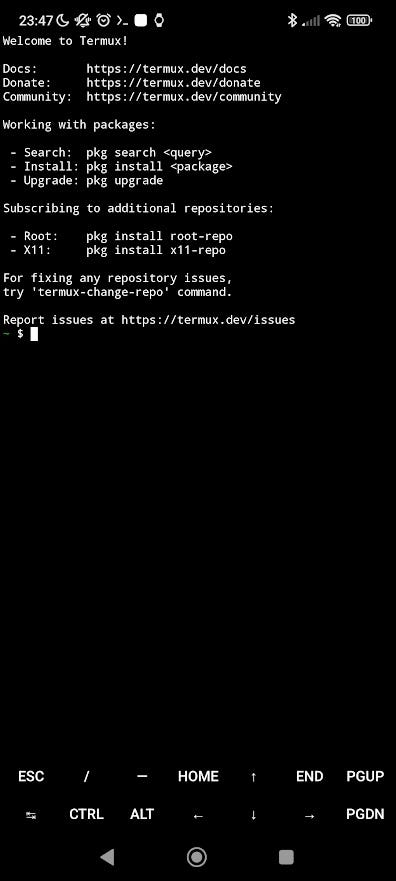
Once installed, start Termux and update & upgrade all packages. Make sure to accept the new space requirements and wait for the first command to finish before executing the second one.

apt update

… followed by

apt upgrade

For the upgrade command, you will be prompted multiple times if you accept new versions and downloads, either yes or no will continue the upgrade.

3. Install proot-distro and Ubuntu (no root required)

Once successfully up to date, download and install proot-distro and Ubuntu CLI using the following commands.

pkg install proot-distro

After the command is successful, install the Ubuntu distro using the following command:

proot-distro install ubuntu

Note: the terminal is case-sensitive!

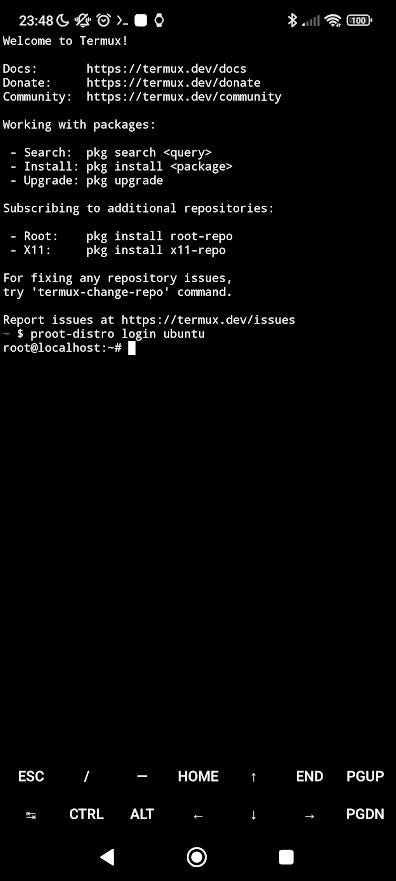
After successful installation, you can start Ubuntu with:

proot-distro login ubuntu
4. Update Ubuntu and install SA prerequisites

Once successfully inside Ubuntu, you will see the console change to root@localhost. Now you will need to bring Ubuntu up to date.

For this purpose, run the following commands:

apt update
apt upgrade

Once this has been successfully done, we will install some core prerequisites for the Superalgos installation.

apt install build-essential
apt install python3
apt install git
apt install npm

Next, we need to install a recent version of Node JS.

Run the following command to install the Node Version Manager:

curl -o- https://raw.githubusercontent.com/nvm-sh/nvm/v0.39.2/install.sh | bash

Once done, do the following:

source ~/.bashrc

After both commands execute successfully, install Node 18.0.0 (higher versions came up with errors, so try this one first).

nvm install v18.0.0

Last steps (more prerequisites):

npm install @octokit/rest
npm install simple-git
npm install bootstrap
npm install

You have successfully installed everything needed to setup SA!

5. Install Superalgos

Once you have successfully updated Ubuntu and installed all prerequisites, you can continue with the standard installation steps from https://github.com/Superalgos/Superalgos:

  • Fork the Superalgos repository (make sure you include the develop branch).
  • Clone YOUR fork of the repository (not Superalgos’).
git clone https://github.com/USERNAME/Superalgos

After successfully cloned, change the active directory to the newly created one:
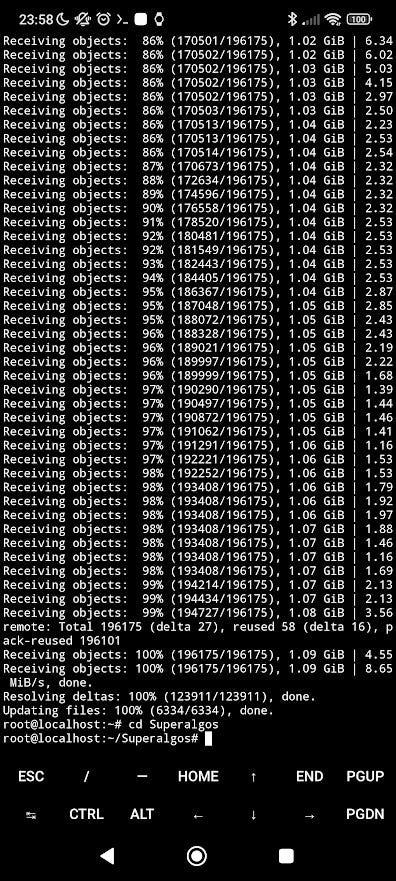
cd Superalgos
  • Setting up the environment

If you did everything correctly up to this point, this next command should execute without any errors

node setup
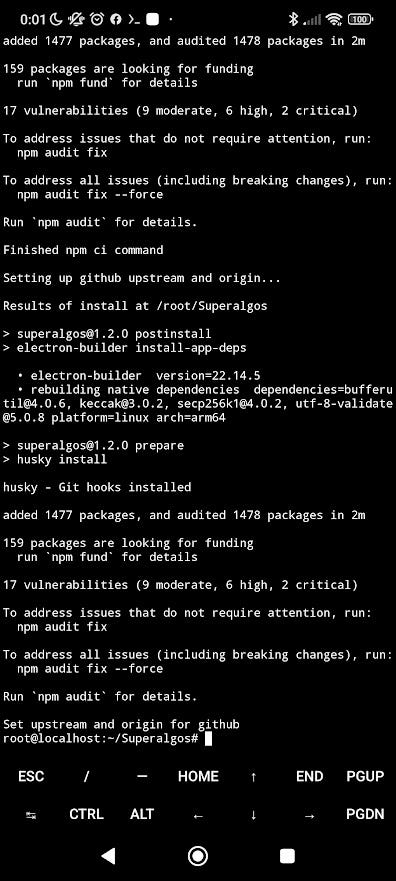
If you see any audit warnings, you can ignore them.

If the command was successful, you just installed SA on your phone!

  • Installing Plugins and updating GitHub Repositories

After the environment is installed, you need to get the community plugins with the following command:

node setupPlugins <Your-Github-Username> <Your-Github-Personal-Access-Token>
example: node setupPlugins John ghp_asdsg34fger34c3

Link to create access token: https://github.com/settings/tokens/new (repo and workflow are required).

To finish off before starting it up, you will have to update the GitHub Repositories with the following command:

node updateGithubRepos

And that’s it! Superalgos is ready to run on your Android device!

6. Operation

Start SA with:

node platform minMemo noBrowser

This starts Superalgos on Ubuntu/Termux without a browser and with minimum RAM.
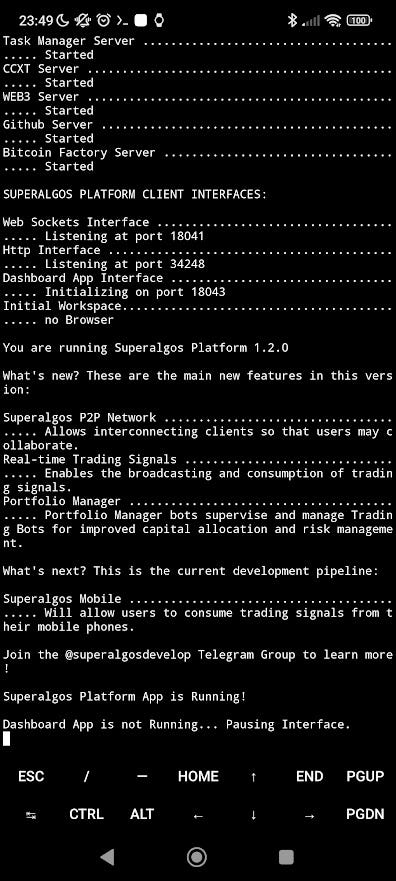
To access your SA instance you have to find out your phone’s local IP (in the Wi-Fi settings), go to the nearest pc/laptop/Chromebook or whatever, and open a browser to that address (making sure your PC and phone are on the same Wi-Fi network):

YOUR.PHONE.IP.ADDRESS:34248

Now you can jump into the tutorials!

*If you are feeling adventurous, add a Bluetooth mouse to the phone and start up your Chrome, go to 127.0.0.1:34248 or localhost:34248.

Note: If you close Termux and start it back up, you will be in the Termux Environment. From there you need to execute “proot-distro login ubuntu” and then “cd Superalgos” to land in the starting SA directory from where you can run “node platform minMemo noBrowser”

Superalgos How To
Crypto Trading Platform
Best Crypto Trading Bot
Algorithmic Trading
Crypto Trading
Recommended from ReadMedium