Mac OS Tips for Programming
How to Install SQL Server in Mac M1
Installing SQL Server in Mac M1 Using Docker
Hi everyone 😃,
When we switch our operating system, such as from Windows to Mac OS X, 🍎, we may face many software-related installation problems. As a result, I wanted to use Mac OS. However, there are significant differences between Windows and Mac. As a result, I had a lot of trouble installing software on Mac OS. In this story, I will show you how to install SQL Server on a Mac M1.

Step 1
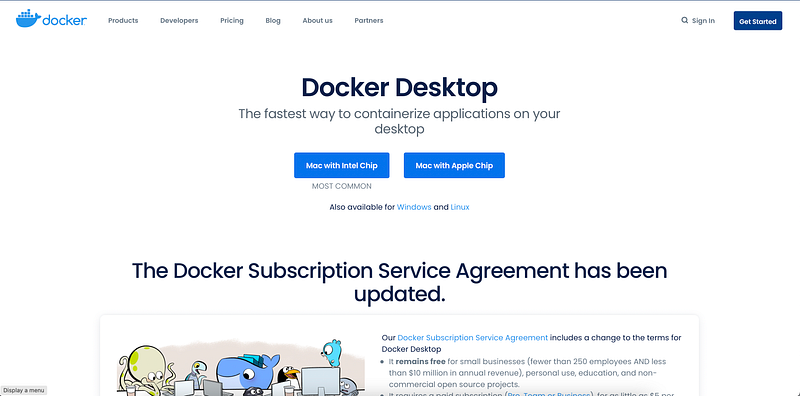
We must utilize Docker because MacOS does not provide native support for Microsoft technology. Fortunately, Docker already supports ARM applications, so we can get it from the Docker website.
Docker Website Link — https://www.docker.com
Direct Download Link (Docker)
Step 2
After that, go running SQL queries and other DB activities. You’ll need to download an IDE.
SQL Server Management Studio is the greatest tool for SQL Server to run SQL queries, although it is only supported on Windows OS.
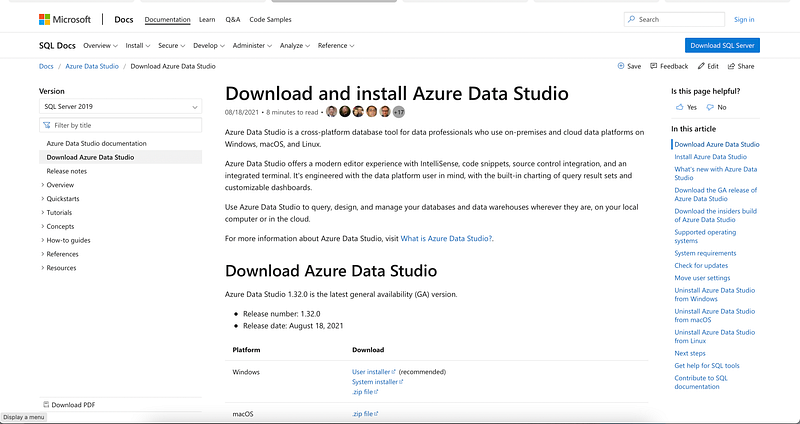
Microsoft has developed an alternative to SQL Server Management Studio, thanks to their team. Azure Data Studio is the tool’s name. This tool will be used on our M1-based Mac.
Download Azure Data Studio
Step 3
We’ll need to create an ID on https://hub.docker.com or log in with the one you already have.
After you’ve logged in, you’ll need to download a Microsoft-hosted Docker image called Azure SQL Edge.
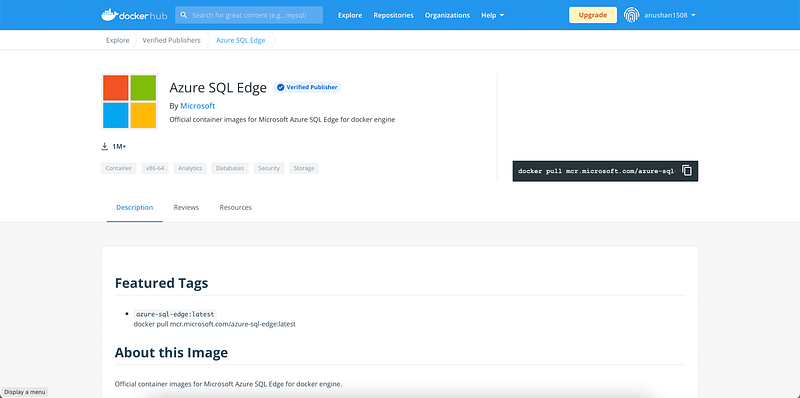
We’ll use Docker commands to download this image to our local system and then run it in a Docker container on the localhost port. We’ll be able to use the SQL server on our M1-based Mac once we run the image in the container.
Step 4
We can use the macOS terminal to download the Docker image.
Open the terminal in your Mac system and enter the command:
docker pull mcr.microsoft.com/azure-sql-edge
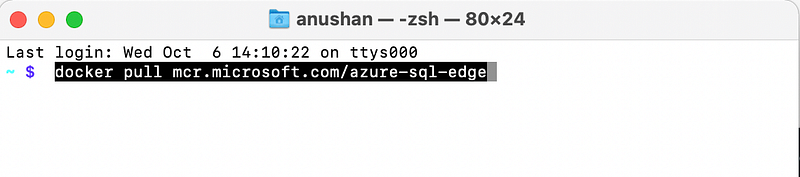
Docker will start pulling the image from the web repository and downloading it to your local machine after you run the command above.
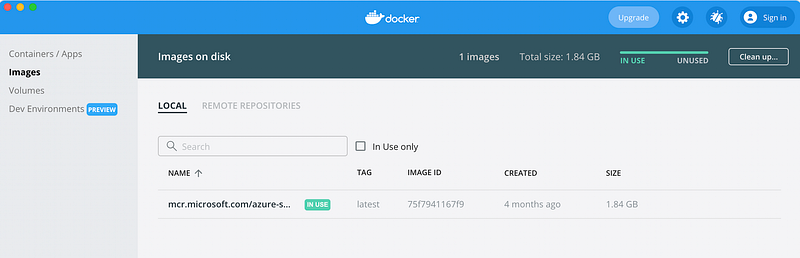
The image is also visible in the Docker Desktop window, as illustrated below.
Step 5
Once you’ve downloaded the Docker image, you’ll need to execute it in a Docker container on a live localhost port.
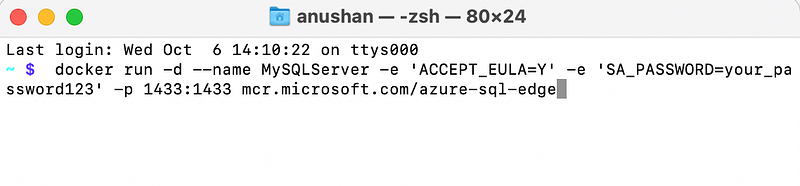
Use the same terminal window to run the command below.
docker run -d — name MySQLServer -e ‘ACCEPT_EULA=Y’ -e ‘SA_PASSWORD=your_password123’ -p 1433:1433 mcr.microsoft.com/azure-sql-edgeHighly Recommended to use a Strong Password
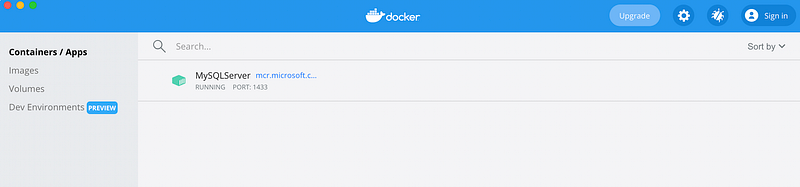
When the command completes successfully, go to the container option in the Docker desktop window and look for a container with the same name as the one we specified in the command.
Step 6
After that, we can log in to Azure Data Studio using the credentials we just created. Here’s how you can get in touch with it:
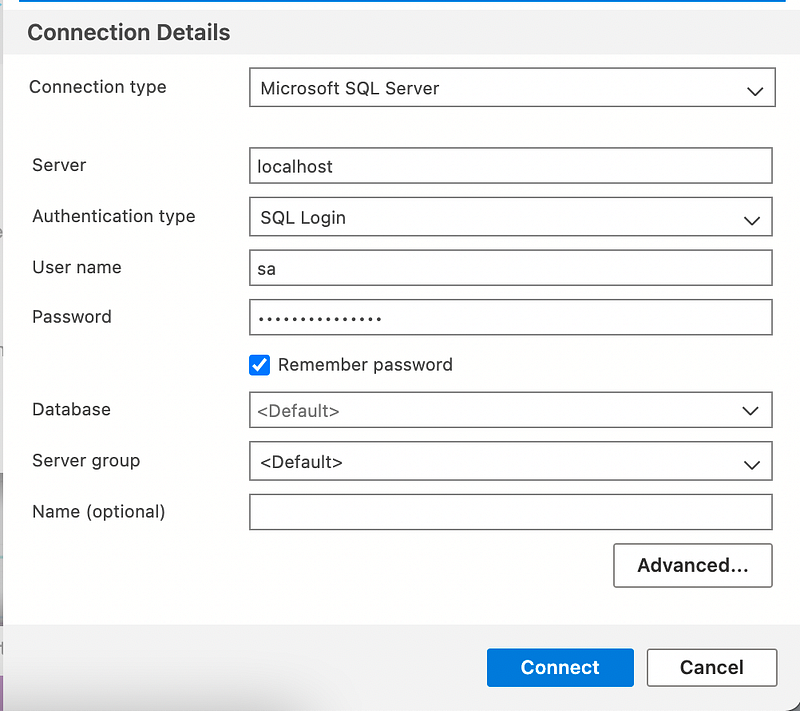
You can now construct queries to generate tables, stored procedures, and other objects using the new query option.
If you forget your password, you may simply remove the image and establish a new one.
I believe that you understood the topic discussed today. If you have any concerns or need any clarifications, don’t hesitate to contact me through the response section. Thank you for spending your precious time reading this blog. I believe this will help you work with SQL on Mac OS.
Enjoyed the article? Become a Medium member to continue learning without limits. I’ll receive a portion of your membership fee if you use the above link, at no extra cost to you.