
How to install python in Windows 11?
How to download & install Python on a windows local machine?
Setting up Python on Windows 11 is a straightforward process. You can follow these steps to install Python on your Windows 11 computer:
- Download Python:
Go to the official Python website at https://www.python.org/downloads/ using your web browser.
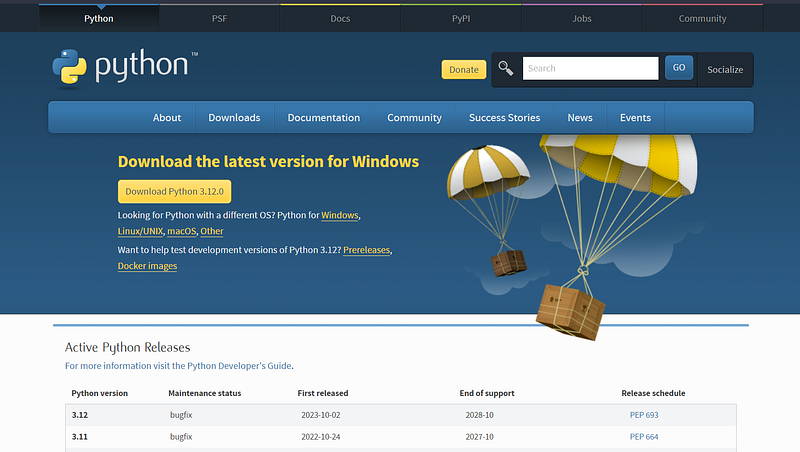
2. Choose the Python Version:
You’ll see a list of Python versions available for download. You can choose the latest stable version (e.g., Python 3.11 or 3.12) or another version depending on your needs. Click on the version you want to download.

3. Download Python Installer:
Scroll down to the “Files” section, and you’ll see a list of download options. You should choose the “Windows installer (64-bit)” if your Windows 11 installation is 64-bit. If you have a 32-bit system, choose the “Windows installer (32-bit)” instead.
4. Run the Installer:
After the installer is downloaded, locate the file (typically in your Downloads folder) and double-click it to run the installer.
5. Customize Installation (Optional):
In the installer, you can customize the installation by clicking on the “Customize installation” button. This allows you to select optional features or change the installation directory. For most users, the default settings are fine.
6. Add Python to PATH (Recommended):
This step is necessary, otherwise the python file will not executable.
While in the installer, make sure to check the box that says “Add Python x.x to PATH” before proceeding. This option will allow you to use Python from the command prompt without needing to specify the full path to the Python executable.

7. Install Python:
Click the “Install Now” button to start the installation process. The installer will copy the necessary files and set up Python on your Windows 11 system.
8. Verify Installation:
After the installation is complete, you can verify that Python is installed correctly by opening the Command Prompt (you can press Win + R, type cmd, and press Enter) and then typing
python --version
pip--version

You should see the Python and pip versions printed to the screen.
That’s it! You’ve successfully set up Python on your Windows 11 computer. You can now start using Python to run scripts and install packages using pip.
Keep in mind that Python has a vibrant ecosystem of libraries and tools. You can use a code editor or integrated development environment (IDE) like Visual Studio Code, PyCharm, or Jupyter Notebook to write and run Python code more effectively.


