avatarJose Miguel Arrieta

Summary

The webpage provides a detailed guide on how to install Python 2.7 and 3.6 on Windows 10, including instructions for adding Python to the system PATH and testing the installations.

Abstract

The article outlines a step-by-step process for installing both Python 2.7 and Python 3.6 on a Windows 10 system. It begins with downloading the Python installers from the official Python website, followed by a walkthrough of the installation process for each version, ensuring they are installed in separate directories. The guide then explains how to add the Python executable paths to the system's environment variables to facilitate easy command-line access. It also suggests renaming the Python executables to distinguish between the two versions. Finally, the article provides instructions on verifying the installation by checking the Python versions and installing a package using both Python 2 and Python 3.

Opinions

  • The author emphasizes the importance of having both Python 2.7 and 3.6 available for compatibility with different codebases and libraries.
  • The article suggests that customizing the installation locations for Python can help prevent conflicts between versions.
  • Renaming the executables is presented as a practical solution for easily switching between Python versions from the command line.
  • The guide is tailored for Windows 10 users, with specific instructions for modifying environment variables in this operating system.
  • The author, Jose Miguel Arrieta, provides a personal touch by sharing his recommended method for managing multiple Python versions and encourages readers to try an AI service for a cost-effective alternative to ChatGPT Plus(GPT-4).

How to install Python 2.7 and 3.6 in Windows 10 [add python PATH]

This tutorial will describe how to install both Python versions (2.7 and 3.6) on a Windows 10 environment. Additionally, how to add python path in windows 10 will be discussed.

PATH is an environment variable on Unix-like operating systems, DOS, OS/2, and Microsoft Windows, specifying a set of directories where executable programs are located”

source : https://en.wikipedia.org/wiki/PATH_(variable)

1. Download python 2.7

Go to www.python.org/downloads and click on ‘Download Python 2.714”.

Wait until installation package is complete.

2. Install python 2.7

When download is finished click to install. You need to select a destination directory where python files and executables will be located. In my case I chose “C:\Python27” as my directory.

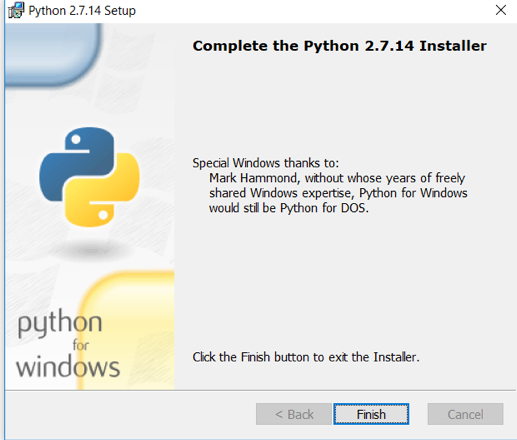
Wait until install is complete.

Click Finish
3. Download python3

In the same way as described in step 1, download python3.

Click on executable to install and choose ‘Customize installation’.

Select default values and customize install location to C:\Python3

4. Add python27 and python3 PATH

Search ‘Panel de control’ and open it.

In the search bar, search for ‘variable de entorno’.

Click on ‘Variables de entorno’

Select PATH and click on ‘Nueva’

Add the following routes in order to use python and pip.

C:\Python27

C:\Python27\Scripts

C:\Python3

C:\Python3\Scripts

Note: If you have installed python on a different location you need to find your where python is and set that location.

5. Change executables names

In order to execute both python version change the python.exe to python2.exe where python2 is located and python.exe to python3.exe where python3 is located.

Source: https://stackoverflow.com/questions/3809314/how-to-install-both-python-2-x-and-python-3-x-in-windows-7

6. TEST Both Python versions

a. Check python versions

Run Python2 –V and Python3 –V to get respective python versions.

b. Install a package using python2 and python3

If the above commands run without problems python2 and python3 were successfully installed on windows 10 environment.

Jose Miguel Arrieta

January 2018

Python
Recommended from ReadMedium
avatarTechnocrat
Using Streamlit for UI

32 min read