
How to Install Custom Fonts on Your Kindle — It’s Way easier
Installing a custom font on kindle may seem like a difficult task, but it’s actually quite simple.
Let’s do it together [Step By Step]
How to Install Custom Font on Kindle
Find your font
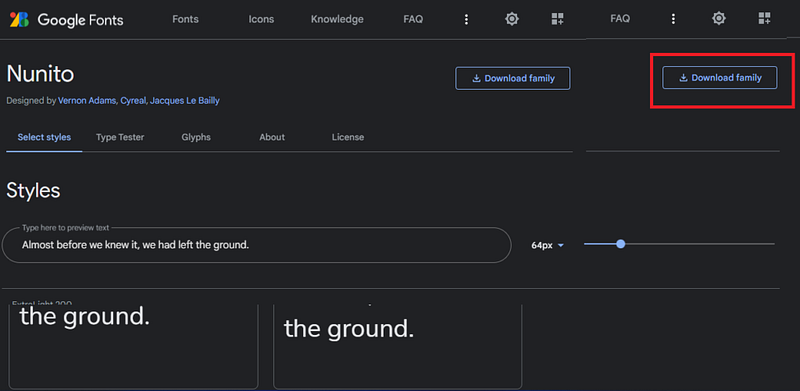
- Go to Google Fonts in your web browser
- Search for a font that you want to install on your Kindle.
- Once you do select the font, click on the download family button
Installing the font on the Kindle
Now, Extract the font files from the .zip file.
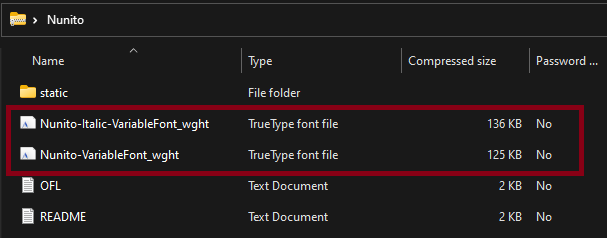
You’ll find 2 files with a .ttf extension. These are the files you need to install the font on your Kindle.
- Open the Kindle drive
- Open the Kindle drive in your file explorer, and open the “fonts” folder
- Copy and paste the font files into the “fonts” folder.
- Eject your Kindle from your computer, and restart your device.
Connect your Kindle to your computer using a USB cable. Your Kindle will show up as a drive in your file explorer.
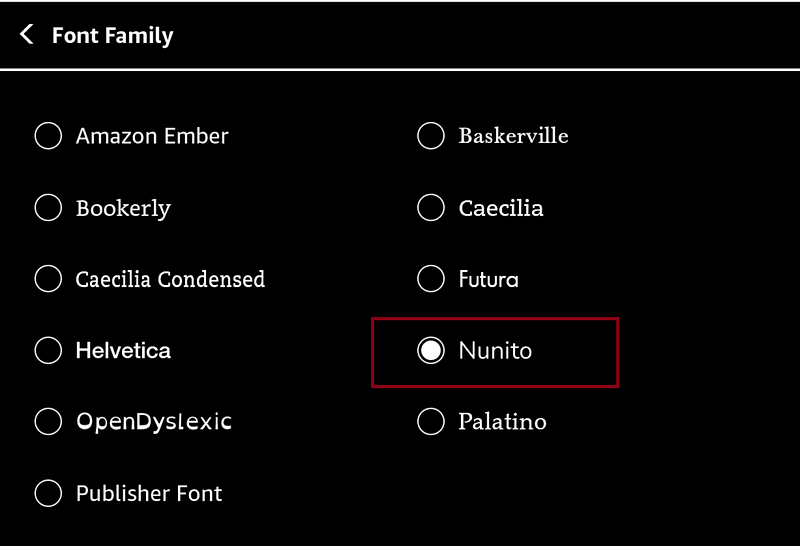
Your custom font will now be installed on your Kindle, and you can use it in any app that supports custom fonts!
Originally published at ereader.blog on June 20, 2022.


