avatarM. Ramadhan

Summary

This article provides a guide on how to quickly create a hyperlinked table of contents (TOC) for Medium stories using the TOC Medium Chrome extension.

Abstract

The article "How to Quickly Create a Table of Contents for Medium Stories" offers a straightforward method for enhancing Medium articles with a functional TOC. It introduces the TOC Medium extension, available exclusively for Chrome, which simplifies the process of generating and inserting a TOC into a story. The guide outlines the steps to install the extension, create the TOC by using the editor's new button, and then save and publish the enhanced article. The TOC improves reader navigation by providing hyperlinks to specific sections within the story, making it easier for readers to find the content they are interested in. The article emphasizes the ease of use of the TOC Medium extension and the benefits of having a TOC for both the writer and the reader.

Opinions

  • The author endorses the TOC Medium extension as the easiest method among others tried, such as using Developer tools or the Smart TOC extension.
  • The article suggests that adding a TOC with hyperlinks is beneficial for the organization and overview of an article, thereby enhancing the reader's experience.
  • The author provides a subjective assessment that the process of adding a TOC using the TOC Medium extension is not only easy but also efficient, as it involves a few simple steps within the story editor.

How to Quickly Create a Table of Contents for Medium Stories

An easy guide to hyperlink a TOC to paragraph headings within an article

Table of Contents

· Overview · Install TOC Medium · Create the TOC · Summary

Overview

The table of contents provides an overview of an article’s contents and organization. By adding hyperlinks to it, readers can easily navigate directly to a specific section of the article.

There are several ways to insert a TOC into Medium stories. So far, I‘ve used (1) Developer tools, (2) Smart TOC extension, and (3) TOC Medium extension. The third is the easiest.

This article covers adding a TOC to your Medium stories using the TOC Medium extension. After installing the extension, you can edit the story, create the TOC, save, and publish it.

Install TOC Medium

TOC Medium is a TOC generator for Medium stories. For now, TOC Medium is available only for Chrome. Go to the page via the link below.
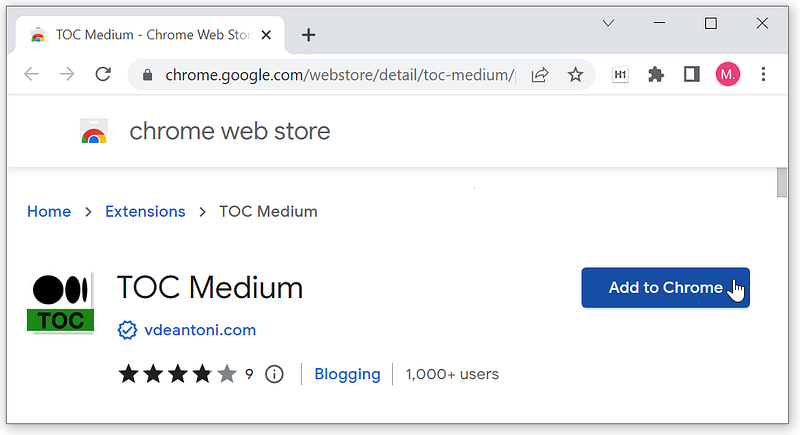
Figure 1 Screenshot of TOC Medium page
  • Click the Add to Chrome button.

Create the TOC

  • Open a story that you want to insert TOC into it.
  • Click the … three-dot button on the bottom bar of the story and choose Edit story from the menu.
  • At the beginning of the story, press the key. It adds a new button to the story editor: Add a Table of Contents.

Figure 2 Screenshot of story editor with a new button: Add a Table of Contents
  • Click the ⫶ triple colon button. It finds all the heading tags and creates a list with their titles and hyperlinks.
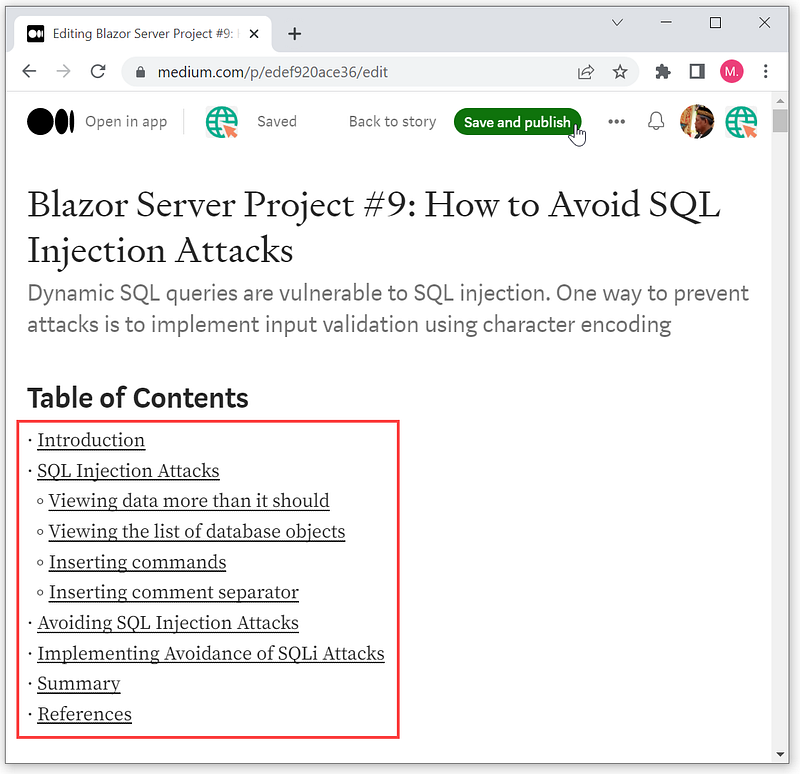
Figure 3 Screenshot of story editor with heading titles and hyperlinks
  • Type Table of Contents as the title.
  • Finally, click Save and publish.

Well done! That’s all.

Summary

The table of contents gives an overview of the content and organization of the story. You can create it quickly and easily. By adding hyperlinks to it, you can quickly jump straight to a specific section of the story.

Thanks for reading. Hopefully beneficial.

Writing
Medium Extensions
Toc Medium
Table Of Contents
Uncategorized
Recommended from ReadMedium