
How to include a dynamic custom scripts to websites through Adobe Launch — Adobe Experience Manager(AEM)
Launch, by Adobe is a next-generation tag management system that unifies the client-side marketing ecosystem by empowering developers to build integrations on a robust, extensible platform that partners, clients, and the broader industry can build on and contribute to.
Adobe Launch is the upgraded version of Adobe’s Dynamic Tag Manager (DTM), Adobe’s Dynamic Tag Manager (DTM) will be replaced by Adobe Launch (It doesn’t mean the platform will be shut down anytime soon).
This post explains the approach to use Adobe Launch to include the dynamic scripts as part of Adobe Experience Manager (AEM) websites, the same steps can be followed to include the scripts into the websites hosted on a different platform.
Define Property:
A property, or web property, is a collection of rules, data elements, configured extensions, environments, and libraries.
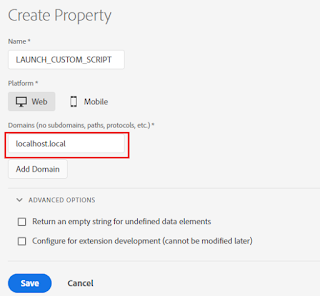
Log in to Adobe Launch and create new property- LAUNCH_CUSTOM_SCRIPT, specify the domain as localhost.local for localhost testing and Save the Property(add the other website domains where this script need to be enabled).
Define New Rule:
The launch is a rule-based system. It looks for user interaction and associated data. When the criteria outlined in your rules are met, the rule triggers the extension, script, or HTML you identified.
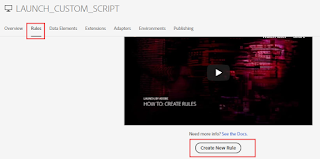
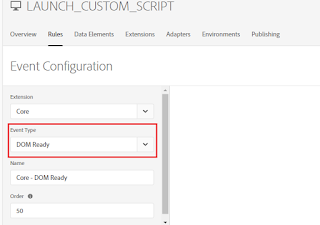
Create a new rule and configure the Event Type as “DOM Ready”, the event is what you want the rule to look for, this is defined by choosing an event, any applicable conditions, and any exceptions
Configure the Action — When the criteria outlined in your rules are met and conditions are satisfied, the actions you define are executed in order.
Select the Action Type as “Custom Code”, Select Language as “JavaScript”
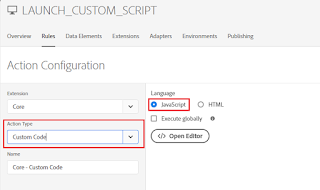
Define the required script in the “Script Editor”, I am just enabling some sample script to display an alert on page load but you can insert the required custom script.
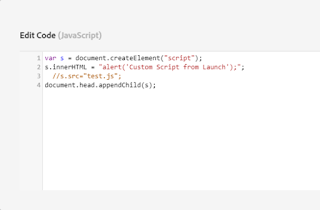
var s = document.createElement("script");
s.innerHTML = "alert('Custom Script from GTM');"; // add the custom script content
  //s.src="test.js";// specify the script file instead of script content
document.head.appendChild(s);
Adding multi-line script — example
s.innerHTML = "document.onreadystatechange = function(){ "+
    "if(document.readyState=='loaded' || document.readyState=='complete') "+
        "alert('test');"+
"}";
Approval Workflow:
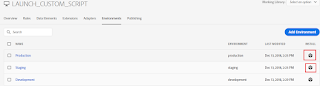
New properties are created with three environments: one Development, one Staging, and one Production. This is enough to run the publishing workflow. If desired, you may add additional Development environments. This is most common on larger teams with multiple developers working on different projects at the same time.
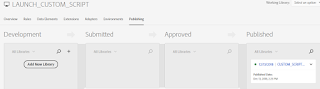
The approval flow is going to be like below for the properties
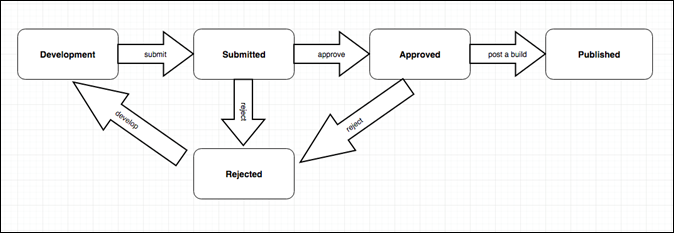
Different Launch artifacts can exist in each Environment. This allows you to test different Libraries in different environments as you push them through your Workflow.
Extensions, rules, and data elements are building blocks. When you want to make your application do something, these building blocks are added to a Library. This Library is then built to produce the actual artifacts that are used by your application.
When you create a Library, you must assign it to an Environment. Each Environment corresponds to a different state in the Publishing workflow.
Publish the change to the Development environment:
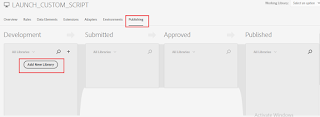
“Add New Library” to apply the changes to Development Environment
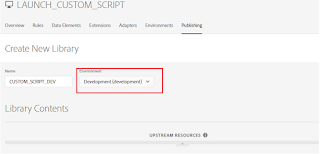
Select the Environment value as Development
Add Specific Resource or All changed Resources to Library for Deployment to Development environment (to deploy the latest change to the Development environment, remove the current version from Library and add the latest version)
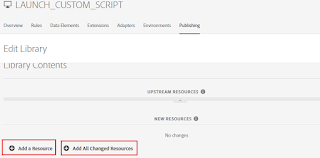
Select the Resource (CUSTOM_SCRIPT rule) Version (Latest) and Create New Revision and finally Save the Library.
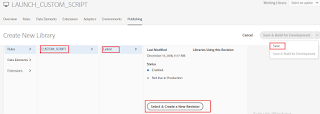
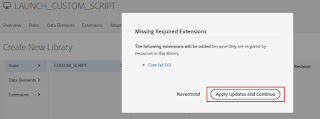
Click on Apply Updates and Continue (this is required only for the first time)
Build the library for Development
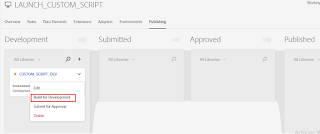
Now the changes are deployed to Development Environment
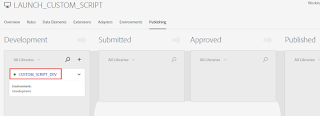
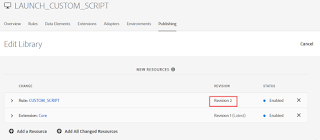
To apply the new changes (latest pending changes) to the Development environment, remove the current version from the Library (My case Revision 2)
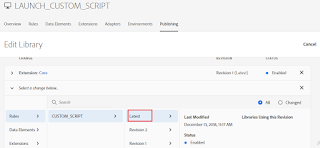
Add the latest resource version and Click on Select&Create New Revision
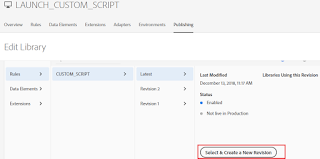
Click on Save & Build for Development
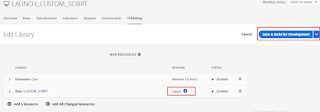
Now the latest rule change is deployed to Development Environment
For testing the Property in a Development environment, install the Development script to the AEM(Adobe Experience Manager) website header.
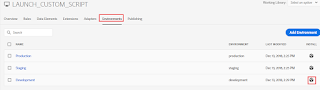
(Multiple Development Environment can be added for testing)
Copy the script to clipboard
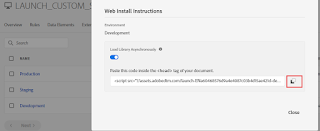
Add the script to the head section of the website pages (The script can be added through Adobe IO integration for AEM, I am directly enabling the script through CRXDE for demo)
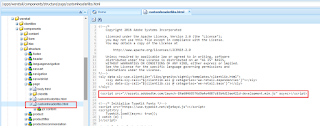
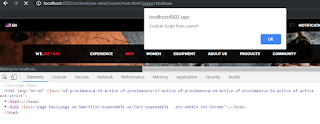
Now the script is inserted into the website pages, the alert box is displayed on every page load
Publish the changes to Stage and Prod environments:
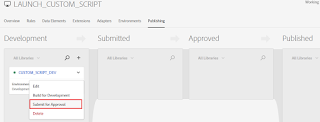
Click on Submit for Approval on Library
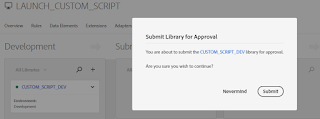
Click on Submit
Click on Build for Stage
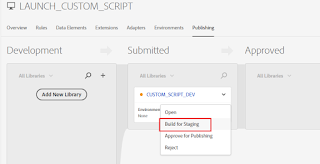
Now the changes are deployed to Stage
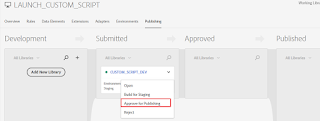
Click on Approve for Publishing to publish the changes to Production Environment
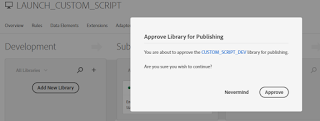
Click on Approve
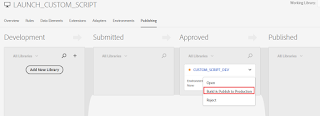
Build & Publish to Production
Click on Publish
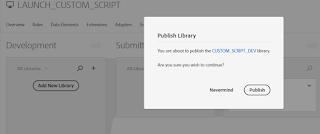
Now the changes are published to the Production environment.
Configure the Stage and Production environment scripts to corresponding Website(AEM) environments(Stage and Prod)
Add New Library and follow the process explained above to send the additional changes to Development to Production Environments

