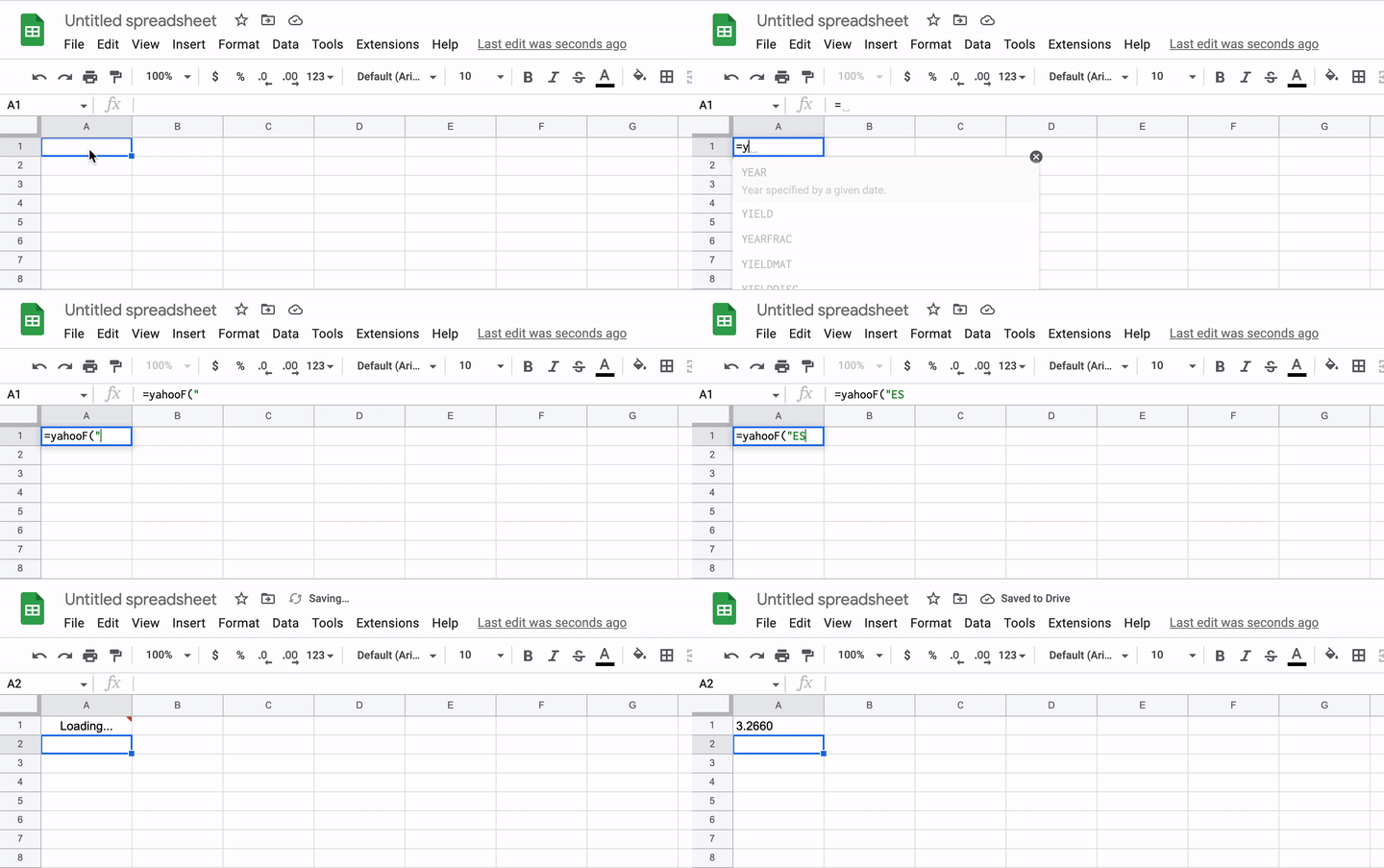
How to import Yahoo Finance data into Google Sheets

Google Sheets has been my spreadsheet app of choice for tracking my budget and the performance of the stocks in my portfolio. Google sheets include the GOOGLEFINANCE formula that enables you to track the prices of stocks in an automated way, without the need for manual data entry.
For instance, you can get the price of Apple’s stock like so: =GOOGLEFINANCE("AAPL")
Unfortunately, the GOOGLEFINANCE formula does not return valid data for some tickers. It appears that the underlying data set for the GOOGLEFINANCE formula is not a comprehensive one. The formula is missing data for tickers like ES3 (SPDR Straits Times Index ETF) and CPI:L (Capita PLC), to name a few.
Yahoo Finance contains a much more comprehensive data set for stock tickers. And we can use a Google Apps script to import data from Yahoo Finance into a Google sheet.
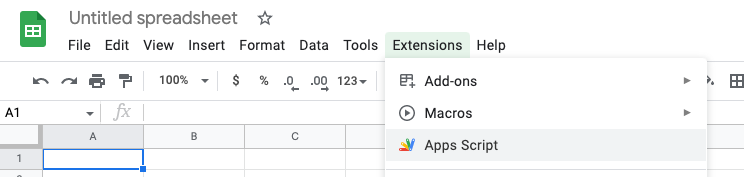
First, let’s create a new Google Apps script. In your Google sheet, navigate to Extensions -> App Scripts in the toolbar:
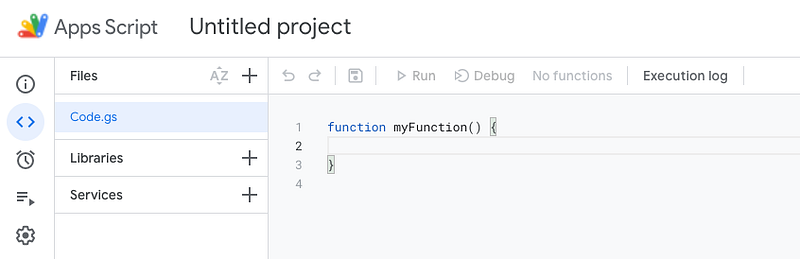
This should bring you to a code editor for Apps Scripts:
Google Apps Scripts allows you to define Javascript functions which you can use inside your Google sheet. We can test this out by logging a string to the console:
function myFunction() {
  console.log('Hello')
}
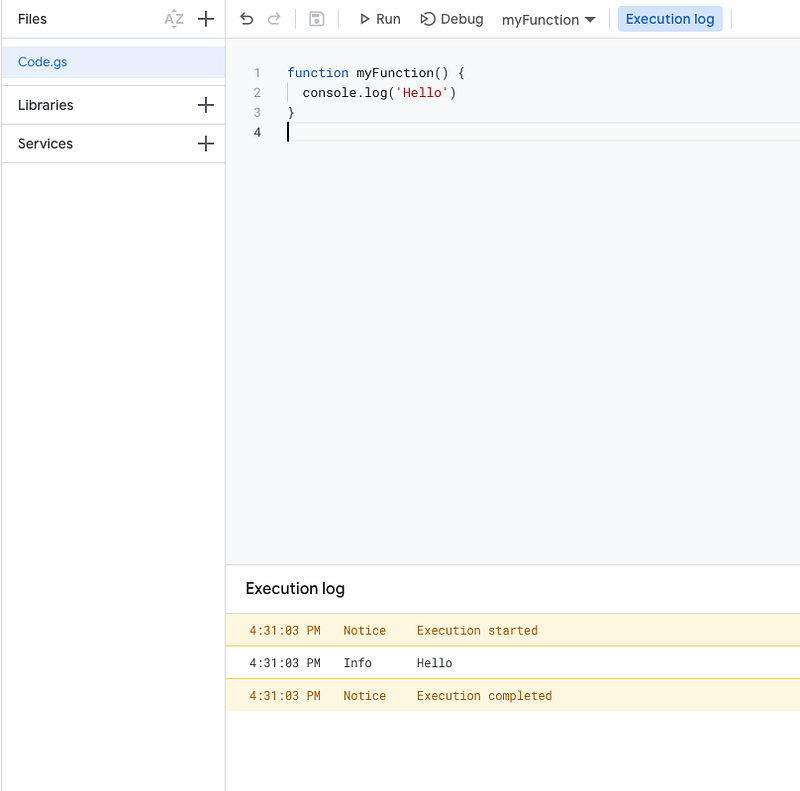
Save your script and click on Run . You should see the logged string in your execution log:
Now let us define a yahooF function that will allow us to pull data from Yahoo Finance:
function yahooF() {
  const ticker = 'AAPL';
  const url = `https://finance.yahoo.com/quote/${ticker}?p=${ticker}`;
  const res = UrlFetchApp.fetch(url, {muteHttpExceptions: true});
  const contentText = res.getContentText();
const price = contentText.match(/<fin-streamer(?:.*?)active="">(\d+[,]?[\d\.]+?)<\/fin-streamer>/); console.log(price[1]); return price[1];
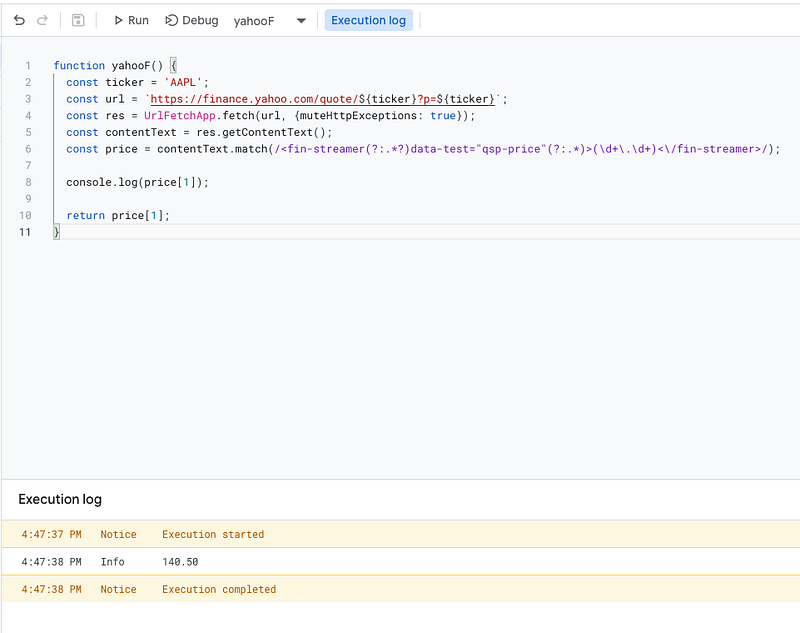
}The above function parses Apple’s stock ticker page on Yahoo Finance using UrlFetchApp. It finds the price of the ticker by matching a regular expression against the page’s HTML output.
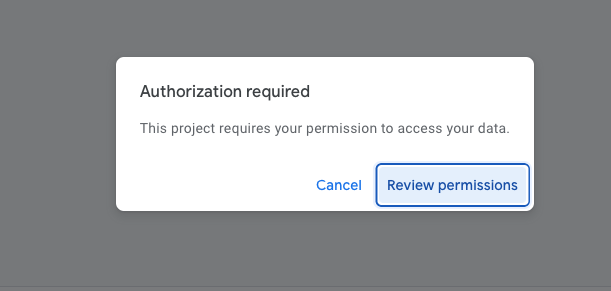
Now save the script and try to run it. You may see a popup window asking you to grant the script permissions to access your data:
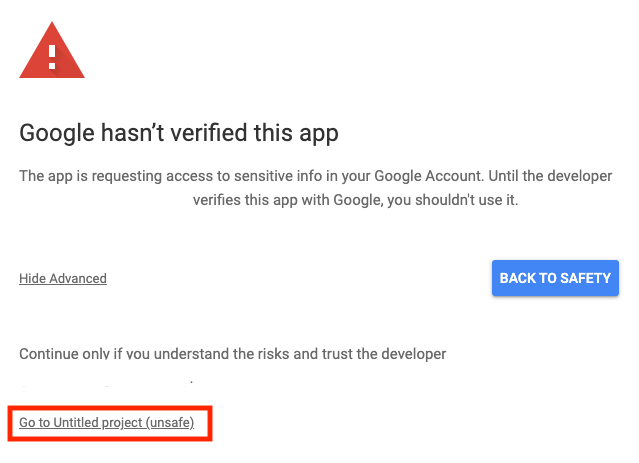
Ensure that the email address shown on the warning screen is your own email address. You can then proceed to grant access to your script to access your own data:
You should then see AAPL’s price in your execution log output:
Perfect! Now let’s modify the function so that we can use this in our spreadsheet by specifying a ticker name:
function yahooF(ticker) {
  const url = `https://finance.yahoo.com/quote/${ticker}?p=${ticker}`;
  const res = UrlFetchApp.fetch(url, {muteHttpExceptions: true});
  const contentText = res.getContentText();
const price = contentText.match(/<fin-streamer(?:.*?)active="">(\d+[,]?[\d\.]+?)<\/fin-streamer>/); console.log(price[1]); return price[1];
}Save this script and we can now use the yahooF formula in our spreadsheet. =yahooF("<ticker name>") should return the price of the ticker.