
Micro Frontends with Angular : Practical Multi-Repo Guide
Building complex web applications can feel like managing a big project with many moving parts. As your application grows, coordinating changes across a single codebase can become overwhelming. This is where Micro Frontend Architecture comes in.
Think of it like building a neighbourhood — each house (or micro frontend) is developed independently, but they all come together to create a cohesive community. This approach allows different teams to work on separate parts of an application without stepping on each other’s toes.
In this blog, we’ll walk through setting up a micro frontend architecture using Angular with multiple repositories, powered by Native Federation. Let’s dive in and discover how this can simplify your development process!
1. Setting Up the Scene
To kick things off, let’s create: the host application and two micro frontends. Open up your terminal and let’s roll:
# Create the host application
ng new host-app --routing

# Create the first micro frontend
ng new micro-frontend-1 --routing

# Create the second micro frontend
ng new micro-frontend-2 --routing
Next, we’ll add Native Federation fairy dust on our apps to allow them to communicate seamlessly.
# Add Native Federation to the host application
cd host-app
ng add @angular-architects/native-federation

# Add Native Federation to micro-frontend-1
cd ../micro-frontend-1
ng add @angular-architects/native-federation

# Add Native Federation to micro-frontend-2
cd ../micro-frontend-2
ng add @angular-architects/native-federation
2. Crafting the Host Application
Now, let’s transform our host application into a bustling control centre. We’ll start by configuring it to recognise our micro frontends.
Modify federation.config.js
Head over to the federation.config.js file in your host application and simplify it by removing the exposes block. Here’s how it should look:
const { withNativeFederation, shareAll } = require('@angular-architects/native-federation/config');

module.exports = withNativeFederation({
  name: 'host-app',
  shared: {
    ...shareAll({ singleton: true, strictVersion: true, requiredVersion: 'auto' }),
  },
  skip: [
    'rxjs/ajax',
    'rxjs/fetch',
    'rxjs/testing',
    'rxjs/webSocket',
    // Add further packages you don't need at runtime
  ]
});
Create a Manifest for Your Micro Frontends
Let’s create a federation.manifest.json file within the src/assets directory of the host application. This file will act like a map for our micro frontends:
{
    "micro-frontend-1": "http://localhost:4201/remoteEntry.json",
    "micro-frontend-2": "http://localhost:4202/remoteEntry.json"
}
Update the Entry Point
Next, we’ll update the main.ts file to load our manifest:
import { initFederation } from '@angular-architects/native-federation';

initFederation('/assets/federation.manifest.json')
  .catch(err => console.error(err))
  .then(_ => import('./bootstrap'))
  .catch(err => console.error(err));
Setting Up Routes for Your Micro Frontend
Now it’s time to tell the host app how to navigate to our micro frontend. Update the app.routes.ts file like this:
import { loadRemoteModule } from '@angular-architects/native-federation';
import { Routes } from '@angular/router';

export const routes: Routes = [
    {
        path: 'micro-frontend-1',
        loadComponent: () => loadRemoteModule('micro-frontend-1', './Component').then(m => m.AppComponent)
    },
    {
        path: 'micro-frontend-2',
        loadComponent: () => loadRemoteModule('micro-frontend-2', './Component').then(m => m.AppComponent)
    }
];
3. Changing the Ports
Every great city has its own address. Let’s set the ports for our micro frontends so they can stand proudly on their respective corners. Modify the angular.json file for each micro frontend to look like this:
"defaultConfiguration": "development",
"options": {
    "port": 4201 // for micro-frontend-1
}"defaultConfiguration": "development",
"options": {
"port": 4202 // for micro-frontend-2
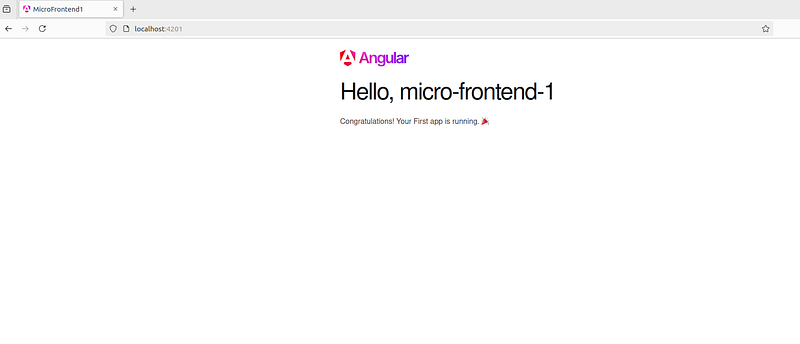
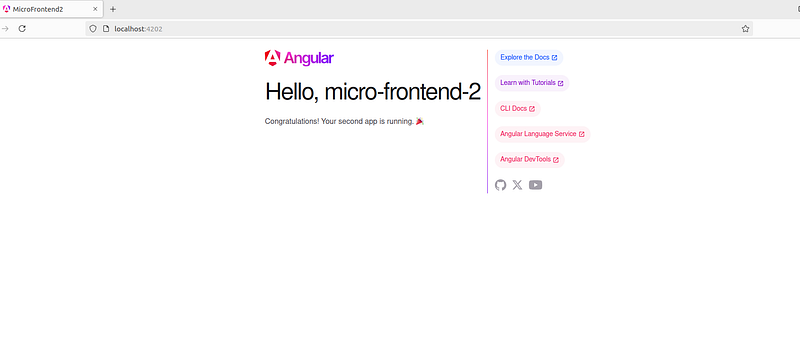
}Now, let’s fire up our applications. Each one should be running smoothly on its designated port.
4. Designing the User Experience
With our applications set up, let’s create a navigation menu in the app.component.html file of the host application. This will act like the city’s main thoroughfare:
<div class="menu">
  <a routerLink="/micro-frontend-1" routerLinkActive="active">MF1</a>
  <a routerLink="/micro-frontend-2" routerLinkActive="active">MF2</a>
</div>
<div class="container">
  <router-outlet></router-outlet>
</div>
5. Handling Route Changes
Finally, we’ll add a touch of magic to our routing by configuring router events in app.component.ts. This will allow our host application to respond dynamically to changes in child routes:
import { Component, HostListener } from '@angular/core';
import { RouterOutlet, Router, RouterModule } from '@angular/router';

@Component({
  selector: 'app-root',
  standalone: true,
  imports: [RouterOutlet, RouterModule],
  templateUrl: './app.component.html',
  styleUrls: ['./app.component.css']
})
export class AppComponent {
  constructor(private router: Router) {}

  @HostListener('window:childRouteChanged', ['$event'])
  onChildRouteChanged(event: any) {
    this.router.navigate([event.detail.route], event.detail.extras);
  }
}
A Modular Future Awaits
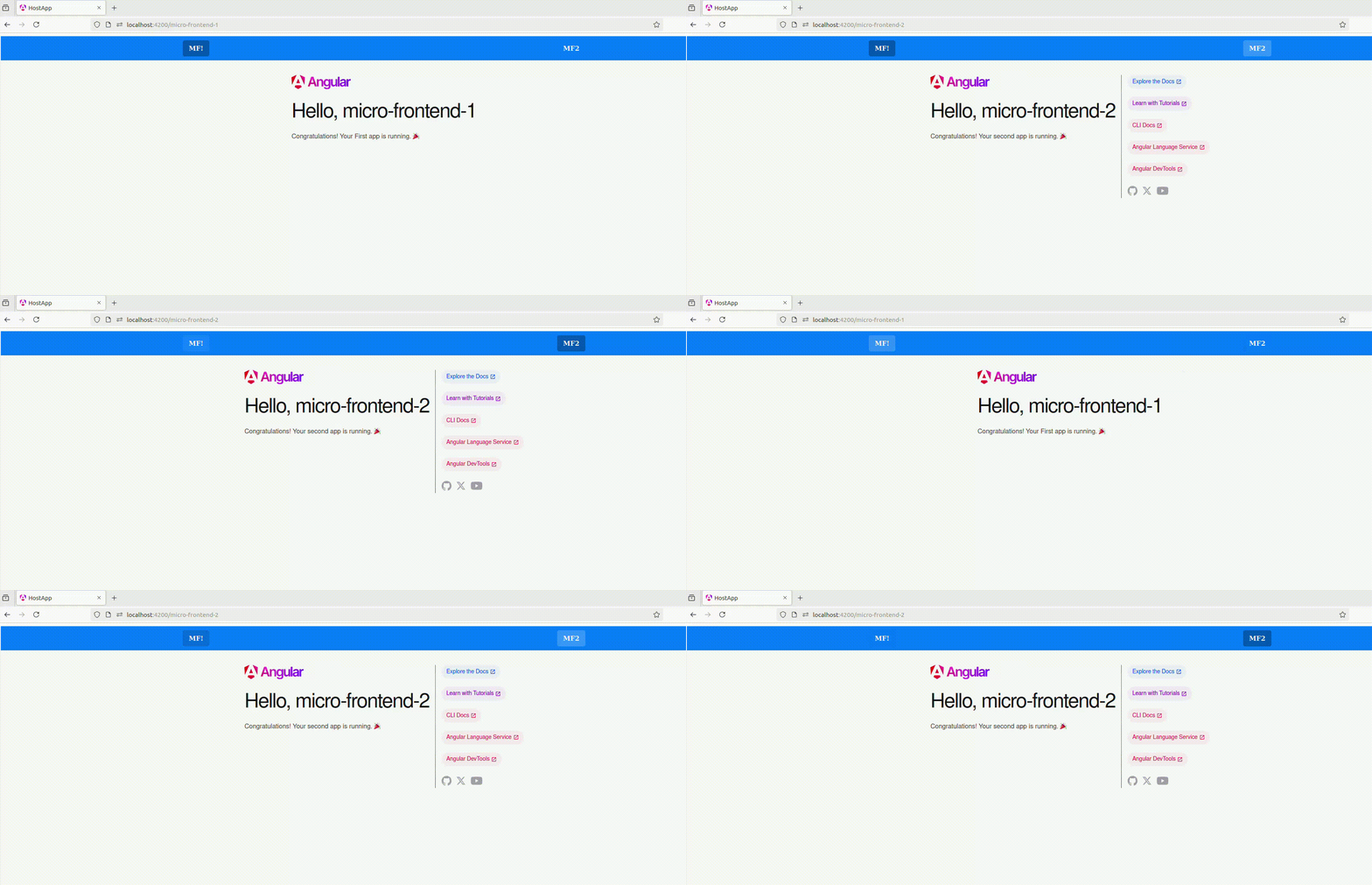
And there you have it! You’ve set up a Micro Frontend Architecture using Angular with multiple repositories, creating an environment where teams can innovate independently while contributing to a greater whole. As your applications grow, this architecture allows for seamless integration, quicker deployments, and an overall smoother user experience.
So, what are you waiting for? Have you tried implementing micro frontend in your projects? Share your experiences or questions in the comments!
Happy Coding!


