avatarMert Ilis

Summary

The website provides instructions for resolving a conflict in Group Policy settings that prevents BitLocker encryption on a virtual hard drive.

Abstract

The article addresses a specific error (code 0x8031005b) encountered when attempting to encrypt a virtual hard drive (.vhd) with BitLocker on a Windows 10 system. The error indicates conflicting Group Policy settings related to BitLocker startup options. The author outlines a step-by-step fix, which involves adjusting settings in the Local Group Policy Editor, modifying registry keys, and executing commands via the Terminal to force a Group Policy update and initiate BitLocker encryption. The solution includes enabling additional authentication at startup, configuring TPM settings, and using the manage-bde command-line tool to encrypt the drive.

Opinions

  • The author encountered the error during a practical scenario of encrypting a backup disk.
  • The provided fix is detailed and assumes the reader has administrative access to the system.
  • The article suggests that the error is related to the system's Trusted Platform Module (TPM) and its configuration.
  • The author emphasizes the importance of backing up registry keys before making changes.
  • The article concludes with an optimistic note, hoping that the provided solution will be helpful to others facing the same issue.

How to fix error The Group Policy settings for BitLocker startup options are in conflict and cannot be applied

ERROR: An error occurred (code 0x8031005b): The Group Policy settings for BitLocker startup options are in conflict and cannot be applied. Contact your system administrator for more information.

I got this error when I attempted to encrypt a virtual hard drive (.vhd) that I created as a backup disk.

Platform: Microsoft Windows [Version 10.0.19043.1348]

FIX:

  • Open Policy settings:
gpedit.msc
  • Go to “Local Computer Policy > Administrative Templates > Windows Components > BitLocker Drive Encryption > Operating System Drives”
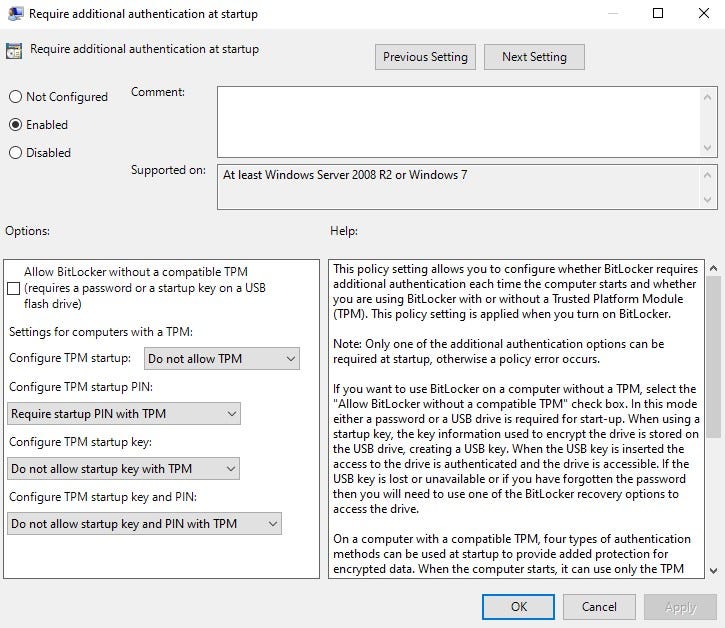
  • Select the following Item: “Require additional authentication at startup”
Local Group Policy Editor
  • Change the following:
  • Change it to “Enabled”
  • Uncheck “Allow BitLocker without a compatible TPM”
  • Change “Configure TPM startup” to “Do not allow TPM”
  • Change “Configure TPM startup PIN” to “Require startup PIN with TPM”
  • Change “Configure TPM startup key” to “Do not allow startup key with TPM”
  • Change “Configure TPM startup key and PIN” to “Do not allow startup key and PIN with TPM”
  • Click “Apply” and “OK”
Require additional authentication at startup
  • Open regedit
  • Find key: Computer\HKEY_LOCAL_MACHINE\SOFTWARE\Policies\Microsoft\FVE
  • Export for backup and delete it.
  • Open Terminal and execute:
gpupdate /force /target:computer
  • To encrypt the drive F:
manage-bde -on f: -rp

Result should be something like:

BitLocker Drive Encryption: Configuration Tool version 10.0.19041 Copyright © 2013 Microsoft Corporation. All rights reserved.

Volume F: [Data Volume]

Hope it helps!

Windows 10
Bitlocker
Group Policy
Encryption
Virtual Hard Disk
Recommended from ReadMedium