
How to filter Firestore data cheaper?
In many applications, we found ourselves in a position where we need to allow users to search our app content. For example, in an online shop app, we may want to search for products containing a certain name. We know that in the case of Cloud Firestore, downloading an entire collection to search for fields client-side isn’t practical at all and to enable full-text search we need to use a third-party search service like Algolia. However, there is a workaround to partially solve this problem, which is using the following Query:
db.collection("products").orderBy("name")
    .startAt(productName)
    .endAt(productName + "\uf8ff");
But it has some constraints. As an example, if we have a product named “basketball shoes” and we search for “bask”, it will work but if we search for “sho”, it won’t. Besides that, if you are looking for products that are starting with the letter “a”, we’ll be charged with a number of reading operations that is equal to the number of results that are returned. So it can be a little expensive.
That being said, how can we solve this search problem though? The simplest solution would be to create a document that will hold all product names we have in the database. Every product name will be added to an array of product names. Since we know that the maximum size of a document is 1 MiB, this solution will work only for relatively small size data sets.
The solution for solving this limitation is to create a separate document for each letter of the alphabet separately, as seen in the following schema:
Firestore-root
       |
       --- alphabet (collection)
              |
              --- a (document)
              |   |
              |   --- aProducts: ["A-Product", "A-Product"]
              |
              --- b (document)
                  |
                  --- bProducts: ["B-Product", "B-Product"]
When we are talking about storing text, we can store pretty much. So we’ll have a total of 26 MiB of storage for the product names. When we perform a new search, to know in which document we should search, we only need to get the starting letter of the searched term. According to the results, once a product is selected, we can query the database to get its corresponding details. For that we can use a simple query that looks like this:
FirebaseFirestore rootRef = FirebaseFirestore.getInstance();
CollectionReference productsRef = rootRef.collection("products");
Query query = productsRef.whereEqualTo("name", searchedProductName);
The corresponding schema for the products collection is this:
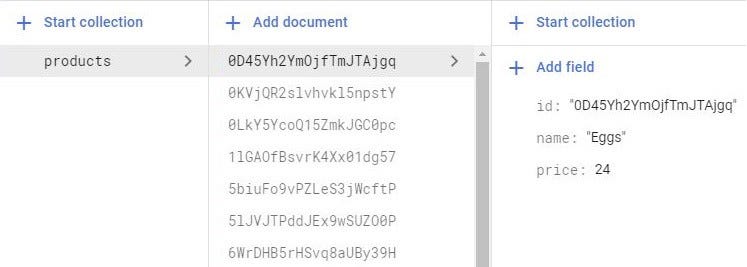
For the sake of simplicity, I’ll show you in this article, an example of an application that holds all product names in a single array.
It’s a very simple app that contains a single activity. The layout contains a CoordinatorLayout which holds an AppBarLayout with a custom Toolbar where I have placed the SearchView. There is also a TextView where we’ll display the price of the selected product. We’ll use the MVVM architecture pattern to keep the code clean.
First of all, we initialize our views:
searchView = findViewById(R.id.search_view);
priceTextView = findViewById(R.id.price_text_view);
Second, we have to implement SearchView.OnCloseListener interface and set the listener:
searchView.setOnCloseListener(this);We override the corresponding method, where we set the priceTextView to hold an empty String and we hide the keyboard.
@Override
public boolean onClose() {
    priceTextView.setText(EMPTY);
    hideKeyboard();
    return false;
}
Now we can get the SearchView.SearchAutoComplete object and set it accordingly:
autoComplete =
  searchView.findViewById(androidx.appcompat.R.id.search_src_text);
autoComplete.setDropDownBackgroundResource(R.color.colorWhite);
autoComplete.setThreshold(1);
Before implementing the second interface, we need to initialize our ViewModel object:
productViewModel = new
                ViewModelProvider(this).get(ProductViewModel.class);
Now we can implement the second interface named AdapterView.OnItemClickListener. This interface will help us know which product name was clicked. We set now the listener using:
autoComplete.setOnItemClickListener(this);And implement the onItemClick() method:
What we are doing here, we are getting the clicked product name according to its position. Once we have the name, we can query the database to get the price. Once we have the price, we can set it to our TextView.
This is what the ViewModel class looks like:
And this is what the Repository class looks like:
You also see a method getProductNameListLiveData() in the ViewModel class and another one getProductNameListMutableLiveData() in the Repository class. You’ll see in a moment how we use them.
All the logic regarding our filtering mechanism exists only in the adapter class:
The principle is simple, we create a list of product names that correspond with the letters that we type in SearchView. Once we have the list, we can pass it to our adapter. In the end, we only need to notify the adapter that our data set has changed.
To get the actual product names, we need now to start observing the other LiveData object that you saw earlier and pass the list to the constructor.
Now everything is in place. As a final conclusion, the single constraint of this solution is that we need to keep the product names distinct and in sync with the name of products that exist in the collection. As a matter of fact, it makes sense since we should have in our database only different products. It doesn’t help anyone to store the exact same product twice, as it will create confusion.
On the other hand, to search for a product we’ll have to pay for a document read and for displaying its details another one. The total number of reading operations that we need to pay is 2!
This is a demo video on how this app behaves.
If you wanna support me, please join me!
You can find the full source code here.
#BetterTogether


