
How to Fetch data from local JSON file and render it to HTML document by using Vanilla JavaScript ?
I recently encountered a project created by a friend using only vanilla JavaScript, HTML, and CSS to craft a webpage. The unique aspect? The page content dynamically shifts, responding to data retrieved from a local JSON file. In exploring solutions for reading local JSON data without the need for a server, I stumbled upon two effective methods. In this article, I’m excited to share what I’ve discovered.
First we will see how we can acquire data from the JSON file. Then we will see how can we render that data in HTML document.
Using Import Statement
We can use import statement to import the data into the JavaScript file just like React, Vue and other module base web framework. But there are some complications that occur while using import statement in Vanilla JavaScript and we will address them all.
For example, we have a main folder under which we have a folder named “asset” and our main HTML file “index.html”. In “asset” folder we have three more folder called “js” folder, “css” folder and “data” folder, inside each folder we have relative files as shown below.

In “data” folder we have a JSON file named “data.json” which contains the following data:
[
  {
    "id": 1,
    "name": "Soumyaneel Sarkar",
    "desc": "I am a MCA student"
  },
  {
    "id": 2,
    "name": "Arunava Das",
    "desc": "I am a Data Science enthusiastic"
  },
  {
    "id": 3,
    "name": "Pritam Sarkar",
    "desc": "I am ML enthusiastic"
  }
]
We can import this data in JavaScript via import statement as follows:

Unfortunately, for this syntax we will get an error that is:

This error is saying that we cannot use import statement outside a module. Since we are using it in a regular JavaScript which is not a module by default. So to solve this error we can use type=”module” in the script tag by which we are referring this JavaScript file in HTML document.

This syntax will resolve the above Error but unfortunately we will still be getting another Error as follows:

This CORS error occurs because our file is not on a server. We need to have a remote or local server for this application to run. We can fix this using a very simple VS code extension is called Live Server which run your html file on live server and updates any changes that is been made to the code in live in our local system browser.

After installing this extension you will get an “Go Live” option in the bottom right section of your VS code workspace. Open your working folder in VS code and press “Go Live” option button and it will soon open up your browser with liver server showing index.html content.
But unfortunately you still get an error like this :

To fix this error we need to add assert {type: 'json'} in the import statement in our code.
import data from "../data/data.json" assert { type: "json" };
console.log(data);
Now this statement will fix the final problem of Import Statement and show us the following result in the console.

Using Fetch API
Another way of reading a JSON file is by using fetch API call. The only difference here will be in the URL that we will use in fetch API call. Also we will be needing the Live server (discussed above), otherwise we will get same CORS error if we don’t. When you open your HTML file directly in a browser using the file:/// protocol, it's considered a different origin than the fetch request you're making to load the JSON file. Browsers restrict such cross-origin requests due to security reasons.
We generally use fetch API for fetching HTTP response or uploaded data from the remote server. In such cases, we utilize URLs like https://abc.com/data.json or any API endpoint https://abc.com/data, where ‘abc.com’ denotes the address of the remote server.
But in our case we will be using directory path URL to access and read our data.json file.
fetch("./asset/data/data.json")
  .then((response) => response.json())
  .then((data) => {
    console.log(data);
  })
  .catch((error) => console.error("Error loading JSON file", error));
In this context, we utilize ./asset/data/data.jsonwithin our JavaScript file, which is referenced by ‘index.html’ residing at the same directory level as the ‘asset’ folder. Placing the JavaScript file under ‘index.html’ necessitates a precise path to access ‘data.json’ from that directory level.
The code snippet employs the ‘fetch’ function to retrieve data from ./asset/data/data.json. Upon receiving the response, it parses the data as JSON and logs it to the console. Should any error occur during this process, it is caught and logged as an error message.
It’s crucial to ensure that the file structure aligns with the specified path for successful retrieval of the ‘data.json’ file.
How to display & populate the data dynamically in HTML
In order to dynamically display data fetched from a JSON file, the JavaScript code first identifies a designated container <div> in the HTML document with the ID ‘loop’. This container will hold the dynamically generated content.
The subsequent JavaScript logic operates on an array named ‘data’. Using the map() method, each object within the ‘data’ array is processed individually. For each object:
- A new
<div>element is created programmatically viadocument.getElementById(‘loop’). - The ‘id’ attribute of this new div is set to match the ‘id’ value of the current ‘element’.
- The ‘class’ attribute is assigned as ‘card’ to style the div as a card component.
- Using string interpolation, HTML content is generated dynamically inside this new div. It includes the ‘name’ and ‘desc’ properties of the ‘element’, encapsulated within
<h2>and<p>tags respectively. Additionally, a<button>element is added. - Finally, the newly formed
<div>, now containing the structured data and styled as a card, is appended to the designated container (‘frame’) within the HTML document (‘loop’ div).
const frame = document.getElementById("loop");
data.map((element) => {
  console.log(element);
  let newDiv = document.createElement("div");
  newDiv.id = element.id;
  newDiv.className = "card";
  newDiv.innerHTML = `
    <h2>${element.name}</h2>
    <p>${element.desc}</p>
    <button class="btn">Lets See</button>`;
  frame.appendChild(newDiv);
});
Ultimately, this code dynamically generates a series of HTML elements — each wrapped in a styled ‘card’ <div> — representing the ‘name’ and ‘desc’ properties from each object in the ‘data’ array. These elements are then appended to the designated container, thereby dynamically populating the HTML document with the fetched data.
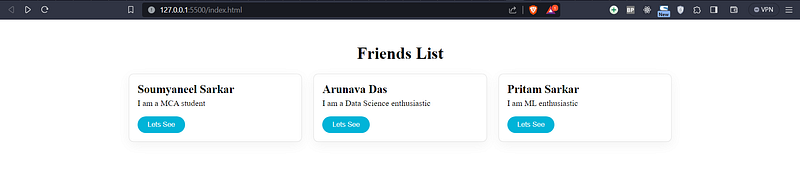
I have used CSS to make the “card” design more appealing. If any other data added in the JSON file it will automatically populate and render it to the web page.
Conclusion
In this article we saw how we can read local JSON data and render it using Vanilla JavaScript. Also address the issues and solution of related methods.
Using the Fetch API is preferable when making HTTP requests to a server. In contrast, in scenarios where simplicity is key, opting for a straight-forward import statement might be more suitable.
I have shared my learning through this article if you found anything I have written is wrong then please address that in the comment section , I will be happy to learn from you.


