
How to Extract Data from PDF Forms Using Python
Understanding the Object Model of PDF Documents for Data Mining

Introduction
PDF or Portable Document File format is one of the most common file formats in use today. It is widely used across enterprises, in government offices, healthcare and other industries. As a result, there is a large body of unstructured data that exists in PDF format and to extract and analyse this data to generate meaningful insights is a common task among data scientists.
I work for a financial institution and recently came across a situation where we had to extract data from a large volume of PDF forms. While there is a good body of work available to describe simple text extraction from PDF documents, I struggled to find a comprehensive guide to extract data from PDF forms. My objective to write this article is to develop such a guide.
There are several Python libraries dedicated to working with PDF documents, some more popular than the others. I will be using PyPDF2 for the purpose of this article. PyPDF2 is a Pure-Python library built as a PDF toolkit. Being Pure-Python, it can run on any Python platform without any dependencies or external libraries. You can use pip to install this library by executing the code below.
pip install PyPDF2Once you have installed PyPDF2, you should be all set to follow along. We will take a quick look at the structure of PDF files as it will help us to better understand the programmatic basis of extracting data from PDF forms. I will briefly discuss the 2 types of PDF forms that are widely used. We will then jump right into the examples to extract data from each of the 2 types of PDF forms.
Structure of a PDF file
Instead of looking at PDF document as a monolith, it should be looked at as a collection of objects. All of these objects are arranged in a set pattern. If you open a PDF file in a text editor such as notepad, the content may not make much sense and appear to be junk. However, if you use a tool that provides low level access to PDF objects, you could see and appreciate the underlying structure. For example, please look at Figure 1 below. I used iText RUPS to open a simple PDF document.The image on the left is of a simple PDF document I opened in a reader application(Acrobat Reader). The middle image displays the low level object model of this document as rendered by iText RUPS. The image on the Right shows the data stream that captures the content of the PDF on its first page. As you could see, the object model(middle image) has a set pattern and encapsulates all of the meta data that is needed to render the document independent of the software, hardware, operating system etc. This structure is what makes PDF so versatile and popular.
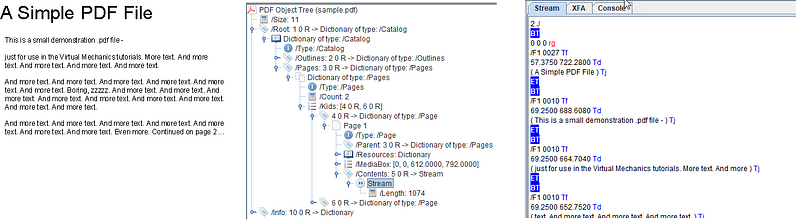
PDF Forms
There are 2 primary types of PDF forms.
- XFA (XML Forms Architecture) based Forms
- Acroforms
Adobe(the company that developed PDF format) has an application called AEM (Adobe Experience Manager) Forms Designer, which is aimed at enabling customers to create and publish PDF forms. Adobe uses the term PDF form to refer to the interactive and dynamic forms created with AEM Forms Designer. These PDF forms are based on Adobe’s XML Forms Architecture (XFA), which is based on XML. These forms can be dynamic in nature and can reflow PDF content based on user input.
There’s another type of PDF form, called an Acroform. Acroform is Adobe’s older and original interactive form technology introduced in 1996 as a part of PDF 1.2 specification. Acroforms are a combination of a traditional PDF that defines the static layout with Interactive form fields that are bolted on top. First, you design the form layout using Microsoft Word, Adobe InDesign, or Adobe Illustrator, etc. Then you add the form elements — fields, dropdown controls, checkboxes, script logic etc.
Extracting Data from XFA Based PDF Forms
Figure 2 below shows a screenshot of the XFA based PDF form that we will be using as an example for this exercise. This is a Currency Transactions Report form used by the banks and other institutions to report certain financial transactions to the regulatory agency. This is a dynamic form where you could add and remove sections based on the amount of information that needs to be reported. I have partially filled this form with some dummy data.

Figure 3 shows the object model of this form. The XML document, shown on the right side of the image is what makes up the XFA, which is stored as the value of the XFA key inside the AcroForm dictionary(look at the object model on the left side of the image). The Acroform dictionary is a child element of the Catalog dictionary, which in turn is housed inside the Root of this PDF file. All we need to do is use PyPDF2 to access the XML document from the object structure of this file. Once we have access to the XML, it is a simple exercise of parsing out the XML document to access values for various form elements, which could then be stored into a Python list, Numpy array, Pandas dataframe etc. for the purpose of analysis.

Below is the code to extract the XML that makes up this form.
import PyPDF2 as pypdfdef findInDict(needle, haystack):
for key in haystack.keys():
try:
value=haystack[key]
except:
continue
if key==needle:
return value
if isinstance(value,dict):
x=findInDict(needle,value)
if x is not None:
return xpdfobject=open('CTRX_filled.pdf','rb')pdf=pypdf.PdfFileReader(pdfobject)xfa=findInDict('/XFA',pdf.resolvedObjects)
xml=xfa[7].getObject().getData()In the first line, I am simply importing the PyPDF2 library and providing it an alias — pypdf. The second line is the beginning of function definition to find elements of a dictionary by providing the dictionary key. You would recall from our discussion above, that our XML is embedded inside a dictionary referenced by the key ‘/XFA’. This function helps me to navigate the complicated object model of the PDF file, which is basically a set of dictionaries embedded inside multiple sets of dictionaries. In the line following the function definition, I am reading in the PDF form and creating a PdfFileReader object. The resolvedObjects method of this class unravels the PDF object model as a set of Python dictionaries. I then invoke the findInDict function to extract the elements of the ‘/XFA’ dictionary, which is an array as shown in figure 4 below.

The seventh element of this array is the actual XML content that makes up the form. It is an IndirectObject. An IndirectObject is an alias that points to an actual object. This reference helps to reduce the size of the file when same object appears at multiple places. The getObject() method used in the last line of the code retrieves the actual object. If the object is a text object, using str() function should give you the actual text. Otherwise, the getData() method needs to be used to render the data from the object. Below is a snapshot of a portion of the XML retrieved in the last line of the code above. You could see some of the dummy address data I entered into the sample form. You could easily parse out this data from the XML and use it for further analysis.

Extracting Data from Acroforms
This one will be relatively easy as we have already discussed most of the concepts related with the PDF object model in the sections above. Below is a sample income tax form that I will be using as an example. I have put some dummy data in it.

Figure 7 below shows the object model of this form.

The values of individual form fields are referenced by the key ‘/V’, which is embedded inside ‘/Fields’, which in turn is embedded inside ‘/AcroForm’. ‘/AcroFrom’ is a child of the root Catalog dictionary of this PDF file. We could use the approach we used in the case of XFA form and use the ‘findInDict’ function to retrieve the ‘/Fields’ dictionary and then retrieve values of the individual fields. Fortunately, PyPDF2 provides a more direct way to do this. The PdfFileReader class provides a getFormTextFields() method that returns a dictionary of all form values. Below is the short code. Figure 8 shows the output. The dictionary object could be easily converted into a list or a Pandas dataframe for further procecssing.
import PyPDF2 as pypdfpdfobject=open('incometaxform_filled.pdf','rb')pdf=pypdf.PdfFileReader(pdfobject)pdf.getFormTextFields()
Conclusion
Extracting data from PDF forms is easy once you understand the underlying object model and PyPDF2 is a powerful library that enables you to access it. Have fun with your data!


