
How to engage and delight users on Android TV Oreo+
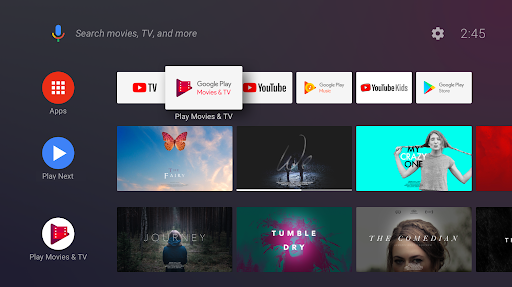
As you can see from the image above, Android TV has a content-centric home screen that offers lots of real estate for apps to engage users. Apps can create multiple rows of content cards that can be personalized for users. Combined with rich metadata and video previews, content is really the king.
And, that’s not all: with Google Assistant, Google Play distribution, Google Play Billing, friction-less sign-in, Nearby technologies for Second Screen experiences, UHD/HDR, built-in cast functionality, Live TV framework and other capabilities it’s the most advanced Smart TV platform.
But, is your app making the most of it?
Channels on the home screen
Channels are rows of content cards (programs) that are displayed on the home screen. Channels are dynamic and are controlled by the app. This is an opportunity to drive user engagement from outside the app.
Each app gets one channel by default on the home screen. Apps can create more than one channels for their users. Additional channels need user authorization to be added to the home screen.
The default channel should be created by the app when its installed. Don’t wait for the user to open your app.
Tips:
- Keep your channels and programs fresh
- Respond to the user. For e.g. suggest adding new channels based on in-app interaction.
- Provide rich metadata and video previews
- Add default channel when the app is installed.
- Content should start playing immediately when launched from home screen
Play Next
Play Next is a system managed channel that appears as the second row on the home screen. Apps can add programs to Play Next row. Here are some good candidates for Play Next -
- New episodes of a TV series user is engaged with.
- Content that the user left in the middle i.e. resume watching.
- Content user previously marked as a favorite or added to their watchlist.
Tips:
- Don’t add new programs to Play Next that user hasn’t interacted with.
- Wait for clear signal before you add to Play Next. If a user started watching a movie and left it in the first couple of minutes, do not add it.
- Users generally don’t watch movie credits so do not add or remove any previously added programs when the current playback position is 90% or more of the total program duration. For some special content, it may make sense to complete playback.
- Select the appropriate type when you add programs to Play Next. This lets the launcher customize the user experience to be more engaging. Setting the type gives the launcher the correct signals to build context clues for user -WATCH_NEXT_TYPE_CONTINUE, WATCH_NEXT_TYPE_NEXT, WATCH_NEXT_TYPE_NEW, WATCH_NEXT_TYPE_WATCHLIST
Google Assistant & Universal Search
As a media content provider on Android TV, enabling voice interactions for content discovery and playback is the probably the most important Google Assistant use-case for you.
Here is a great blog post that explains how this works:
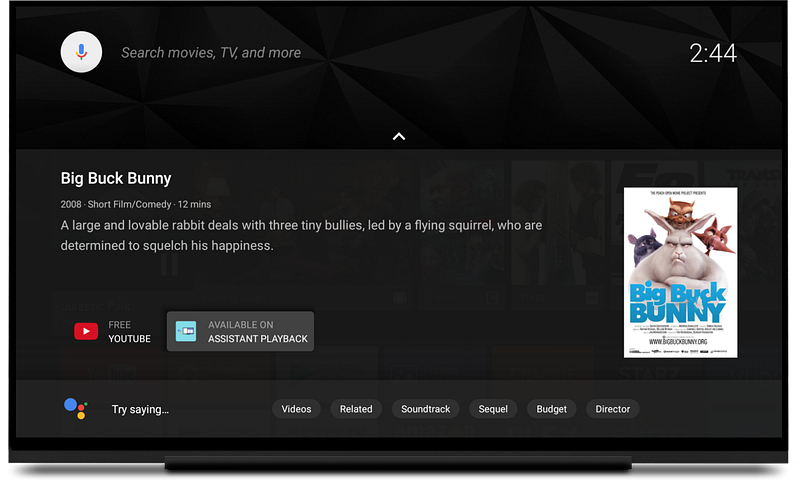
Tips:
- Test to make sure a “WatchAction” for your content appears for Movie & TV entity searches. In UI, this is a button with label “Available On
” - When using on-device ContentProvider, provide all required fields in your results list. For TV Shows, set the duration to first or last episode of the series.
Metadata mismatch is the #1 reason for missing watch actions.
- Ensure deep links are handled by your Android TV app
- Support all transport controls (Play,Pause,Stop, Fwd/Rwd, Next/Previous, Seek)
- Support Auto Playback — respect the EXTRA_START_PLAYBACK extra.
Friction-less Sign-in, Second Screen Experience and more
Identity:
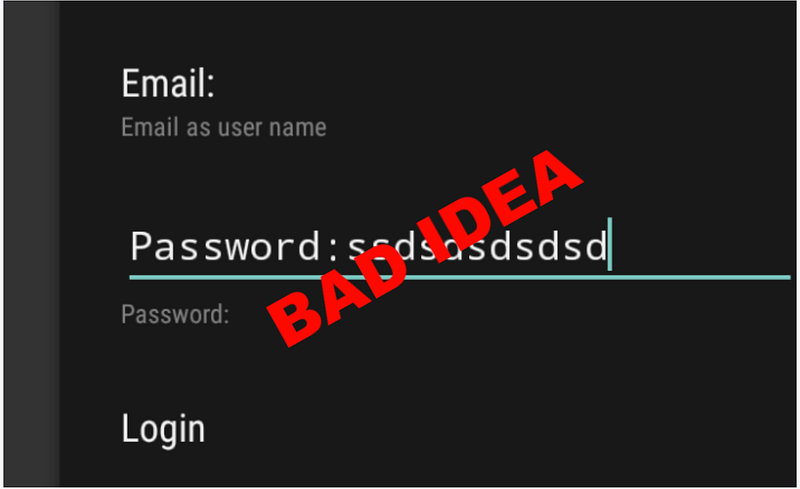
On-device credentials based Sign-in should never be the primary identity solution for TV users. It’s a shared device and typing on TV is both hard and frustrating.
Consider using SmartLock for Passwords, Nearby Technologies or TVE solution like Adobe Pass
Second Screen
With Nearby technologies you can discover app instances running across device and build a second screen experience
Google Play Billing (Subscriptions)
Recurring payments, free trials, grace period, upgrades/downgrades, seasonal prices, introductory prices, realtime developer notifications, account hold and a lot more!
Leanback Library
A library with easy to use UI components optimized for 10ft experience.
Input Handling
Respond to all media keys typically found a TV remote.
Continue the conversation on Google+


