
How to Embed YouTube Videos in the Jupyter Notebook
To display the handy methods to embed the videos from YouTube channels into a Jupyter notebook
I illustrated how to easily embed local and online videos or audios in a Jupyter notebook using HTML in one of the previous articles. However, the methods do not work on the videos from YouTube channels. This post will focus on two methods to embed the videos from YouTube channels into a Jupyter notebook.
1. %%HTML magic
(1) Embed a video
To embed and play YouTube videos in a notebook using %%HTML magic, we should get the embed link:
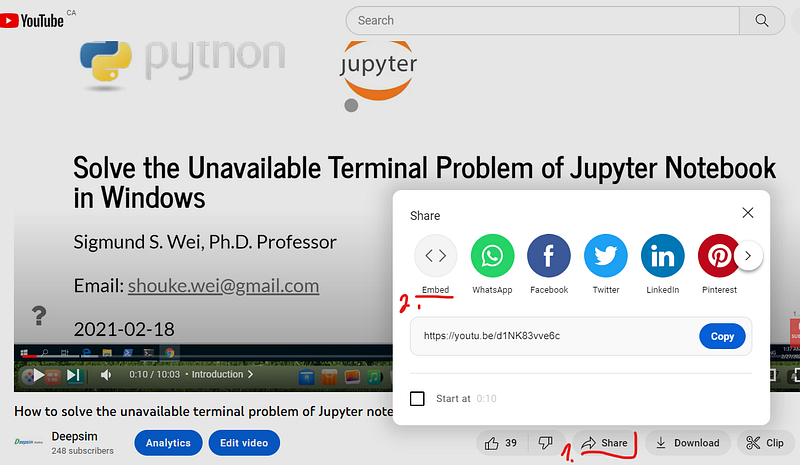
- Go to the YouTube video you want to embed, for example, go to one of my videos by clicking my video
- Below the video, click SHARE
- Click Embed
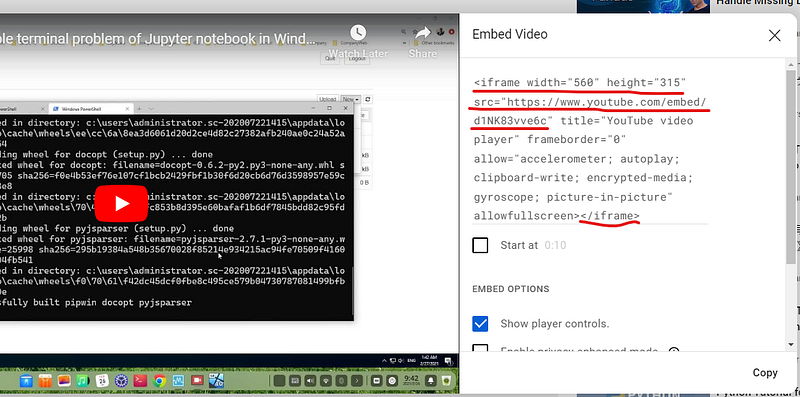
- From the appearing box, copy the HTML code
We just keep the main parameters and embed link in <iframe>, and remove the rest information as the following example. Then we can adjust the size paremeters (width and height) to the size video.
%%HTML
<iframe width=”560" height=”315"
 src=”https://youtube.com/embed/d1NK83vve6c"
</iframe>
The output looks as follows:
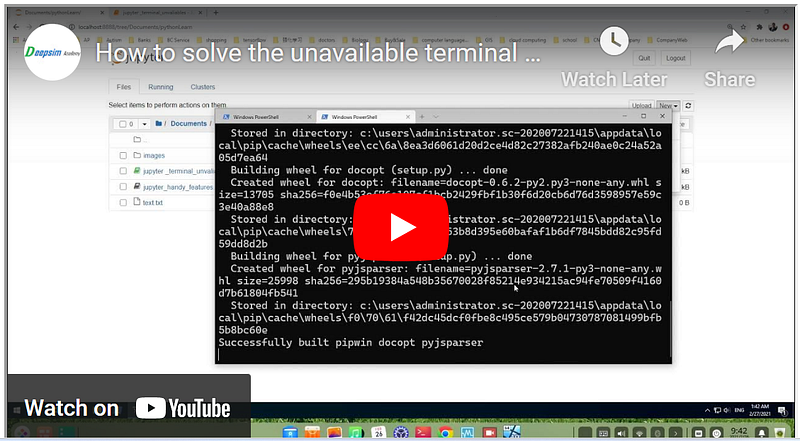
(2) Align a video
From the above screenshot, we can see that the default alignment of the video frame is left. If you want to align it center, for example, we use HTML <div align=”center”>.
%%HTML
<div align="center">
    <iframe width="560" height="315"
    src="https://youtube.com/embed/d1NK83vve6c"
    </iframe>
</div>
2. IPython Functions
(1) Embed a video
IPython.display provide a YouTubeVideo() function, which much more convenient to embed a YouTube video.
What we need to do is to import the function first, and then go to the YouTube video and copy its ID. Lastly, we paste it into the YouTubeVideo() function. For example:
from IPython.display import YouTubeVideoYouTubeVideo("d1NK83vve6c", width=400)(2) Align a video
If you want to align the YouTube video, you can use IPythonHTML() function or the %%html magic above. However, we have to use embedding address in this method as in the method of %%html magic.
from IPython.display import HTMLHTML("""
<div align="center">
<iframe width="560" height="315"
src="https://youtube.com/embed/d1NK83vve6c"
</iframe>
</div>
""")3. Online course
If you are interested in learning Jupyter notebook in details, you are welcome to enroll one of my course Practical Jupyter Notebook from Beginner to Expert.
If this post is helpful to you, please do not forget to give a kind clap to show your support. Thank you very much!


