How to Embed an Amazon Book Preview
The best book marketing tool you’ve never heard of
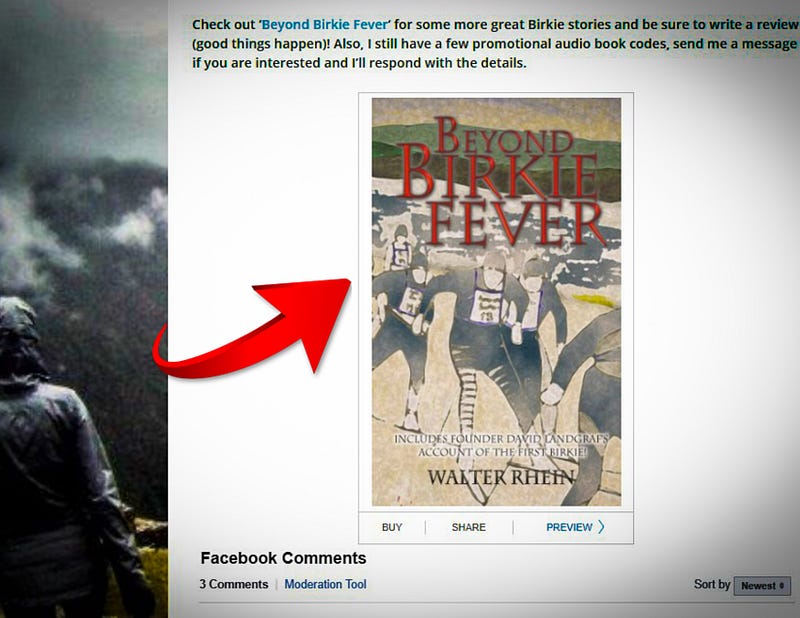
If you’re an author, the best way to generate a sale is to get somebody to start reading your work. Forget reviews, forget endorsements. When push comes to shove, allowing readers to engage with your text has more power than any other tactic you might employ.
Many authors are unaware that Amazon offers a free preview embed feature. This feature allows you to place a large, interactive preview version of a book prominently on your web page. I’m not talking about a link. I’m talking about embedding a preview version of your book that allows readers to peruse the pages just as if they were browsing in a bookstore.
The interactive preview starts with a picture of the cover with the buy, share, and preview buttons down at the bottom. You can use it to scroll through the available preview section of the work without being redirected to Amazon. I run a book review site and I frequently take advantage of this embed to promote the work of independent authors. In this article, I’ll show you how to take advantage of this great advertising feature.
Navigate to the Amazon Kindle Listing of Your Book
It’s in Amazon’s interests to encourage consumers to make purchases on their platform, which is why they’ve created this wonderful tool. However, if you don’t know where to look to get the code, it can be somewhat difficult to find.
To get the embed code, go to your book’s Kindle listing. Note that the embed code link may not appear on the paperback or audiobook listing. You’ll find the link to your book’s specific code on the right-hand side just beneath the purchasing column.
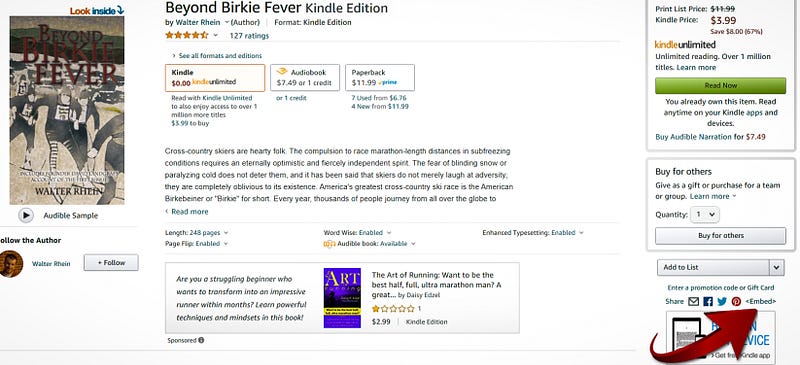
Select Your Preferences
Once you click on the embed button, you are taken to a page that allows you to select your preferences for the embed code.
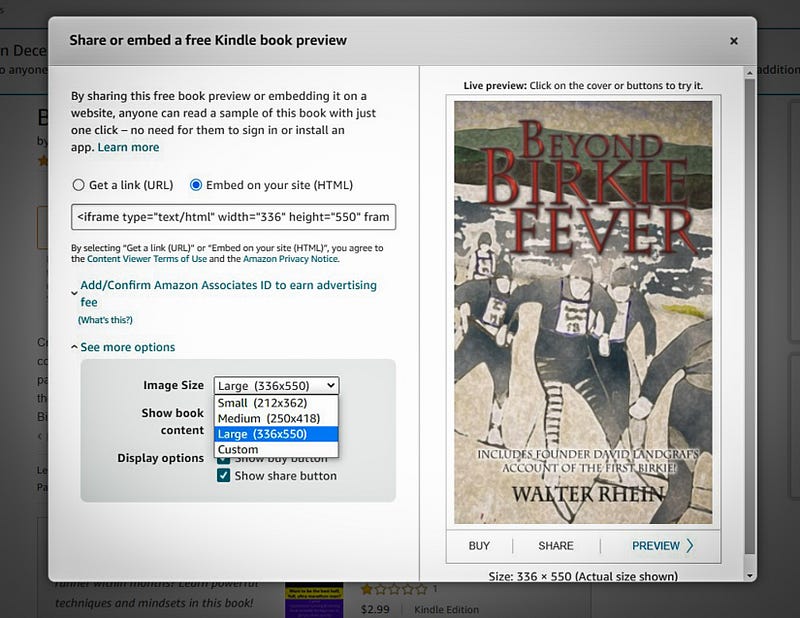
You can select “embed on your site” and make some adjustments in the dropdown menu. You are then provided with a code that you can copy and paste onto your web page.
Some pages might require a plug-in to get the code to work, but most popular platforms are able to handle the code without issue.
For pages such as Medium, use the “get a link (URL)” option and you get a result like this:
It’s Like Claiming Shelf Space in a Digital Bookstore
I use the Amazon embed feature both in the sidebars of my web pages and in individual posts. I run a webpage about Peru called Streets of Lima and I keep an embed of my novel Reckless Traveler on the sidebar.
That novel has a very dynamic first chapter. I know that if I can get eyes on the first few paragraphs, a sale is very likely.
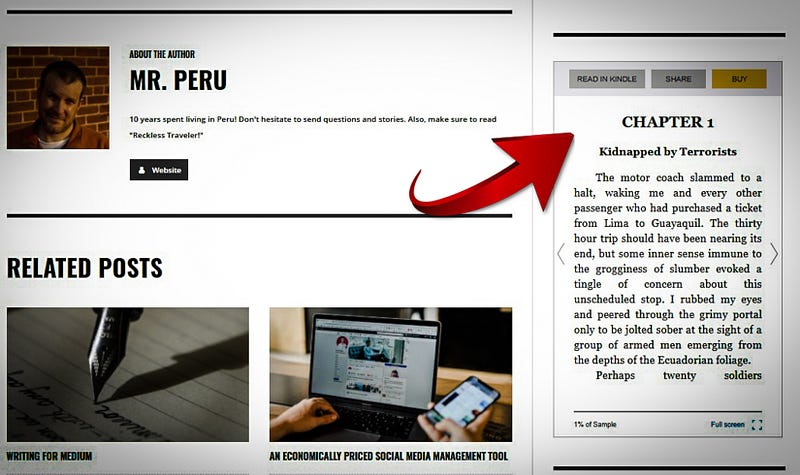
Distribution is probably the single most difficult obstacle to overcome for both new and established writers. The Amazon digital preview embed feature allows writers to get their text in front of as many eyes as possible, with a conveniently located buy link that encourages sales.
Helping Out Other Writers
I do a ton of book reviews and I always get responses from authors when they see the Amazon embed. It looks fantastic, it’s highly interactive, and it makes your posts look very professional.
If you use the feature for a book review, the author is much more likely to dedicate their time to promote your post on their social media network. This is a tremendous way to drive traffic to your webpage.
Whether you’re promoting your work or the work of an author you greatly admire, the Amazon embed feature is one of the best tools available to help connect readers to worthwhile books.


