ty line while writing on Medium, a “+” button appears to the left:</p><figure id="30f4"><img src="https://cdn-images-1.readmedium.com/v2/resize:fit:800/1*6ti9qhGi6fnoPVbAswjQJQ.png"><figcaption></figcaption></figure><p id="f68e">When you click on it, a few options will appear. Click on the “<>” <i>embed </i>button.</p><figure id="03fb"><img src="https://cdn-images-1.readmedium.com/v2/resize:fit:800/1*6OMy3XuvHoZRwpVOVBbALQ.png"><figcaption></figcaption></figure><p id="8805">Doing this will give you the option to paste a link to embed content into the article.</p><figure id="aab3"><img src="https://cdn-images-1.readmedium.com/v2/resize:fit:800/1*MKir33sOovFl81QXUzO_jQ.png"><figcaption></figcaption></figure><p id="a33a">The embedded tweet should show up within a few seconds.</p><p id="241c">The pros and cons are the same as option 1, except option 2 takes a little longer. Again, you’re likely only using this option if hitting <i>Enter</i> doesn’t automatically embed the tweet.</p><h1 id="4614">Option 3 — The future-proof way</h1><p id="ee0d">This option isn’t technically a direct Twitter embed, but it’s an important option to note because tweets get taken down all the time.</p><p id="8e25">For example, if you want to include a controversial celebrity tweet, that user may end up taking it down because of the backlash they get from it.</p><p id="5de0">Including a tweet using option 3 will make sure your article shows the tweet years from now, even if Twitter gets shut down.</p><h2 id="906f">Step 1: Take a screenshot of the tweet</h2><h2 id="7550">Step 2: Crop the photo as needed</h2><p id="7fc1">If you’re familiar with design programs like Photoshop or Illustrator you can even add elements to make the tweet look the way you want (although you obviously shouldn’t change the text content of the tweet)</p><h2 id="f46b">Step 3: Embed the screenshot</h2><p id="25f5"><b><i>On a laptop</i></b></p><p id="1bf6">Click the “+” button. This time, instead of clicking on the <i>embed</i> button, you’re going to click the <i>photo</i> button.</p><figure id="0b87"><img src="https://cdn-images-1.readmedium.com/v2/resize:fit:800/1*5PTLAA9Vylso1P-fLLgnnQ.png"><figcaption></figcaption></figure><p id="3b50">Find your screenshot and hit <i>Enter</i>. Voila, you now have the tweet in your article!</p><p id="7dc4">If you’d like to include a link to the original tweet — which you should — you can:</p><ul><li>Click on the screenshot photo in your article and hit <i>Ctrl+K </i>on PC<i> </i>or<i> ⌘+K</i> on a Mac. A pop up will appear giving you the option to paste a link. Put the original Twitter link there. The reader can now click on the photo to go to the link.</li><li>Create a caption for the photo that says something like “Link to the original tweet here”. Hyperlink the caption text with a link to the original tweet.</li></ul><p id="9bf2">You can use both of these methods simultaneously to make it super obvious the reader can click to find the tweet. Alternatively — if the original tweet gets taken down — you can include a link to something else instead.</p><p id="671b"><b><i>On a mobile device</i></b></p><p id="0703">Click on the A<i>dd Photo </i>button that’s in the middle right-hand side of your screen — belo
Options
w your article text, but above your keyboard.</p><figure id="fc65"><img src="https://cdn-images-1.readmedium.com/v2/resize:fit:800/1*1schYODiOiJhd5r9DqXrgw.png"><figcaption></figcaption></figure><p id="885c">Find the screenshot from your gallery and add it to the article.</p><p id="e2bf">The downside of doing this on a mobile device is that you cannot include a link to the original tweet as a clickable photo link or through the caption text. You’ll have to edit your photo on a laptop to include a link or just write text below the photo and hyperlink that.</p><h2 id="024a">Pros and cons of using option 3</h2><h2 id="d3ec">Pros</h2><ul><li>Future-proof</li><li>Can be done on a mobile device</li><li>Unlimited design options if you know how to use a program like Photoshop or Illustrator</li></ul><h2 id="e830">Cons</h2><ul><li>Doesn’t automatically import a link to the original tweet</li><li>Photos can be doctored, so it might not come off as authentic as including the original embedded tweet in-text.</li></ul><h1 id="f3cf">Can you embed a Tweet when publishing on mobile?</h1><p id="28e3">Unfortunately, you cannot embed tweet links on a mobile device.</p><p id="40e7">Hitting <i>Enter</i> on a phone will not automatically convert the link, and there are no options to embed in the mobile menu. Hopefully, this is something the Medium engineering team will be able to fix in the near future.</p><p id="2931">Use option 3 as a workaround if you only publish using a mobile device.</p><h1 id="6ff9">Can you add a link to Twitter profiles?</h1><p id="51c3">You can, but it won’t look all that nice. For example:</p><div id="2e1f" class="link-block">
<a href="https://twitter.com/medium">
<div>
<div>
<h2>Medium (@Medium) | Twitter</h2>
<div><h3>The latest Tweets from Medium (@Medium). Words matter. Learn more at https://t.co/KXvi8xUeaK. For support go to…</h3></div>
<div><p>twitter.com</p></div>
</div>
<div>
<div style="background-image: url(https://miro.readmedium.com/v2/resize:fit:320/0*dG9riEa8cnEJ5cuy)"></div>
</div>
</div>
</a>
</div><p id="2395">For profiles, Medium is essentially just using their standard hyperlink boxes. Twitter profiles aren’t integrated into the embed style of Medium like tweets are.</p><p id="0e3b">Twitter is a text-heavy social media platform, making it a great partner platform for Medium. These are just a few ways you can integrate tweet embeds into your article workflow.</p><div id="05d0" class="link-block">
<a href="https://readmedium.com/the-complete-list-of-embeddable-things-on-medium-772fc5caf5b1">
<div>
<div>
<h2>The Complete List of Embeddable Things on Medium</h2>
<div><h3>Here is a list of all the service providers that should, in theory, work on Medium.</h3></div>
<div><p>medium.com</p></div>
</div>
<div>
<div style="background-image: url(https://miro.readmedium.com/v2/resize:fit:320/)"></div>
</div>
</div>
</a>
</div></article></body>
How to Embed a Tweet on Medium
3 ways to include Twitter links in your articles
Adding a Twitter link in your Medium article is a great way to increase visual variety. It also allows you to reference your source if you get an idea from a Twitter user. Heck, you can even ask your Twitter followers a question and then answer them directly using a Medium embed.
Here’s an example of what an embedded tweet looks like on Medium.
Embedding a tweet on Medium is a straightforward process. I’ll show you 3 ways to do it. The first two ways allow you to directly include an embedded link to the tweet. The third isn’t technically a direct embed, but it’s a workaround to make sure your article is future-proof.
Option 1 — The Fast Way
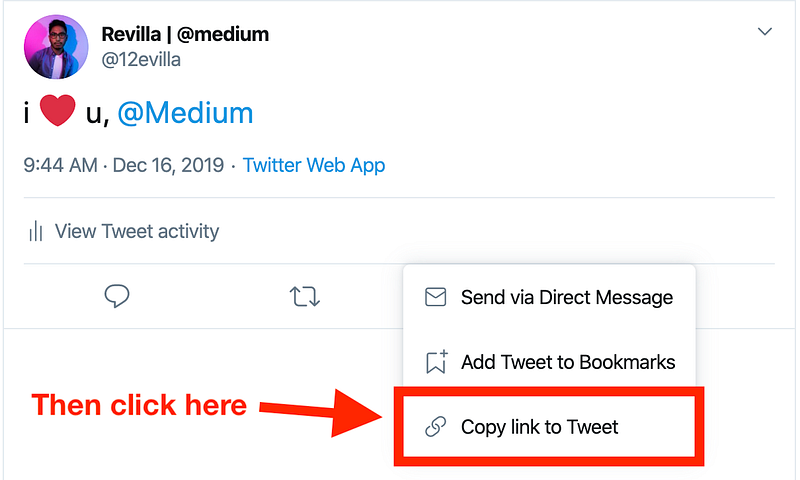
Step 1: Grab the Twitter link
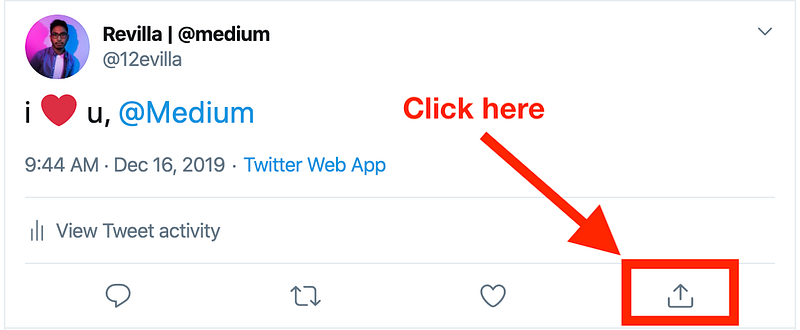
Go to the tweet. Click on the bottom right corner where you see the share button and then click “Copy link to Tweet”.
Step 2: Paste the link into your article and hit Enter
It might take a couple of seconds for the embed to show up, but that’s it! No other steps needed.
Pros:
Easy to implement
Quick to do
Embeds tweet directly into your article
Cons
If the Twitter user takes down the tweet you no longer have a working link
Little control over how it’s visually represented in your article
Unavailable if you are writing on a mobile device
Option 2 — If the first doesn’t work
You will only have to use this option if for, whatever reason, hitting Enter doesn’t automatically embed the tweet.
Step 1: Grab the Twitter link like in option 1
Step 2: Click the “+” button on an empty line
When you have an empty line while writing on Medium, a “+” button appears to the left:

When you click on it, a few options will appear. Click on the “<>” embed button.

Doing this will give you the option to paste a link to embed content into the article.

The embedded tweet should show up within a few seconds.
The pros and cons are the same as option 1, except option 2 takes a little longer. Again, you’re likely only using this option if hitting Enter doesn’t automatically embed the tweet.
Option 3 — The future-proof way
This option isn’t technically a direct Twitter embed, but it’s an important option to note because tweets get taken down all the time.
For example, if you want to include a controversial celebrity tweet, that user may end up taking it down because of the backlash they get from it.
Including a tweet using option 3 will make sure your article shows the tweet years from now, even if Twitter gets shut down.
Step 1: Take a screenshot of the tweet
Step 2: Crop the photo as needed
If you’re familiar with design programs like Photoshop or Illustrator you can even add elements to make the tweet look the way you want (although you obviously shouldn’t change the text content of the tweet)
Step 3: Embed the screenshot
On a laptop
Click the “+” button. This time, instead of clicking on the embed button, you’re going to click the photo button.

Find your screenshot and hit Enter. Voila, you now have the tweet in your article!
If you’d like to include a link to the original tweet — which you should — you can:
Click on the screenshot photo in your article and hit Ctrl+K on PCor ⌘+K on a Mac. A pop up will appear giving you the option to paste a link. Put the original Twitter link there. The reader can now click on the photo to go to the link.
Create a caption for the photo that says something like “Link to the original tweet here”. Hyperlink the caption text with a link to the original tweet.
You can use both of these methods simultaneously to make it super obvious the reader can click to find the tweet. Alternatively — if the original tweet gets taken down — you can include a link to something else instead.
On a mobile device
Click on the Add Photo button that’s in the middle right-hand side of your screen — below your article text, but above your keyboard.

Find the screenshot from your gallery and add it to the article.
The downside of doing this on a mobile device is that you cannot include a link to the original tweet as a clickable photo link or through the caption text. You’ll have to edit your photo on a laptop to include a link or just write text below the photo and hyperlink that.
Pros and cons of using option 3
Pros
Future-proof
Can be done on a mobile device
Unlimited design options if you know how to use a program like Photoshop or Illustrator
Cons
Doesn’t automatically import a link to the original tweet
Photos can be doctored, so it might not come off as authentic as including the original embedded tweet in-text.
Can you embed a Tweet when publishing on mobile?
Unfortunately, you cannot embed tweet links on a mobile device.
Hitting Enter on a phone will not automatically convert the link, and there are no options to embed in the mobile menu. Hopefully, this is something the Medium engineering team will be able to fix in the near future.
Use option 3 as a workaround if you only publish using a mobile device.
Can you add a link to Twitter profiles?
You can, but it won’t look all that nice. For example:
For profiles, Medium is essentially just using their standard hyperlink boxes. Twitter profiles aren’t integrated into the embed style of Medium like tweets are.
Twitter is a text-heavy social media platform, making it a great partner platform for Medium. These are just a few ways you can integrate tweet embeds into your article workflow.