
How to Effortlessly Track Your Finances With Obsidian
The easy way to visualize the flow of money
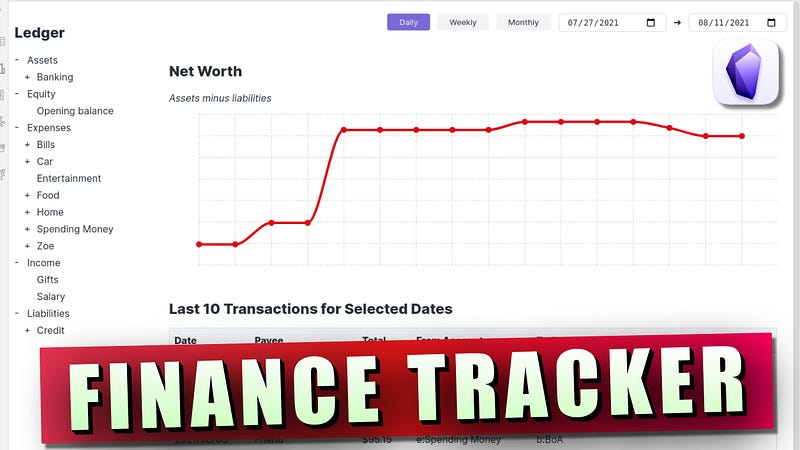
This is a tutorial on how you can use obsidian in order to track your personal finance. How you can track the flow of money in your life using obsidian.
Previously I was using a mobile application called Wallet in order to track my expenses and my personal finance. But as I started to use more and more of obsidian, I wanted to have a similar system inside of obsidian.
I wanted to track my expenses directly inside obsidian and see all the expenses and Income statements inside of Obsidian, and this is what I have got.
In this article, I’ll show you how you can start tracking your expenses and personal finance right inside Obsidian.
Ledger Community Plugin
To track expenses in obsidian, we’ll need the help of a community plugin called Ledger. Ledger plugin created by Tony Grossinger is perfect for tracking entire flow of money.
It allows for tracking personal finance and planning right from the comfort of obsidian. All of the your data is stored in plain text and it is interoperable with any ledger CLI tool.
Ledger supports ledger CLI, which means you don’t have to worry about losing the data. You can have the data stored in plain text and it can be operated with any tool that supports the ledger CLI.
Configuring the Ledger Plugin
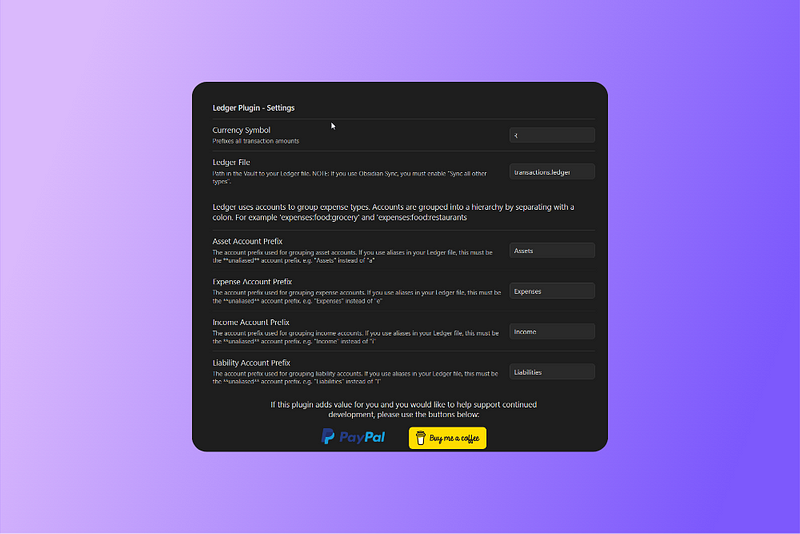
Once you have installed and enabled the plugin, go to options to configure some settings.
The setting you need to configure over here is the currency symbol. Currently, it does not support all currencies. $ (Dollar), ₹ (Indian Rupee), £ (Pound Sterling), € (Euro), 𝔹 (Bitcoin) are some of the major currencies that are supported currently.
And if your currency is not supported, if you use the symbol over here and you add transactions, the transaction will not be parsed. The transaction will not be rendered in the ledger dashboard.
You can also rename the file's name as anything you want. The file extension will be ‘.ledger’
Account prefixes are used in order to group accounts. This is all about the options in the ledger plugin settings. Now, let's start to use it to track your finance.
Tracking Finances with Ledger Plugin
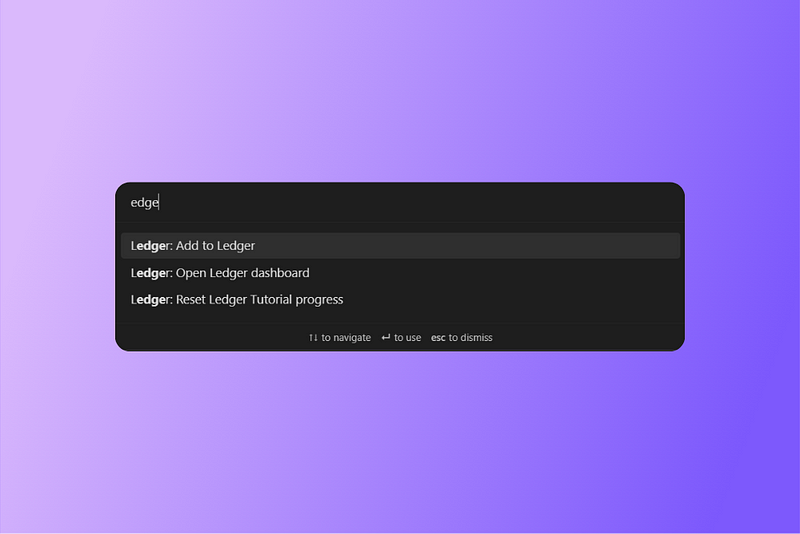
The first thing you need to do is create a ledger dashboard. For that, you’ll need to go to the command pallet and search for Ledger, and you will see these three options. Open the ledger dashboard and it will create a new file in your vault with ‘.ledger’ extension.
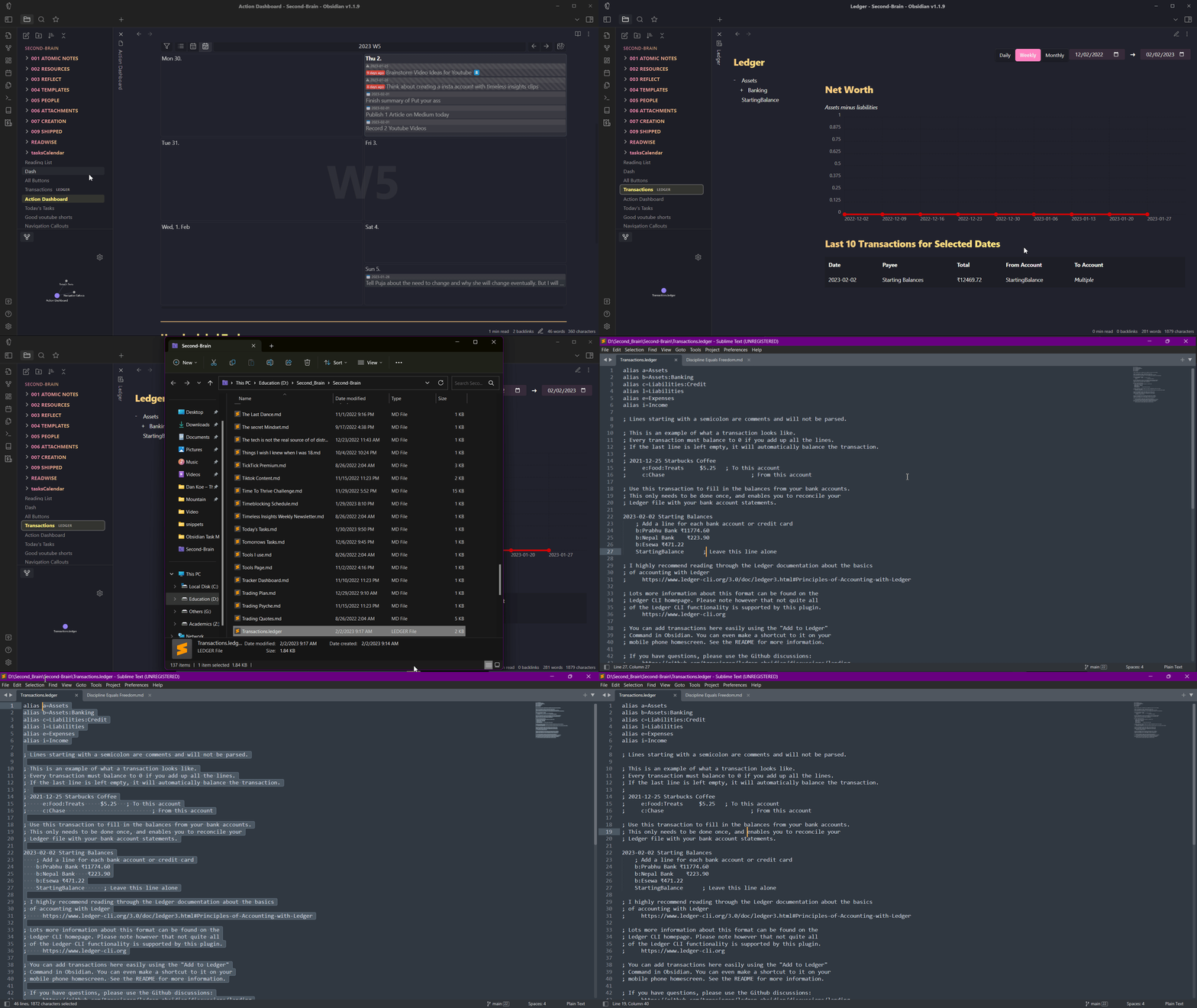
You will be provided with a quick start guide. To get more helpful tips, you can go to the Raw text mode by switching to markdown mode.
If you don’t have that option, you can go to the location of the file and open it with any text editor.
You will find all the guide and how-to start info on that page too.
Adding starting balance
One of the main tips is to add starting balances. Starting balances means accounts you have and what amount you already have in your account. You can add bank accounts, credit cards, and all the information that you want to add to your ledger dashboard.
I will add some of the account names and balances.
The first thing you need to add is the name of the account and assign whether it is an expense account or income account or liabilities account.
To create sub-accounts for accounts. You’ll have to use the colon(:) just like we used in the assets. For example, subaccounts can be created for expenses.
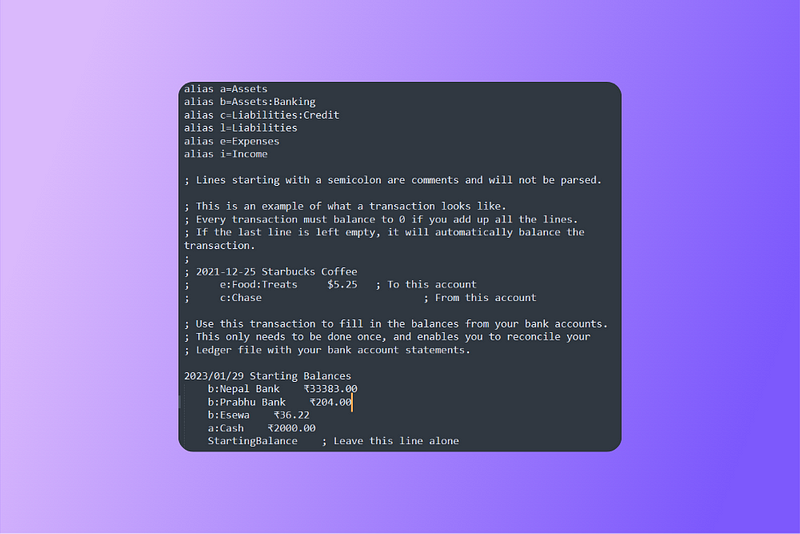
Now we have set up our starting balance. When you go back to your ledger dashboard, you will see new accounts added on the left side.
Visualizing your Finances
The ledger dashboard allows you to easily visualize how much money you have in your different accounts and how much money you are spending for different categories. You can click on the account name and visualize the graph. You can also select multiple accounts and see the graph at the same time.
This simple ledger dashboard allows you to see how money is flowing in and out of your life.
Adding Transactions
Let me show you how you can add transactions. There is an icon in the left sidebar that lets you add transactions to the ledger or you can also use the command palette and search for ledger and click on add to ledger. Or you can also assign a hotkey for the add to ledger option.
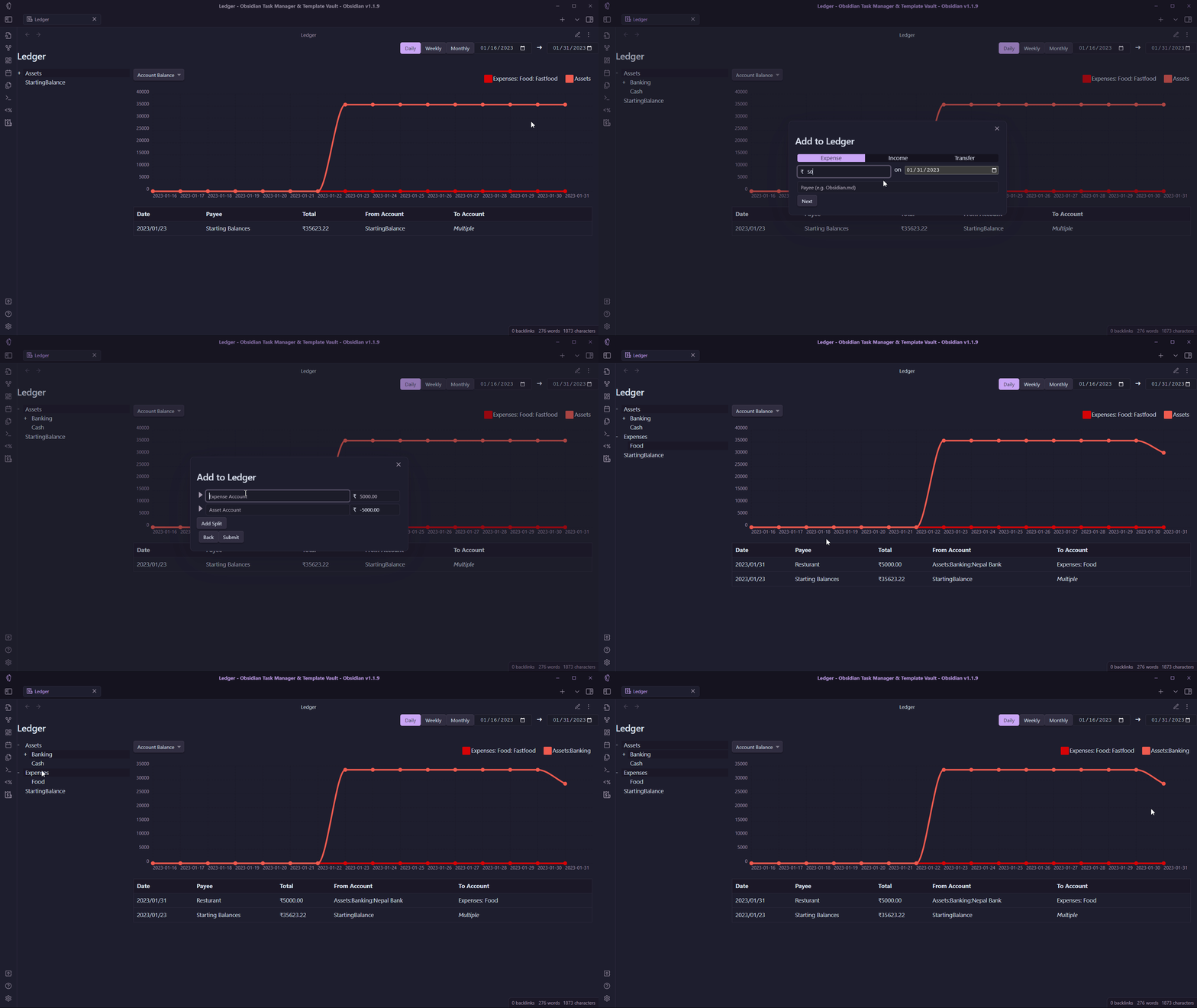
One thing that you have to know about this ledger plugin is that, or the whole system that we are using right now is that it is based on the double entry system. It means that every transaction must be recorded in two separate accounts, one as a debit and the other as a credit. This ensures the accuracy and balance of bookkeeping records. The sum of debits and credits from both accounts must be equal. Which means the amount should be zero when it is finally added.
Other Features
One thing that I loved about this plugin is how easily it lets me to visualize the flow of money from different accounts and subaccounts. You can change the views like day view, week view, and month view to see how and where money is flowing in your life. You can add income, and expenses as well as transfer money from one account to another.
Bottomline
This is a simple system for tracking money or tracking your personal finances right inside of Obsidian and using the ledger plugin. And, a good thing about this ledger plugin is that it is plain text and is supported by all the tools that support ledger CLI.
Not a Medium Member Yet?
If you liked this story, you will love the medium subscription. With only $5 a month(less than the price of a cup of coffee), you get unlimited access to the best stories and articles written on the web.
This is my referral link. If you sign up using this link, I earn a small commission with no additional charges to you.


