
How to Easily Install Auto-GPT: The Autonomous GPT-4 Everyone is Talking About
Here’s how to locally install Auto-GPT in 3 steps.

Recently a new AI with more potential than ChatGPT has entered the game: Auto-GPT, an autonomous GPT-4 experiment.
Auto-GPT is an open-source Python app that uses GPT-4 to act autonomously, so it can perform tasks with little human intervention (and can self-prompt).
Here’s how you can install it in 3 steps.
Step 1: Install Python and Git
To run Auto-GPT on our computers, we first need to have Python and Git.
To install Python, go to this website and click on “Download Python 3.X” (if you’re on Windows, make sure to check the box “Add python.exe to PATH” when installing Python).
To install Git on Windows, go to this website and install it. Mac users can install Git using this installer or via Homebrew.
To install Homebrew, just open the terminal and run the following command.
/bin/bash -c “$(curl -fsSL https://raw.githubusercontent.com/Homebrew/install/HEAD/install.sh)"Once you have Homebrew, install Git with the following command.
brew install git
Step 2: Clone Auto-GPT and install dependencies
Go to this GitHub repo, click on the green button that says “<> Code” and copy the link that you can also find below.
https://github.com/Significant-Gravitas/Auto-GPT.git
Then create an empty folder where you wish to clone Auto-GPT (mine is going to be called “gpt.”
Now we open up the terminal or CMD and go to that empty folder using the cd command. Once you’re in the folder type the git clone command, paste the link we copied before and press enter.
The command should look like this.
git clone https://github.com/Significant-Gravitas/Auto-GPT.git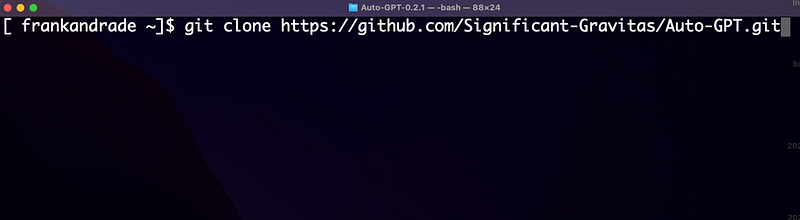
Important Note: The master branch may often be in a broken state, so alternatively, you can download the latest stable release. Just download the source code (zip) at the bottom of the page, move it to the empty folder, and unzip it (this will replace the cloning part)
Once the cloning is complete, in your empty folder there should see a new folder called “Auto-GPT”
Now it’s time to install the required dependencies. First, on the terminal, we have to navigate to the directory where the repository was downloaded using the command below.
cd Auto-GPTThen install the required dependencies with the command below.
pip install -r requirements.txt
After this, a bunch of dependencies will be installed on your computer.
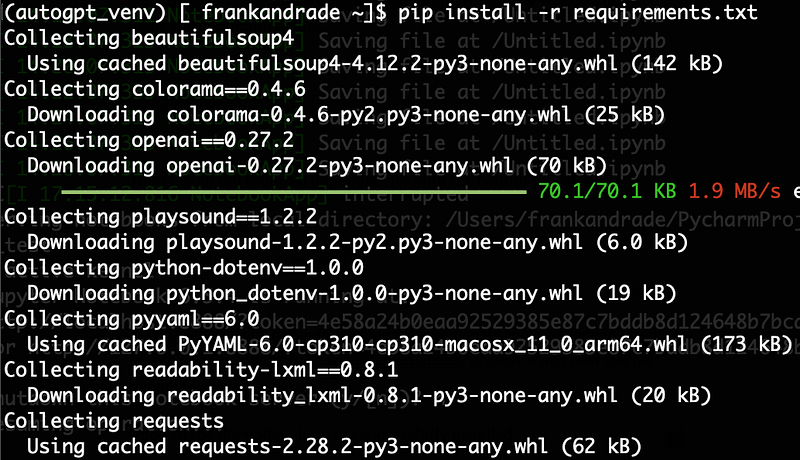
Note: If you get “pip: command not found” even though you have Python installed, probably you need to create a virtual environment, activate it and then run the command above.
Once all the dependencies were successfully installed, we have to configure Auto-GPT.
Step 3: Configure Auto-GPT
First, go to the Auto-GPT folder and create a copy of .env.template and call it .env (if you're in a command prompt/terminal window use cp .env.template .env).
In case you can’t find the .env.template file probably it’s hidden. To unhide the file press Command+Shift+Dot on a Mac and your hidden files will become visible.
Now right-click the .env file and open it in a text editor. You have to find the OpenAI section.
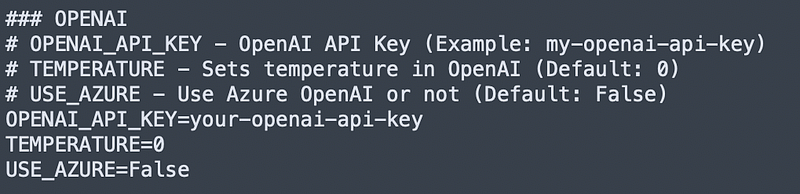
Now we have to introduce our OpenAI key in the OPENAI_API_KEY variable. To do so, we need to login into our OpenAI account and generate our API keys.
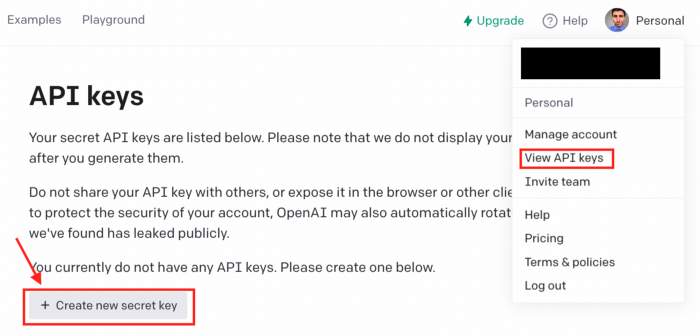
Remember that OpenAI won’t display your secret API key again after you generate it, so make sure you save it.
Once you have your API key, go to your text editor, and after that OPENAI_API_KEY= paste your unique OpenAI API Key without any quotes or spaces.
Finally, save and close the .env file.
Congratulation! You have properly configured the API Keys for your project.
Running Auto-GPT on your computer
To start working with Auto-GPT, run autogpt Python module in your terminal using the command below
python -m autogpt
Now you should see the following.
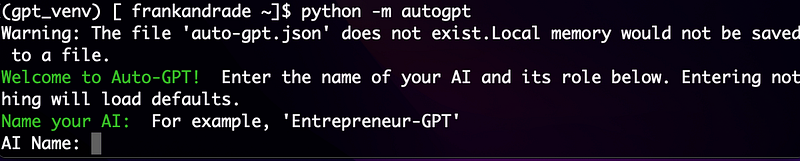
Great! Here are some options to authorize command(s), exit the program, or provide feedback to the AI.
- Authorize a single command:
y - Authorize a series of N continuous commands:
y -N - Exit the program:
n
Now you can start working with Auto-GPT. Simply give your AI a name, give it a role, and enter up to 5 goals for your AI.
Soon I’ll create a guide to make the most of Auto-GPT, so stay tuned!
Artificial Corner’s Free ChatGPT Cheat Sheet
We’re offering a free cheat sheet to our readers. Join our newsletter with 20K+ people and get our free ChatGPT cheat sheet.
If you enjoy reading stories like these and want to support me as a writer, consider signing up to become a Medium member. It’s $5 a month, giving you unlimited access to thousands of Python guides and Data science articles. If you sign up using my link, I’ll earn a small commission with no extra cost to you.