
How to Easily Embed Videos or Audios in the Jupyter Notebook
To diplay the easier method to embed local and online videos or audios in a Jupyter notebook using HTML
Different methods can be used to embed a local or online video and audio in a Jupyter notebook, such using Markdown syntax, HTML, HTML magic and IPython.display module. In this post, it illustrates an easy and feasible method to embed videos or audios in a Jupyter notebook using HTML syntax.
1. HTML Syntax
We can directly embed video or audio, control its size and alignment in a Markdown cell using HTML <audio>or <video> tags in the Jupyter notebook.
For embedding a video, use the following HTML syntax:
<video width=" " height=" "
       src="pathaudio"
       controls>
</video>
For audio, we just change <video> tags into <audio> tags.
<audio width=" " height=" "
       src="pathaudio"
       controls>
</audio>
Let’s see some examples as follows:
2. Embed Local Videos or Audios
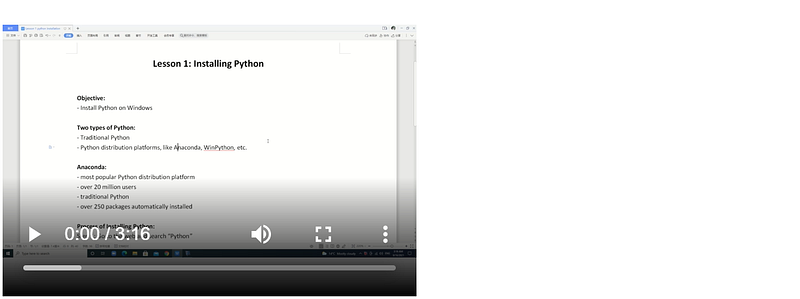
For example, I have “python_install.mp4” and “shortaudio.wav” in my local work directory, let’s embed them in the Markdown cells in the Jupyter notebook.
(1) Local video embedding
The video file can be used to embed in a Jupyter notebook using the following HTML syntax.
<video width="320" height="240"
       src="./audio_videos/python_install.mp4"
       controls>
</video>
Parameters of width and height specify the size in PX, we can adjust it using the width parameter without height. We can also use % rather than PX, such width="50%".
The rendered output looks as follows:
(2) Local audio embedding
Similarly, we can embed the audio file in a Jupyter notebook using the following syntax.
<audio width="320" height="240"
       src="./audio_videos/shortaudio.wav"
       controls>
</audio>
The rendered output looks as follows:

3. Embed Online Videos or Audios
For embedding an online video or audio, we just change local path of the file into its URL.
(1) Embed online videos
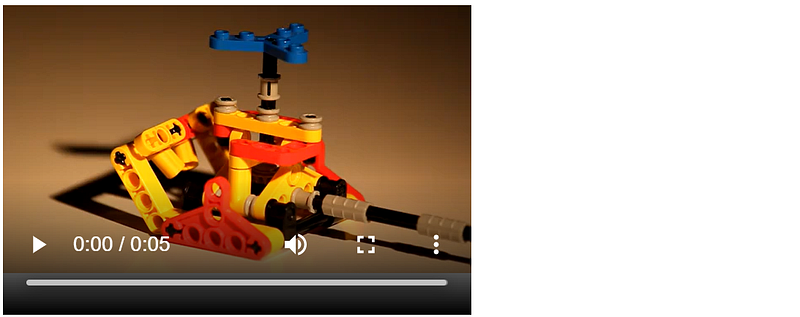
For example, we embed a video from “http://techslides.com/demos/sample-videos/small.webm”.
<video width="320" height="240" controls
        src=http://techslides.com/demos/sample-videos/small.webm
        type=video/webm>
</video>
The outcome looks as follows:
(2) Embed online audios
Let’s embed an online audio from “http://www.nch.com.au/acm/8k16bitpcm.wav”.
<audio width="320" height="240"
        src="http://www.nch.com.au/acm/8k16bitpcm.wav"
        controls>
</audio>
It renders as:

However, this method does not work for embedding an online video from YouTube channel. If you are interested in YouTube video embedding, please read my another post, How to Embed YouTube Videos in the Jupyter Notebook.
4. Alignment of the Embedded Video or Audio
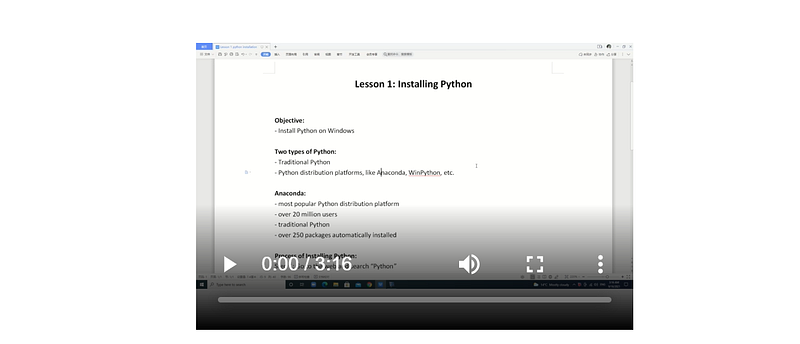
The default alignment of the embedded audio or video is left side. If you want to align it to center or right, use <div> tags outside. Let’s embed the local video python_install.mp4 in my computer, for example:
<div align="center">
    <video width="320" height="240"
       src="./audio_videos/python_install.mp4"
       controls>
    </video>
</div>
It produces the following output:
5. Brief Summary
This post illustrate how to embed a local and online video or audio into Markdown cells in the Jupyter notebook using HTML <audio>or <video> tags. However, for an online video from YouTube channel, HTML method used here does not work. If you are interested in embedding YouTube videos, please read my another post, How to Embed YouTube Videos in the Jupyter Notebook.
6. Online course
If you are interested in learning Jupyter notebook in details, you are welcome to enroll one of my course Practical Jupyter Notebook from Beginner to Expert.
If this post is helpful to you, please do not forget to give a kind clap to show your support. Thank you very much!


