
How To Download Your Source Code From Azure App Service
If you are like me you most likely have all of your eggs in one basket. For example, I have one laptop that is my daily driver. That laptop has everything I need on it including all the repositories that I contribute to. Well, the hard drive in my laptop decided to die the other day and I was not able to get my source code to one particular project that I have spend a lot of time on. The project I am speaking of is an API that I am running in Azure.
This API is one that I did not have under source control. I would make changes/update the code and then directly publish to Azure from visual studio. I thought I had lost all of the work I had put into building the API and would have to start from scratch but I found a way to download my source code from Azure.
Work Flow
So, before I show you how to download your source code from Azure, let me show you the workflow. The workflow is short and sweet:
- FTP into azure app service.
- Download the source code.
FTP into Azure App Service
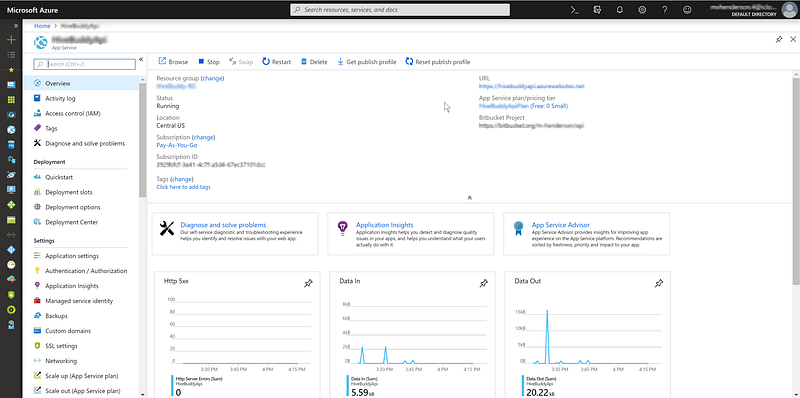
First, log in to your Azure portal and click on the app service that you are wanting the source code for.
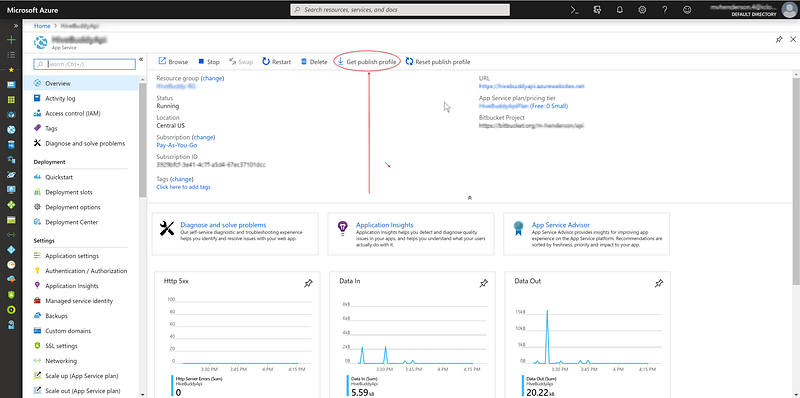
Next, you need to download the publish profile. The publish profile is going to contain all of the credentials needed for you to FTP into the app service and download your source code. Click “Get Publish Profile” to download your publish profile.
Getting The FTP Credentials
Open the publish profile with the editor of your choice and view its contents. We need to extract three things from this file.
- The Publish Url
- The User Name
- The Password
Here are what those three items will look like:

Lets Actually FTP Into The App Service Now.
Now that we have our FTP credentials, lets go ahead and login so we can download that source code. I am going to use FileZilla Client in this tutorial. Keep in mind that you are welcome to use whatever program you would like in order to FTP into the app service.
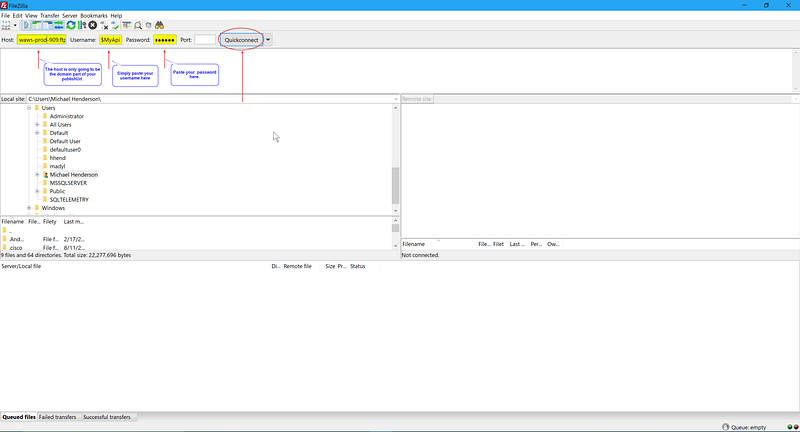
Please note, you will only use the domain part of your publish profile. Your login credentials will look like this:
Host: waws-prod-909.ftp.azurewebsites.windows.net
Username: MyApi\$MyApi
Password: hRP32a78gnqtmhQldHriA42YxXNd20G0NhjwxLTlXkjrFxPB37xy545n
After you put in your credential, click connect:
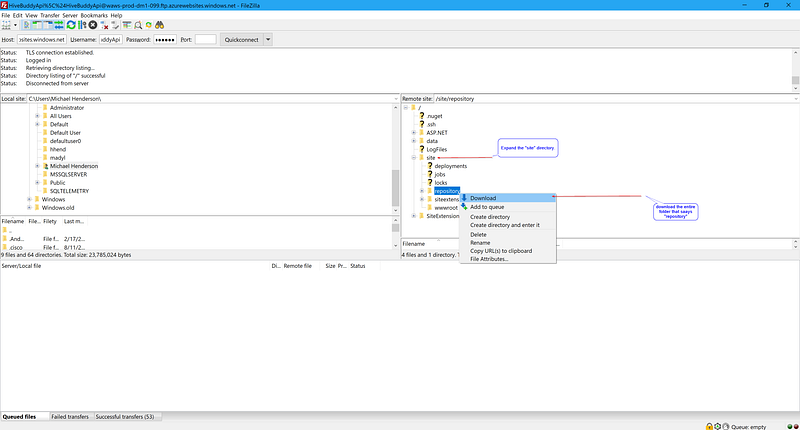
After you connect, it is time to download your source code. Just expand the “site” directory and right click the “repository” folder to download it.
Now, navigate to the repository folder and you will see your source code!
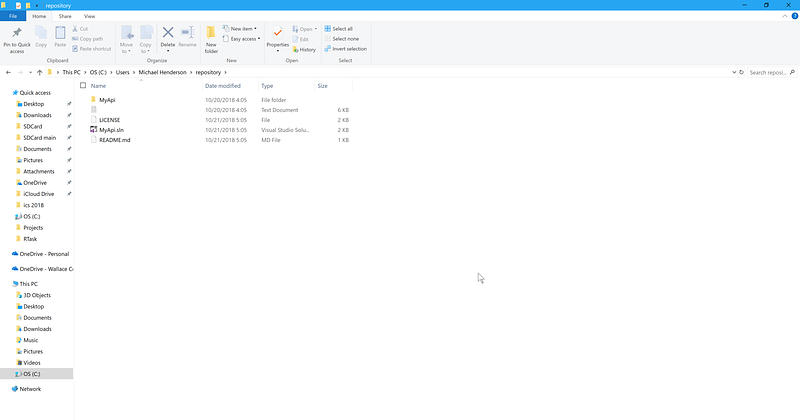
That is it. You now have the source code of your project back in your possession. If you have any questions or comments, just leave them below and I will respond to them ASAP.
Cheers (:
Consider becoming a Medium member if you appreciate reading stories like this and want to help me as a writer. It cost $5 per month and gives you unlimited access to Medium. I’ll get a little commission if you sign up via my link.


