avatarEfam Harris

Free AI web copilot to create summaries, insights and extended knowledge, download it at here

1282

Abstract

</i></p></blockquote><figure id="0eab"><img src="https://cdn-images-1.readmedium.com/v2/resize:fit:800/0*v0lBHem1-wtr2aAC"><figcaption><i>Image 1.0: Oracle VM VirtualBox Download Page</i></figcaption></figure><figure id="7361"><img src="https://cdn-images-1.readmedium.com/v2/resize:fit:800/0*_eO8oXjBm1NlRhKu"><figcaption><i>Image 1.1: Oracle VM VirtualBox Downloading</i></figcaption></figure><p id="9b36">Once the download is done, go to your <b>Downloads</b> folder and open the application. This will launch the <b>Windows Setup Wizard</b>.</p><h1 id="67e8">Step 2: Install the VirtualBox</h1><p id="1a0e">In the pop-up Wizard, click ‘<b>Next.</b></p><figure id="9796"><img src="https://cdn-images-1.readmedium.com/v2/resize:fit:800/0*2QwkuHTnvXhwOMuK"><figcaption><i>Image 2.0: Windows Setup Wizard for VirtualBox</i></figcaption></figure><p id="8290">Don’t be alarmed if you get a ‘<b>Warning: Network Interfaces</b>’ message; it’s part of the process. Proceed with the installation; click ‘<b>Yes</b>.’</p><figure id="dd72"><img src="https://cdn-images-1.readmedium.com/v2/resize:fit:800/0*MUt7mCQWDTl3ykGr"><figcaption><i>Image 2.1: Oracle VM VirtualBox Network Interfaces Warning Alert</i></figcaption></figure><p id="5b31">You’ll get another notification to install a ‘<

Options

b>Python Core package</b>.’ Click ‘<b>Yes</b>.’</p><figure id="1e85"><img src="https://cdn-images-1.readmedium.com/v2/resize:fit:800/0*YchBvzRRswupWiwn"><figcaption><i>Image 2.2: Python Core Package Installation Notification</i></figcaption></figure><p id="4e30">The installation should begin after that.</p><figure id="c63f"><img src="https://cdn-images-1.readmedium.com/v2/resize:fit:800/0*cNoRiHZIDxnFibWj"><figcaption><i>Image 2.3: VirtualBox Installation</i></figcaption></figure><p id="00fe">At the end of the installation, click <b>Finish</b>.</p><p id="8b55">The Oracle VM VirtualBox is now successfully installed. A shortcut is automatically created on your home screen.</p><figure id="7604"><img src="https://cdn-images-1.readmedium.com/v2/resize:fit:800/0*E_M7ospHg-ymeCI6"><figcaption><i>Image 2.4: Oracle VM VirtualBox successfully installed</i></figcaption></figure><p id="b023">With this VirtualBox, you can download and install the OS of the virtual machine you’d like to run.</p><p id="354b">If you want to run Linux on your Windows, I’ve created a step-by-step guide on ‘<a href="https://readmedium.com/how-to-install-a-linux-virtual-machine-on-windows-10-522057b82ae6"><b><i>How to Run a Linux Virtual Machine on your Windows PC</i></b></a>.’</p></article></body>

How to Download and Install the Oracle VM VirtualBox on Windows 10

Virtualization allows you to run multiple virtual computers (Operating Systems (OS)) on one physical computer.

For example, you can run Windows on MacOS, Linux on Windows, and Windows on Linux. You can also run virtual servers, storage, and networks.

There are two ways to run Virtual Machines (VMs) on a single physical computer: Dual Boot and VirtualBox.

This guide details installing Oracle VM VirtualBox on a Windows 10 PC to successfully run your preferred Virtual Machine.

Downloading and Installing the VirtualBox

Here’s a quick walkthrough.

Step 1: Download VirtualBox

To download the Oracle VM VirtualBox on Windows, go to https://www.virtualbox.org/wiki/Downloads and select the ‘Windows hosts’ option.

Note: Oracle releases regular updates for their VirtualBox, so ensure you download the latest available update, 7.0.10, at the time of writing.
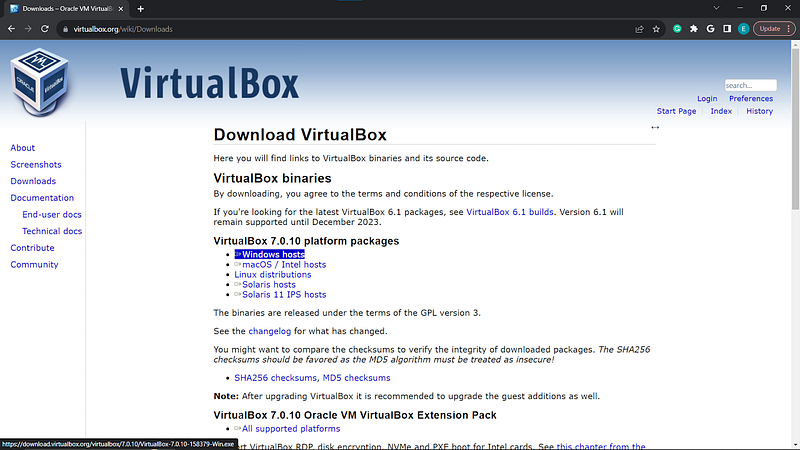
Image 1.0: Oracle VM VirtualBox Download Page
Image 1.1: Oracle VM VirtualBox Downloading

Once the download is done, go to your Downloads folder and open the application. This will launch the Windows Setup Wizard.

Step 2: Install the VirtualBox

In the pop-up Wizard, click ‘Next.

Image 2.0: Windows Setup Wizard for VirtualBox

Don’t be alarmed if you get a ‘Warning: Network Interfaces’ message; it’s part of the process. Proceed with the installation; click ‘Yes.’

Image 2.1: Oracle VM VirtualBox Network Interfaces Warning Alert

You’ll get another notification to install a ‘Python Core package.’ Click ‘Yes.’
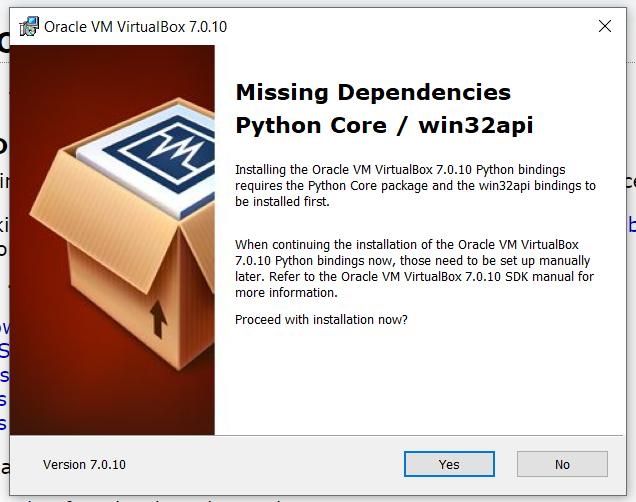
Image 2.2: Python Core Package Installation Notification

The installation should begin after that.
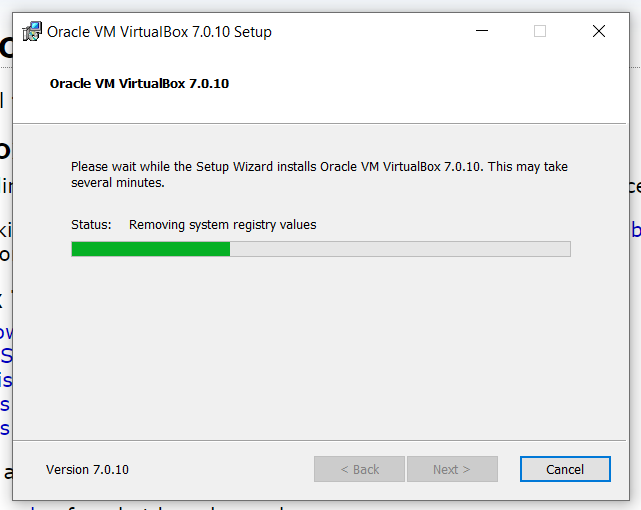
Image 2.3: VirtualBox Installation

At the end of the installation, click Finish.

The Oracle VM VirtualBox is now successfully installed. A shortcut is automatically created on your home screen.

Image 2.4: Oracle VM VirtualBox successfully installed

With this VirtualBox, you can download and install the OS of the virtual machine you’d like to run.

If you want to run Linux on your Windows, I’ve created a step-by-step guide on ‘How to Run a Linux Virtual Machine on your Windows PC.’

Cybersecurity
Windows 10
Virtualbox
Oracle
Virtualization
Recommended from ReadMedium