
Medium App/How To
How to Download a Photo And Give Credit to the Artist & Other Surprising Facts about Writing Using the Medium App
Using your Medium app to write on your phone
Often the process of writing articles on Medium appears complicated. New writers have no idea where to find the caption for the photograph they found online, or where to start.
Since I gained 100% in an analytical skills test recently, I’m guessing this is my forte. (It’s a little late in life finding this out now, but I’m sure you can benefit from what I figured out when I took the plunge and downloaded the Medium app last year.)
I enjoy practising with new apps, and finding out what works through trial and error. So without further ado, I’ll spill the beans:
- Download the app and start writing.
- Select the green pen icon to the left of the screen to write.
- Type in the title. (Leave the cursor in the title and select the large T to the left to create a large title.)
- Type in a subtitle, tap the text and select the small T. (The subtitle summarises your content or highlights the main themes in the article as a way of drawing the reader in.)
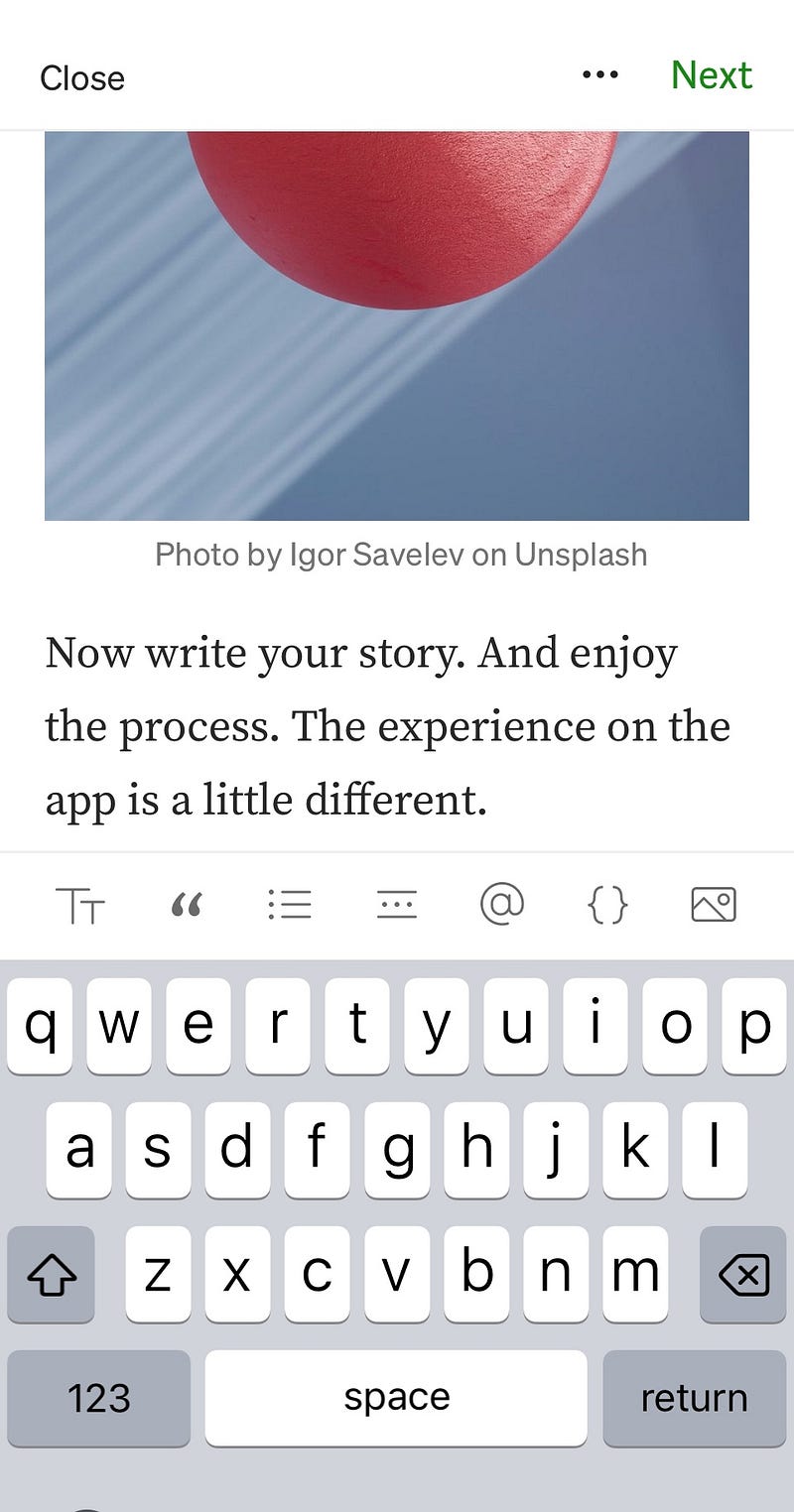
- Now select a photo from the icons to the right of your phone with what looks like the moon and a mountain inside.
Select the photo by tapping it.
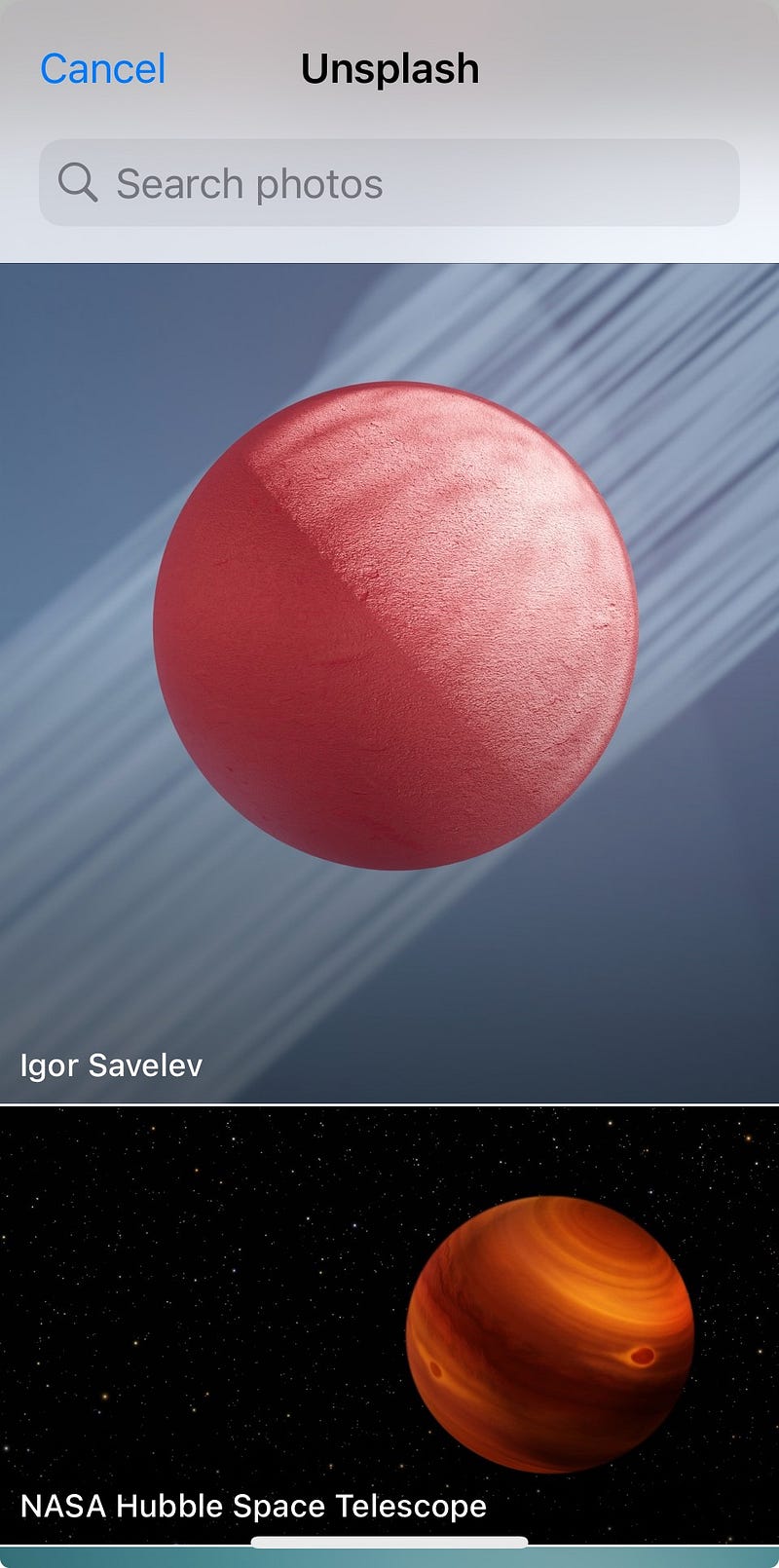
Wait for the image to upload. If you took the photo, or screenshot, give yourself credit.
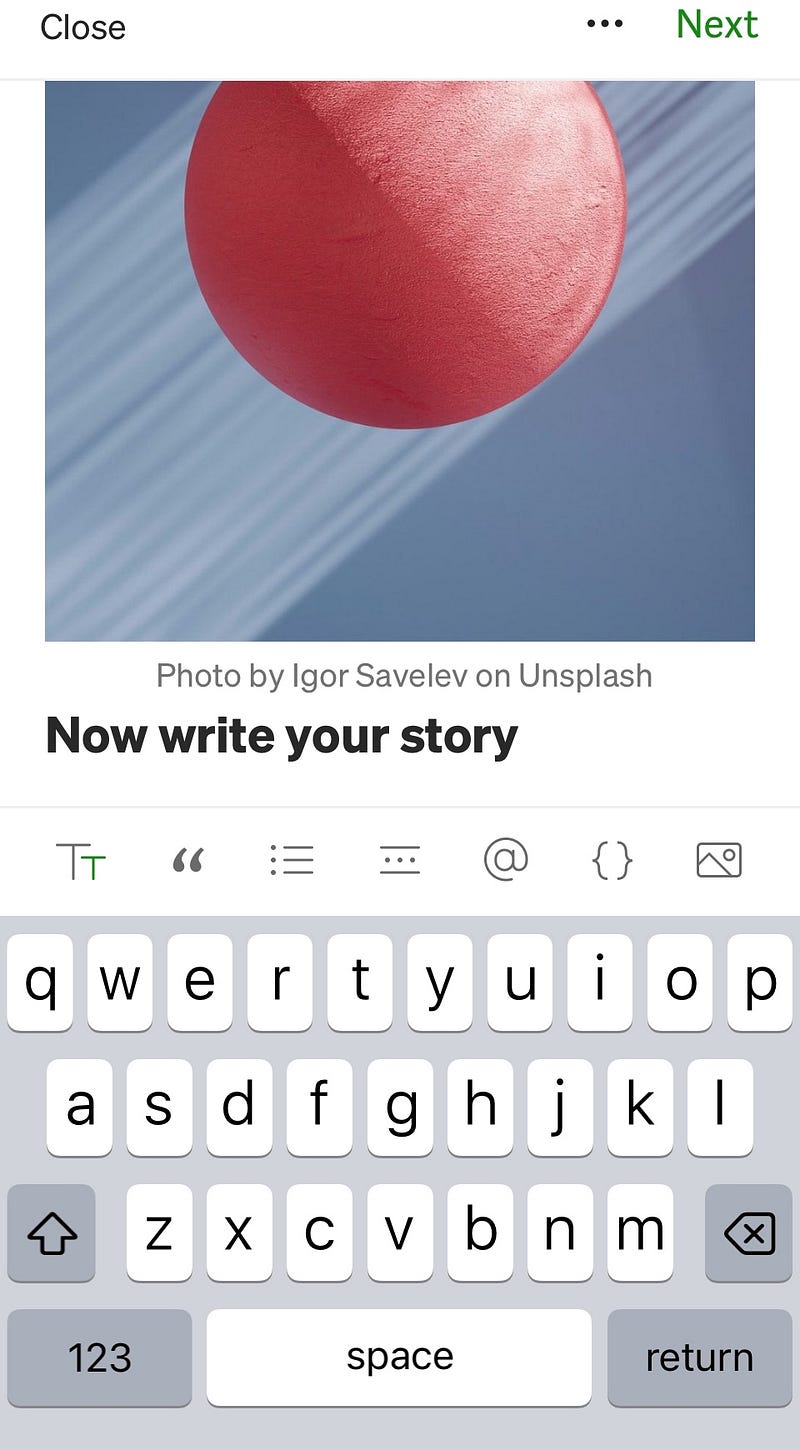
The photo is inserted and alongside it the caption crediting the photographer or artist is automatically uploaded which is easier than the process on your laptop.
Now write your story. And enjoy the process.
The story is shown in your ‘draft stories' on your laptop too.
Pros of the app
1. The experience on the app is a little different and simpler to navigate. Not all apps are the same.
2. The Medium app is not filled with annoying adverts that distract you as you write.
3. It is sometimes easier to write direct to your phone when in transit to work, and beats the hassle of dragging a laptop around with you.
Cons
1. Communication with an editor is not possible via the app. You will still need to log on to read any private messages left on stories you submit to a publication, such as mine, ‘All’s Well’.
2. At the time of writing, the credit, or caption does not take you to the image, as there is no hyperlink when downloading direct to your phone. (Editors like to check sources.)
3. You may prefer to use Wikimedia Commons, or another image provider.
Notes on submitting to a publication:
- You can submit your story to a publication from the app on your phone.
- Once you are finished writing, and readyClick ➡️ next in green, top right corner of your phone.
- Click the ‘publication’ you have been added to.
- Click save and submit.
What is that asterisk doing there?
*Some publishers use an asterisk inserted to the left of your first paragraph when you submit a story as a draft to alert other editors and you to the fact that your story is being edited. This is only visible to you and they will delete it once they are ready to publish.
Tips on subject matter
If you want to know whether anyone else has written about intriguing topics like clapping, just type the word into the search bar which pops up when you click on the spyglass on your landing page.
Plagiarism
Writing your own take on, say, clapping, is not plagiarism. Stealing actual words and full stories is. Generally speaking, it is permissible to use a short quote and credit the writer. For example, you can say,
‘Writing your own take on, say, clapping, is not plagiarism’, says Hermione Wilds Writes – That is perfectly permissible.
Avoid self plagiarism by stating you have published the story elsewhere before, or similar, thus:
A similar but not identical story appeared on ‘Edit OR’, Medium, as a ‘How To’ in 2022
Have You Written an ‘About Me?’
Readers and writers like reading about you.
Have you written an ‘About Me’?
The author is an awards-nominated writer, holds an MA with distinction from KU and a BA (Hons) from Winchester. You can read more here:


