
How to Deploy Interactive Pyvis Network Graphs on Streamlit
Publish your beautiful network graphs online with Python and Streamlit for the world to visualize and interact with
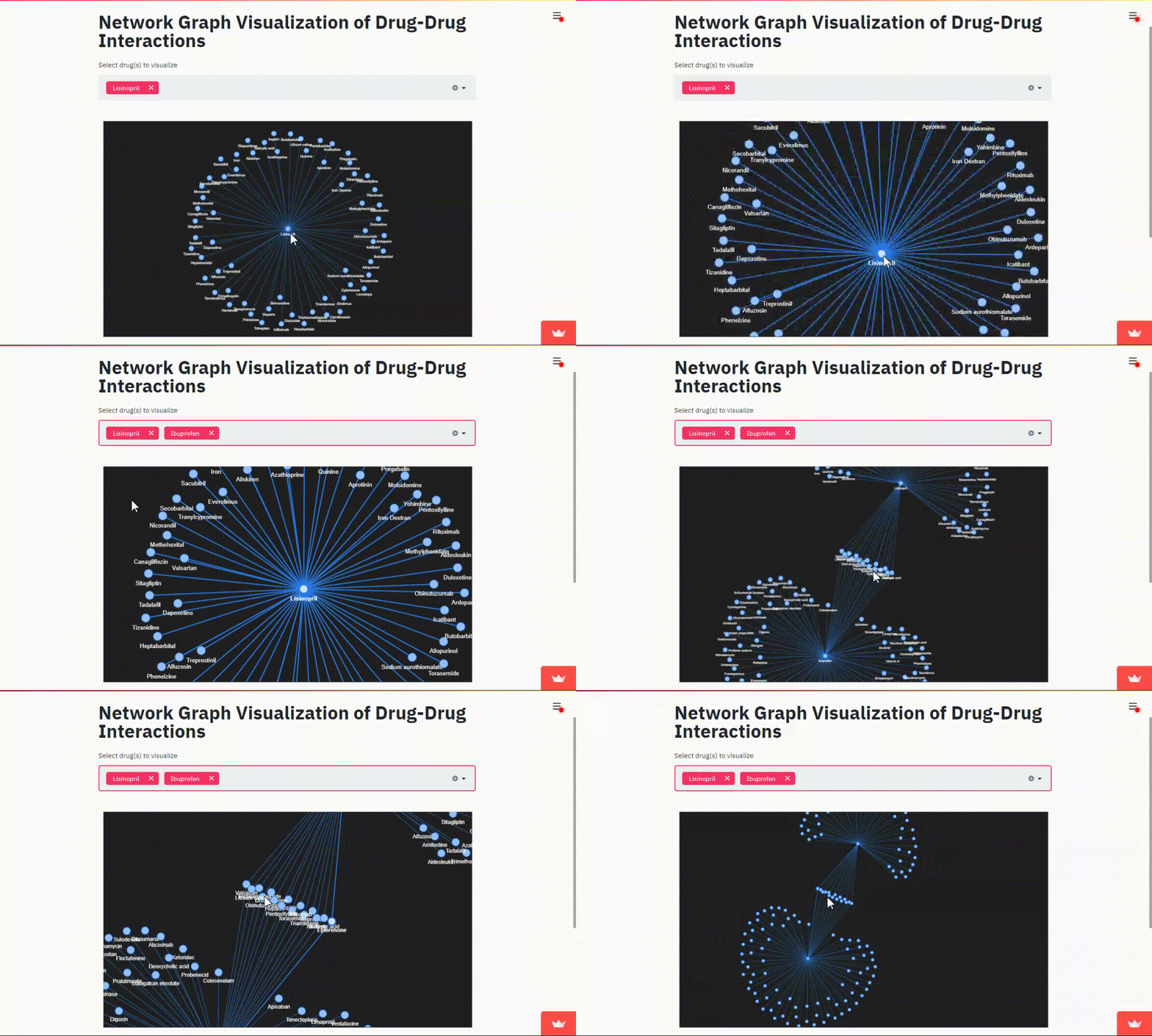
Visualization of network graphs helps us better understand complex relationships between multiple entities.
Beyond static images, Python libraries such as Pyvis allow us to build highly interactive graphs for network visualization. Instead of letting these graphs sit idle inside your local Jupyter notebooks and files, it would be better to deploy them online for others to interact with.
In this article, we will learn about deploying Pyvis interactive network graphs as Streamlit web apps and letting your users handpick the nodes to visualize.

Contents
(1) Objective (2) Step-by-Step Guide (3) Summary
(1) Objective
Streamlit is an open-source Python library that makes it easy to create and share custom web apps for data science. All these can be done in a few minutes with just several lines of code.
The objective of this project is to publish Pyvis network graphs online so that users can visit the web app and interact with the graphs directly.
This article builds upon the project on Network Analysis and Visualization of Drug-Drug Interactions. Therefore, we will once again use the public drug interactions dataset from Stanford Network Analysis Project.
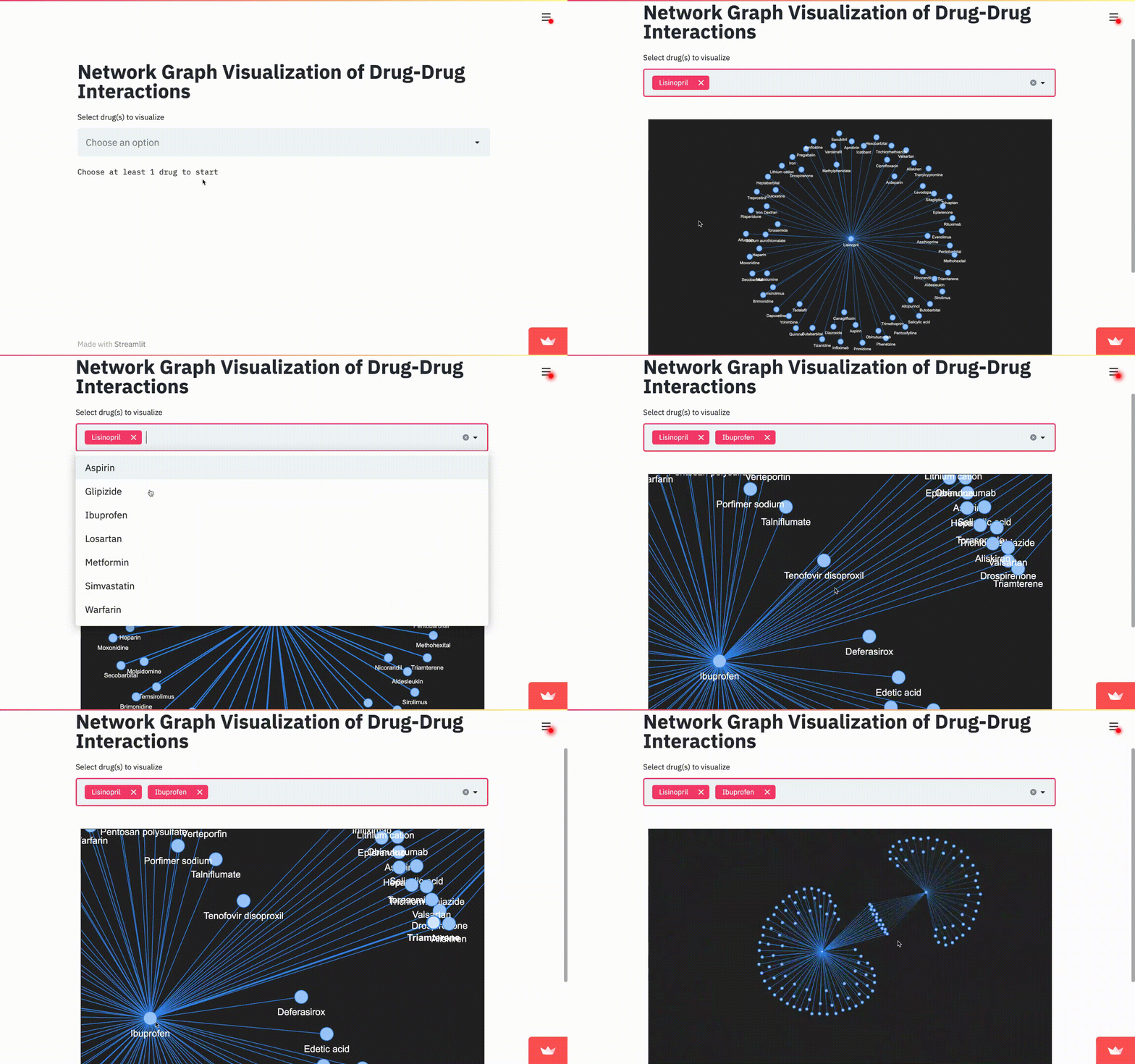
To view the finalized network graph web app you will soon learn how to create, click here or watch the gif below.
(2) Step-by-Step Guide
Step 1 — Initial Setup
We first install Streamlit along with other necessary Python network libraries:
pip install streamlit pyvis networkxTo confirm that Streamlit has been successfully installed, you can execute streamlit hello in your command prompt:

Step 2 — Folder structure and Python script
We set up the components of the project by creating a project folder like this:

The empty .py file (pyvis_network_app.py) forms the main file for all the Python codes in the subsequent steps.
Step 3 — Import dependencies and data
We populate our blank .py file by importing the necessary dependencies and dataset.
# Import dependencies
import streamlit as st
import streamlit.components.v1 as components
import pandas as pd
import networkx as nx
from pyvis.network import Network
# Read dataset
df_interact = pd.read_csv('data/processed_drug_interactions.csv')Step 4— Define layout
Since the Streamlit app is essentially a website, we need to plan how to organize the site layout. For example, we can first create a title header by defining a title element with st.title:
# Set header title
st.title('Network Graph Visualization of Drug-Drug Interactions')
We also want to let users select the items (aka nodes) they wish to visualize in the network graph. We can do this by defining a multi-select dropdown menu with st.multiselect.
With that, the user can now select the nodes they want. Because there are too many drug nodes, I narrowed down the item list by pre-selecting several drugs.
# Define selection options and sort alphabetically
drug_list = ['Metformin', 'Glipizide', 'Lisinopril', 'Simvastatin',
            'Warfarin', 'Aspirin', 'Losartan', 'Ibuprofen']
drug_list.sort()
# Implement multiselect dropdown menu for option selection
selected_drugs = st.multiselect('Select drug(s) to visualize', drug_list)There are many other website elements for you to utilize (sidebar, user text input, etc.), so check out the API reference for more information.
Step 5 — Flow Control
st.multiselect returns a Python list of items that the user has selected from the dropdown menu. Based on these selected items, we can build custom network graphs that the user wishes to visualize.
We implement flow control to display a welcome message upon initial site load (when the user has not selected any item yet) and generate a network graph once the user has selected at least one item.
# Set info message on initial site load
if len(selected_drugs) == 0:
   st.text('Please choose at least 1 drug to get started')
# Create network graph when user selects >= 1 item
else:
# Code for filtering dataframe and generating networkStreamlit runs from top to bottom, so a new network graph will be generated based on the new item set when there is a change in the selection (e.g., add or remove item).
The code for creating the network graphs (in else statement) is omitted above to keep things concise in this article. You can view the complete code in the Gist placed in Step 6.
Step 6 — Display HTML Locally and on Streamlit Cloud
The Pyvis network graph generated is exported as an HTML file, which we will first save into a folder before reading it into the Streamlit app for display.
When running the app locally, we can create a designated destination folder (e.g.,/html_files) to save the network graph HTML file.
However, when deployed on Streamlit Cloud (more info in Step 7), using the same destination folder does not work because the destination path does not exist on the webserver.
To solve this, we can use the Streamlit webserver’s default temporary folder (/tmp) to save the HTML file instead. From there, we can read the HTML file before loading it for display.
To account for both scenarios of local and online runs, we can implement a try-except block in our script:
# Save and read graph as HTML file (on Streamlit Sharing)
try:
   path = '/tmp'
   drug_net.save_graph(f'{path}/pyvis_graph.html')
   HtmlFile = open(f'{path}/pyvis_graph.html','r',encoding='utf-8')
# Save and read graph as HTML file (locally)
except:
path = '/html_files'
drug_net.save_graph(f'{path}/pyvis_graph.html')
HtmlFile = open(f'{path}/pyvis_graph.html','r',encoding='utf-8')We then create a Streamlit Component to display the HTML code.
# Load HTML into HTML component for display on Streamlit
components.html(HtmlFile.read())
To view the app locally, you can execute the following command (from the project directory) in your command prompt:
streamlit run pyvis_network_app.pyComplete Python script:
Step 7— Deploy on Streamlit Cloud
Now that our Python script is complete, we can deploy our network graphs on Streamlit Sharing. In addition to the script, we also need to include a requirements.txt file in the folder.
After signing up and receiving the invite, you can log in and select the GitHub repo of your network graph app and then click the Deploy button.
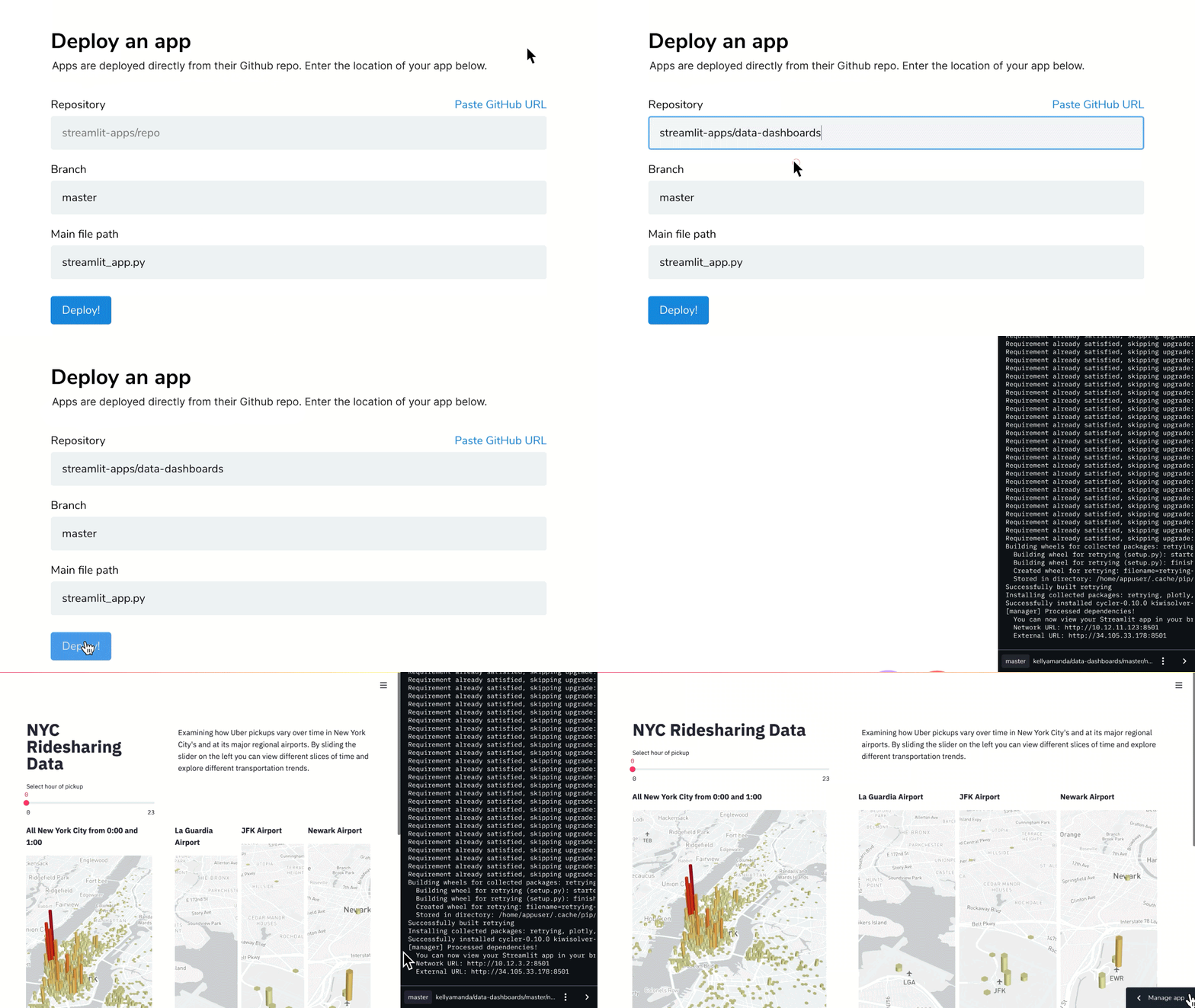
The weblink to your app is based on your GitHub account, repo, and branch. For example, the link to this app is: https://share.streamlit.io/kennethleungty/pyvis-network-graph-streamlit/main/pyvis_network_app.py
Once deployment is complete, you are ready to share your app with the world! Subsequently, each time you do a Git push to update the Python script, the app will be refreshed automatically to reflect the changes.

(3) Summary
In this article, we have seen how we can easily deploy interactive Pyvis network graphs online with the help of Streamlit. You can view the end product here.
Many more functionalities are available to enhance the Streamlit web app experience for your users, so check out the documentation. You can also access the codes for this project in this GitHub repo.
Before you go
I welcome you to join me on a data science learning journey! Follow this Medium page and check out my GitHub to stay in the loop of more exciting data science content. Have fun deploying network graphs on Streamlit!


