<iframe class="gist-iframe" src="/gist/BetterProgramming/588ecb9d0b26e1e70594eaf5b8f7c7d0.js" allowfullscreen="" frameborder="0" height="undefined" width="undefined">
</div>
</div>
</figure></iframe></div></div></figure><p id="14f8">This method is quite cumbersome, and dealing with environmental properties can cause accidental issues that are difficult to track down and debug.</p><h2 id="2d63">Using a binding</h2><p id="d106">Using a binding between the view that is presenting the modal view and the modal view itself is another method to hide it from the code.</p><p id="23d8">First, we need to add a new property to the modal view structure using the <code>@Binding</code> property wrapper. This describes that this value comes from somewhere else outside the view scope.</p>
<figure id="61b4">
<div>
<div>
<iframe class="gist-iframe" src="/gist/BetterProgramming/6603546e55656835380e317612196338.js" allowfullscreen="" frameborder="0" height="undefined" width="undefined">
</div>
</div>
</figure></iframe></div></div></figure><p id="136c">Now when we are initializing the <code>ModalView</code>, we need to pass the <code>isPresented</code>:</p><div id="e272"><pre>.<span class="hljs-title function_ invoke__">sheet</span>(<span class="hljs-attr">isPresented</span>: <span class="hljs-variable">$showInfoModalView</span>) {
<span class="hljs-title function_ invoke__">InfoView</span>(<span class="hljs-attr">isPresented</span>: <span class="hljs-variable">$showInfoModalView</span>)
}</pre></div><p id="4f37">Using this approach, we are sure that this variable only belongs to these two views. It is more straightforward to test and debug.</p><h1 id="0a79">Multiple Sheets on One SwiftUI View</h1><p id="9685">Now we know how to present a modal view, but how can we show multiple modal views?</p><p id="c2d8">Imagine we would like to present information about the app and the settings view from the primary app view.</p><p id="df90">We can do this using these two approaches:</p><ul><li>Using multiple sheets presenting functions.</li><li>Using the <code>Identifiable</code> enum to keep the state of the currently shown sheet.</li></ul><h2 id="461a">Multiple sheet functions in one SwiftUI view</h2><p id="4a41">We can attach the <code>sheet</code> function to any SwiftUI view or control (e.g. to the <code>Button</code>):</p>
<figure id="dc83">
<div>
<div>
<iframe class="gist-iframe" src="/gist/BetterProgramming/33cdddd498630f15980c30d74309b43a.js" allowfullscreen="" frameborder="0" height="undefined" width="undefined">
</div>
</div>
</figure></iframe></div></div></figure><p id="e8c0">It can be fine to have two buttons, but let’s say we have more than that. It can get quite messy, so we should deal with many <code>@State</code> variables.</p><h2 id="c876">Using enumeration of all modal views</h2><p id="827c">If we look at Apple’s official documentation, there is another <a href="https://developer.apple.com/documentation/swiftui/view/actionsheet(item:content:)">function</a> to show a sheet. Let’s try to use it.</p><p id="a289">At first, we will define an <code>enum</code> with all modal view options:</p><div id="7d94"><pre>enum Sheet: <span class="hljs-keyword">Identifiable</span> {
<span class="hljs-keyword">case</span> info
<span class="hljs-keyword">case</span> <span class="hljs-keyword">settings</span>
}</pre></div><p id="6609">Now we can use this in the SwiftUI view. We need a new <code>@State
Options
</code> variable with the optional type <code>Sheet</code> and to use this to determine which modal view we would like to present:</p>
<figure id="f1de">
<div>
<div>
<iframe class="gist-iframe" src="/gist/BetterProgramming/aebf963c69b4e219e71f041d5caf0b79.js" allowfullscreen="" frameborder="0" height="undefined" width="undefined">
</div>
</div>
</figure></iframe></div></div></figure><p id="d098">We don’t need to stop here. We can declutter this code by adding a computed property to the <code>Sheet</code> enum:</p>
<figure id="6c8b">
<div>
<div>
<iframe class="gist-iframe" src="/gist/BetterProgramming/93fc27b86d06baab657c74ebfac9f2f2.js" allowfullscreen="" frameborder="0" height="undefined" width="undefined">
</div>
</div>
</figure></iframe></div></div></figure><p id="b61c">Then we can use it when opening the sheet:</p><div id="7cb0"><pre>.<span class="hljs-title function_">sheet</span>(<span class="hljs-params">item: $activeSheet</span>) { $0.<span class="hljs-property">modalView</span> }</pre></div><p id="5c64">Using the fancy new keypaths functionality in closures, we can simplify this even more:</p><div id="f344"><pre>.<span class="hljs-title function_ invoke__">sheet</span>(<span class="hljs-attr">item</span>: <span class="hljs-variable">$activeSheet</span>, <span class="hljs-attr">content</span>: \.modalView)</pre></div><p id="120c">One caveat to this approach is that we need to change part of our process to hide the view from the code. To do this, we set it to <code>nil</code> instead of <code>false</code>.</p><p id="d309">This approach is much safer because we use the enumeration type to keep everything well organized.</p><p id="d5ef">Let’s see it in action.</p><figure id="085c"><img src="https://cdn-images-1.readmedium.com/v2/resize:fit:800/0*yef0y7y_1XDpQUdz.gif"><figcaption></figcaption></figure><h1 id="1010">TL;DR</h1><p id="fcec">Modal views in SwiftUI are presented using the <code>sheet</code> modifier on a view or control. The simplest way is to have an <code>@State</code> property to indicate when it should be visible.</p><p id="6681">To hide the modal view, we can use the environment parameter or pass a binding to the modal view object. Showing multiple sheets can be achieved either with multiple sheet modifiers or by using an object with all possible modal view enumerations.</p><h1 id="6508">Resources</h1><ul><li><a href="https://github.com/fassko/ModalViewApp">Demo app — there are multiple branches for everything we talked about</a></li><li><a href="https://developer.apple.com/documentation/swiftui/view/sheet(ispresented:ondismiss:content:)">Apple official documention</a></li><li><a href="https://www.simpleswiftguide.com/how-to-present-sheet-modally-in-swiftui/">How to present a sheet modally in SwiftUI</a></li><li><a href="https://swiftwithmajid.com/2019/07/24/alerts-actionsheets-modals-and-popovers-in-swiftui/">Alerts, Action Sheets, Modals and Popovers in SwiftUI</a></li><li><a href="https://www.hackingwithswift.com/quick-start/swiftui/how-to-present-a-new-view-using-sheets">How to present a new view using sheets</a></li><li><a href="https://masilotti.com/multiple-sheets-swiftui/">How to manage multiple sheets in SwiftUI</a></li><li><a href="https://stackoverflow.com/questions/58837007/multiple-sheetispresented-doesnt-work-in-swiftui">Thread in StackOverflow</a></li><li><a href="https://www.youtube.com/watch?feature=player_embedded&v=7dZfpAn_P2g">Enums for Multiple Sheets</a></li><li><a href="https://github.com/davdroman/MultiSheet">MultiSheet</a></li></ul></article></body>
When presenting a small piece of extra information on the screen, showing a modal view is essential. With UIKit, we could do this with presentViewController:animated:completion:function.
However, when using SwiftUI, we need to shift our thinking towards using view or environment state, as the modal view is now called a sheet.
Let’s check this out in detail.
Open Modal View (aka Sheet)
SwiftUI sheets help us show a modal view to users. sheet is an instance method to the View Presentation. It describes how we can show our SwiftUI views, covering specific user journey scenarios.
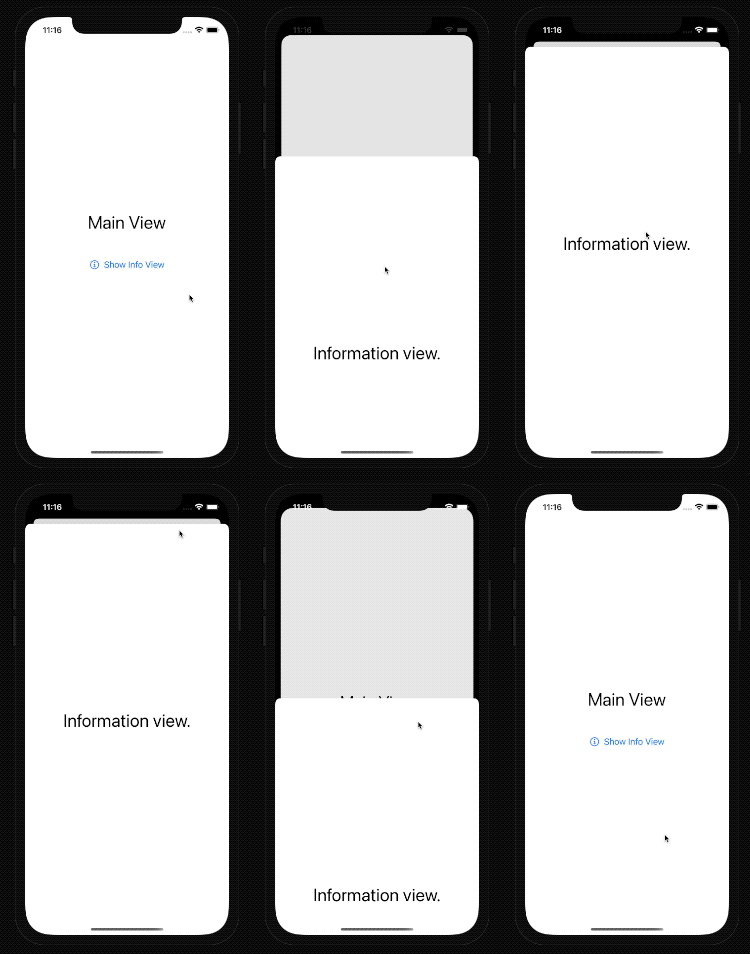
Let’s say we want to display information about our app to users.
Firstly, we need to define whether the app should show a modal view or not, binding this with the Bool value.
The keyword here is “should” because once we dismiss it, the presented view value is set back to false. This value is decorated with an @State property wrapper or could come from the ObservableObject ViewModel. For simplicity’s sake, we’re not going to talk about ViewModels in this post.
Secondly, we need to change the view or, in some cases, the environment state. Once we are using the @State property wrapper, we can just set it to true and SwiftUI will do the rest to present the modal view.
Let’s look at how we can do it in the code:
When we run the app, we can now open the modal view and see the detailed information:
Close Modal View Programmatically
Our app users can simply slide the modal view down, and it will hide with a nice animation. Set the state to false to hide this from the view responsible for showing the modal view.
Now how do we do it from the modal view itself? We have these two options at our disposal:
Using the @Environment property presentationMode.
Passing the state to the modal view as a binding.
Using Environment
The property wrapper @Environment allows us to read and change the values of the view environment state. To hide the modal view, we need to change the presentationMode property. At first, we need to define our view. To do this, we add it to the modal view properties. To dismiss the modal view, we need to alter the presentation mode wrapped value:
This method is quite cumbersome, and dealing with environmental properties can cause accidental issues that are difficult to track down and debug.
Using a binding
Using a binding between the view that is presenting the modal view and the modal view itself is another method to hide it from the code.
First, we need to add a new property to the modal view structure using the @Binding property wrapper. This describes that this value comes from somewhere else outside the view scope.
Now when we are initializing the ModalView, we need to pass the isPresented:
Using this approach, we are sure that this variable only belongs to these two views. It is more straightforward to test and debug.
Multiple Sheets on One SwiftUI View
Now we know how to present a modal view, but how can we show multiple modal views?
Imagine we would like to present information about the app and the settings view from the primary app view.
We can do this using these two approaches:
Using multiple sheets presenting functions.
Using the Identifiable enum to keep the state of the currently shown sheet.
Multiple sheet functions in one SwiftUI view
We can attach the sheet function to any SwiftUI view or control (e.g. to the Button):
It can be fine to have two buttons, but let’s say we have more than that. It can get quite messy, so we should deal with many @State variables.
Using enumeration of all modal views
If we look at Apple’s official documentation, there is another function to show a sheet. Let’s try to use it.
At first, we will define an enum with all modal view options:
enum Sheet: Identifiable {
case info
casesettings
}
Now we can use this in the SwiftUI view. We need a new @State variable with the optional type Sheet and to use this to determine which modal view we would like to present:
We don’t need to stop here. We can declutter this code by adding a computed property to the Sheet enum:
Then we can use it when opening the sheet:
.sheet(item: $activeSheet) { $0.modalView }
Using the fancy new keypaths functionality in closures, we can simplify this even more:
.sheet(item: $activeSheet, content: \.modalView)
One caveat to this approach is that we need to change part of our process to hide the view from the code. To do this, we set it to nil instead of false.
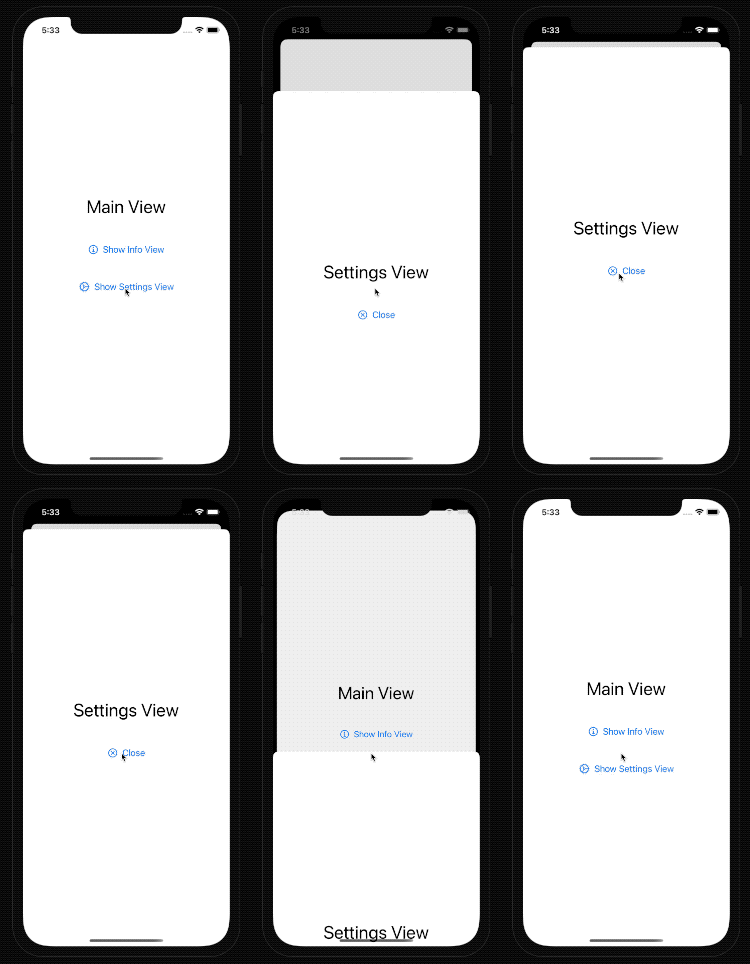
This approach is much safer because we use the enumeration type to keep everything well organized.
Let’s see it in action.
TL;DR
Modal views in SwiftUI are presented using the sheet modifier on a view or control. The simplest way is to have an @State property to indicate when it should be visible.
To hide the modal view, we can use the environment parameter or pass a binding to the modal view object. Showing multiple sheets can be achieved either with multiple sheet modifiers or by using an object with all possible modal view enumerations.