
How to Create Diagrams With ChatGPT
No in-depth knowledge of Mermaid script needed
After reading this article the adventure continues here — Deployment Diagrams, ChatGPT and Eraser.io DiagramGPT
As we learned in my previous article, ChatGPT and Software Architecture, ChatGPT can create diagrams using Mermaid script.
In this article, I want to expand on this capability further, as creating diagrams is rarely easy and often fiddly and frustrating.
Help from an automated tool could significantly save time, effort and sanity! But, ChatGPT doesn’t come with a manual, and for an AI, it is uncertain of what it does and doesn’t know as it’s early days.
Hence, articles like this become essential as we steadily build up knowledge on using this incredible resource effectively.
Before we continue, let me state that ChatGPT doesn’t believe it can create diagrams. It will complain with an error when asked to make one:

However, this is far from the case. The key here is to understand how to unlock ChatGPT’s diagramming abilities.
What is the Mermaid Script?
How ChatGPT draws diagrams is it creates a script in a language called Mermaid.
Once created, these scripts can be copied and pasted into an editor, such as https://mermaid.live/ or https://mermaid-js.github.io/ a diagram can be saved in a popular image format such as SVG or PNG.
With what I’m about to show you, you won’t need in-depth knowledge of Mermaid script.
Getting Started
As I mentioned in my previous article, it is essential to spend time creating a comprehensive initial question, as this sets the context for the rest of the ChatGPT session.
If you want to have a conversation that bears fruit, then to continue the metaphor, treat your initial question as if germinating a seed. Place your seed in a box of closed questions your session will quickly stop growing.
But if you place the initial question in a place where there are many avenues to explore, the conversation will grow and flourish, allowing you to get the best from the tool.
In this article, I will demonstrate two ways of creating diagrams. The first is where I will give ChatGPT a helpful start, and the second is where we will start entirely from scratch.
So let’s start with a simple example where I have created a Mermaid script for ChatGPT to set the scene for this conversation. Notice that I use a color schema, so the diagram resembles the C4 modeling standard.
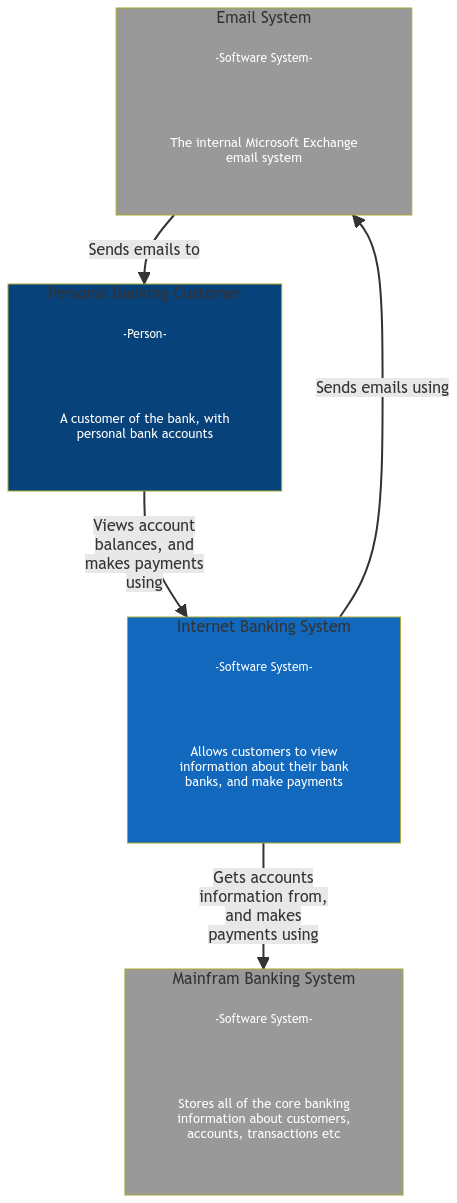
So this is what I copied into the ChatGPT prompt to get the process started:
flowchart TB

subgraph Customer[Personal Banking Customer]
    h1[-Person-]:::type
    d1[A customer of the bank, with \n a bank account]:::description
end
Customer:::person

subgraph BankingApp[Banking App]
    h2[-Software System-]:::type
    d2[Allows customers to view \n manage their accounts \n and make payments]:::description
end
BankingApp:::internalSystem

subgraph BankingSystem[Banking System]
    h3[-Software System-]:::type
    d3[Provides all the services \n to manage all customer, \n accounts, transactions etc]:::description
end
BankingSystem:::externalSystem


%% Relationships

Customer--Views account \n balances, and \n makes payments \n using-->BankingApp
BankingApp--Gets accounts \n information from, \n and makes \n payments using-->BankingSystem

%% Element type definitions

classDef person fill:#08427b
classDef internalSystem fill:#1168bd
classDef externalSystem fill:#999999

classDef type stroke-width:0px, color:#fff, fill:transparent, font-size:12px
classDef description stroke-width:0px, color:#fff, fill:transparent, font-size:13px
What ChatGPT returns are a test to see if it understands the diagram text so hopefully will reply with a comprehensive acknowledgement, such as below.

Now let us see if ChatGPT understands what a Banking System looks like. I sent the prompt, “Add a bank to this diagram”:

The text returned from ChatGPT made this diagram:
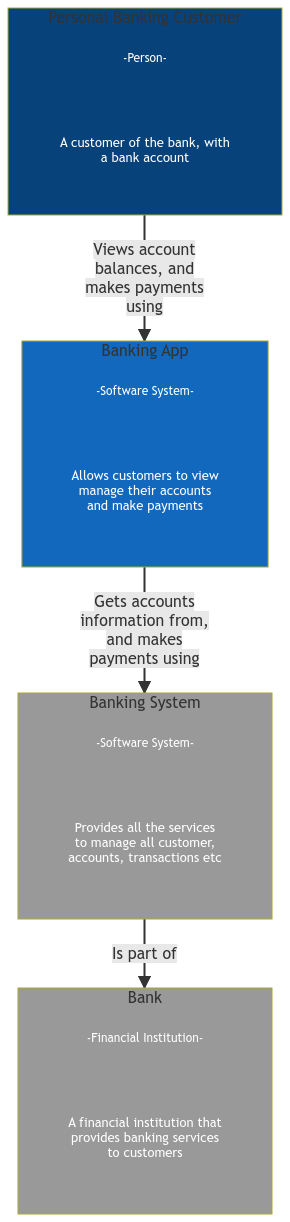
ChatGPT has intelligently added the bank correctly establishing a relationship between the customer and the banking system. This level of automation is why people are using this tool.
Adding Components
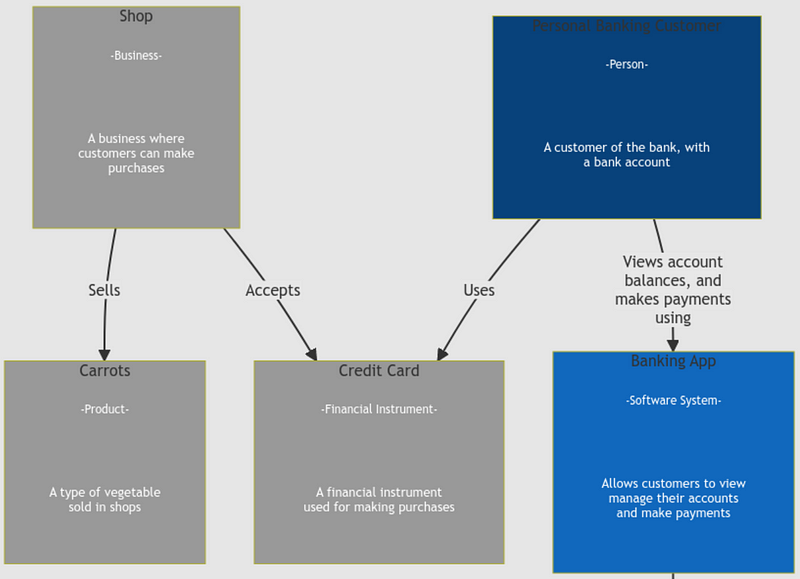
Now let’s see how ChatGPT fairs with two more additions. My prompt was “add credit card and shop”

ChatGPT returns the Mermaid code to produce the following picture:
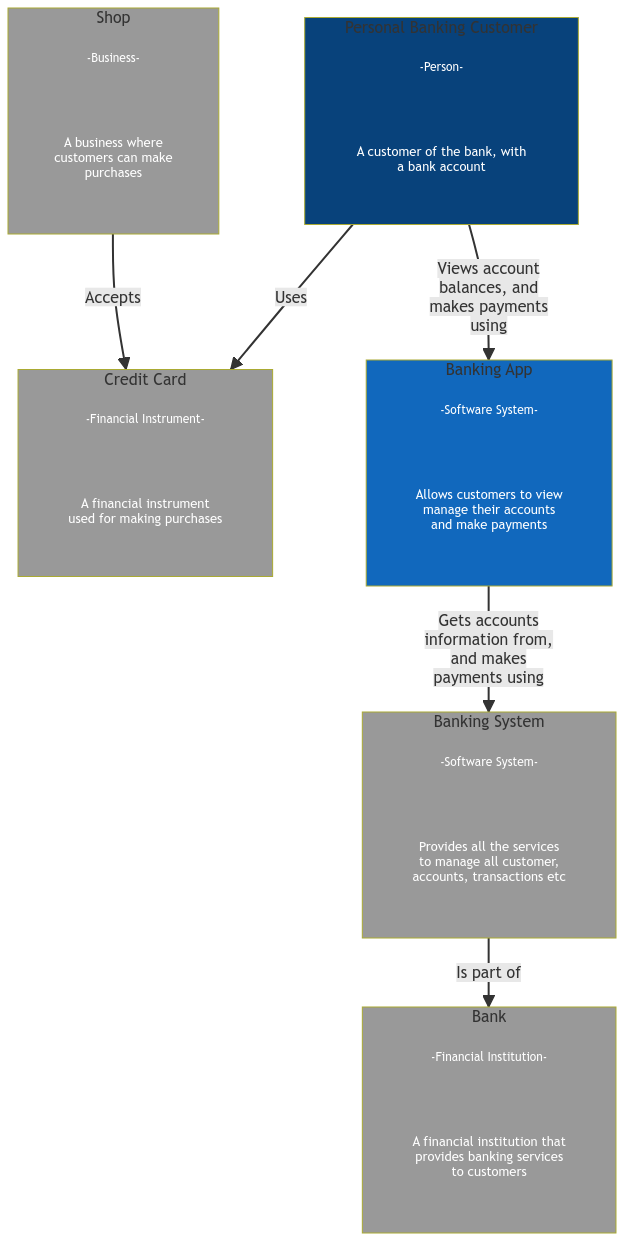
Once again, ChatGPT has added the new components, understood the relationship between them, and created them in the style I initially established with all the right colors.
Now let’s see how ChatGPT fares with an obscure question: “Add carrots”

ChatGPT has determined a logical connection between the existing components and the new addition as it returns a new Mermaid diagram with the following summary:

Amending Relationships
ChatGPT has made perfectly logical relationships, but what if ChatGPT has missed a connection? How do you add one?
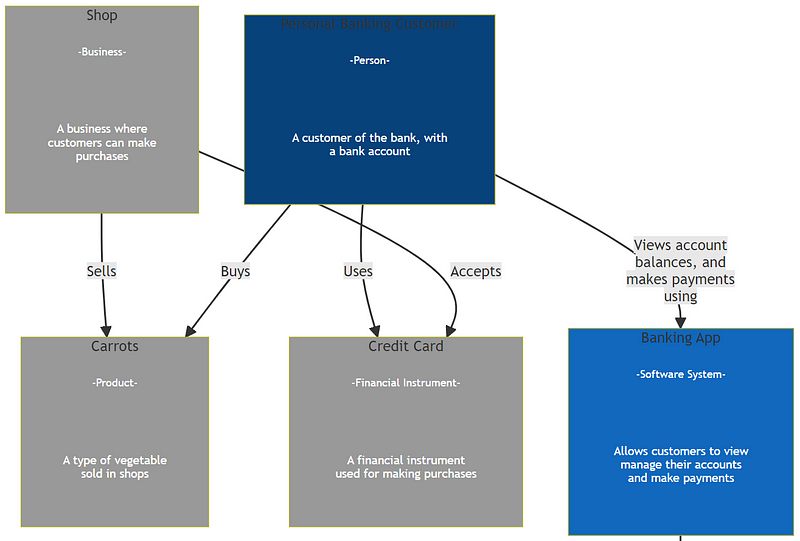
To create a relationship, be specific about what components are involved and what the relationship is. I sent the prompt “add relationship between customer and carrot. The relationship is buys”.

The code that ChatGPT returned made the Mermaid script produces this diagram. As you can see, the new relationship is in place.
Removing Components and Relationships
So we have learned how to create components and add and update relationships. The next task is to remove them, which is straightforward.

Removing a component will also remove the relationships, which will take the diagram back to looking as it did in Figure 7.
Changes in Details
By now, you are getting the idea that making changes to diagrams in ChatGPT is straightforward.
It’s about being unambiguous about what you ask ChatGPT to do. However, I know the next time you create a diagram, it may not include things that ChatGPT will know anything about because it will be specific to your organization, process, or circumstance that the AI system isn’t aware of.
A good example is: I asked ChatGPT to “add a manager”:

…and ChatGPT responded with this:
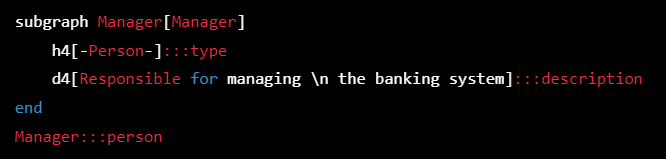
ChatGPT, without context, has assumed that the manager role is for the Banking System when the manager could be the manager of the shop or any other relationship, for example.
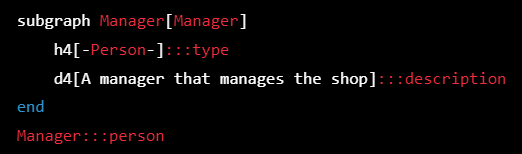
So to correct the description, it’s best to be very specific. I told “change manager description to “a manager that manages the shop”:

… and ChatGPT responded with the following:
Creating a Mermaid Diagram from Scratch with ChatGPT.
In the previous example, I started a diagram in the Mermaid script and then altered the script using ChatGPT.
Now I will demonstrate how to build a diagram from scratch with ChatGPT.
Again, it is all about framing the initial question correctly before you can build on it in the myriad of ways I have previously shown.
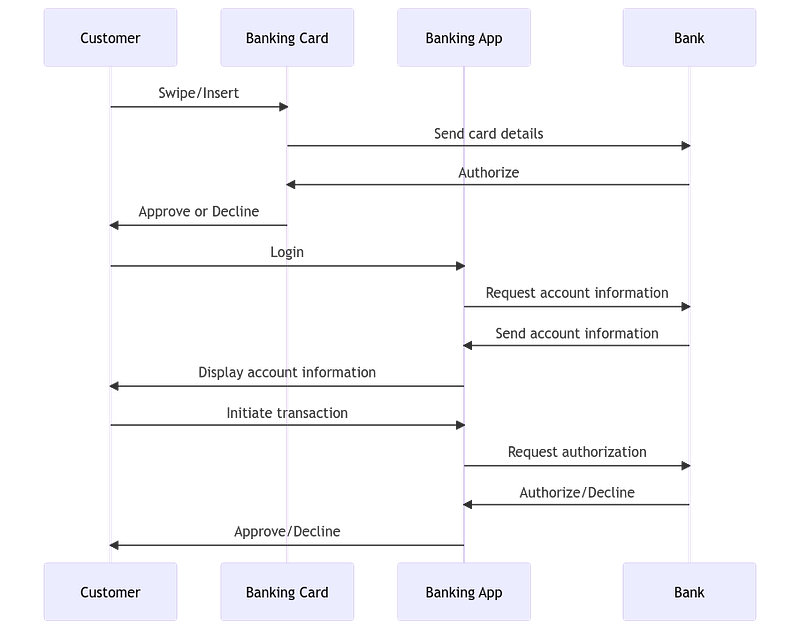
Prompt: Create a mermaid script of a banking system where a customer has a banking card and banking app

….ChatGPT responds with this text to build a sequence diagram. Of course, you can specify other types of diagrams but only from the Mermaid scripts repertoire.
Find more types of diagrams here.
sequenceDiagram
participant Customer
participant Banking Card
participant Banking App
participant Bank

Customer->>Banking Card: Swipe/Insert
Banking Card->>Bank: Send card details
Bank->>Banking Card: Authorize
Banking Card->>Customer: Approve or Decline

Customer->>Banking App: Login
Banking App->>Bank: Request account information
Bank->>Banking App: Send account information
Banking App->>Customer: Display account information

Customer->>Banking App: Initiate transaction
Banking App->>Bank: Request authorization
Bank->>Banking App: Authorize/Decline
Banking App->>Customer: Approve/Decline
… which builds this image:
I will leave you with one last tip: if you don’t like what you have asked for with a step you can undo it by typing “forget last step”:

I really hope you enjoy making many new diagrams with this new skill.


