
How to Easily Generate a Table and Align it in Jupyter Notebook
Handy methods to easily create a table and align it using Markdown and HTML in the Jupyter Notebook

In the previous post, I illustrated how to align text in the Jupyter notebook. There are different methods to generate a table in a Jupyter notebook. In this post, let’s see how to easily create a table and align it left, center and right using Markdown and HTML in a Jupyter notebook.
1. Generate a Table
(1) Generate a table using Markdown
It is very handy and direct to quickly make a table using Markdown syntax in a Jupyter notebook. For example, let’s create the following table with three rows and four columns.

We just need to type the following Markdown syntax:
|Name |Gender|Age  |Origin |
|-----|:-----|:---:|:-----:|
|Jack |Male  |23   |USA    |
|Susan|Female|22   |Canada |
The first row is always the table header followed by an extra line with dashes “-” and optional colons “:” to align text in the columns. — — —is defaultly for right alignment,: — — — for left alignment, : — — —: for center alignment and — — —:for right alignment.
(2) Generate a table using HTML
In this example, we will create the following table using HTML syntax.

It is directly type the following HTML to create the above table.
<table>
<tr>
<th>Laptop</th>
<th>Origin</th>
<th>Price</th>
</tr>
<tr>
<td>Lenovo IdeaPad 3 15.6"</td>
<td>China</td>
<td>$649.99</td>
</tr>
<tr>
<td>Apple MacBook Pro (2020)13.3"</td>
<td>USA</td>
<td>$1,249.59</td>
</tr>
<tr>
<td>HP Touch-Screen Chromebook 14"</td>
<td>USA</td>
<td>$339.99 </td>
</tr>
</table>2. Align a Table
It can be seen that the alignment of a table generated with Markdown and HTML is center in default. Let’s see how to align it left and right.
(1) Markdown Table Alignment
It is very simple to generate a table using Markdown, but Markdown syntax itself lacks the function to align the objects. It has to rely on HTML to make the alignment. The easy way is to use%%html magic command. We can put the following code snippet in a cell before or after the Markdown table cell. After running this code, the table is forced to the left. Changing {float:right}or {float:center}will shift the table to right or center.
%%html
<style>
table {float:left}
</style>
The processing can be seen from the following GIF image.

(2) HTML Table Alignment
The %%html magic also works to align a table generated by HTML. Besides, HTML style=’float:left/center/right;’ can be added in the tag to shift a table into left, center or right. For example, we align the table left.
<table style=’float:left;’>
<tr>
<th>Laptop</th>
<th>Origin</th>
<th>Price</th>
</tr>
<tr>
<td>Lenovo IdeaPad 3 15.6"</td>
<td>China</td>
<td>$649.99</td>
</tr>
<tr>
<td>Apple MacBook Pro (2020)13.3"</td>
<td>USA</td>
<td>$1,249.59</td>
</tr>
<tr>
<td>HP Touch-Screen Chromebook 14"</td>
<td>USA</td>
<td>$339.99 </td>
</tr>
</table>The result is looks as follows:
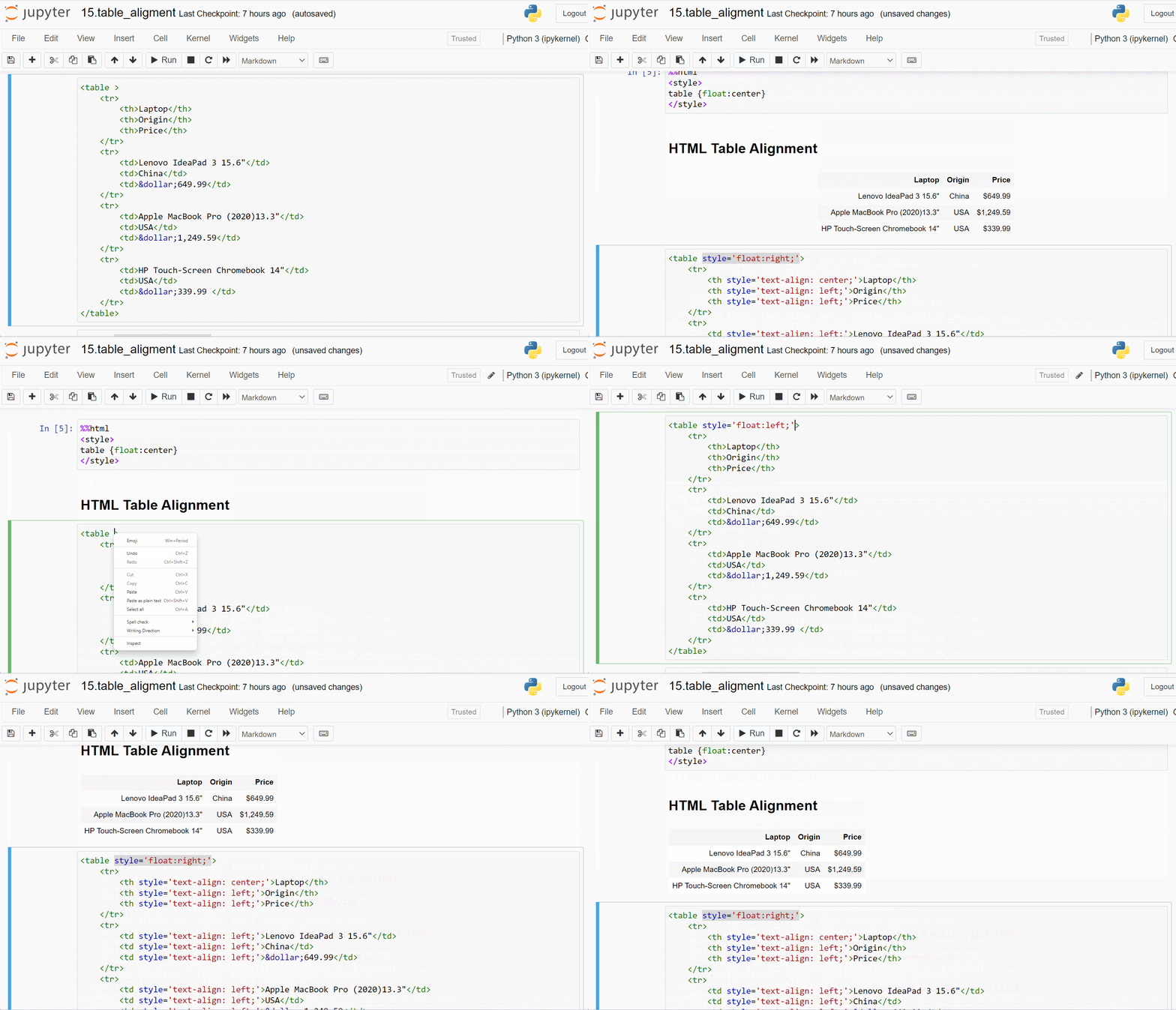
(3) Align the text in a HTML Table
Markdown uses dashes “-” and colons “:” to align column text. We can also easily align column text in a table by adding style=’text-align: left/center/right;’ in each cell of the table.
<table style='float:left;'>
<tr>
<th style='text-align: left;'>Laptop</th>
<th style='text-align: left;'>Origin</th>
<th style='text-align: left;'>Price</th>
</tr>
<tr>
<td style='text-align: left;'>Lenovo IdeaPad 3 15.6"</td>
<td style='text-align: left;'>China</td>
<td style='text-align: left;'>$649.99</td>
</tr>
<tr>
<td style='text-align: left;'>Apple MacBook Pro (2020)13.3"</td>
<td style='text-align: left;'>USA</td>
<td style='text-align: left;'>$1,249.59</td>
</tr>
<tr>
<td style='text-align: left;'>HP Touch-Screen Chromebook 14"</td>
<td style='text-align: left;'>USA</td>
<td style='text-align: left;'>$339.99 </td>
</tr>
</table>The result looks as follows:

3. Video Version
If you like a video version of this post, please go to my YouTube channel to watch it. If these are helpful, please subscribe to my channel to show your support.
4. Online Course
If you are interested in learning Jupyter notebook in details, you are welcome to enroll one of my course Practical Jupyter Notebook from Beginner to Expert.
If you think this post is helpful, please do not forget to give a clap to show your kind support. Thank you very much!


