
How to Create an Interactive Bottom Sheet in Swift 5
Using containers and child view controllers
In this article, we will learn how to create a reusable UI element — a bottom sheet.
At the end of the tutorial, you will have a finished component you can easily copy and paste into your app and use to suit your needs.
This is what we are going to build:
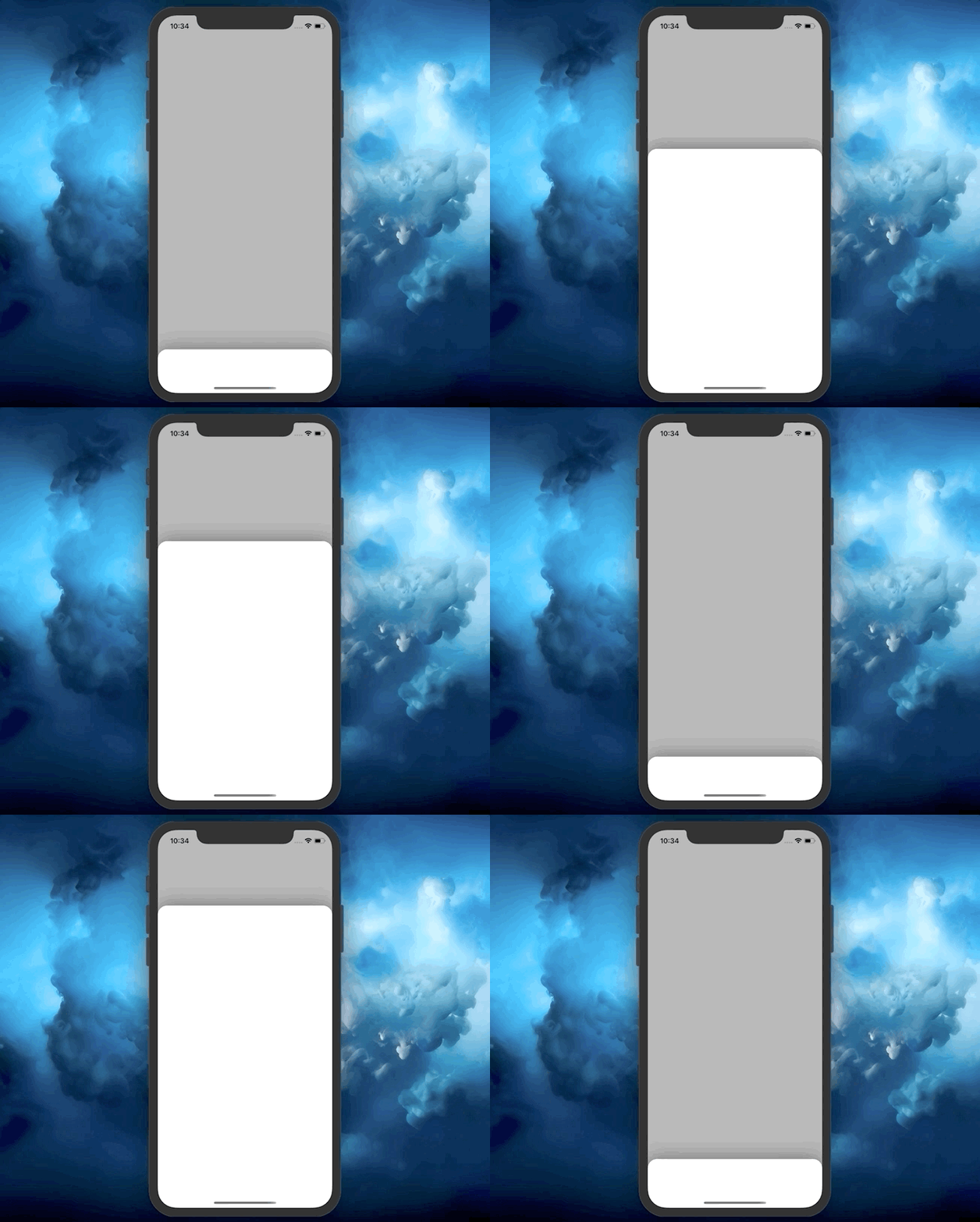
In short, this is what you will master after completing this tutorial:
- Container and child view controllers — get one step closer to following a scalable MVC architecture approach
UIPanGestureRecognizer— use a handy gesture and leverage itsvelocityandtranslationproperties- Constraint animation — move any UI element smoothly
You will find the full source code of the project at the end of the article.
Let’s Start
First, we need to create a generic BottomSheetContainerViewController that will contain a content view controller and a bottom sheet view controller as children:
As we can see, both Content and BottomSheet types have to be UIViewControllers, which means we will be able to specify any custom UIViewController either as Content or BottomSheet. You will see this later when we start using the BottomSheetContainerViewController in an example.
Now that we have Content and BottomSheet view controllers as children, let’s add some required properties. In this step, we will create two:
- A
BottomSheetConfigurationstruct that will signify the total height and the initial offset of the bottom sheet - A
BottomSheetStateenum, which manages the state of the bottom sheet. It has the.initialand.fullcases:
Note that we updated the initializer to include the BottomSheetConfiguration as a parameter.
Now, let’s move to properties that handle interaction and animation. Add the panGesture and topConstraint properties as follows:
The bottom sheet view controller will move around the screen, so we need to get a hold of the top constraint of its view. For this reason, we have the topConstraint property, which we will repeatedly change and animate accordingly.
Note that we conformed the BottomSheetContainerViewController to UIGestureRecognizerDelegate. This allows us to add the method gestureRecognizer(_:shouldRecognizeSimultaneouslyWith:), in which we return true.
This is useful in case you have a UITableView or any other scroll view placed inside the bottom sheet. If we hadn’t added this method, our UIPanGestureRecognizer would stop working when performing a gesture on a UIScrollView subclass.
Now let’s actually add the children view controllers to the container:
Here is a breakdown of all steps:
- Add both the
contentViewControllerandbottomSheetViewControllerto the container using theaddChild()method. - Add the root views of
contentViewControllerandbottomSheetViewControllerto the root view of the container. - Add the
panGestureto the root view of thebottomSheetViewController. - Apply
translatesAutoresizingMaskIntoConstraint = false. This is required because we are creating our UI programmatically using constraints. - Set constraints for the
contentViewController’s view. - Call the
didMove(to:)method to inform thecontentViewControllerthat it was added to the parent. The parent is theBottomSheetContainerViewController. - Set the top constraint of the bottom sheet to be aligned to the
bottomAnchorof the container’s view. We also add an offset of theBottomSheetConfigurationto make the bottom sheet a little bit visible in the bottom of the screen. - Set all the bottom sheet’s constraints and activate them.
- Call the
didMove(to:)method on thebottomSheetViewControllerto inform it that it was added to theBottomSheetContainerViewController.
Finally we are done with setting up the container and its children. Now let’s handle interactivity using the panGesture.
Let’s connect the panGesture with its action:
Now, we are going to add two methods:
showBottomSheet(animated:)— moves the bottom sheet to its full height and sets theBottomSheetStateto.full. Ifanimatedis set totrue, it performs the movement with animation.hideBottomSheet(animated:)— similarly, this method moves the bottom sheet to its initial point and sets theBottomSheetStateto.initial. If animated, it performs a nice spring animation.
The above code shows how you can animate constraints. These are the steps:
- Change the
constantof the constraint. - Run
self.view.layoutIfNeeded()inside an animation block. Note that you must call thelayoutIfNeeded()on the superview of the view you want to animate. In our case, this superview is theBottomSheetContainerViewController’s root view.
Great! Now we can programmatically move and hide the bottom sheet. It’s time to work directly with the UIPanGestureRecognizer’s action.
Here is the behavior we want to achieve:
- Move the bottom sheet with our finger up and down.
- When we stop moving it, take into account the current
BottomSheetState,translation, andvelocityin theydirection. If thestateis.full, check if we have the bottom sheet translation of at least half of its height. If this istrue, we run thehideBottomSheet(animated:)method. Otherwise, we return it to the full height. Also, we need to check if the magnitude of thevelocityis greater than 1,000. If this gives ustrue, hide the bottom sheet. In other cases, revert it to the full height. Similarly, if thestateis.initial, check thetranslationandvelocitymagnitudes and react accordingly.
Everything is going to make more sense soon, I promise. Let’s start with obtaining translation magnitude and velocity in the y direction:
Now let’s create a switch for the current state of the gesture:
As we can see, we handle the .began, .changed, .ended, and .failed states of the UIGestureRecognizer. Inside each of them (we group the .began and .changed ones) we provide an if else statement based on the current BottomSheetState.
Let’s handle each case now. First we start with the grouped .began and .failed case:
Here is a breakdown of the above steps. If the BottomSheetState is .full:
- Assert that the user scrolls downward. The bottom sheet is already at its full height; no upward scrolling is allowed.
- Change the
topConstraint’sconstantto match the current position of the user’s finger. For example, if the total height of the bottom sheet is 500 points and the user has scrolled 100 points, we subtract 100 from 500 and obtain 400 points. So we set the constant to -400, because this is an offset from the bottom of the container’s view. - Update the root view to show the constraint’s change.
In case the BottomSheetState is .initial:
4. Calculate the new constant by using the BottomSheetConfiguration’s initialOffset and the translation magnitude. For example, if the initial offset was 80 points and the user has scrolled 200 points, we obtain 280 points. This means we would need to place the bottom sheet 280 points from the bottom of the container’s view.
5. Assert that the user scrolls upward. Because the bottom sheet is at its initial point, no downward scrolling is allowed.
6. Assert that the magnitude of the newConstant is less than the full height of the bottom sheet. This is to prevent the bottom sheet from moving further than its maximum height point.
7. Set the resulting constant.
8. Update the root view to show the constraint’s change.
With the .began and .changed states done, now we need to handle the .ended case:
If the BottomSheetState was .full when a user stopped moving the bottom sheet:
- Check if the user has tried to move the bottom sheet upwards. If this is true, bottom sheet should remain shown.
- If the user moved the bottom sheet more than half of its maximum height, or the
yvelocity is higher than 1,000, then we hide the bottom sheet. - In all other cases, keep the sheet shown.
On the other hand, if the BottomSheetState was .initial:
4. Check if the user has moved the bottom sheet at least half of its maximum height, or the y velocity is less than -1,000.
5. If this is true, show the bottom sheet.
6. Otherwise, hide the bottom sheet.
We need to handle the last case, .failed, if the UIPanGestureRecognizer fails during the process:
This time the logic is very simple. If the latest BottomSheetState is .full, return the sheet to its maximum height point. Otherwise, hide the bottom sheet.
Great! We have finally implemented a reusable class. We are now able to use it effectively whenever we want. Let’s quickly use it on a simple example.
Usage Example
Create a subclass of the BottomSheetContainerViewController called WelcomeContainerViewController:
That’s all we need to have a fully functioning container showing a content view controller and a bottom sheet view controller.
As we can see, we have the HelloViewController acting as a content view controller and the MyCustomViewController as a bottom sheet view controller.
The HelloViewController simply shows a gray view:
The MyCustomViewController has a view with a white background, rounded corners, and shadow:
This is how we initialize the WelcomeContainerViewController inside the AppDelegate.swift file:
That’s it! We have successfully implemented a generic bottom sheet container view controller in just 200 lines of code:
You have seen how convenient it is to use container and child view controllers to keep them as thin as possible.
You have also mastered the UIGestureRecognizer and now you can use that knowledge to implement more complicated UI elements and interactions.
Resources
The source code of the project, containing both the implementation and the example, is available on GitHub: zafarivaev/BottomSheet.
Wrapping Up
Interested in other UI-related articles? Check out these stories below:
- What is a UIBezierPath in Swift?
- What Are Keyframe Animations in Swift 5?
- What are @IBDesignable and @IBInspectable in Swift?
Thanks for reading!


