

How to create an IAM account and configure Terraform to use AWS static credentials?
The first step to launch a Terraform script in Amazon Web Services (AWS) is to configure the Terraform provider.
There are several options to configure the provider for AWS:
- Static credentials
- Environment variables
- Shared credentials file
- EC2 Role
In this article, I’m going to show how to configure the Terraform provider using static credentials.
The Terraform provider looks like this:
provider "aws" {
  region     = "eu-west-1"
  access_key = "my-aws-access-key"
  secret_key = "my-aws-secret-key"
}
The process to configure the Terraform provider is divided into 4 steps:
- Generate an IAM user to use with Terraform
Open the AWS Console and type IAM in the search box.
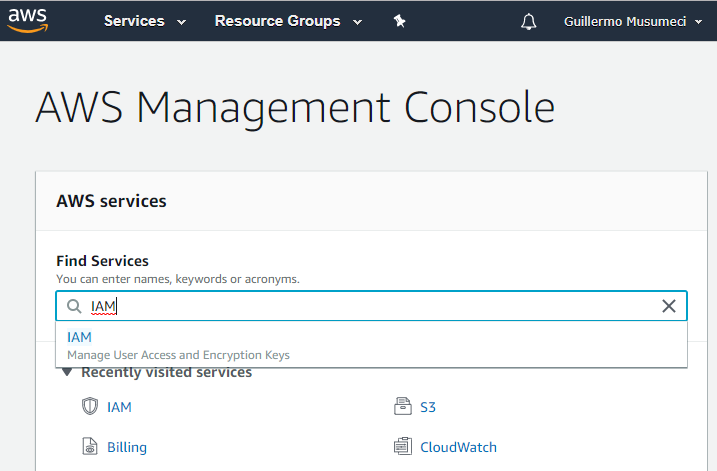
Then, at the IAM dashboard (left side of the screen), select the Users section and then click on the Add User button.
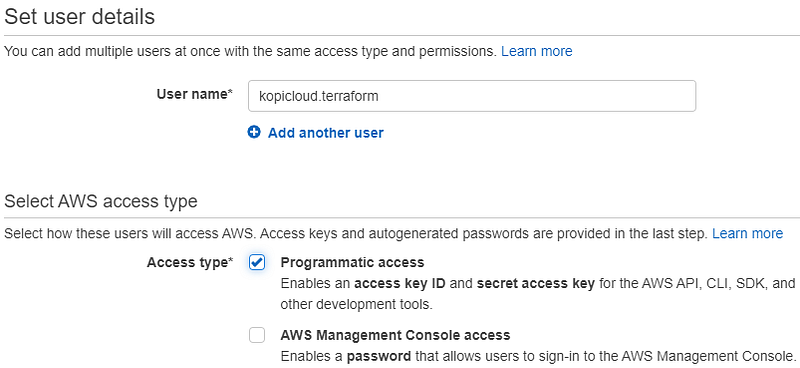
Here, enter a user name and enable the Programmatic Access checkbox and click the Next: Permissions button.
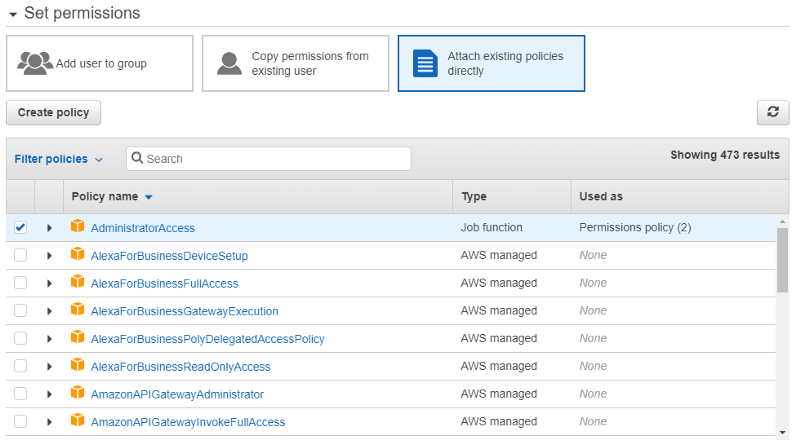
Then, select Attach existing policies directly button and choose a policy, in this case, because is a Development environment, I will select AdministratorAccess.
Important: please don’t select AdministratorAccess, for production environments, instead create a custom policy with very limited access to just required AWS services. Click the Next: Tags button.
Add Tags to the account (if you want) or skip the Tags page and click on the Next:Review button
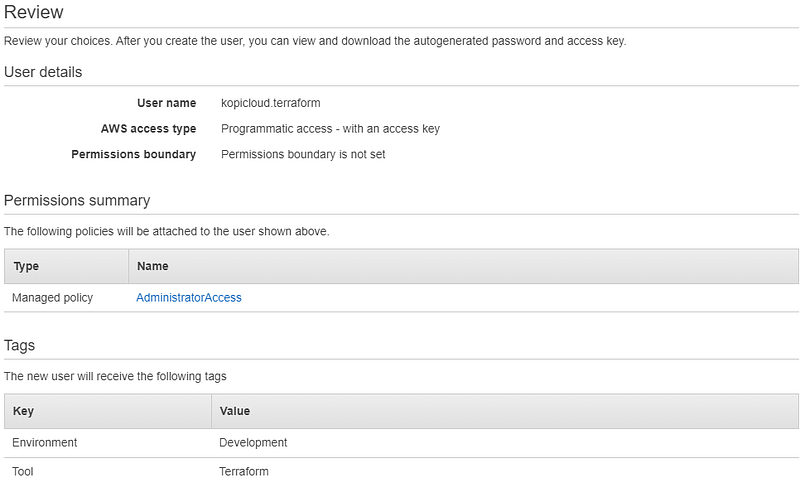
Click the Create User button to display your AWS credentials and the Show link to see your Secret access key.
Copy both Access key ID and Secret access key or download the .CSV file with the credentials.
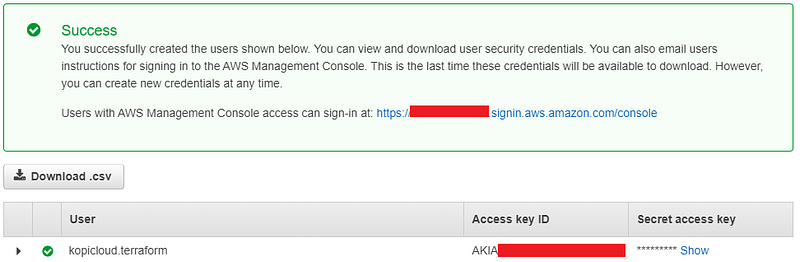
2. Let back to our favorite code editor. We will need to create 3 variables in the variables.tf file:
variable "aws_access_key" {
  type = string
  description = "AWS access key"
}
variable "aws_secret_key" {
type = string
description = "AWS secret key"
}variable "aws_region" {
type = string
description = "AWS region"
}3. Create or update your terraform.tfvars with your AWS credentials, from step 1.
Important: if you are planning to use a code repository to store your Terraform scripts, configure your .gitignore file the exclude the terraform.tfvars file.
# AWS Settings
aws_access_key = "AKIAxxxxxxxxxxxxxxxx"
aws_secret_key = "xxxxxxxxxxxxxxxxxxxxxxxxxxxxxxxxxxxxxxxx"
aws_region     = "eu-west-1"
4. Update the provider section, usually in your main.tf or provider.tf, file to use the AWS Settings.
provider "aws" {
  region     = var.aws_region
  access_key = var.aws_access_key
  secret_key = var.aws_secret_key
}
Thank you for reading! If this post was helpful, please click the clap 👏 button below!


