avatarGuillermo Musumeci

Free AI web copilot to create summaries, insights and extended knowledge, download it at here

5898

Abstract

"hljs-variable">STORAGE_ACCOUNT_NAME</span>"</span> <span class="hljs-built_in">echo</span> <span class="hljs-string">"container_name: <span class="hljs-variable">CONTAINER_NAME</span>"</span> <span class="hljs-built_in">echo</span> <span class="hljs-string">"access_key: <span class="hljs-variable">ACCOUNT_KEY</span>"</span></pre></div><h1 id="00c0">3. Configuring the Remote Backend to use Azure Storage with PowerShell</h1><p id="b653">We will execute the following <b>Azure PowerShell</b> script to create the storage account in <b>Azure Storage</b>:</p><div id="51fa"><pre><span class="hljs-comment"># Variables</span> <span class="hljs-variable">azureSubscriptionId</span> = <span class="hljs-string">"9c242362-6776-47d9-9db9-2aab2449703"</span> <span class="hljs-variable">resourceGroup</span> = <span class="hljs-string">"kopicloud-tstate-rg"</span> <span class="hljs-variable">location</span> = <span class="hljs-string">"westeurope"</span> <span class="hljs-variable">random</span> = <span class="hljs-operator">-join</span> ((<span class="hljs-number">0</span>..<span class="hljs-number">9</span>) | <span class="hljs-built_in">Get-Random</span> <span class="hljs-literal">-Count</span> <span class="hljs-number">5</span> | % {<span class="hljs-variable">_</span>}) <span class="hljs-variable">accountName</span> = <span class="hljs-string">"kopicloudtfstate"</span> + <span class="hljs-variable">random</span> <span class="hljs-variable">containerName</span> = <span class="hljs-string">"tfstate"</span></pre></div><div id="28a1"><pre><span class="hljs-meta"># Set Default Subscription</span> <span class="hljs-keyword">Select</span>-AzSubscription -SubscriptionId azureSubscriptionId</pre></div><div id="eeb7"><pre><span class="hljs-comment"># Create Resource Group</span> New-AzResourceGroup -Name resourceGroup -<span class="hljs-keyword">Location</span> <span class="hljs-title">location</span> -Force</pre></div><div id="8e6d"><pre><span class="hljs-comment"># Create Storage Account</span> <span class="hljs-variable">storageAccount</span> = <span class="hljs-built_in">New-AzStorageAccount</span> ` <span class="hljs-literal">-ResourceGroupName</span> <span class="hljs-variable">resourceGroup</span> <span class="hljs-literal">-Name</span> <span class="hljs-variable">$accountName</span> <span class="hljs-literal">-Location</span> <span class="hljs-variable">$location</span> <span class="hljs-literal">-SkuName</span> Standard_RAGRS <span class="hljs-literal">-Kind</span> StorageV2

<span class="hljs-comment"># Get Storage Account Key</span> <span class="hljs-variable">storageKey</span> = (<span class="hljs-built_in">Get-AzStorageAccountKey</span> ` <span class="hljs-literal">-ResourceGroupName</span> <span class="hljs-variable">resourceGroup</span> <span class="hljs-literal">-Name</span> <span class="hljs-variable">$accountName</span>).Value[<span class="hljs-number">0</span>]</pre></div><div id="fc05"><pre><span class="hljs-comment"># Create Storage Container</span> <span class="hljs-variable">$ctx</span> = <span class="hljs-variable">$storageAccount</span>.Context <span class="hljs-variable">$container</span> = <span class="hljs-built_in">New-AzStorageContainer</span> <span class="hljs-literal">-Name</span> <span class="hljs-variable">containerName</span> ` <span class="hljs-literal">-Context</span> <span class="hljs-variable">ctx</span> <span class="hljs-literal">-Permission</span> blob<span class="hljs-comment"># Results</span> <span class="hljs-built_in">Write-Host</span> <span class="hljs-built_in">Write-Host</span> (<span class="hljs-string">"Storage Account Name: "</span> + <span class="hljs-variable">accountName</span>) <span class="hljs-built_in">Write-Host</span> (<span class="hljs-string">"Container Name: "</span> + <span class="hljs-variable">container</span>.Name) <span class="hljs-built_in">Write-Host</span> (<span class="hljs-string">"Access Key: "</span> + <span class="hljs-variable">$storageKey</span>)</pre></div><p id="85a6">This is the result:</p><figure id="ae43"><img src="https://cdn-images-1.readmedium.com/v2/resize:fit:800/0*dv8JaJrnDYjXCWz6.png"><figcaption></figcaption></figure><h1 id="46a2">4. Configuring the Remote Backend to use Azure Storage with Terraform</h1><p id="52c6">We can also use Terraform to create the storage account in <b>Azure Storage.</b></p><p id="a235">We will start creating a file called <b>az-remote-backend-variables.tf</b> and adding this code:</p><div id="2692"><pre><span class="hljs-comment"># company</span> variable <span class="hljs-string">"company"</span> { <span class="hljs-keyword">type</span> = <span class="hljs-keyword">string</span> description = <span class="hljs-string">"This variable defines the name of the company"</span> }</pre></div><div id="d7a6"><pre><span class="hljs-comment"># environment</span> variable <span class="hljs-string">"environment"</span> { <span class="hljs-keyword">type</span> = <span class="hljs-keyword">string</span> description = <span class="hljs-string">"This variable defines the environment to be built"</span> }</pre></div><div id="89b6"><pre><span class="hljs-meta"># azure <span class="hljs-keyword">region</span></span> variable <span class="hljs-string">"location"</span> { type = <span class="hljs-built_in">string</span> description = <span class="hljs-string">"Azure region where the resource group will be created"</span> <span class="hljs-literal">default</span> = <span class="hljs-string">"north europe"</span> }</pre></div><p id="8b17">Then we create the <b>az-remote-backend-main.tf</b> file that will configure the storage account:</p><div id="9058"><pre><span class="hljs-comment"># Generate a random storage name</span> resource <span class="hljs-string">"random_string"</span> <span class="hljs-string">"tf-name"</span>

Options

{ <span class="hljs-built_in">length</span> = <span class="hljs-number">8</span> upper = <span class="hljs-literal">false</span> <span class="hljs-built_in">number</span> = <span class="hljs-literal">true</span> lower = <span class="hljs-literal">true</span> special = <span class="hljs-literal">false</span> }</pre></div><div id="6849"><pre><span class="hljs-comment"># Create a Resource Group for the Terraform State File</span> resource <span class="hljs-string">"azurerm_resource_group"</span> <span class="hljs-string">"state-rg"</span> { name = <span class="hljs-string">"${lower(var.company)}-tfstate-rg"</span> <span class="hljs-keyword">location</span> <span class="hljs-title">= var</span>.<span class="hljs-keyword">location</span> <span class="hljs-title">lifecycle</span> { prevent_destroy = <span class="hljs-literal">true</span> }
tags = { environment = var.environment } }</pre></div><div id="b6f2"><pre><span class="hljs-comment"># Create a Storage Account for the Terraform State File</span> resource <span class="hljs-string">"azurerm_storage_account"</span> <span class="hljs-string">"state-sta"</span> { depends_on = [azurerm_resource_group.state-rg]

name = <span class="hljs-string">"{lower(var.company)}tf{random_string.tf-name.result}"</span> resource_group_name = azurerm_resource_group.state-rg.name <span class="hljs-keyword">location</span> <span class="hljs-title">= azurerm_resource_group</span>.state-rg.<span class="hljs-keyword">location</span> <span class="hljs-title">account_kind</span> = <span class="hljs-string">"StorageV2"</span> account_tier = <span class="hljs-string">"Standard"</span> access_tier = <span class="hljs-string">"Hot"</span> account_replication_type = <span class="hljs-string">"ZRS"</span> enable_https_traffic_only = <span class="hljs-literal">true</span>

lifecycle { prevent_destroy = <span class="hljs-literal">true</span> }

tags = { environment = var.environment } }</pre></div><div id="3b12"><pre><span class="hljs-comment"># Create a Storage Container for the Core State File</span> <span class="hljs-attribute">resource</span> <span class="hljs-string">"azurerm_storage_container"</span> <span class="hljs-string">"core-container"</span> { <span class="hljs-attribute">depends_on</span> = [azurerm_storage_account.state-sta]

name = <span class="hljs-string">"core-tfstate"</span> storage_account_name = azurerm_storage_account.state-sta.name }</pre></div><p id="c273">Finally, we create the file <b>az-remote-backend-output.tf</b> file that will show the output:</p><div id="50cd"><pre><span class="hljs-attribute">output</span> <span class="hljs-string">"terraform_state_resource_group_name"</span> { <span class="hljs-attribute">value</span> = azurerm_resource_group.state-rg.name }</pre></div><div id="5307"><pre><span class="hljs-attribute">output</span> <span class="hljs-string">"terraform_state_storage_account"</span> { <span class="hljs-attribute">value</span> = azurerm_storage_account.state-sta.name }</pre></div><div id="b04a"><pre><span class="hljs-attribute">output</span> <span class="hljs-string">"terraform_state_storage_container_core"</span> { <span class="hljs-attribute">value</span> = azurerm_storage_container.core-container.name }</pre></div><h1 id="48e6">5. Authenticating to Azure using a Service Principal (SPN) to use State Files in Remote Backend</h1><p id="a1dc">If we want to use shared state files in a remote backend with SPN, we can configure Terraform using the following procedure:</p><p id="a80d">We will create a configuration file with the credentials information. For this example, I called the file <b>azurecreds.conf</b>. This is the content of the file:</p><div id="3786"><pre><span class="hljs-attr">ARM_SUBSCRIPTION_ID</span>=<span class="hljs-string">"9c242362-6776-47d9-9db9-2aab2449703"</span> <span class="hljs-attr">ARM_CLIENT_ID</span> = <span class="hljs-string">"a47dd585-d5c1-4ffe-8ea2-91f0681c55bc"</span> <span class="hljs-attr">ARM_CLIENT_SECRET</span>=<span class="hljs-string">"88f9776a-0e3h-4b9e-afcc-b4h3f17ad20h"</span> <span class="hljs-attr">ARM_TENANT_ID</span>=<span class="hljs-string">"c7e7beb6-8e7c-41e7-bc41-37ggg3e33b665"</span></pre></div><p id="83e4">then we create the file <b>provider-main.tf</b> and add the code to manage the Terraform and the Azure providers:</p><div id="34af"><pre><span class="hljs-comment"># Define Terraform provider</span> <span class="hljs-section">terraform</span> { <span class="hljs-attribute">required_version</span> = <span class="hljs-string">">= 0.12"</span> backend <span class="hljs-string">"azurerm"</span> { <span class="hljs-attribute">resource_group_name</span> = <span class="hljs-string">"kopicloud-tfstate-rg"</span> storage_account_name = <span class="hljs-string">"kopicloudtfstate"</span> container_name = <span class="hljs-string">"core-tfstate"</span> key = <span class="hljs-string">"core.kopicloud.tfstate"</span> } }</pre></div><div id="906e"><pre><span class="hljs-comment"># Configure the Azure provider</span> <span class="hljs-attribute">provider</span> <span class="hljs-string">"azurerm"</span> { <span class="hljs-attribute">environment</span> = <span class="hljs-string">"public"</span> }</pre></div><p id="e6b5">Finally, we initialize the Terraform configuration using this command:</p><div id="eb42"><pre>terraform init <span class="hljs-attribute">-backend-config</span>=azurecreds.conf</pre></div><p id="f390">Then, we launch the stack as usual:</p><div id="1dbc"><pre>terraform <span class="hljs-built_in">apply</span> -<span class="hljs-built_in">auto</span>-approve</pre></div><p id="79d8">And that’s all folks. If you liked this story, please show your support by 👏 this story. Thank you for reading!</p></article></body>

How to Create an Azure Remote Backend for Terraform

For simple test scripts or for development, a local state file will work. However, if we are working in a team, deploying our infrastructure from a CI/CD tool or developing a Terraform using multiple layers, we need to store the state file in a remote backend and lock the file to avoid mistakes or damage the existing infrastructure.

We can use remote backends, such as Azure Storage, Google Cloud Storage, Amazon S3, and HashiCorp Terraform Cloud & Terraform Enterprise, to keep our files safe and share between multiple users.

In this story, we will take a look at a step by step procedure to use Microsoft Azure Storage to create a Remote Backend for Terraform using Azure CLI, PowerShell, and Terraform.

1. Creating a Service Principal and a Client Secret

Using a Service Principal, also known as SPN, is a best practice for DevOps or CI/CD environments and is one of the most popular ways to set up a remote backend and later move to CI/CD, such as Azure DevOps.

First, we need to authenticate to Azure. To authenticate using Azure CLI, we type:

az login

The process will launch the browser and after the authentication is complete we are ready to go.
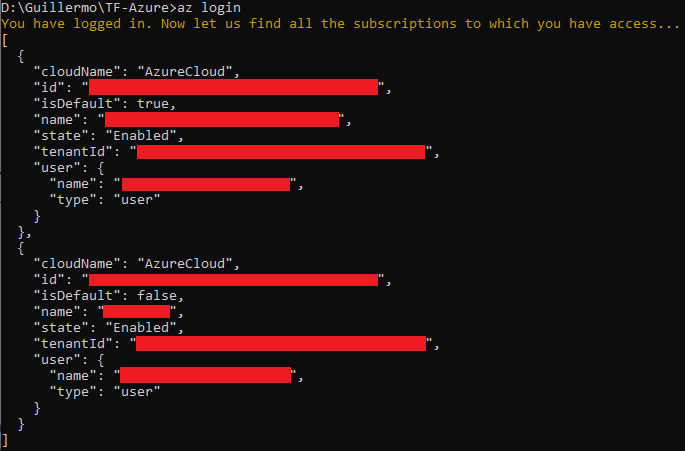
We will use the following command to get the list of Azure subscriptions:

az account list --output table

We can select the subscription using the following command (both subscription id and subscription name are accepted):

az account set --subscription <Azure-SubscriptionId>

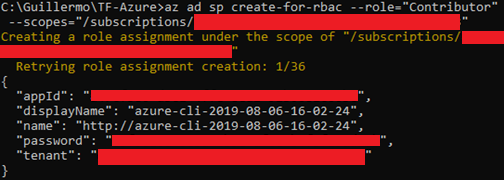
Then create the service principal account using the following command:

az ad sp create-for-rbac --role="Contributor" 
--scopes="/subscriptions/SUBSCRIPTION_ID"

This is the result:
Note: as an option, we can add the -name parameter to add a descriptive name.

az ad sp create-for-rbac --role="Contributor" 
--scopes="/subscriptions/SUBSCRIPTION_ID" --name="Azure-DevOps"

These values will be mapped to these Terraform variables:

  • appId (Azure) → client_id (Terraform).
  • password (Azure) → client_secret (Terraform).
  • tenant (Azure) → tenant_id (Terraform).

2. Configuring the Remote Backend to use Azure Storage in Azure CLI

We will execute the following Azure CLI script to create the storage account in Azure Storage in Bash or Azure Cloud Shell:

RESOURCE_GROUP_NAME=kopicloud-tstate-rg
STORAGE_ACCOUNT_NAME=kopicloudtfstate$RANDOM
CONTAINER_NAME=tfstate
# Create resource group
az group create --name $RESOURCE_GROUP_NAME --location "West Europe"
# Create storage account
az storage account create --resource-group $RESOURCE_GROUP_NAME --name $STORAGE_ACCOUNT_NAME --sku Standard_LRS --encryption-services blob
# Get storage account key
ACCOUNT_KEY=$(az storage account keys list --resource-group $RESOURCE_GROUP_NAME --account-name $STORAGE_ACCOUNT_NAME --query [0].value -o tsv)
# Create blob container
az storage container create --name $CONTAINER_NAME --account-name $STORAGE_ACCOUNT_NAME --account-key $ACCOUNT_KEY
echo "storage_account_name: $STORAGE_ACCOUNT_NAME"
echo "container_name: $CONTAINER_NAME"
echo "access_key: $ACCOUNT_KEY"

3. Configuring the Remote Backend to use Azure Storage with PowerShell

We will execute the following Azure PowerShell script to create the storage account in Azure Storage:

# Variables
$azureSubscriptionId = "9c242362-6776-47d9-9db9-2aab2449703"
$resourceGroup = "kopicloud-tstate-rg"
$location = "westeurope"
$random = -join ((0..9) | Get-Random -Count 5 | % {$_})
$accountName = "kopicloudtfstate" + $random
$containerName = "tfstate"
# Set Default Subscription
Select-AzSubscription -SubscriptionId $azureSubscriptionId
# Create Resource Group
New-AzResourceGroup -Name $resourceGroup -Location $location -Force
# Create Storage Account
$storageAccount = New-AzStorageAccount `
  -ResourceGroupName $resourceGroup `
  -Name $accountName `
  -Location $location `
  -SkuName Standard_RAGRS `
  -Kind StorageV2 
    
# Get Storage Account Key
$storageKey = (Get-AzStorageAccountKey `
  -ResourceGroupName $resourceGroup `
  -Name $accountName).Value[0]
# Create Storage Container
$ctx = $storageAccount.Context
$container = New-AzStorageContainer `
  -Name $containerName `
  -Context $ctx -Permission blob# Results
Write-Host 
Write-Host ("Storage Account Name: " + $accountName)
Write-Host ("Container Name: " + $container.Name)
Write-Host ("Access Key: " + $storageKey)

This is the result:

4. Configuring the Remote Backend to use Azure Storage with Terraform

We can also use Terraform to create the storage account in Azure Storage.

We will start creating a file called az-remote-backend-variables.tf and adding this code:

# company
variable "company" {
  type        = string
  description = "This variable defines the name of the company"
}
# environment
variable "environment" {
  type        = string
  description = "This variable defines the environment to be built"
}
# azure region
variable "location" {
  type        = string
  description = "Azure region where the resource group will be created"
  default     = "north europe"
}

Then we create the az-remote-backend-main.tf file that will configure the storage account:

# Generate a random storage name
resource "random_string" "tf-name" {
  length  = 8
  upper   = false
  number  = true
  lower   = true
  special = false
}
# Create a Resource Group for the Terraform State File
resource "azurerm_resource_group" "state-rg" {
  name     = "${lower(var.company)}-tfstate-rg"
  location = var.location  lifecycle {
    prevent_destroy = true
  }  
  tags = {
    environment = var.environment
  }
}
# Create a Storage Account for the Terraform State File
resource "azurerm_storage_account" "state-sta" {
  depends_on = [azurerm_resource_group.state-rg]
 
  name = "${lower(var.company)}tf${random_string.tf-name.result}"
  resource_group_name = azurerm_resource_group.state-rg.name
  location = azurerm_resource_group.state-rg.location
  account_kind = "StorageV2"
  account_tier = "Standard"
  access_tier = "Hot"
  account_replication_type = "ZRS"
  enable_https_traffic_only = true
   
  lifecycle {
    prevent_destroy = true
  }  
  
  tags = {
    environment = var.environment
  }
}
# Create a Storage Container for the Core State File
resource "azurerm_storage_container" "core-container" {
  depends_on = [azurerm_storage_account.state-sta]
  
  name                 = "core-tfstate"
  storage_account_name = azurerm_storage_account.state-sta.name
}

Finally, we create the file az-remote-backend-output.tf file that will show the output:

output "terraform_state_resource_group_name" {
  value = azurerm_resource_group.state-rg.name
}
output "terraform_state_storage_account" {
  value = azurerm_storage_account.state-sta.name
}
output "terraform_state_storage_container_core" {
  value = azurerm_storage_container.core-container.name
}

5. Authenticating to Azure using a Service Principal (SPN) to use State Files in Remote Backend

If we want to use shared state files in a remote backend with SPN, we can configure Terraform using the following procedure:

We will create a configuration file with the credentials information. For this example, I called the file azurecreds.conf. This is the content of the file:

ARM_SUBSCRIPTION_ID="9c242362-6776-47d9-9db9-2aab2449703"
ARM_CLIENT_ID = "a47dd585-d5c1-4ffe-8ea2-91f0681c55bc"
ARM_CLIENT_SECRET="88f9776a-0e3h-4b9e-afcc-b4h3f17ad20h"
ARM_TENANT_ID="c7e7beb6-8e7c-41e7-bc41-37ggg3e33b665"

then we create the file provider-main.tf and add the code to manage the Terraform and the Azure providers:

# Define Terraform provider
terraform {
  required_version = ">= 0.12"
  backend "azurerm" {
    resource_group_name  = "kopicloud-tfstate-rg"
    storage_account_name = "kopicloudtfstate"
    container_name       = "core-tfstate"
    key                  = "core.kopicloud.tfstate"
  }
}
# Configure the Azure provider
provider "azurerm" { 
  environment = "public"
}

Finally, we initialize the Terraform configuration using this command:

terraform init -backend-config=azurecreds.conf

Then, we launch the stack as usual:

terraform apply -auto-approve

And that’s all folks. If you liked this story, please show your support by 👏 this story. Thank you for reading!

Azure
Terraform
Infrastructure As Code
Remote Backend
Azure Storage
Recommended from ReadMedium
