
Enhance Your App Development Skills with AI Integration Techniques.
How to create an AI Android App using Gemini AI SDK || Gemini API
A Step-by-Step Guide to Building an AI-Powered Android App with Gemini AI SDK and API

Introduction
Today, we’ll create a simple AI application using the Gemini AI client SDK.
In December 2023, Google launched the most capable Gemini AI models.
Android developers were eager to integrate this AI into their applications.

Objective
Demonstrate how to access the Gemini API directly from an Android app using the Google AI client SDK.
Getting Started
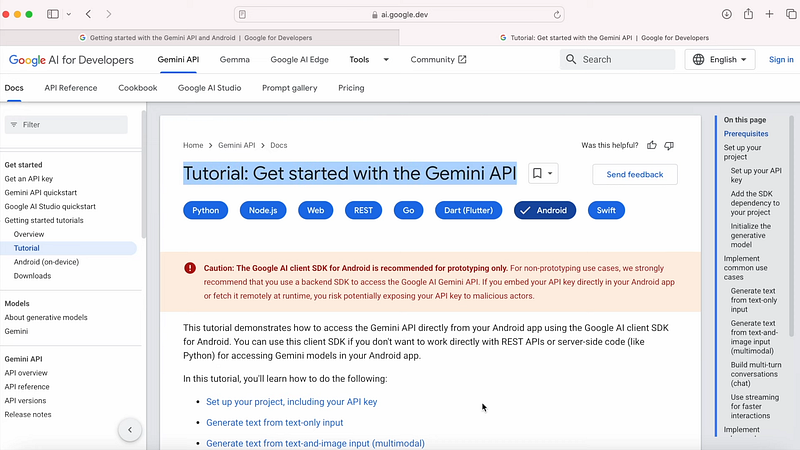
Follow the Gemini API tutorial page for instructions.
You can use a programming language, but I’ll use Gemini for Android.
Ensure you have the latest version of Android Studio and that your app targets API level 21 or higher.
Creating a New Project
- Open Android Studio and select “New Project.”
- Use the Gemini API starter template available in Android Studio versions Cola and higher.
- Name your project (e.g., “First AI App”) and choose the package name.

Configuration
Select Kotlin as the build configuration language; Java is also an option if you’re familiar with it.
Click “Next” to create a starter app for using the Gemini API.
API Key Setup
Generate an API key from Google AI Studio:
Click on the provided link and log in with your Google account (preferably the same as your Google Play console).
Acknowledge the terms of service and create an API key.
Copy the generated API key and paste it into your Android Studio project.


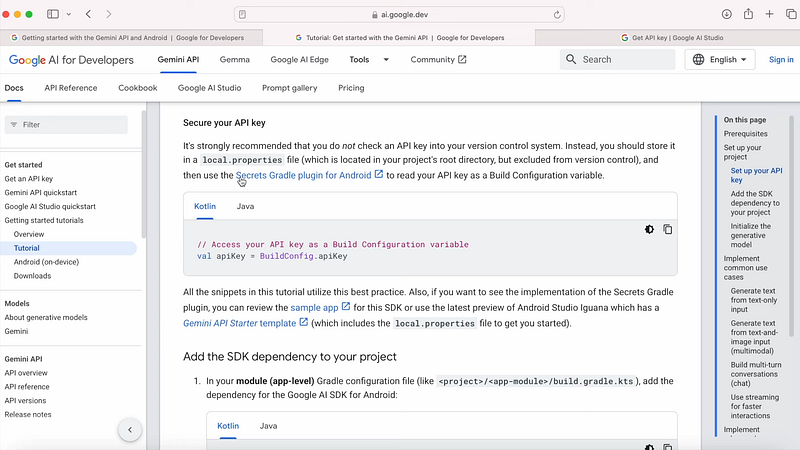
Secure Your API Key
Add the API key to local.properties.
Use the secrets Gradle plugin to read the API key as a build configuration variable.
Verify that the API key is accessed as a build config value in the code.

Add SDK Dependency
Open build.gradle (Module) file to ensure the SDK dependency is added.
This setup was automatic using the Gemini API starter template.
For existing projects, manually add the API key and SDK dependency.
Build and Run the Project
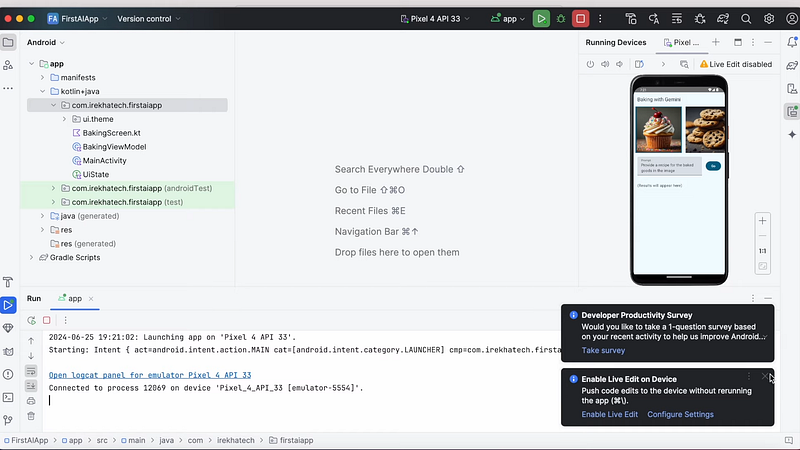
Build and run your project in Android Studio.
Verify that the app is installed successfully and working.
Testing the AI Application
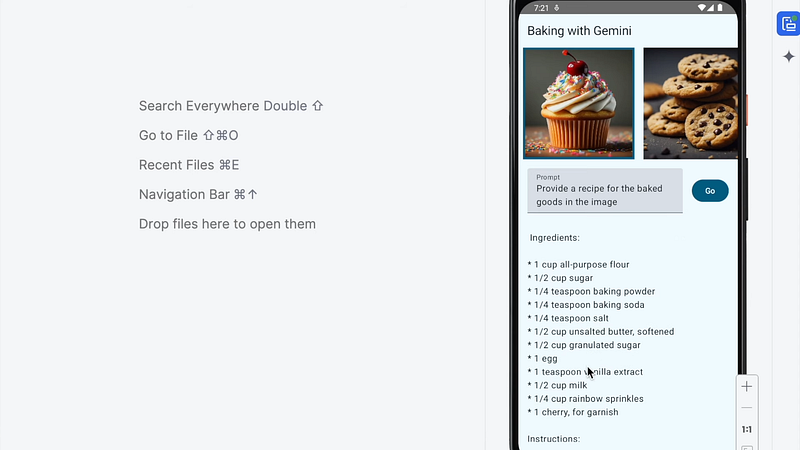
Use the AI app to provide a recipe for baked goods based on images.
Test different questions to check the AI’s responses (e.g., describing the contents of images).
Use Cases
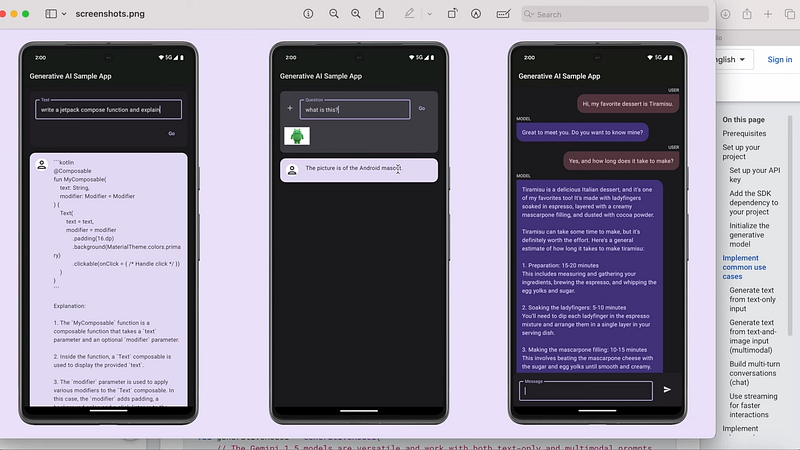
The sample AI project demonstrates multimodal use cases: generating text from text and image inputs.
Other use cases include
Generating text from text-only input.
Multi-turn conversations or AI chat applications.
Other Hints
This program should be developed to generate text upon receiving text input only. Android Studio has a window with the Gemini tool that may help the developer with coding. Create a new XML layout file in Android Studio: Action: Open, then under Resource, then new Android Resource File Resource Type: layout File Name: activity_gemini Action: Open the newly created file. Paste the XML code developed by the right Gemini AI tool.
Modify the XML Layout
Action: Will set the attribute of the input field to “prompt”. Action: Button text must be changed to “Go”. Action: Text size needs to be increased for “touch target size too small” error. Action: Update the names in the fields to ET_input, button_go and output.
Kotlin code accessing XML fields
Action: Develop in Kotlin using Gemini AI tool getting values from ET_input, handling the click of the button, updating the output text view.
Create a Kotlin class: Holio Final Project, New, Kotlin Class File, ActivityGemini. Copied Gemini AI tool generated code and paste in the created class file. Modified activity name in the code to ActivityGemini as the class file name. Added the dependencies and imports required. Changed the layout file name reference in the code to activity_gemini.
AI functionality implementation
Action: Remove the placeholder text processing code with real Gemini AI API calls. Action: Process the input text using the Gemini API, update the response text to output text view. Action: Fix any coroutine-related issues. Run the API call inside a coroutine.
Build and test the project
Action: Build the Project and fix all the errors. Action: Update AndroidManifest.xml to use ActivityGemini instead of MainActivity. Action: Finally Run the app and see that everything is working fine.
Debugging
Problem: The App Crashes with some error regarding the theme. Description Open the AndroidManifest.xml file and change the theme to Theme.AppCompat.DayNight.NoActionBar.
Integration Testing of AI
Action: Test the application by asking questions and see the responses are appropriately shown to the output text view of the device.
Offline and Cost Saving Options Note: Use cases like sensitive data processing or totally offline, consider Gemini Nano which runs on-device. Availability: Available on Google Pixel 8 and Samsung S24 Series devices only.
Conclusion
Summary of this video: The ‘utorial video teaches how to incorporate the Gemini AI API with an Android app using the Google AI Client SDK. Action: The details for more on Gemini Nano and other functionalities will be discussed in further articles.
If you liked this article, do give it a 👏 and share it with someone who needs this message. Your claps are highly appreciated!
Thank You 🙏🙏


