
How To Create a Safari Ad Blocker For iOS Using Swift
Ads are everywhere, but they don’t have to be in your browser

Let’s be honest: We see a lot of advertising every day in our daily life. On average, we see 5,000 ads per day, and if you think that is too much, try to think of the last time you saw an ad. It was probably five minutes ago.
Nowadays ads are everywhere: City cardboards, LED maxi screens, newspapers, radios, the internet, and mobile apps are just some of the main ways advertisers reach consumers.
In order to mitigate this problem (at least on Safari), in iOS 9, Apple added the possibility to use a content blocker that does four important things, customizable for single domain:
- Block domain
- Block cookies
- Hide page element via CSS
- Force HTTPS
Below you can find an example project, but for more information and to know in detail how it works, you can find the Apple documentation here.
Introduction
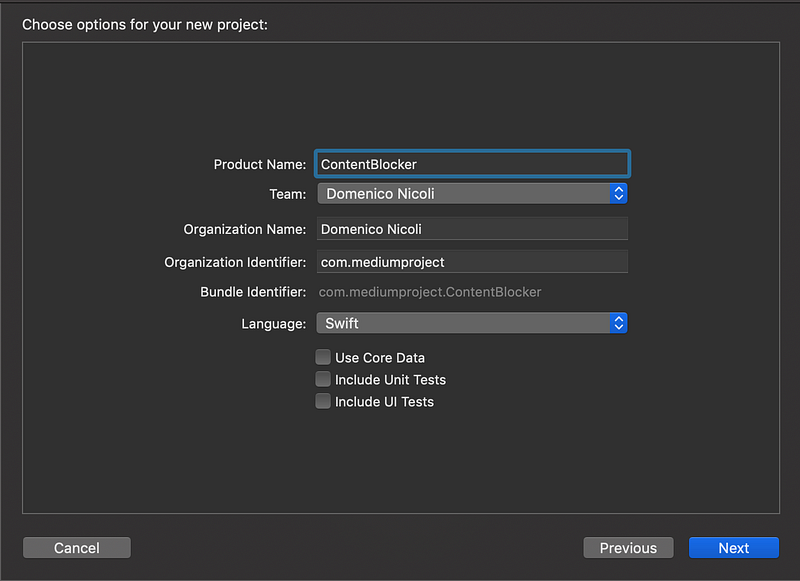
First of all, create a new Xcode project. You can start with a single-view app.
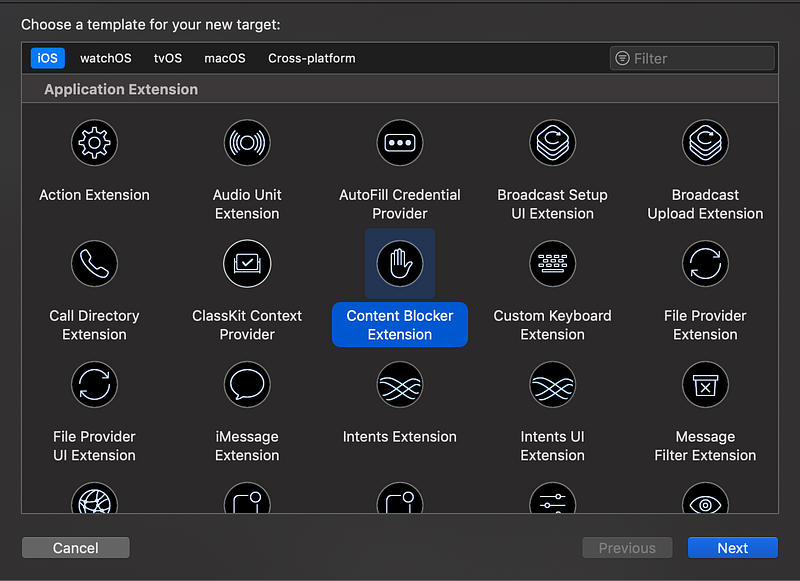
Now go in File → New → Target, and select Content Blocker Extension. Click on Next, and after you named the project, click on Finish.
Your project should look like this:
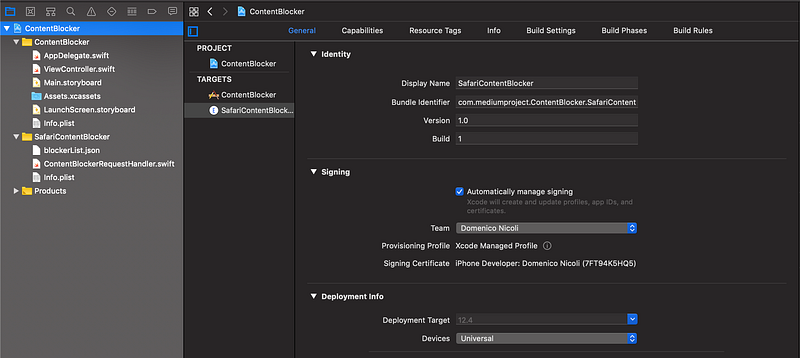
Digging inside, we can see the two files created automatically inside the extension we just added. We have:
- The
ContentBlockerRequestHandlerthat will load the file with all the configurations and return us to the main app. - The
blockerListJSON file that contains a list with all the content-blocker rules we explained previously.
Have Some Fun
OK, now we can start to play around. Try to add some domains into your blockerList.json file. Below you can find an example of what structure the JSON file needs to have.
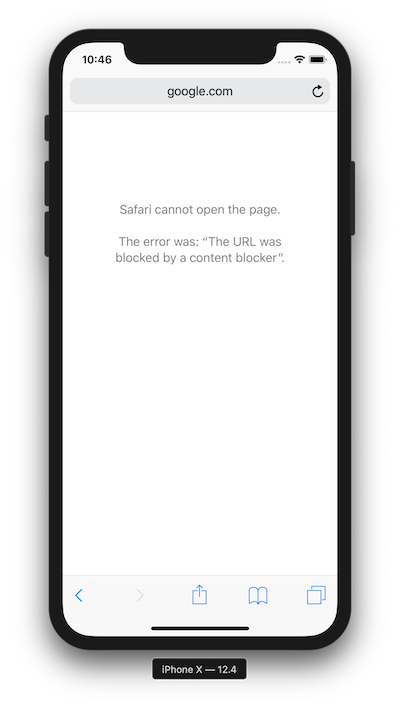
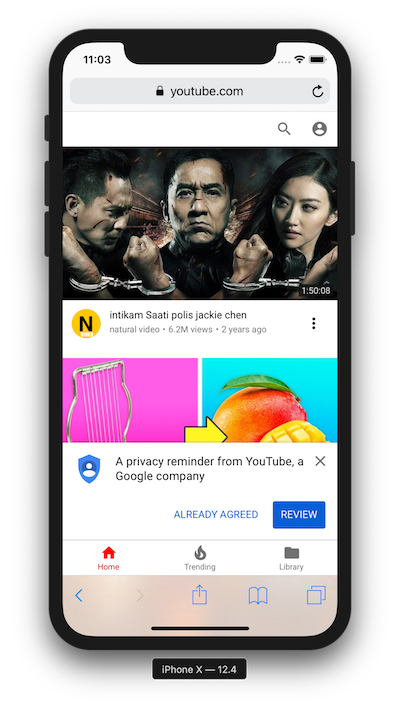
In this example, I blocked Google and hid the YouTube logo.
Final Test
I added a label, and I changed the background on ViewController so I wouldn’t have a blank screen on startup. Now let’s try to run it and see what happens on the simulator.
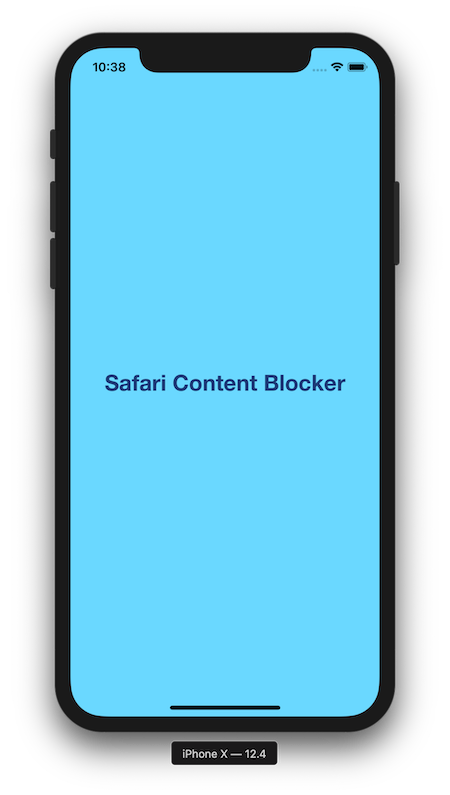
Our app is running, but if we open Safari, we can still open Google and YouTube still has a logo, right?
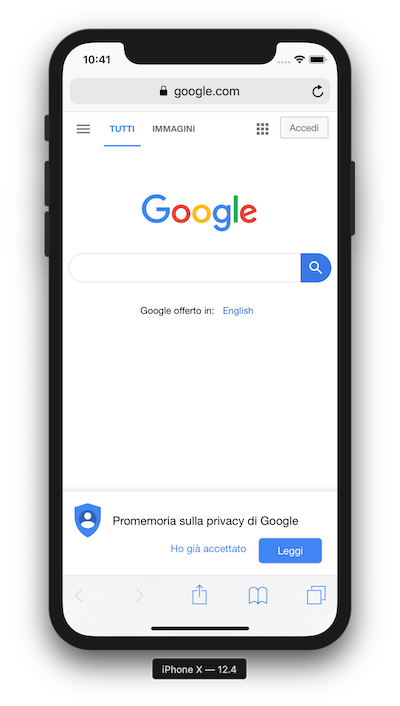
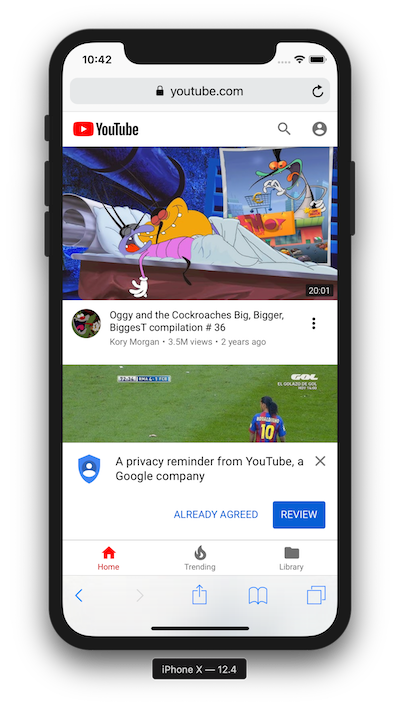
So what are we still missing to complete our content-blocker app? We need to configure Safari in order to use it.
Go in Settings → Safari → Content Blockers, and here we should see our app extension that needs to be enabled.
Then come back to Safari, and try again. Below you can see the results of our work.

You can find the full code HERE.
Future Improvements
In this guide, I explained how to configure a content blocker for Safari, but in this way, the rules are for static content inside the app bundle. What if after the app releases, we notice that we blocked Google for real instead of a scam website?
Right now we have to change the JSON file, upload a new build to AppStoreConnect, wait 24 to 48 hours for review, and then pray that our users upgrade to the last version before that they delete our app or leave us a 0-star rating.
How can we solve this?
We need to add logic on our main app (not in the extension) that downloads a list from a remote server (for an open-source project, for example, you can use GitHub). Save the file locally, and then refresh the Safari rules, calling the SafariContentBlocker method.
Do you think this is hard work? Don’t worry. it’s not! Try to take one step at a time, and if you have any problems, leave a comment below!


